How to Change Time Zone in Teams: A Complete Guide
Saving time and effort with Notta, starting from today!
Teams doesn't have its own time zone setting. To change your time zone in Microsoft Teams, update your operating system time zone (Windows Settings or Mac System Settings), then restart Teams completely. For calendar meeting times, change your time zone in Outlook at outlook.office.com under Settings > General > Language and time. Teams will sync automatically within 2-3 minutes.
If your meetings keep showing up at the wrong hour, learning how to change the time zone in Teams solves the problem fast. Teams reads your time zone from Windows, macOS, Outlook, and your Microsoft 365 account, so one mismatch can throw your whole schedule off.
This guide shows you how to fix each setting, get Teams to sync properly, and keep your meeting times accurate across every device.
Method 1: Change Your OS Time Zone
Windows and macOS use similar methods to set your time zone, but the exact steps differ slightly.
How to Change Time Zone in Windows 11
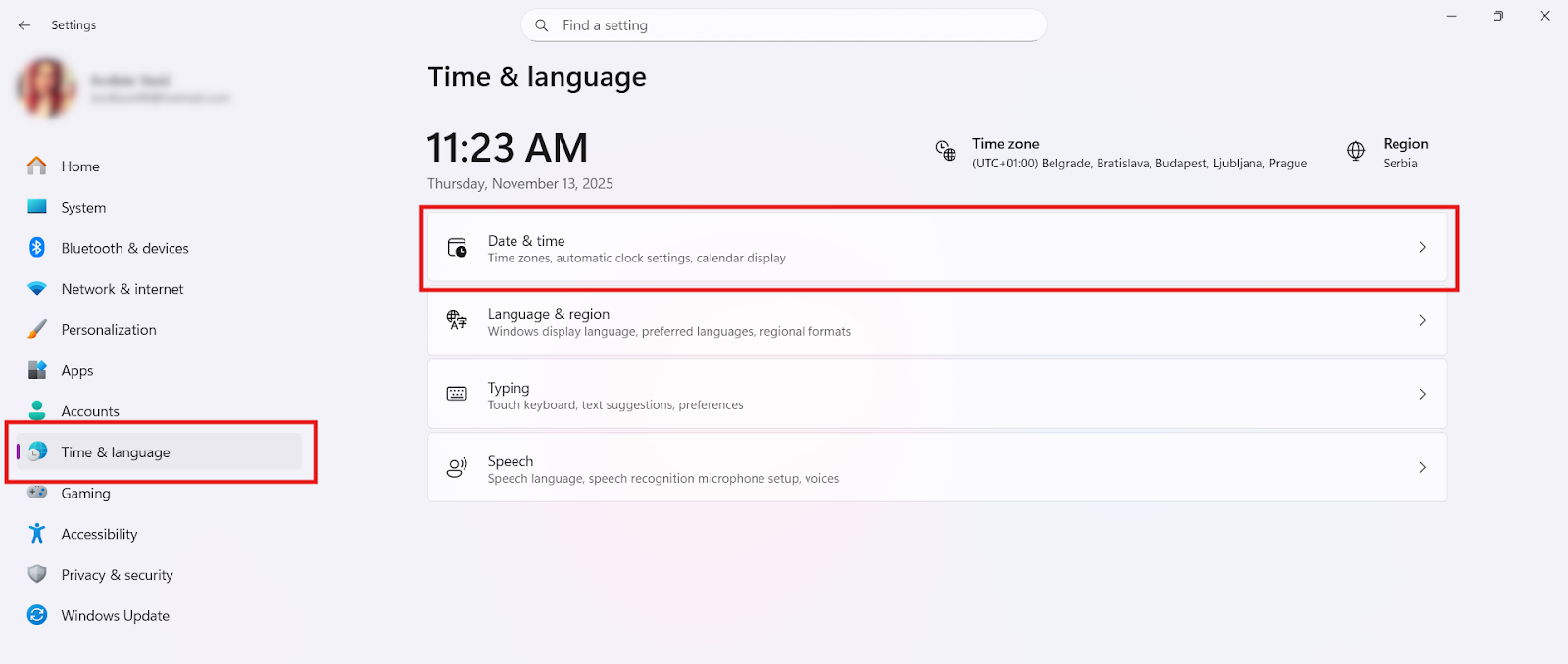
Start by opening ‘Settings’ from the Start menu (Windows icon). Go to ‘Time & language’ on the left side, then select ‘Date & time’ to open your time settings.
Turn on ‘Set time zone automatically’ if you want Windows to detect your location, or toggle it off and choose the desired time zone from the dropdown menu.
How to Change Time Zone on a Mac
To change your time zone on a Mac, open the Apple menu in the top-left corner and select ‘System Settings’. Scroll down the sidebar, choose General, then click ‘Date & Time’.
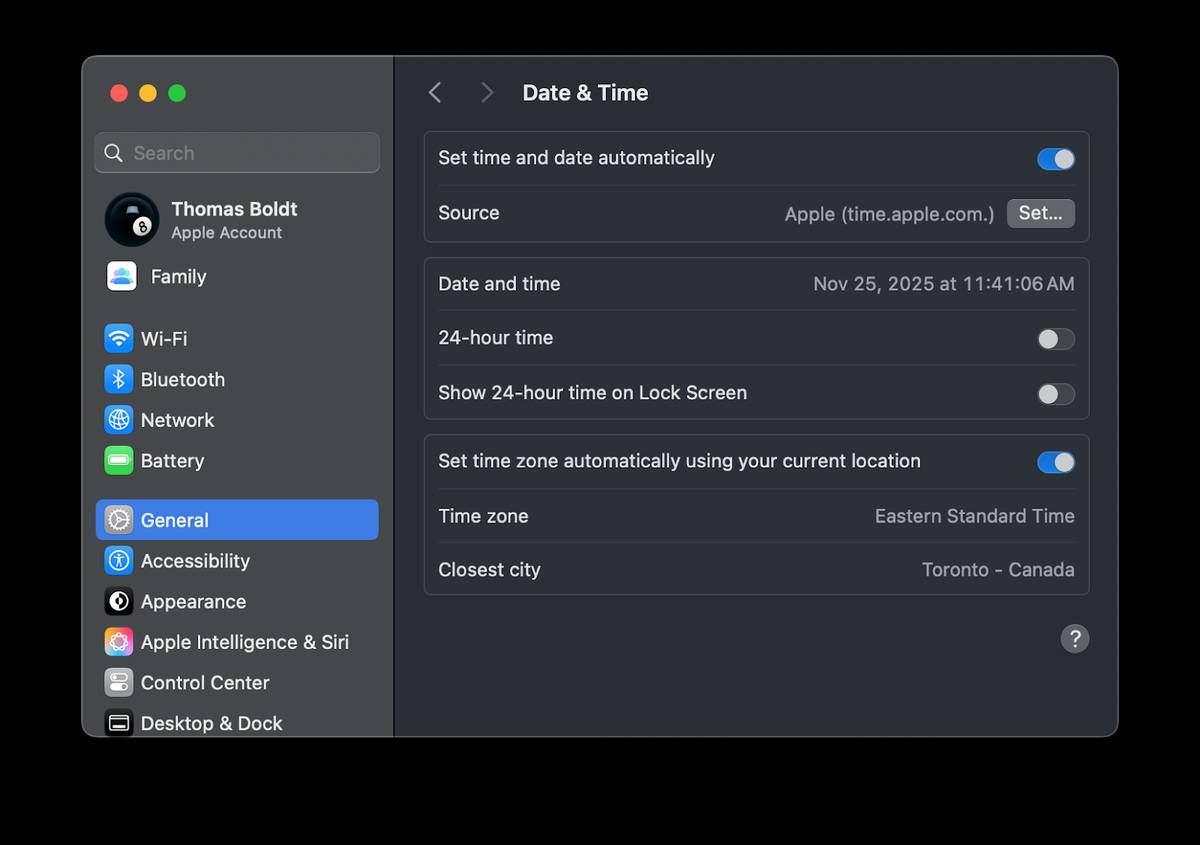 Turn off ‘Set time zone automatically using your current location’ if it’s enabled. Type your city (or the closest major city) into the search field and click ‘Return’ to apply the new setting.
How to Restart Teams to Force the Change
Sometimes Teams keeps old data in the background, even after you close the app window. A full restart clears those processes so Teams can reload your correct time zone, cache, and regional settings.
Quit Teams from the system tray by right-clicking the ‘Teams’ icon and selecting ‘Quit’. Reopen the app and sign in again so it loads your updated system settings.
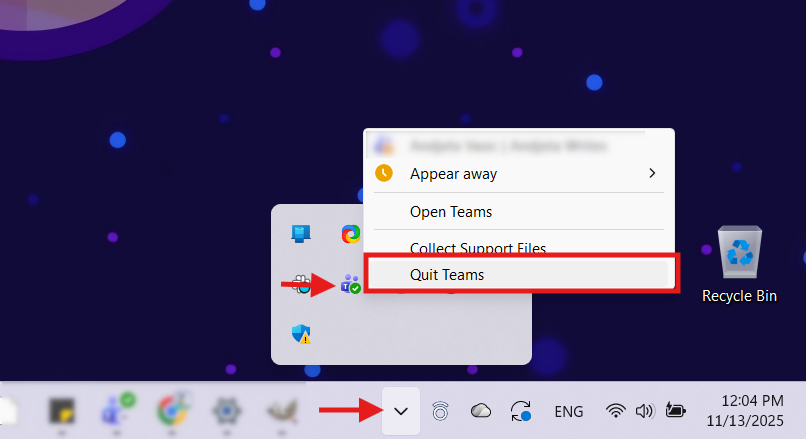
If Teams continues running in the background, you will have to force it to close.
On Windows (Task Manager):
Press ‘Ctrl + Shift + Esc’ to open Task Manager. Find ‘Teams’ or ‘ms-teams.exe’, select it, and choose ‘End task’ to shut Teams down completely.
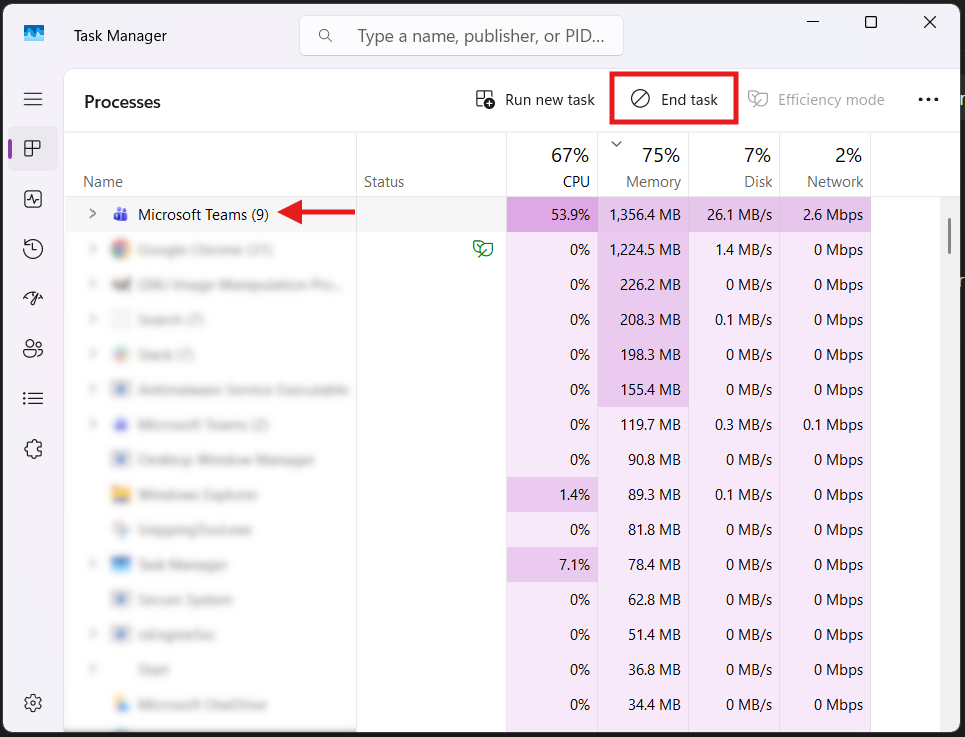
Open Teams again to refresh all settings.
On Mac (Force Quit):
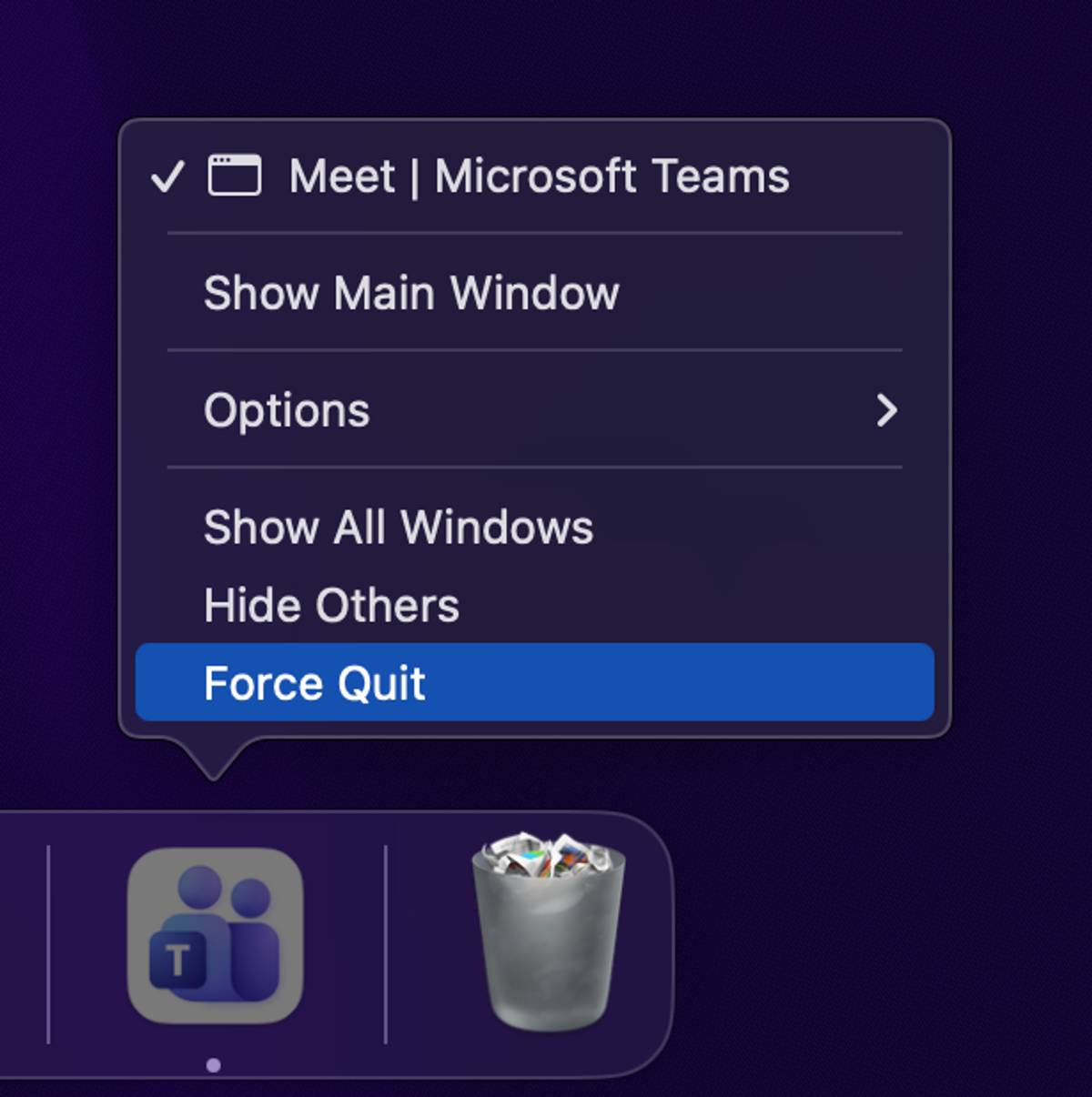
If Teams won't quit on a Mac, you can use the Force Quit command to shut it down. Right-click or Control + Click on the Teams icon in the Dock. Hold down the 'Option' key, and the 'Quit' menu command will change to 'Force Quit', as shown below.
Reopen Teams, and it reloads the correct time zone and regional data.
Method 2: How to Change Time Zone in Outlook & M365
We’ve already learned that Teams does not manage its own time zone. Every meeting you see in the Teams calendar comes directly from Outlook and your Microsoft 365 account settings. If Outlook is set to the wrong time zone, Teams will display the wrong meeting times even if your computer clock is correct.
Updating Outlook and your Microsoft 365 profile resolves the issue.
Why Your Outlook Calendar Time Zone Controls Your Teams Calendar
Outlook stores all meeting information, including dates, times, and the time zone. Teams simply reads this calendar instead of keeping a separate one. When Outlook uses the wrong time zone, Teams mirrors that mistake.
Fixing your Outlook settings will correct Teams immediately after a restart since both apps share the same data.
Step-by-Step: Changing Your Time Zone in Outlook on the Web
First, open Outlook on the web by signing in at outlook.office.com. Wait until your inbox or calendar loads, then select the ‘Settings’ gear icon in the top right. Open the ‘General’ tab, then select ‘Language and time’.
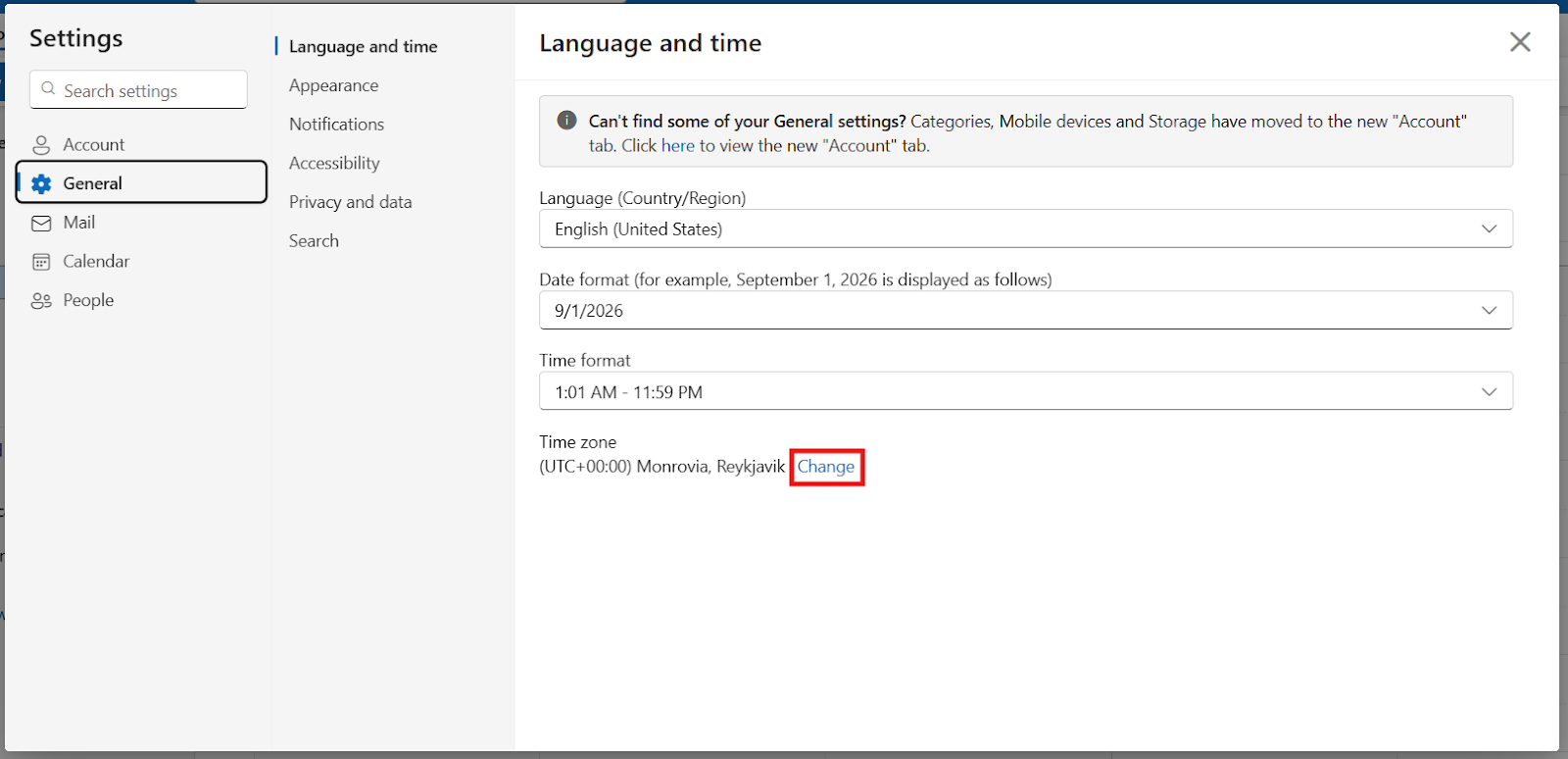
Next, choose the correct time zone from the dropdown and save your changes. After updating, close Outlook on the web, then restart Teams to refresh your calendar settings.
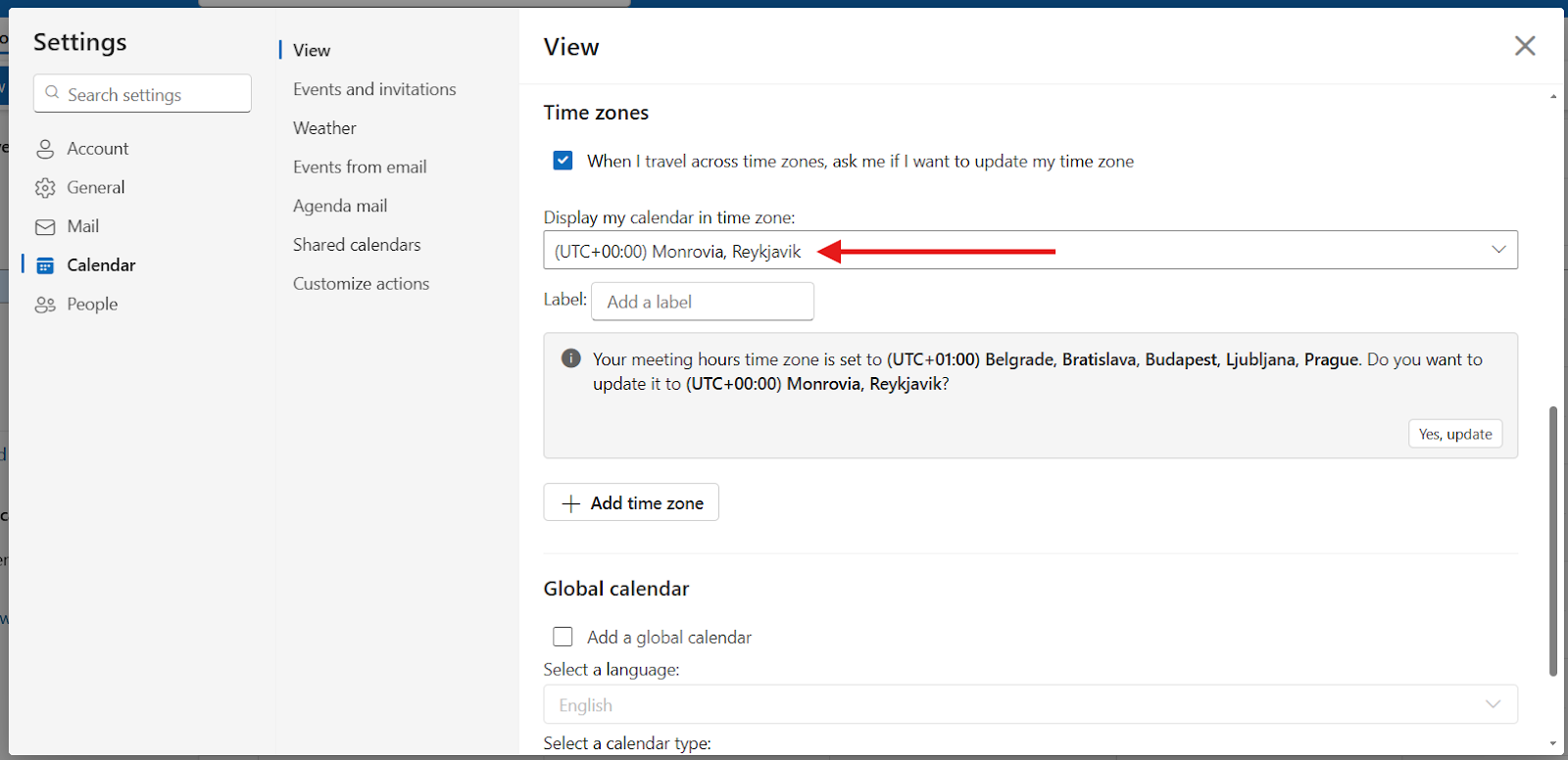
Note: If you’re wondering why the Global calendar option appears here (like I was), it only adds optional international or regional holiday calendars to Outlook. It doesn’t affect your time zone, meeting times, or how Teams displays your schedule, so ignore it.
Checking Your Core Microsoft 365 Account Profile Time Zone
If that doesn’t work, the next step is to take a closer look at your Microsoft 365 account. Your M365 profile also stores regional settings that can override Outlook and Teams.
Go to myaccount.microsoft.com and sign in. Open the ‘Settings & Privacy’ section, then find the regional settings.
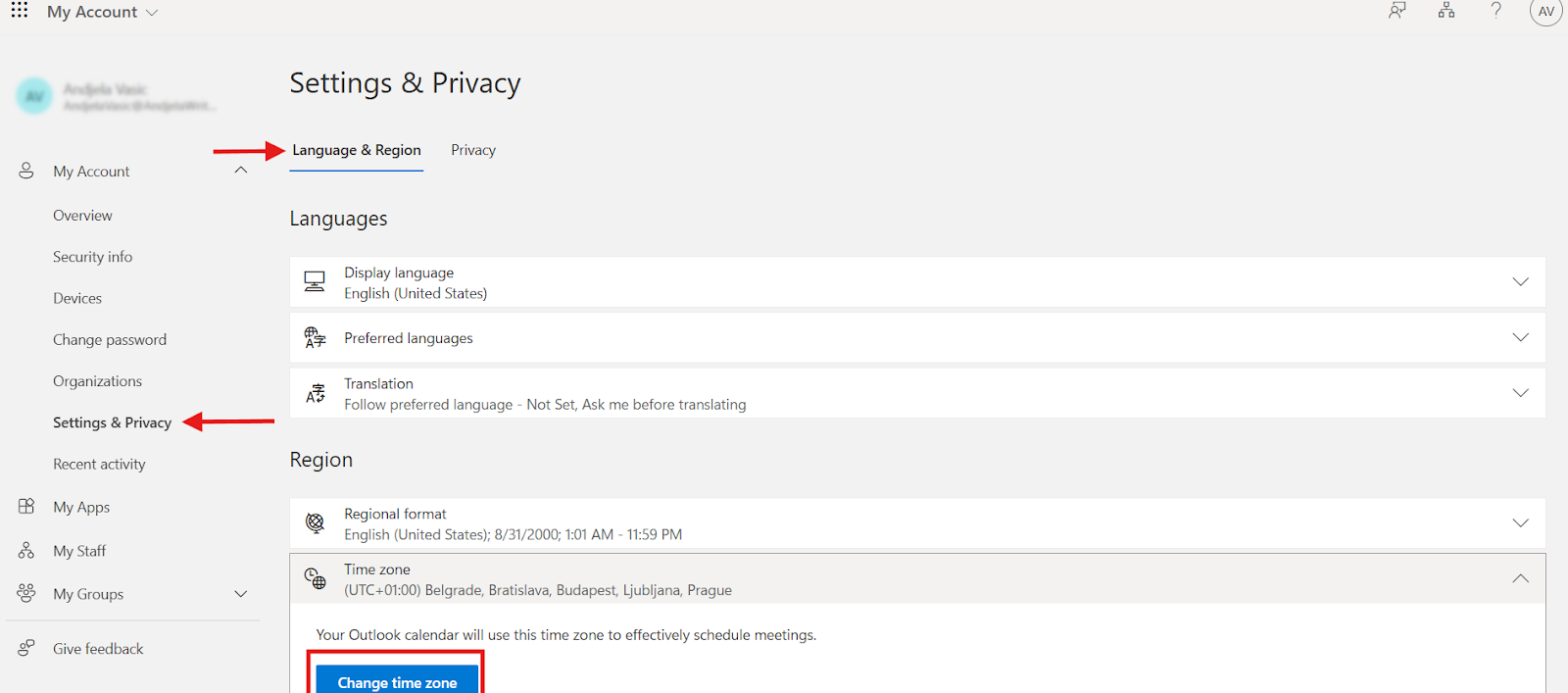
Make sure the time zone matches your device and Outlook. Save your changes and restart Teams so everything syncs properly.
Note: These regional settings are part of your Microsoft account, not Outlook. Even if Outlook shows the correct time zone, the Microsoft account settings can still override it.
Method 3: How to Change Time Zone in Teams on Mobile (iOS & Android)
Why Teams Mobile Relies Entirely on Your Phone Settings
Much like the desktop app, the Teams mobile app does not include its own time zone setting. It follows your phone’s system clock, so any change you make on iOS or Android immediately updates how meeting times, notifications, and message timestamps appear in the app. If Teams on mobile is showing the wrong time, fixing your device settings is the only way to correct it.
Changing Your Time Zone on an iPhone or iPad
Open ‘Settings’ and go to ‘General.’ Tap ‘Date & Time’ and check whether ‘Set Automatically’ is turned on. When this setting is enabled, your device pulls the correct time zone based on your location.
If you want to choose it yourself, turn off Set Automatically. Tap Time Zone, type your city into the search bar, and select the correct time zone from the list. After updating, open Teams to refresh and align it with your device’s new time zone.
Changing Your Time Zone on an Android Device
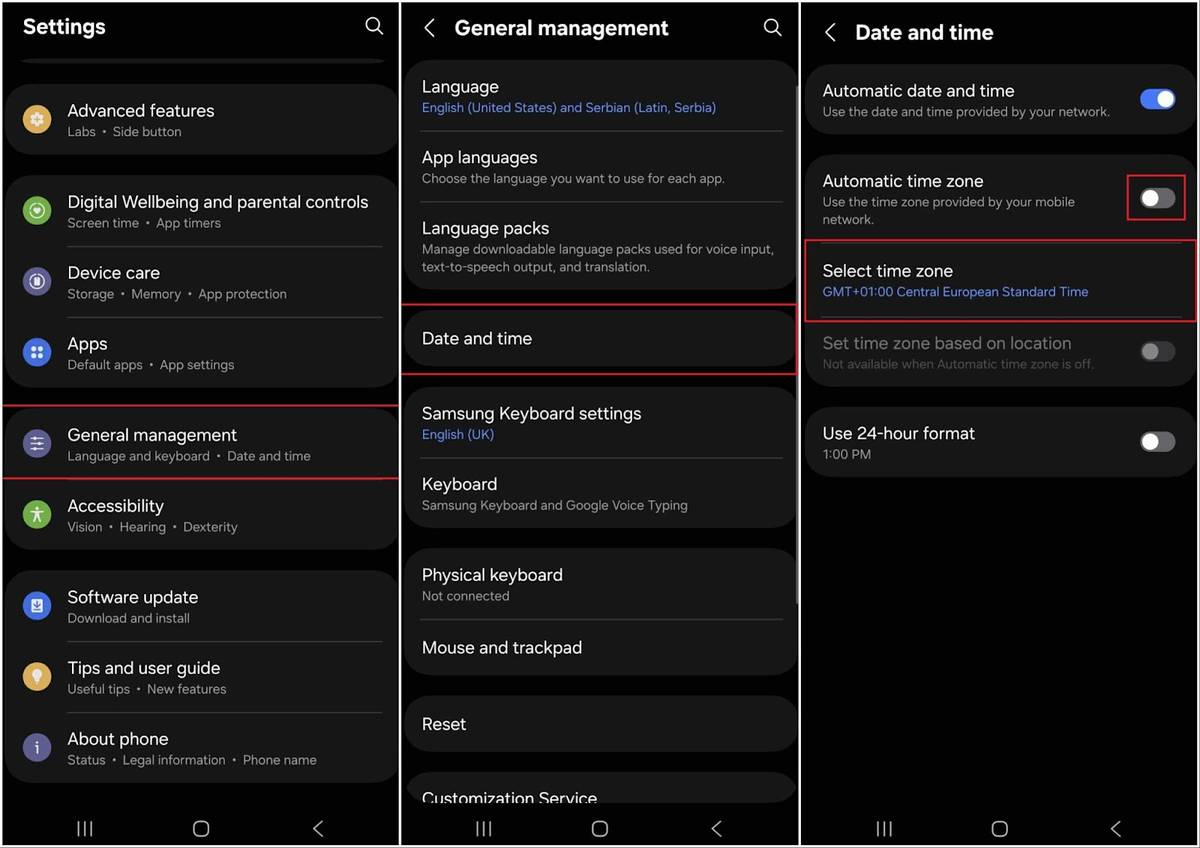
Open the Settings on your Android and scroll down to ‘General Management.’ Tap ‘Date and time.’ Turn on ‘Automatic date and time’ and ‘Automatic time zone’ so your phone uses the correct local time from your network.
To set the time zone manually, turn off ‘Automatic time zone’ and tap ‘Select time zone.’ Pick the correct one from the list. Reopen Microsoft Teams after you make the change so the app syncs with your updated time information.
Automate Your Meeting Attendance with Notta in Any Time Zone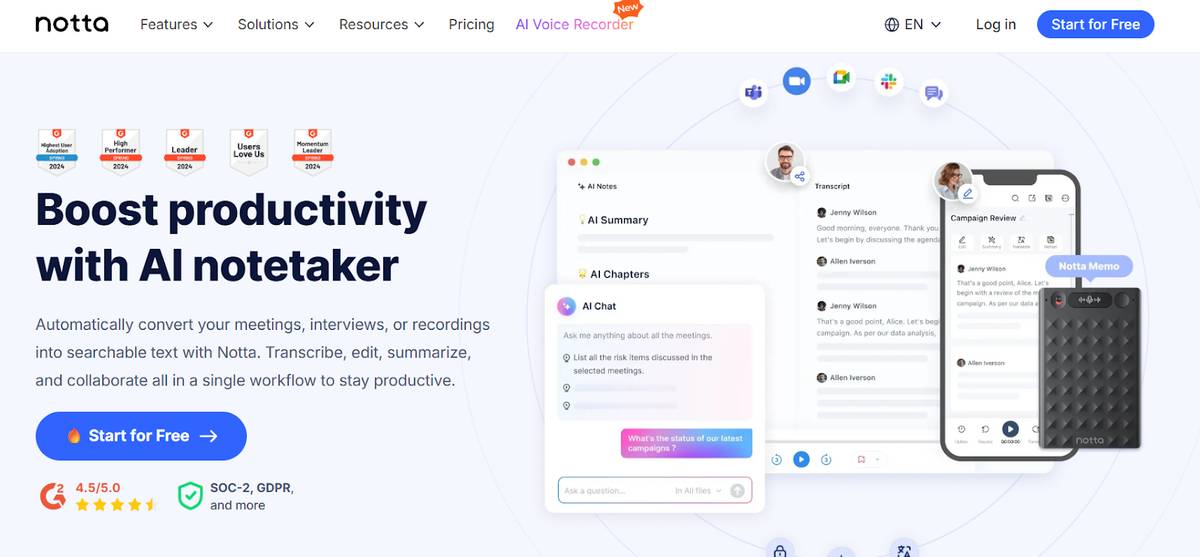
People switch time zones more often than they realize. Remote teams travel, digital nomads work from airports, and hybrid workers move between devices that don’t always sync perfectly. One wrong setting in Windows, Outlook, or Teams is enough to shift your entire schedule by hours.
Notta solves that problem by relying on your cloud calendar, not your device clock. Once Notta Bot is invited to a meeting, it joins automatically at the scheduled time in your calendar, even if you’re dealing with a time zone mismatch.
You don’t need to adjust anything or worry about missing the start of your meeting. As a result, you still get a full transcript, summary, and action items, keeping you safe from any scheduling mishaps.
For people who travel often or work across multiple time zones, Notta acts like a safety net. You can reset your clock later, but Notta will already be in the meeting, taking perfect notes for you.
Troubleshooting Common Teams Time Zone Problems
Time zone issues in Microsoft Teams come from a mismatch between your device clock, your Microsoft 365 account, and cached app data. Teams will display the wrong meeting times when one of these is out of sync. The fixes below walk you through the most common problems and how to get Teams back on track quickly.
What to Do if Your Teams Time Zone Setting is Greyed Out
Teams uses your system clock. A greyed-out option means Teams is pulling everything from Windows or macOS. Open your device settings and check your region, time, and automatic time sync. Restart Teams after updating the system clock.
Note: In some organizations, admin policies can lock certain profile settings (including time zone) in Microsoft 365.
How to Fix a Teams Calendar That Shows the Wrong Meeting Times
Open Outlook or your web calendar and check the time zone there. Teams uses your Microsoft 365 account settings. If Outlook shows a different time zone than your computer, update it so both match. Close Teams, clear the cache, and reopen it. Your meeting times update within 2-3 minutes.
My Teams Time Zone Is Wrong, but My Computer Is Right?
Log out of Teams and sign back in. It forces Teams to read your system zone again. If it still shows the wrong time, check Outlook on the web because your Microsoft 365 profile overrides local settings. Update the time zone in your Outlook web profile and refresh Teams.
How to Clear the Teams Cache to Force a Sync
Clearing your Teams cache removes outdated local data and forces the app to reload fresh settings from your Microsoft 365 account. It’s one of the fastest ways to fix time-zone sync issues when Teams keeps showing the wrong time, and it won’t delete your chats or scheduled meetings.
Quit Teams.
Press ‘Windows + R’ and enter: %appdata%\Microsoft\Teams
Delete the folders: Cache, databases, GPUCache, IndexedDB, and Local Storage.
Restart Teams and sign in again. Clearing the cache forces Teams to rebuild its settings and sync your correct time zone.
Pro Tip: Clearing these folders won’t delete your chats or meetings.
Why Is My Teams Time Zone Wrong?
Your computer clock, your Microsoft 365 account, and Outlook all store their own time-zone preferences. If even one is off, your meetings show the wrong time. Location services can add another layer of chaos when you travel, because your device may update automatically while your Microsoft account does not. A mismatch anywhere in this chain creates the “wrong time zone” issue most people run into.
Frequently Asked Questions (FAQs)
How do I change time zone in Teams for just one meeting?
You change the time zone in Teams for just one meeting by editing the event in Outlook or Outlook on the web. Open the meeting, switch the time zone in the meeting details, and save it. The update applies only to that meeting, and your main time zone stays the same.
Why did Microsoft remove the time zone setting from the new Teams app?
Microsoft removed the time zone setting from the new Teams app because Teams was showing different times than Windows and Outlook, and the duplicate settings caused constant conflicts. Teams uses your device clock and your Outlook calendar, so meeting times stay consistent across all Microsoft apps.
Does changing my time zone in Teams affect my sent message timestamps?
Changing your time zone in Teams doesn’t affect your sent message timestamps. Messages always show in the viewer’s local time, not the sender’s. When you change your own time zone, only your personal view of timestamps updates, while everyone else continues to see the message times based on their own device and regional settings.
How long does it take for the new time zone to sync in Teams?
Time zone changes should sync in Teams within 2-3 minutes. You can also restart Teams to force it to synchronize your time zone changes immediately.

