
How to Change Zoom Backgrounds: The Complete Guide
Saving time and effort with Notta, starting from today!
To change your Zoom background, click the arrow next to ‘Video’ in the meeting toolbar, select ‘Adjust background & effects,’ then choose ’Blur,’ a preset background, or upload a custom image.
You can also change your background before starting a meeting through ‘Settings,’ then ‘Video & effects,’ and ‘Virtual backgrounds’ on desktop, or by tapping the ‘Effects’ icon in the mobile app.
This step-by-step guide shows you the entire process from start to finish.
What Are Zoom Virtual Backgrounds?
Zoom virtual backgrounds replace your physical environment with an image, video, or blur effect during meetings. The software uses AI segmentation to detect your outline and overlay the new background while keeping you visible in the foreground.
Use Zoom virtual backgrounds to control what appears behind you on camera without changing your physical environment. They help protect your privacy, reduce visual distractions, maintain a professional or on-brand appearance, and create a consistent look when you join meetings from different locations.
How Do You Enable Virtual Backgrounds in Zoom?
You must enable the virtual background feature in the Zoom web portal before using it in the app. Zoom turns on virtual backgrounds by default for most users, but if the option appears grayed out, you need to switch it on manually.
To enable virtual backgrounds for your account:
Log in to your account on the Zoom website.
Select ‘My account’ from the left navigation panel, then click ‘Settings.’
Open the ‘Meeting’ tab at the top of the page.
Click ‘In Meeting (Advanced)’, then scroll to ‘Virtual background’ and toggle it on.
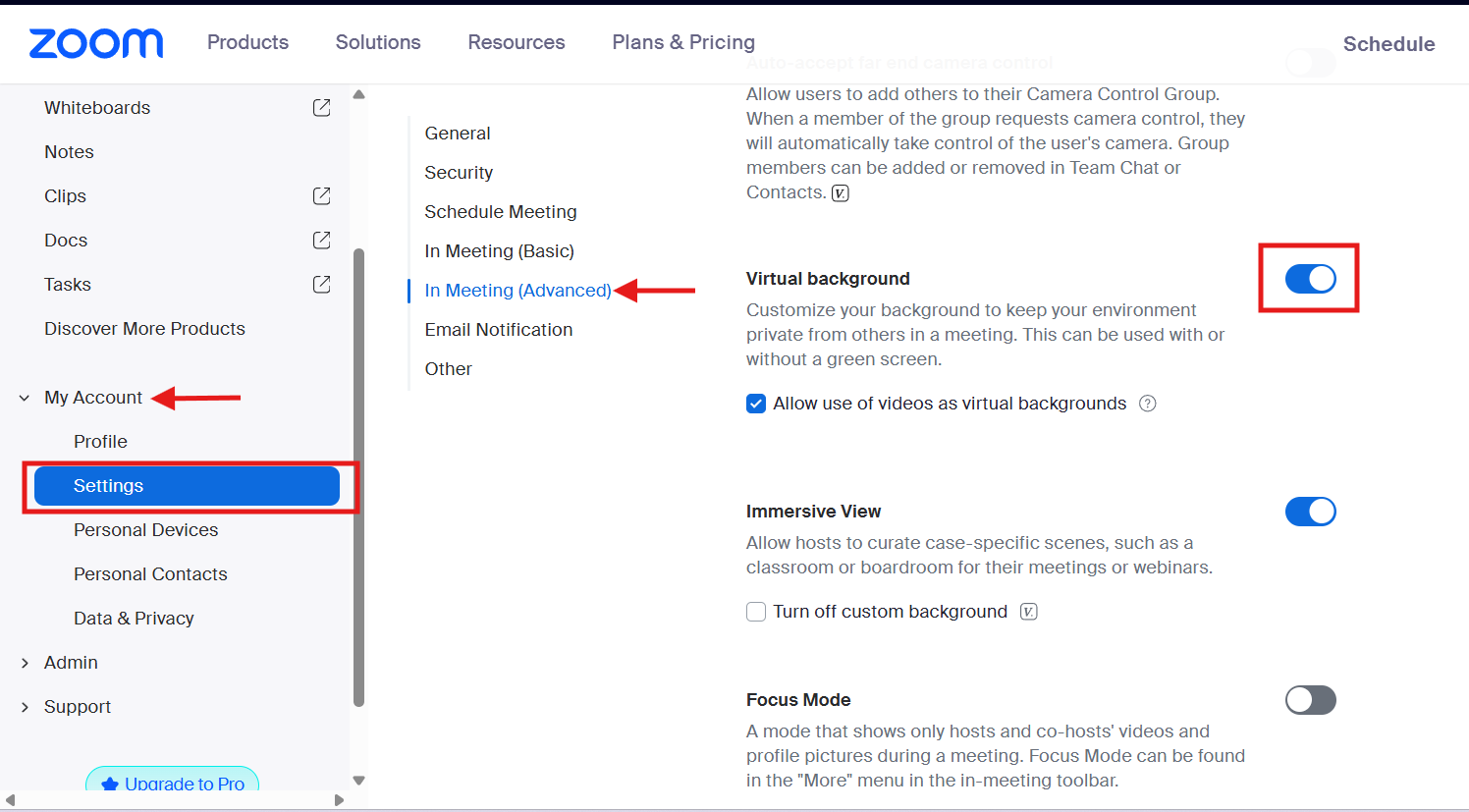
Changes take effect immediately in both the desktop and mobile apps. If you’re part of an organization and the option is still grayed out, contact your Zoom admin. They may have locked virtual backgrounds at the account or group level.
How to Change Zoom Background on Desktop (Mac and Windows)?
You can change your Zoom background on desktop before or during a meeting on both Mac and Windows. Before a meeting, open the Zoom app, go to ‘Settings’, then ‘Video & effects’ to choose blur, a preset, or a custom background. During a live meeting, click the arrow next to ’Video’ and select ‘Adjust background & effects.’
How Do You Change Zoom Backgrounds Before a Meeting Starts?
To change Zoom backgrounds before a meeting starts, open the Zoom desktop app on your computer. In the top-right corner, click your profile picture or initials to open the account menu, then select ‘Settings.’
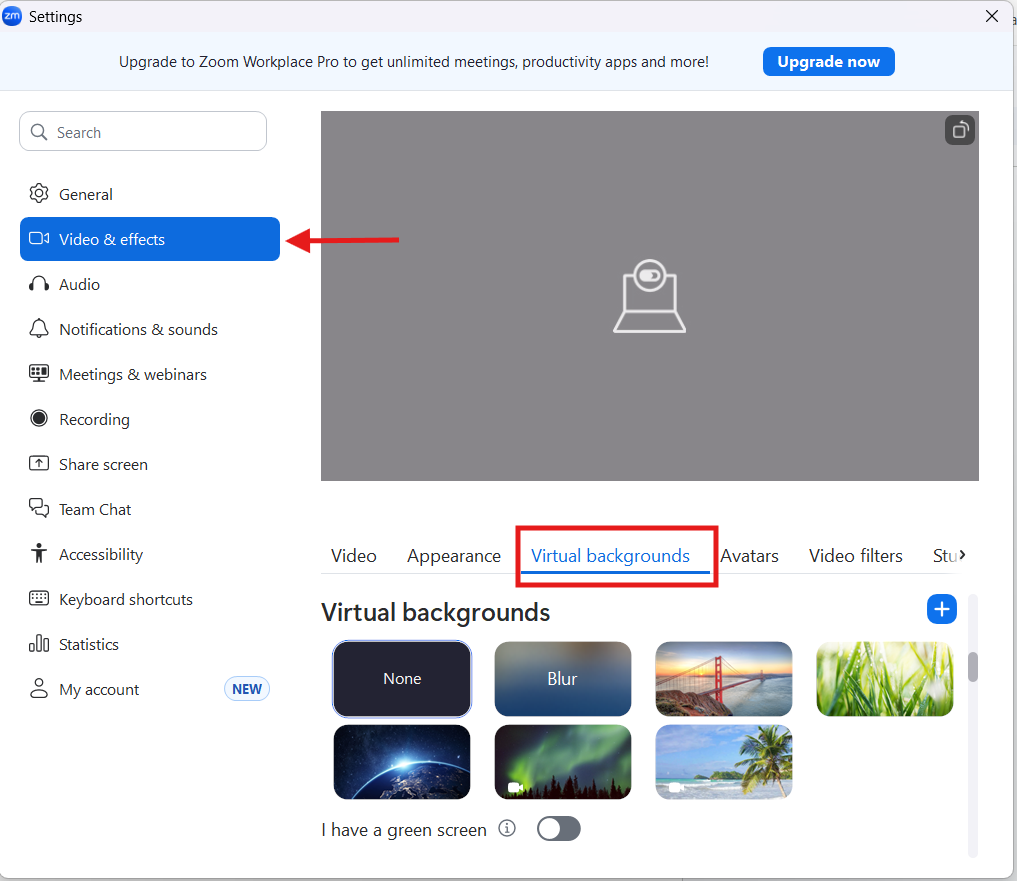
In the left sidebar, click ‘Video & effects.’ Navigate to the ‘Virtual backgrounds’ tab, where you can blur your background, upload your own image or video, or choose from Zoom’s preset backgrounds.
How Do You Change Zoom Backgrounds During a Live Meeting?
To change your background during a meeting, click the small arrow next to ‘Video.’ Select ‘Adjust background & effects’ from the menu.
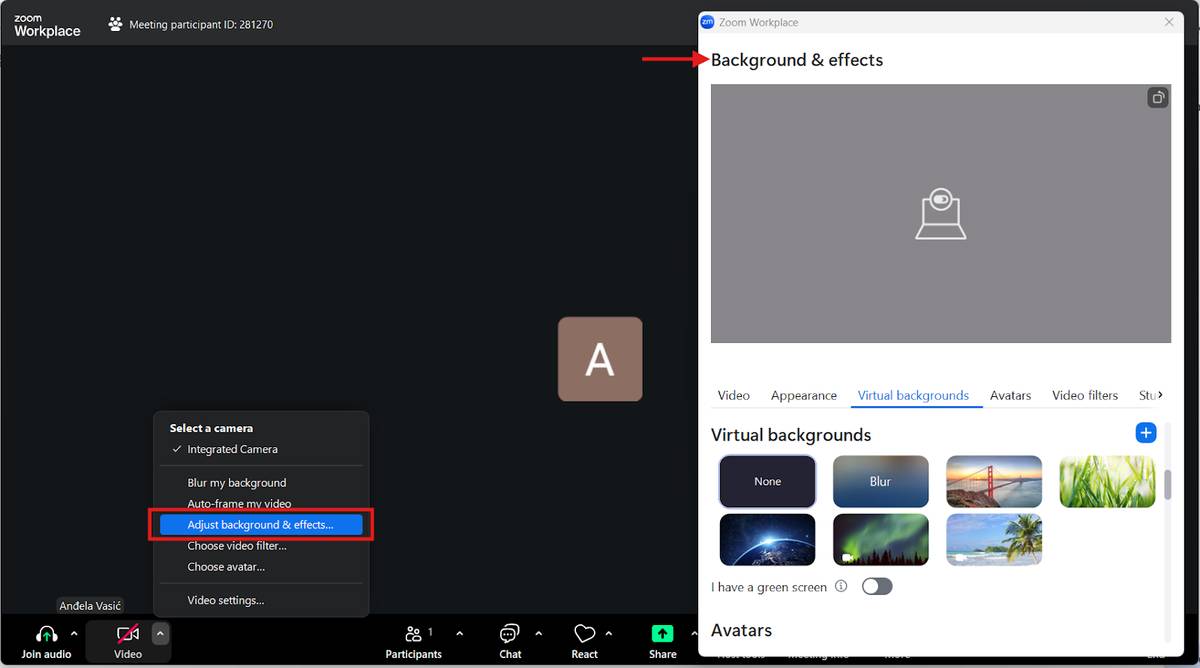
Zoom opens the ‘Background & effects’ panel, where you can blur what’s behind you, pick a preset image, or upload your own virtual backgrounds.
How Do You Use the Blur Background Feature on Zoom Desktop?
To use the Blur background feature on Zoom desktop, open ‘Settings,’ go to ‘Video & effects,’ and select ‘Blur’ under ‘Virtual backgrounds.’ You can also turn it on during a meeting by clicking the arrow next to ‘Video,’ selecting ‘Adjust background & effects,’ and choosing ‘Blur.’ The effect applies instantly.
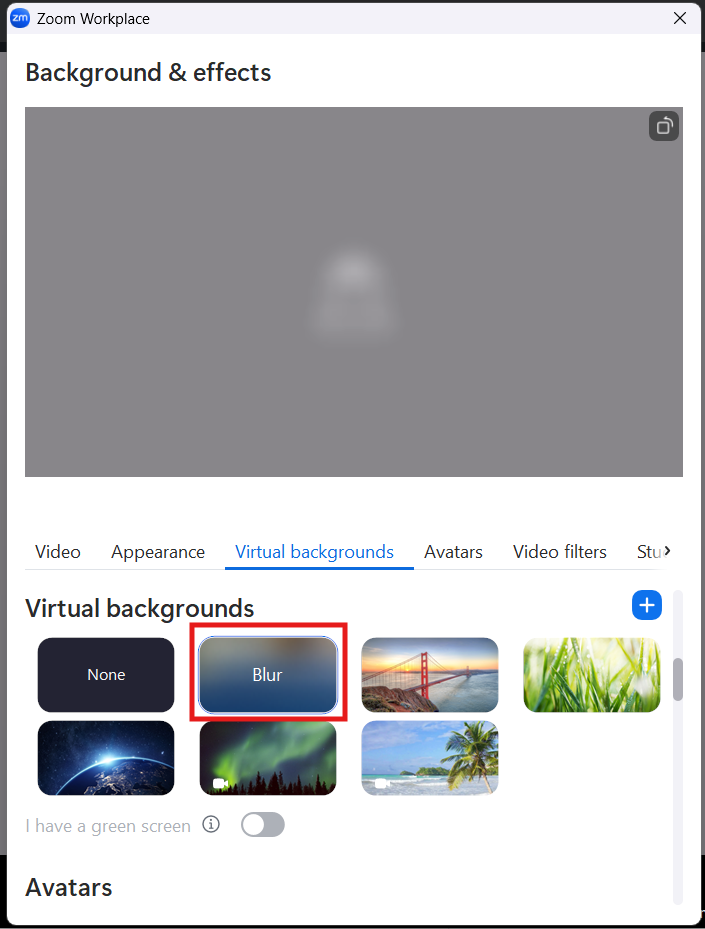
Blurring your background is a practical option when you don’t want to use a full virtual background image. It keeps you in focus while softly blurring and hiding what’s behind you. This looks more natural than a static background and still maintains your privacy.
How Do You Change Zoom Backgrounds on Mobile?
To change your Zoom background on mobile, join or start an instant meeting to open the pre-join preview screen. Tap the ‘Effects’ icon in the top-right corner (a small square icon with a profile outline).
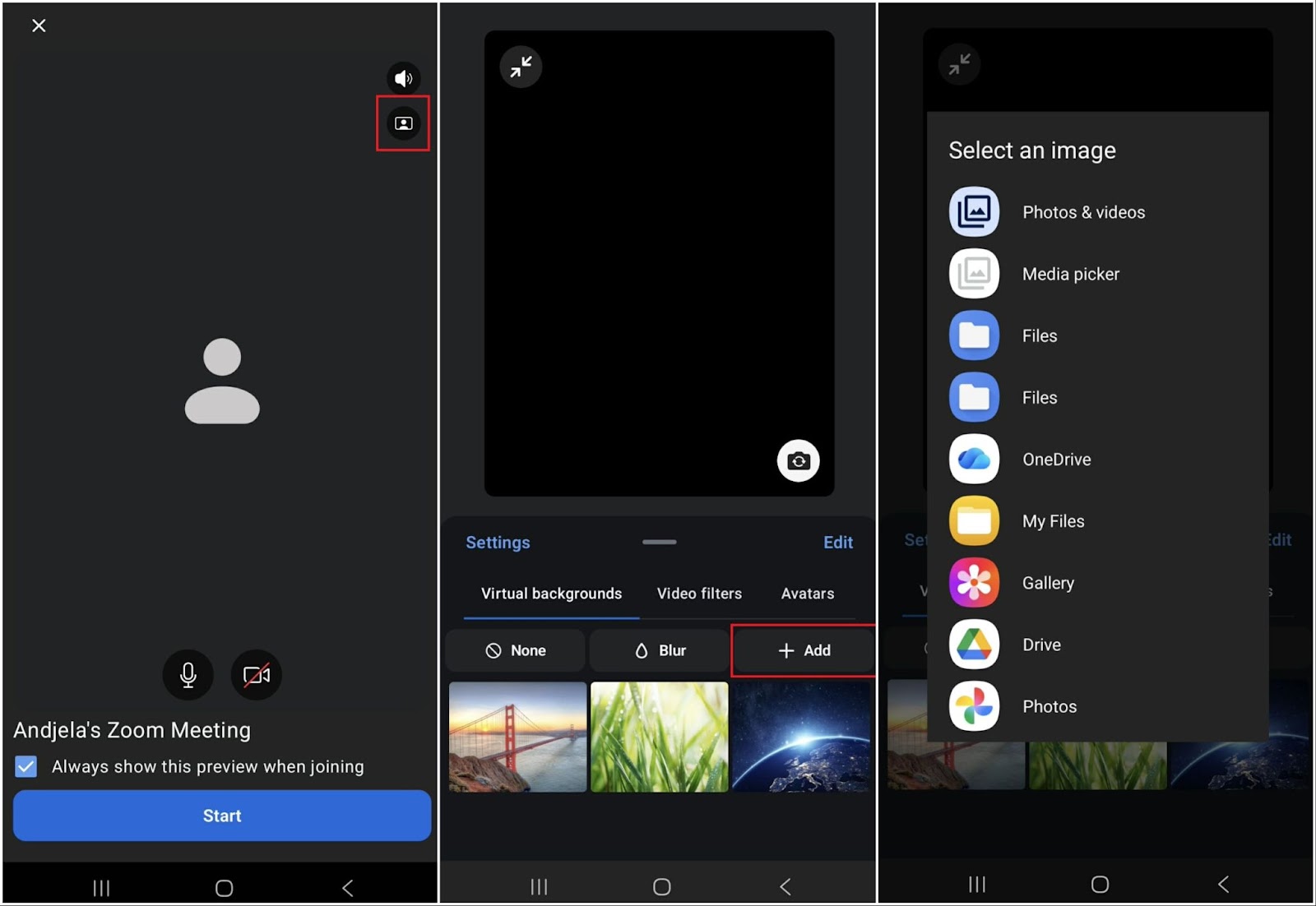
Tap ‘Virtual backgrounds’ and blur your background or choose from a few default background options. If you want to upload a custom background from your phone, tap ‘Add’ to select an image from your gallery.
How Do You Add Custom Images and Videos as Zoom Backgrounds?
To add custom images or videos as Zoom backgrounds on desktop, open ‘Settings’ and go to ‘Video & effects,’ then open the ‘Virtual backgrounds’ tab. Click the ‘plus’ (+) icon next to the default background images. Select ‘Add image’ or ‘Add video,’ then upload a file from your computer.
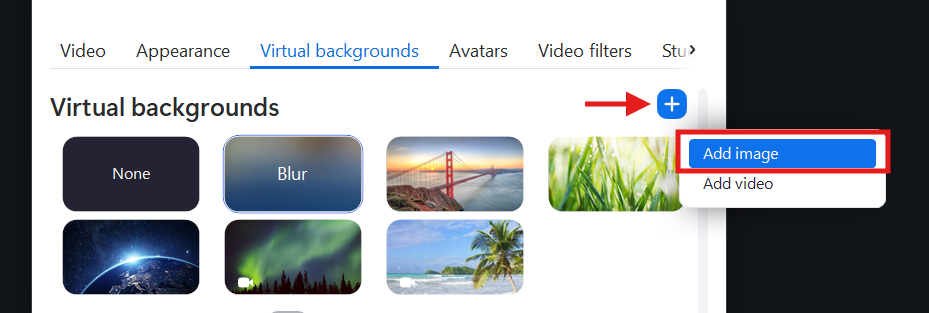
On mobile, tap ‘Add’ in the ‘Virtual backgrounds’ tab and choose your own background image or video from your phone.
Adding custom images and videos is useful when you need consistent branding, a more polished look for client meetings, or motion backgrounds for events and webinars.
What Are the Recommended Size and Dimensions for Zoom Backgrounds?
Zoom recommends cropping your image to match your camera’s aspect ratio to avoid stretching or unwanted cropping. Webcams use a 16:9 ratio as the industry standard, which is why Zoom commonly suggests sizes like 1280 × 720 pixels (HD) or 1920 × 1080 pixels (Full HD) for maximum resolution and visual clarity.
These dimensions work for both image and video backgrounds, with videos supported in MP4 or MOV formats. Matching the aspect ratio to your camera ensures the background fills the frame naturally without distortion, regardless of whether you’re on desktop or mobile.
Can You Use Zoom Virtual Backgrounds Without a Green Screen?
Yes, you can use Zoom virtual backgrounds without a physical green screen. Zoom uses AI segmentation to detect the outline of your body and separate you from your background. AI analyzes color, light, and depth cues in real time to create a clean cut-out without a solid backdrop.
Low light, busy patterns, and matching colors between clothing and background reduce quality, causing fuzzy edges, disappearing hair, and a flickering background when you move.
When Should You Use a Physical Green Screen for Zoom Backgrounds?
A physical green screen helps when you want the sharpest virtual background. Zoom uses chroma keying with a green screen, which removes a single saturated color instead of guessing the boundary between you and the room. It gives cleaner edges, better detail around hair, and fewer glitches when you move or lift objects.
AI background removal works for standard video calls. A green screen provides more consistent results for public-facing meetings, webinars, and recorded content.
| Feature | Without Green Screen | With Physical Green Screen |
|---|---|---|
| Edge Quality | Fuzzy edges, especially around hair | Sharp, clean edges |
| Setup Requirements | None | Requires a physical green backdrop |
| Lighting Sensitivity | High; poor lighting causes issues | Moderate; consistent backdrop helps |
| CPU/GPU Usage | Higher due to AI segmentation | Lower due to simple color removal |
| Movement Performance | Occasional flickering | Stable and consistent |
| Cost | Free | $10-100 for green screen |
| Best For | Casual meetings, quick calls | Professional recordings, webinars |
Pro Tip: Your green screen doesn’t actually have to be green. Any solid color with strong contrast works, but green performs best because digital cameras detect it more accurately and it rarely appears in skin tones.
What Are the System Requirements for Virtual Backgrounds?
The Zoom virtual background feature requires specific hardware, depending on whether you use a physical green screen. Without a green screen, you need a 64-bit Windows or macOS system with an Intel Core i3 or higher or AMD Ryzen processor. Mobile users need Android 8.0 or iPhone 8 or newer.
Using a virtual background without a green screen requires more processing power because Zoom has to separate you from the background in real time.
Check Zoom’s official system requirements page for full details.
Note: All devices must be running the 'global minimum version' of the Zoom app or higher to use virtual backgrounds.
Why is the Zoom Virtual Background Not Working?
Zoom virtual backgrounds don’t work when your device doesn’t meet the system requirements, when an admin disables the feature in the Zoom web portal, or when your app runs an outdated version. Poor lighting and weak hardware can also prevent background removal from working properly. Always check your account settings and device compatibility first.
Why is the Zoom Background Blending with My Hair or Clothes?
Zoom backgrounds blend with your hair or clothes if your clothing is the same color as your background, or when your room has poor or uneven lighting. The software uses contrast to separate you from the background, so dark rooms, busy patterns, and low camera quality make it harder to detect clean edges.
Wear solid, high-contrast colors and improve your lighting to get a cleaner background.
Pro Tip: Use a desk lamp or a small ring light to reduce shadows and improve background separation. Position it at a 45-degree angle in front of you, slightly above head height.
How Does Notta Enhance a Zoom Meeting?
Notta enhances your Zoom meetings by creating AI-powered notes automatically so you can focus on the conversation. It automatically joins your call, transcribes it in real time with up to 98.86% accuracy, and turns the conversation into custom notes with speaker labels, timestamps, key points, and action items.
It also supports 58+ languages, while Zoom’s built-in transcription supports up to 33.
Zoom only generates transcripts after the meeting ends, and processing can take several minutes or up to 24 hours, depending on the meeting length, server load, and processing priority. Notta transcribes live during the meeting, and your full transcript and custom notes are available right after the call ends.
Enhance your next Zoom meeting with Notta, and you'll get live transcripts and ready-to-use notes as soon as the meeting ends. Sign up for a free account today!
Frequently Asked Questions (FAQs)
Why is the virtual background option grayed out in my settings?
The virtual background option is grayed out in your settings when the feature is disabled at the account or group level in Zoom settings. Admins can lock virtual backgrounds for the entire organization, so you won’t be able to turn them on yourself. It can also appear grayed out if your desktop client is outdated, because older versions don’t support background effects without a green screen.
Does Zoom have built-in background filters I can use?
Yes, Zoom includes several built-in background filters you can use. Filters include blur, static images, video backgrounds, and studio effects (video filters) for eyebrows, lip color, and lighting adjustments. You can find them under ‘Background & Effects’ on desktop and mobile Zoom apps.
Can I change my Zoom background if I am not the host?
Yes, you can change your Zoom background even if you aren’t the host. Virtual backgrounds are user-level settings, so each participant controls their own background as long as an admin doesn’t restrict the option.
Will using a virtual background slow down my computer?
Yes, using a virtual background can slow down your computer, especially if you’re not using a green screen. Background replacement requires additional CPU/GPU processing, and entry-level or outdated devices can lag or reduce video quality.
How do I turn off the virtual background when I am done?
To turn off your virtual background when you’re done, open ‘Settings,’ then ’Virtual backgrounds’ under ‘Video & effects,’ and select ‘None.’ On mobile, tap the ‘Effects’ icon during the meeting, and select ‘None’ under ‘Virtual backgrounds’ to return to your real environment.

