How to Create a Zoom Meeting Link
Saving time and effort with Notta, starting from today!
A Zoom link is the one-click doorway that lets anyone join your call from their computer or phone. You can generate it from the desktop app, your browser, or your mobile device.
In this guide, you’ll learn how to create a Zoom meeting link and share it with the people who need to join, as well as how to secure your link and make your Zoom calls more efficient and organized.
What is a Zoom Meeting Link?
A Zoom meeting link is a clickable URL that connects participants directly to your video call. The link contains your meeting ID and reflects the security settings you chose (passcode or Waiting Room). To create a Zoom meeting link: open Zoom, schedule or start a meeting, configure your settings, and copy the link to share via email, chat, or calendar.
In other words, a Zoom meeting link is the clickable URL you share so others can join your video call. When someone clicks on your link, Zoom connects them directly to your meeting so everyone gathers in the same virtual space. It works on computers, laptops, phones, and tablets, making it easy for anyone to join quickly.
How Do You Create a Zoom Meeting Link on Desktop?
Creating a Zoom meeting link takes 3-4 simple steps on any device. Open your Zoom app or browser, schedule a meeting with your preferred date and time settings, and copy the generated URL to share. Each method takes under 2 minutes and works on desktop, web, or mobile platforms.
Step 1: Schedule a Future Meeting to Generate a Link
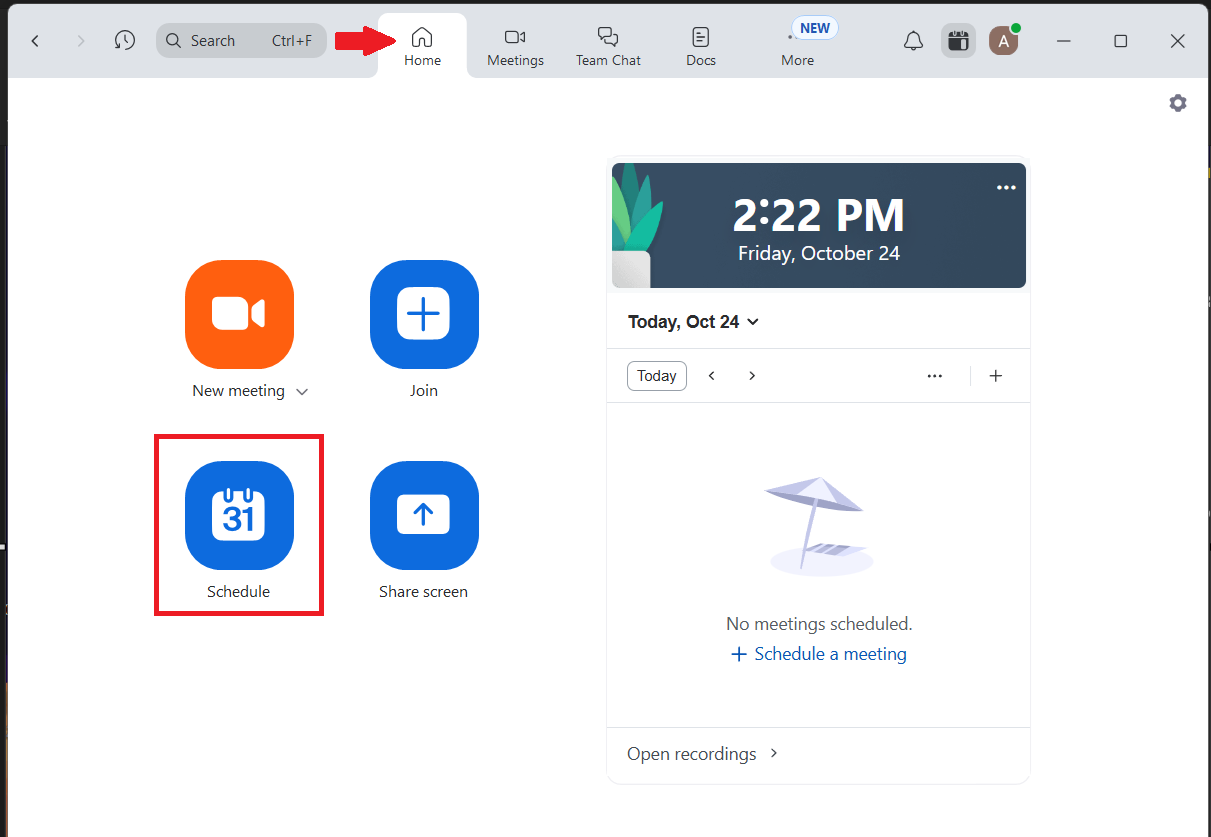
Start by opening the Zoom desktop app. Click the ‘Schedule’ button (it’s the calendar icon) on the home screen. A new window will open so you can configure meeting details.
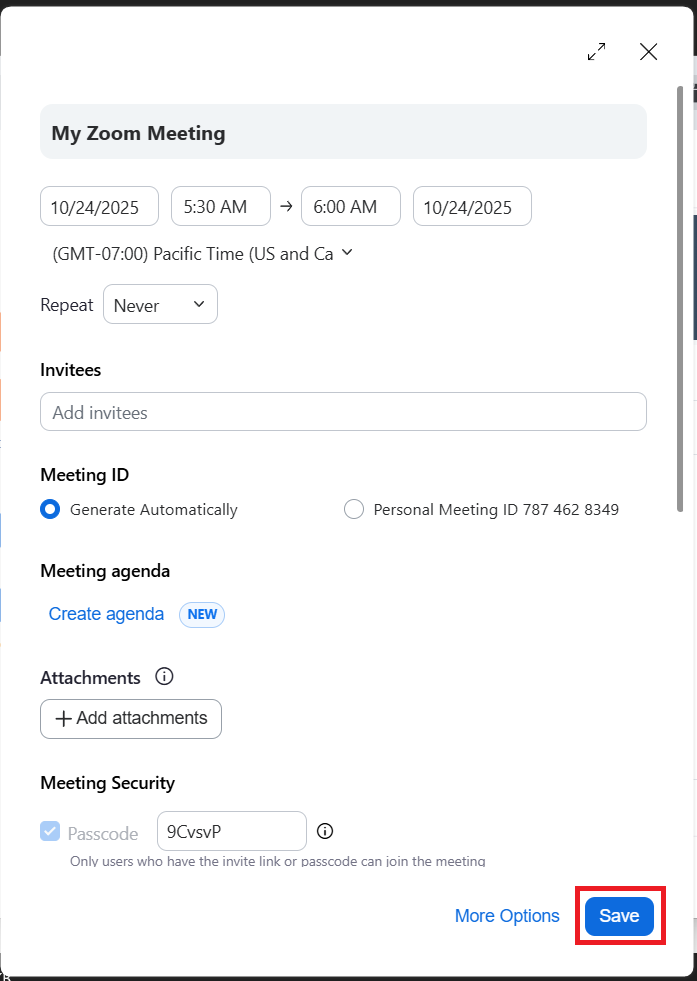
Step 2: Configure Your Meeting Settings (Date, Time, Security)
Choose the date and time for your meeting, and add invitees if you want to send the link immediately. Decide whether Zoom should generate a new Meeting ID or use your Personal Meeting ID (more on that later).
For your first Zoom meeting, let Zoom automatically generate a new Meeting ID.
Adjust security settings by adding a passcode or waiting room to control who can join. Click ‘Save’ at the bottom when everything looks right.
Step 3: Save the Meeting and Find Your Shareable Link
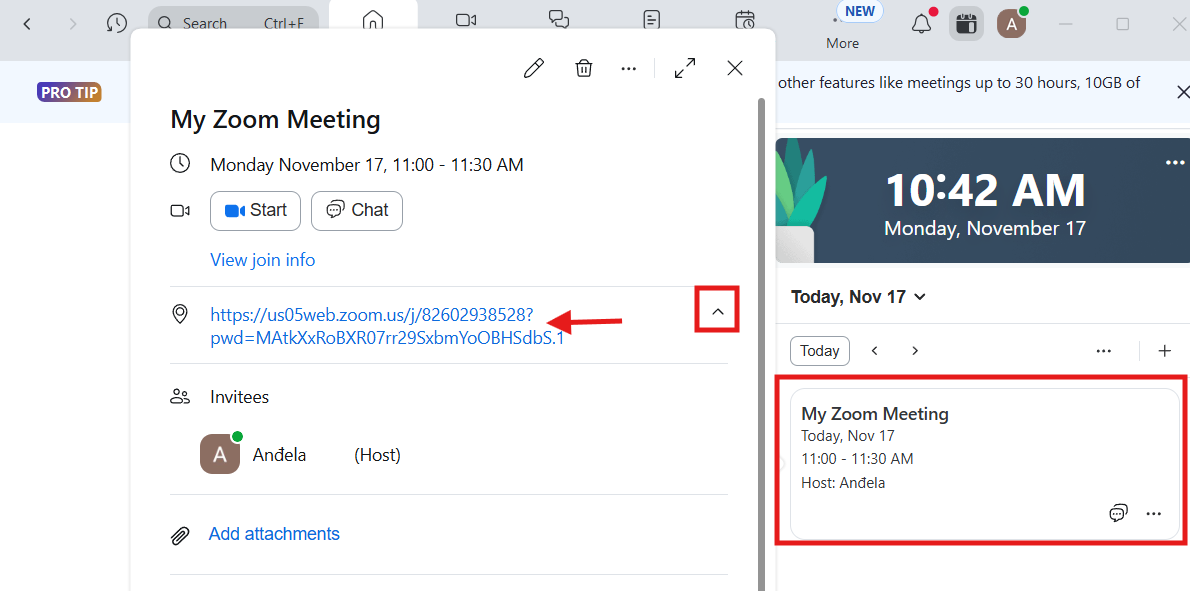
Zoom returns to your Meetings list, and the new meeting appears in your schedule. Click the meeting to open its details. The Zoom join link appears in the ‘Location’ field. Outlook only shows part of the link at first, so select the expand icon next to it to reveal the full URL.
Highlight the entire link, then right-click the selection and choose ‘Copy’. You can also press ‘Ctrl’ + ‘C’ on your keyboard. The link is now on your clipboard, and you can paste it into chat, email, or a calendar invite.
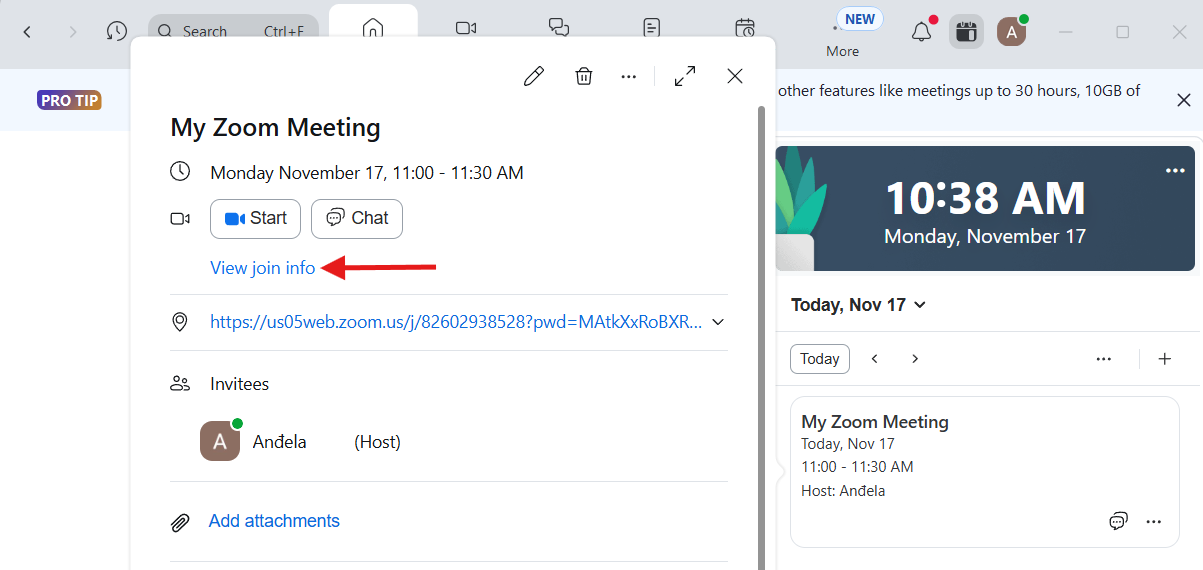
Alternatively, click ‘View join info’ to expand the meeting details directly inside the event card.
Click the small ‘Copy’ icon (it looks like two overlapping rectangles) next to the meeting link. Outlook automatically copies the full URL to your clipboard, and you can paste it anywhere you need.
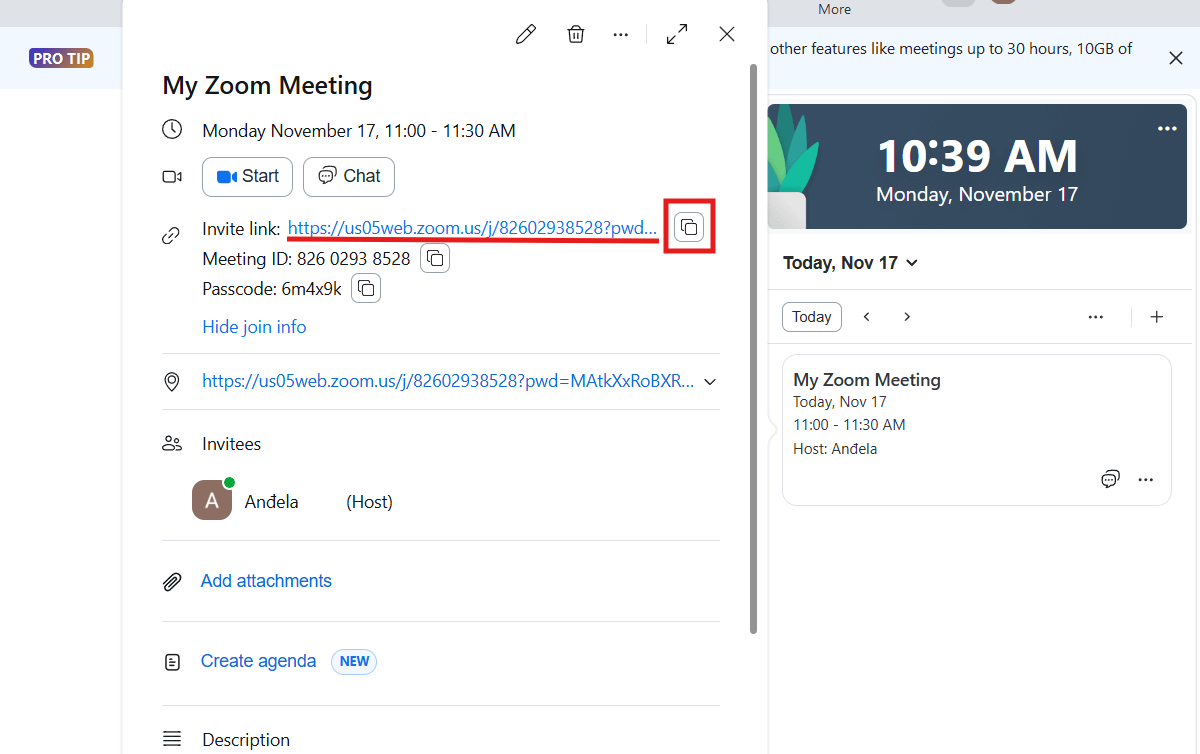
You can also add attachments, create an agenda, or change the meeting description in this window.
How Do I Start a New Meeting Instantly in Zoom?
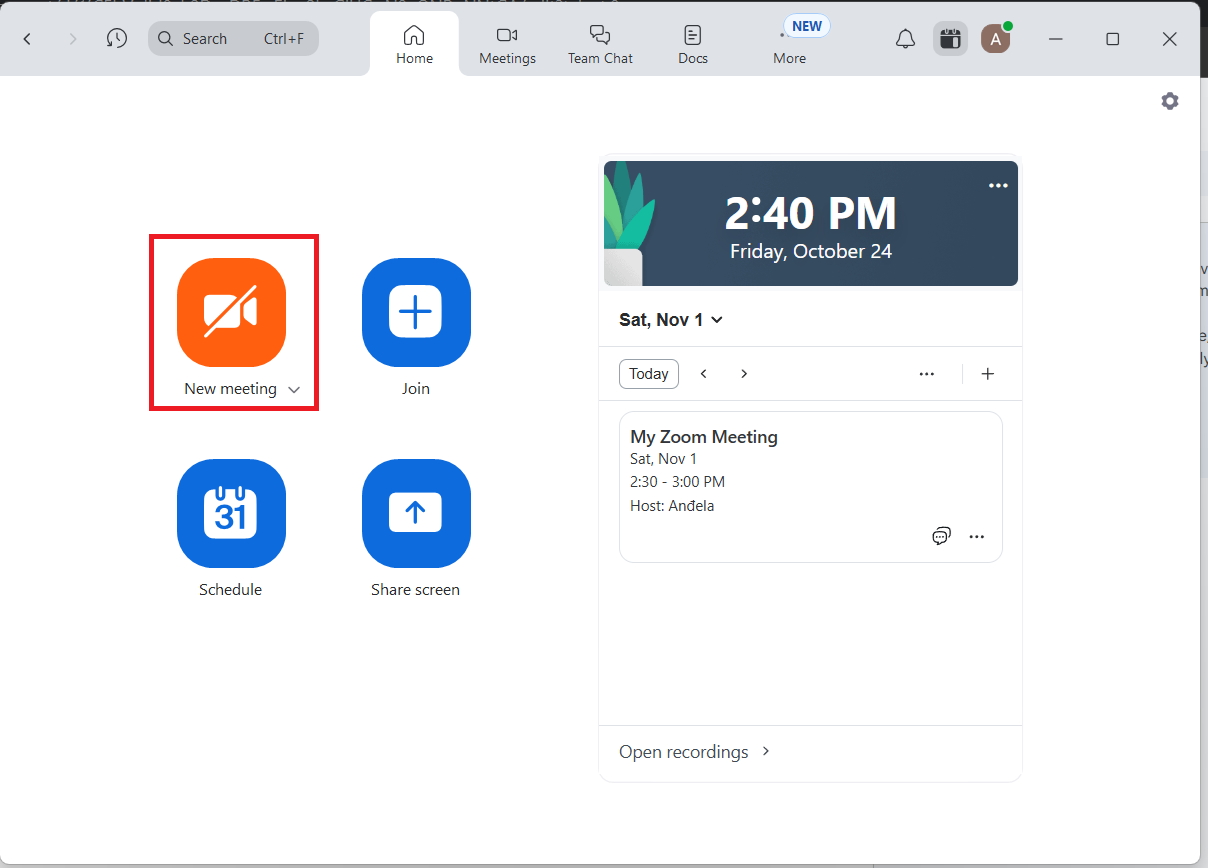
Alternatively, select ‘New Meeting’ from the home screen to start an instant session. Zoom opens a meeting window with your audio/video controls.
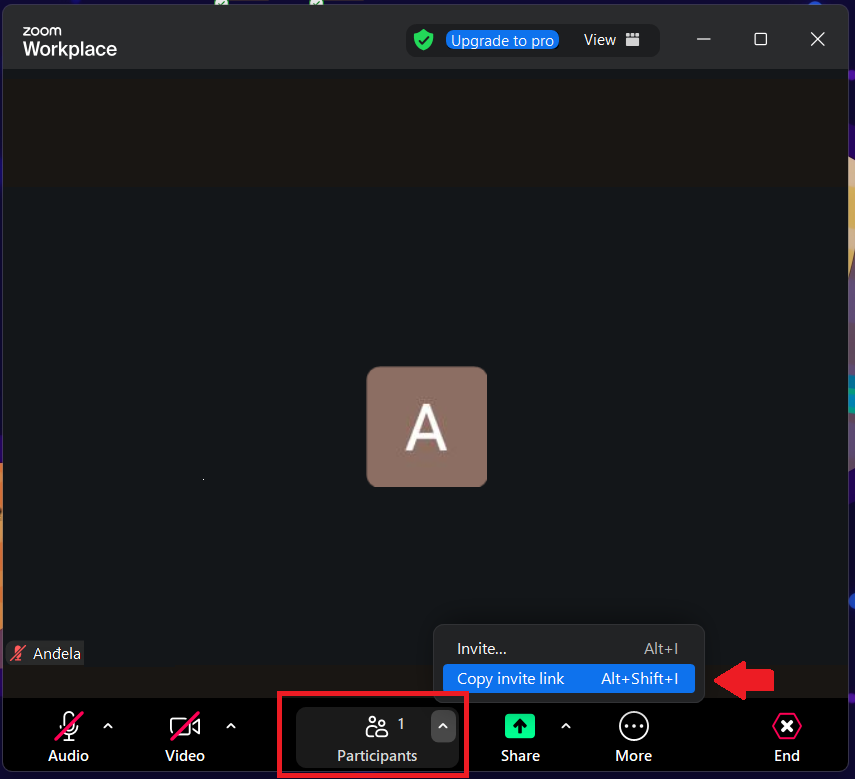
Open ‘Participants’ at the bottom toolbar and choose ‘Invite’ to send the link, or select ‘Copy Invite Link’ to share it through chat or email.
How Do You Create a Zoom Link from the Web?
Creating a Zoom link from the web takes three simple steps. You sign in to Zoom’s official website, head to ‘Meetings’, and choose ‘Schedule a meeting’ to set the date, time, and security details. After you save, the meeting page displays your shareable link, ready to drop into email, chat, or a calendar invite.
Step 1: Navigate to the Official Zoom Website and Log In
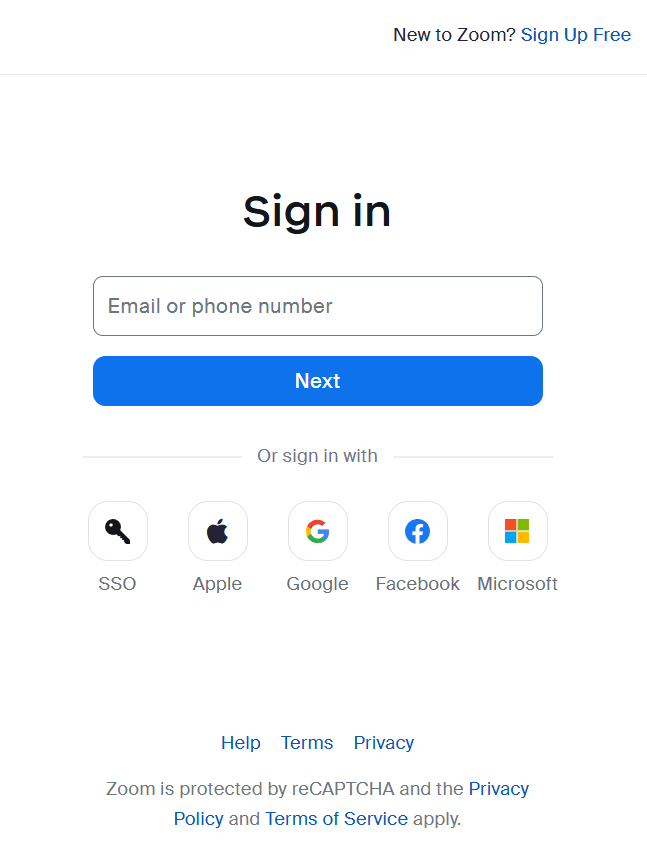
Open Zoom’s official website and log in or sign up for your account. You can sign in with an email address, a phone number, or your choice of Google, Apple, Microsoft, or Facebook account.
Step 2: Access the "Meetings" Tab in Your Profile
Navigate to ‘Meetings’ in the left-hand menu on your Zoom dashboard. The page shows all your scheduled, previous, and upcoming meetings so you can create or manage links in one place.
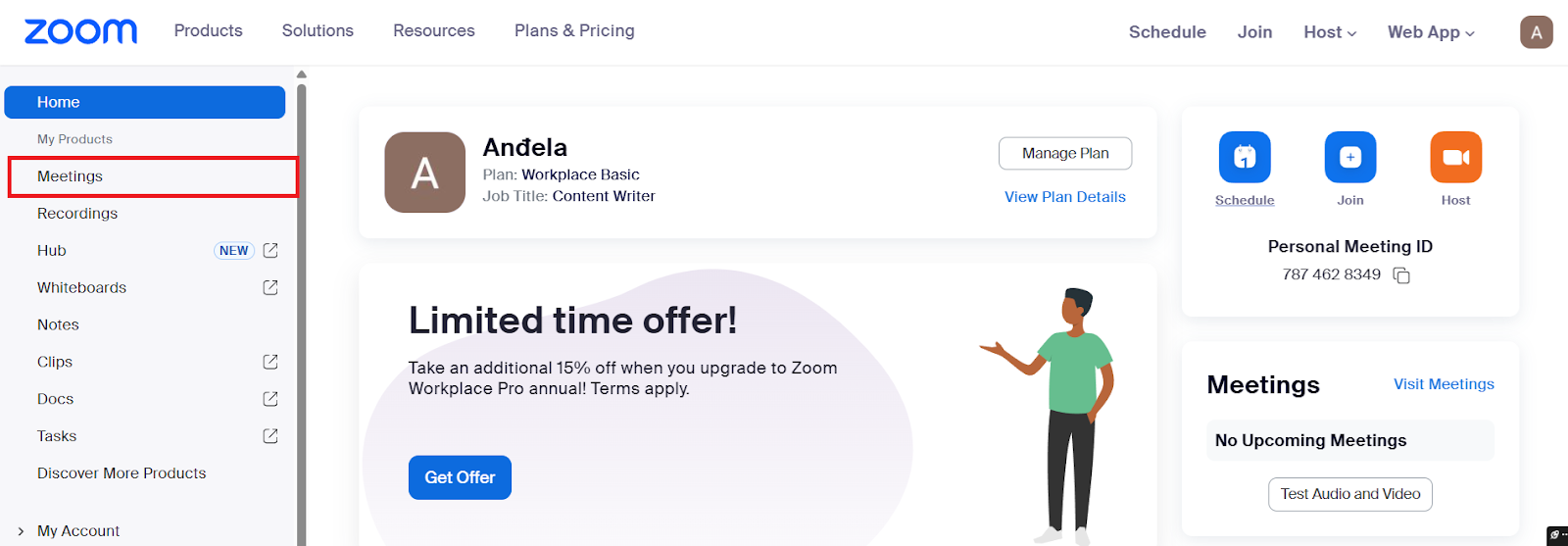
Step 3: Click "Schedule a Meeting" and Fill in the Details
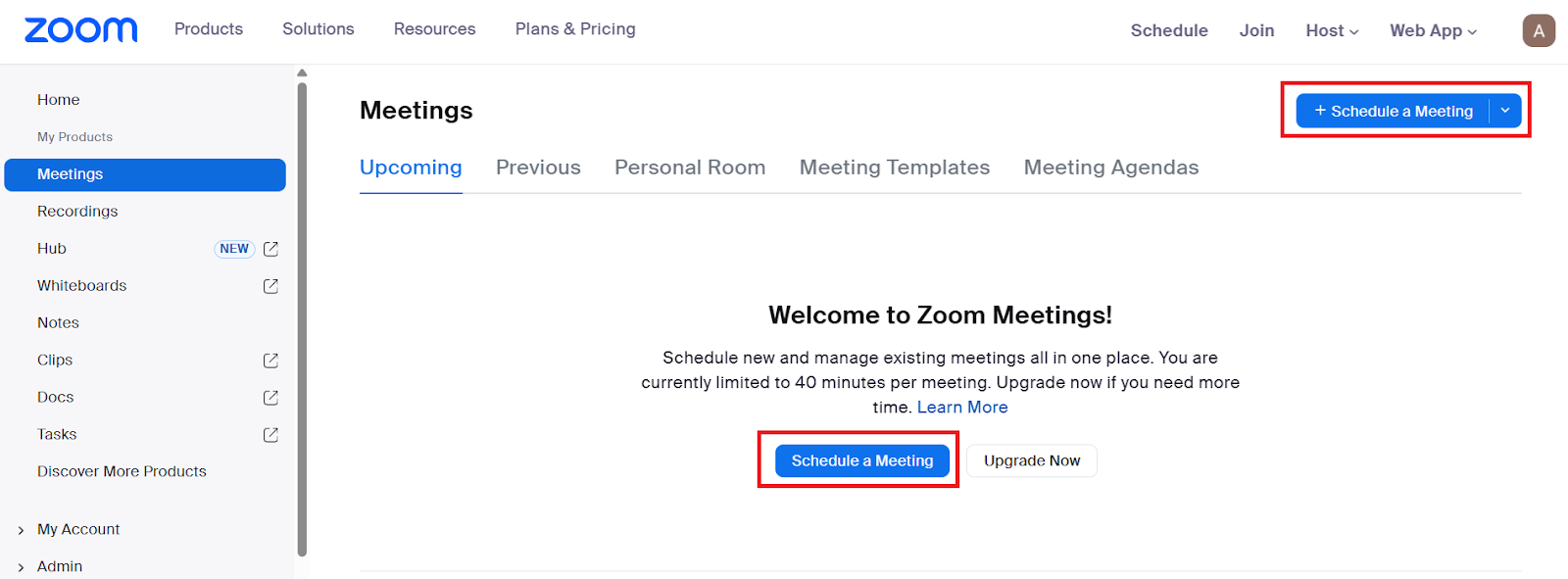
Select ‘Schedule a Meeting’ at the top right or in the center of the screen.
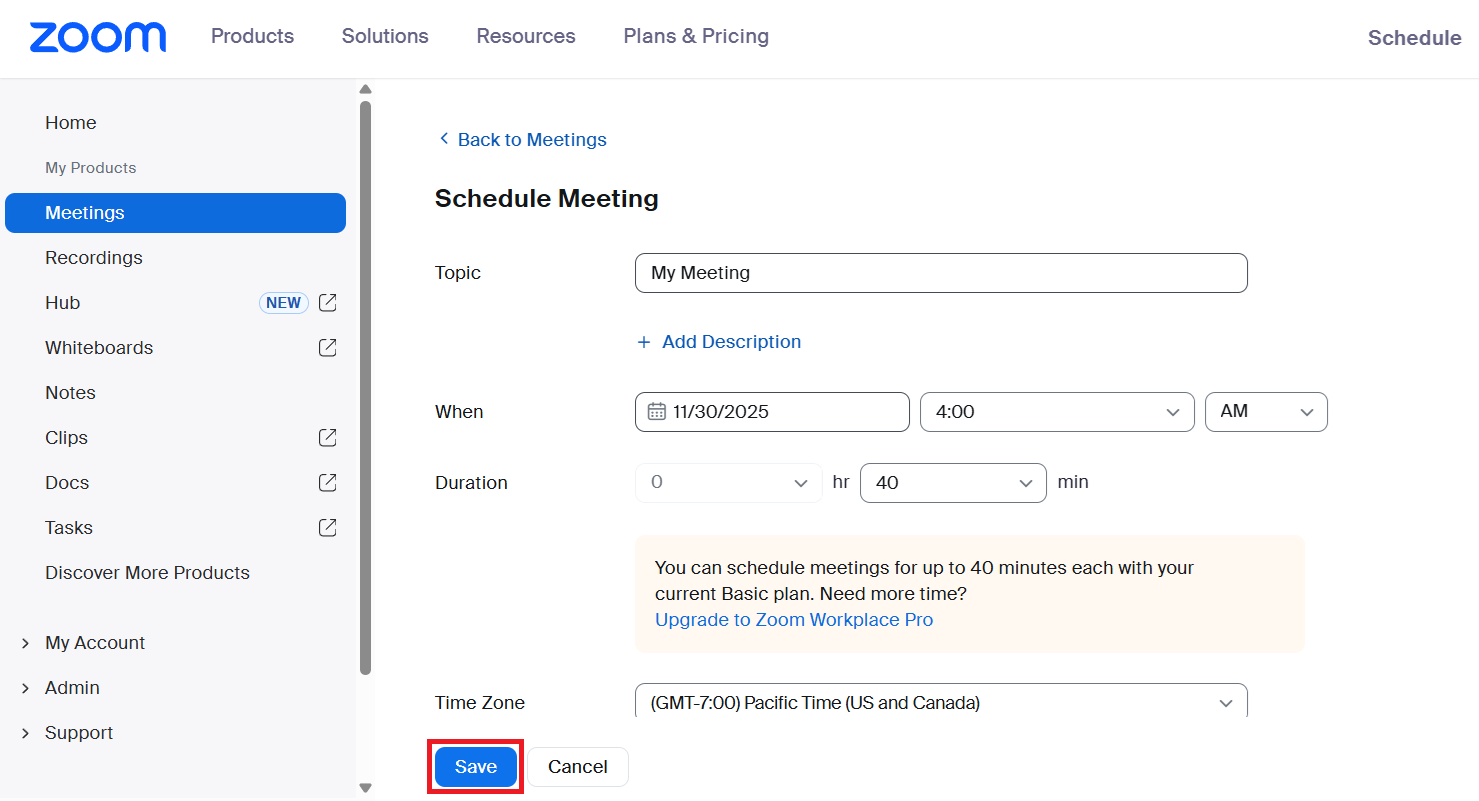
Enter your meeting details, such as topic, date, time, and security preferences, then scroll down and click ‘Save’.
Step 4: How to Copy the Invitation Link After Saving
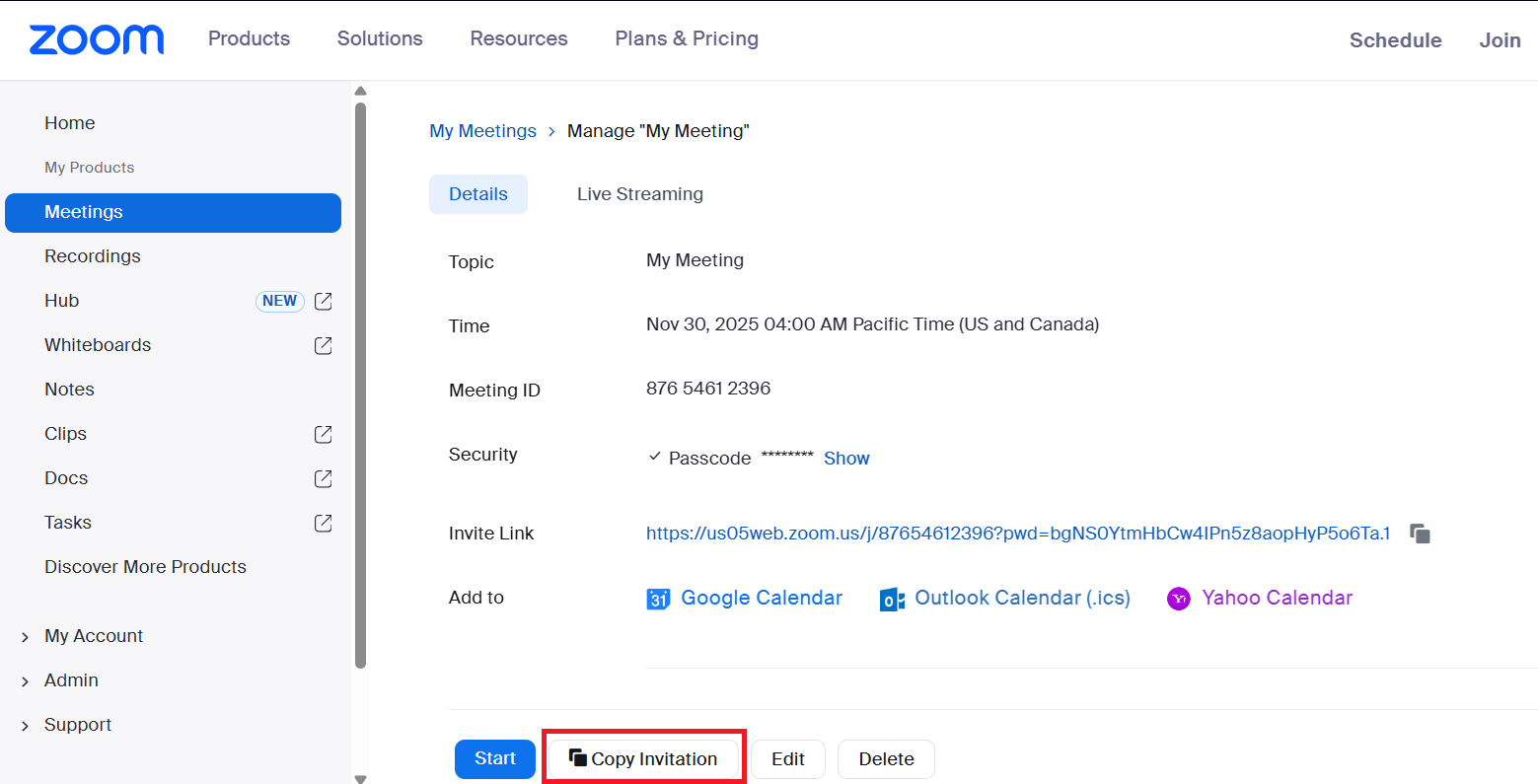
Review your meeting details on the confirmation page. Choose ‘Copy Invitation’ to copy the full meeting link and join info to your clipboard. You can now paste it into an email, chat, or a calendar event to invite others.
How Do You Create a Zoom Meeting Link on Mobile (iOS & Android)?
Creating a Zoom meeting link from your phone works the same way on both iOS and Android devices.
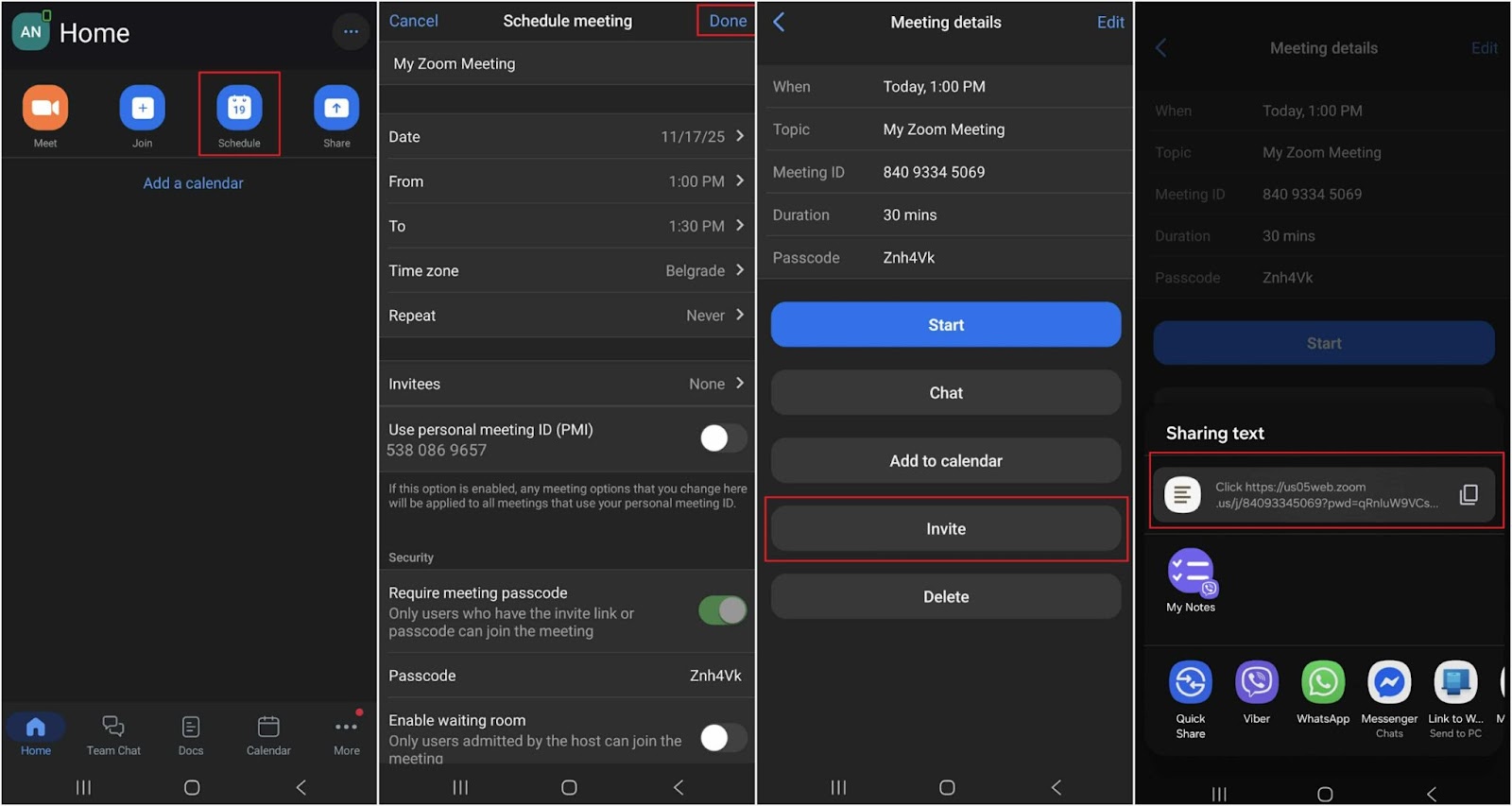
Open the Zoom app and tap ‘Schedule’ to set up a future meeting. Choose the date, time, and security options, then save the meeting to generate your unique link. You can share the link directly from your phone through email, messaging apps, or your calendar.
Step 1: Tap the "Schedule" Icon
Open the app and tap the ‘Schedule’ icon on the home screen to create a new meeting.
Step 2: Adjust Your Mobile Meeting Options
Choose the meeting name, date, and time, and decide whether to use your Personal Meeting ID. You can also invite others directly from the ‘Invitees’ section. Tap ‘Done’ to create your meeting and generate a unique link.
Step 3: Adding Invitees and Sharing the Link from Your Phone
Open the meeting details and tap the ‘Invite’ button.
You can send the link directly through your messaging apps or tap the ‘Copy’ icon to copy the link and share it manually.
How Do I Create A Reusable Meeting Link in Zoom?
Zoom offers two advanced ways to create reusable meeting links. Recurring meetings generate a single link that works across multiple sessions, while a Personal Meeting ID (PMI) provides a permanent room you can start at any time. Both options save time and make link-sharing easier, especially for ongoing classes, client calls, or team check-ins.
How to Create a Recurring Zoom Meeting Link for Regular Calls
To create a recurring Zoom meeting link, open the Zoom app and schedule a new meeting. In the meeting setup window, turn on ‘Recurring meeting.’ It keeps the same meeting ID and link for every session, so you don’t have to resend invites each time.
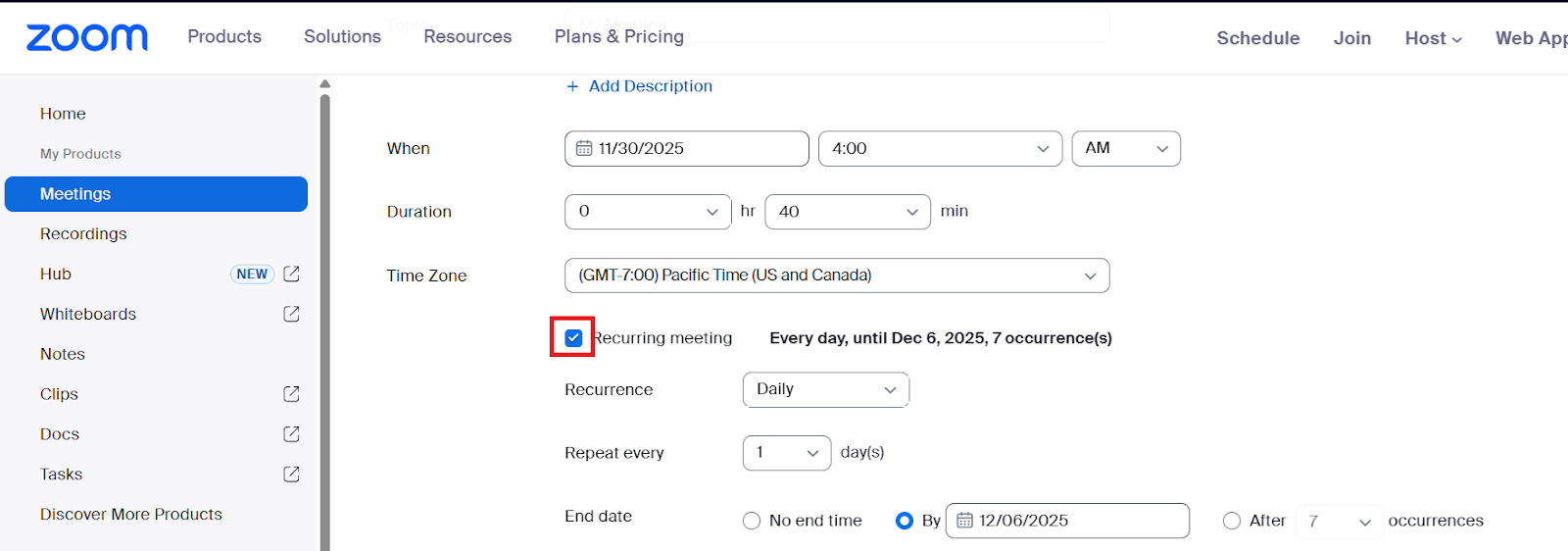
You can choose how often the meeting repeats (daily, weekly, or monthly) and set an end date. Everyone you invite can use the same link for every call, which makes it ideal for team stand-ups, client check-ins, and weekly project syncs.
Understanding and Using Your Personal Meeting ID (PMI) Link
A Personal Meeting ID (PMI) is a permanent 10-digit meeting identifier for your Zoom account that works similarly to a meeting link. However, instead of generating a new link each time, the PMI stays the same for all meetings. It saves setup time for recurring calls with the same people, like clients or internal team check-ins.
On the other hand, anyone who has it can join whenever the room is open, since the link never changes. To use your PMI securely, enable a ‘Waiting Room’ or ‘Passcode’, or lock the meeting once everyone has joined. This keeps the convenience without compromising privacy.
Inviting Notta to Your Zoom Meeting
Make the most of your Zoom meetings by using Notta to save time on note-taking, stay focused on the discussion, and retain more details from every call.
Notta is a meeting assistant that saves you time by automatically recording, transcribing, and summarizing your calls with up to 98.86% accuracy. It identifies speakers, adds timestamps, and turns discussions into key points, action items, and decisions that you can share with your team. Instead of typing while people talk, you stay present and let Notta handle the documentation.
To invite Notta to your Zoom meeting, first connect your Google or Outlook calendar in Notta so the bot can automatically detect your upcoming Zoom calls. When the meeting starts, Notta Bot will automatically join as a participant and begin recording and transcribing in real time.
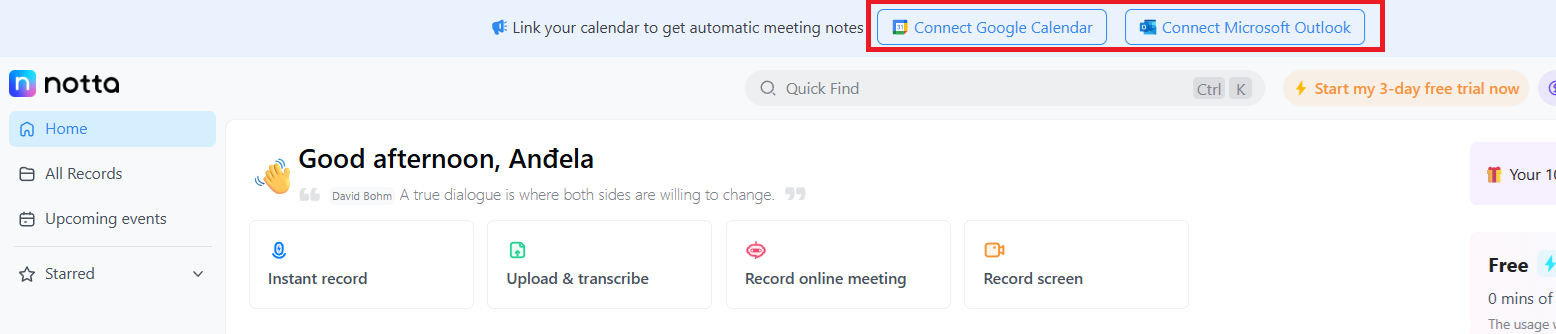
You can also manually instruct the bot to join your meeting. Use this method if you only have one upcoming meeting in your calendar.
Copy your Zoom meeting link and paste it into the Notta dashboard under ‘Record online Meeting’. The bot will enter the meeting as a participant.
Can You Change Your Zoom Meeting Links?
Mistakes happen, schedules change, and guest lists shift. Zoom lets you edit meeting details after you create a link. You can adjust the date and time, update settings, or tighten security without generating a new link.
Here’s how it’s done.
How to Edit an Existing Meeting Link's Settings
You can edit any Zoom meeting link by going to your ‘Meetings’ tab (desktop app or web) and selecting the meeting from your list. Open it and choose ‘Edit’ to change the date, time, topic, participants, or meeting ID settings.
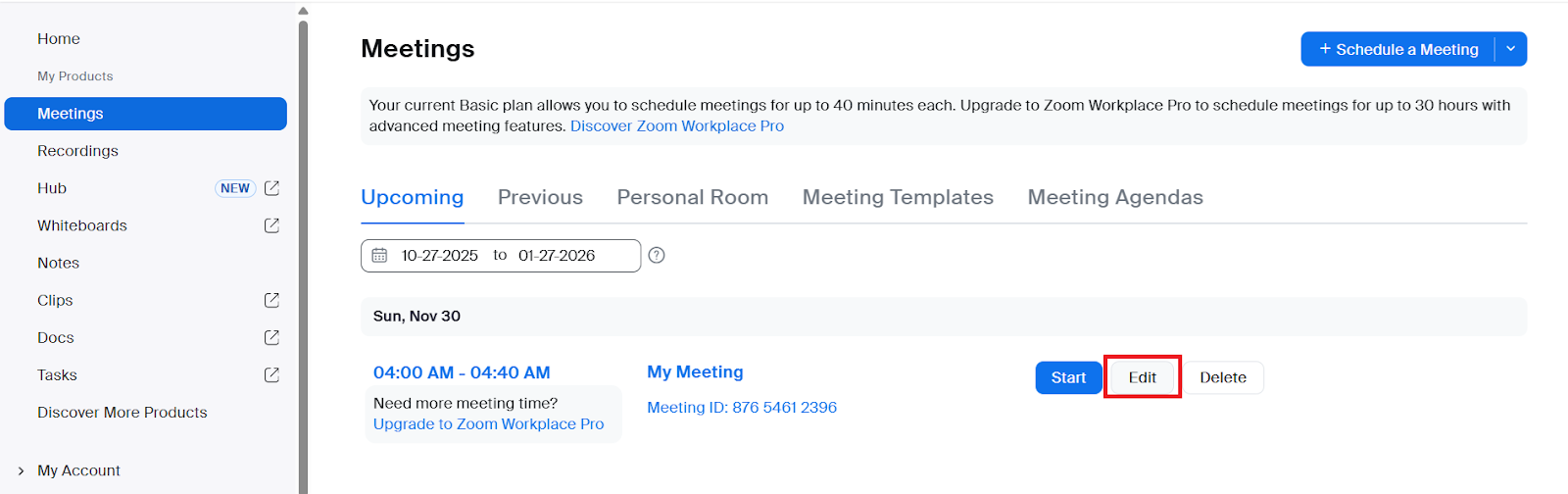
The meeting link remains the same even after you make changes, unless you switch between ‘Generate Automatically’ and ‘Personal Meeting ID’. You don’t have to resend the link if you keep the same meeting ID.
Securing Your Link with a Passcode and Waiting Room
Zoom provides two security features for meeting links: Passcode (requires code entry) and Waiting Room (holds participants until admitted). Enable both features to prevent unauthorized access, especially for recurring links or Personal Meeting IDs.
A Passcode is a short character code of numbers or letters that people type in before joining your meeting. It gives you an extra layer of security that doesn’t rely on the meeting link alone.
A Waiting Room is a security feature that keeps participants in a virtual lobby until you choose to admit them. It stops unauthorized attendees from entering the meeting, even if they have the correct link.
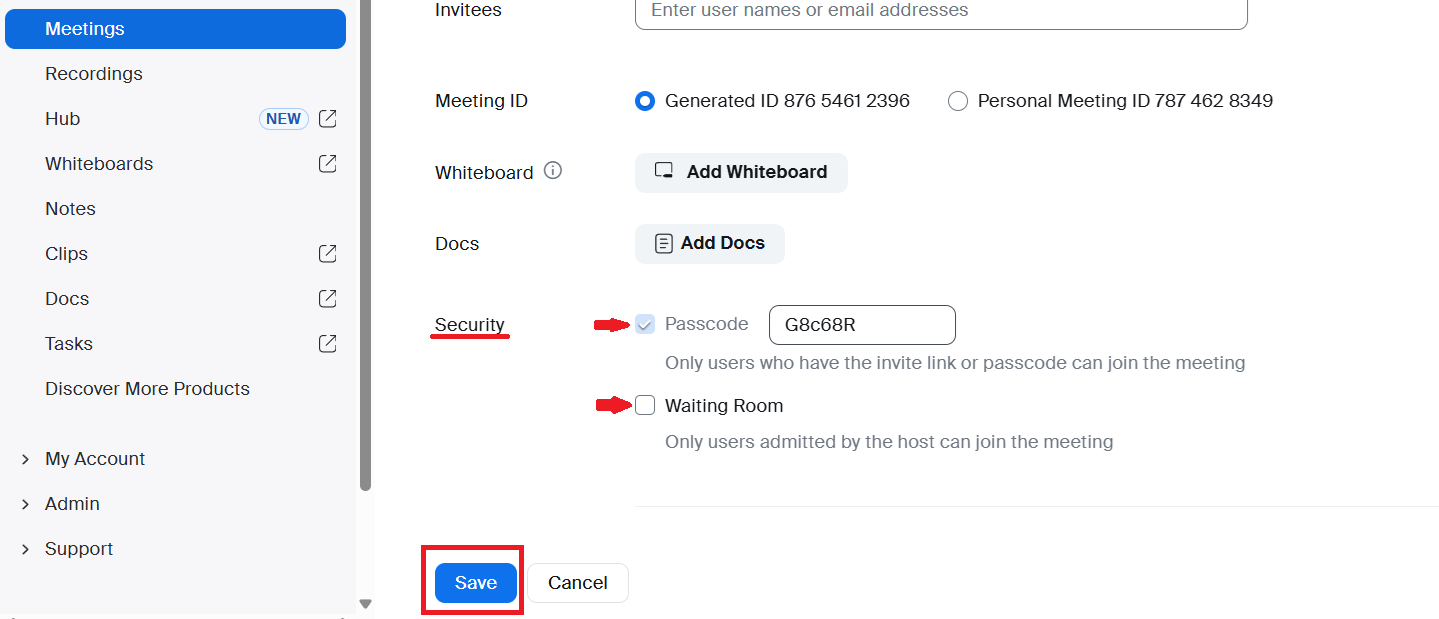
To turn these on, open your meeting settings and scroll to ‘Security’. You can toggle ‘Passcode’, ‘Waiting Room’, or both. These features are useful if you share your link widely, use your Personal Meeting ID (PMI), or host recurring calls with the same active link.
Frequently Asked Questions (FAQ)
How do I create a Zoom meeting link and invite others?
You can create a Zoom meeting link by selecting ‘New Meeting’ or ‘Schedule’ in the Zoom app. Once the meeting is created, copy the link from the invitation panel and share it through chat, email, or calendar. Anyone with the link can join the Zoom Meeting.
How do I invite Notta Bot to my Zoom meeting?
You can invite the Notta Bot by copying your Zoom meeting link and pasting it into the designated box on the platform. Select the ‘Record online meeting’ option on the Notta dashboard and paste the Zoom link. Click ‘Transcribe now’ and the bot will automatically join the meeting as a participant and start transcribing in real time.
How do I create a Zoom meeting link that doesn't expire?
You can create a Zoom meeting link that doesn’t expire by scheduling a meeting and turning on the ‘Recurring’ option with ‘No Fixed Time’. This generates one reusable link for ongoing or repeated calls. Use it for weekly standups, office hours, or continuous project check-ins.
Can I create a Zoom meeting link for free?
Yes, you can create a Zoom meeting link for free. However, all meetings on a Basic (free) account are limited to 40 minutes, even if it’s just you and one other person. You’ll need to restart the meeting with the same link or schedule a new one if your call reaches the time limit.
How do I host a Zoom meeting for the first time?
To host a Zoom meeting for the first time, open Zoom and click ‘New Meeting’, then select ‘Join with Computer Audio’ so participants can hear you. Share the meeting link with your guests so they can join. You can also schedule the meeting in advance and send a calendar invite.

