How to Delete a Teams Recording
Saving time and effort with Notta, starting from today!
To delete a Teams recording in OneDrive, open the recording from your meeting chat, select Open in browser, then choose Delete from the three-dot menu. For channel meetings stored in SharePoint, navigate to the channel’s Files tab, open the Recordings folder, and delete the file there. Both methods move the recording to the Recycle bin for 93 days before permanent deletion.
Deleting a Teams recording sounds simple, but Microsoft makes it complicated. Between OneDrive, SharePoint, permissions, and retention rules, it’s easy to get frustrated.
This guide teaches you how to delete a Teams recording step by step, explains some of Microsoft’s logic, and shows how Notta can act as a secondary storage system for your recordings.
Where are Microsoft Teams Recordings Stored?
Microsoft Teams stores meeting recordings in OneDrive or SharePoint, depending on how you scheduled the meeting. Standard or private meetings go to the organizer’s OneDrive, while channel meetings save to the team’s SharePoint.
The Shift from Stream Classic to OneDrive and SharePoint
Microsoft retired Stream Classic on February 15, 2024, and required organizations to migrate their recordings before the final shutdown in 2025. Teams recordings now save to OneDrive or SharePoint instead of a separate Stream portal. They also now follow Microsoft 365 file standards, such as version history, granular sharing, retention policies, and unified search.
Are Standard Meetings and Channel Meetings Stored in Different Places?
Yes, Teams stores standard and channel meetings in different places: OneDrive and SharePoint.
OneDrive: Standard, private, or group-chat meetings save their recordings to the meeting organizer’s OneDrive. Only the people you invited to the meeting automatically get viewing permissions, because the file inherits the organizer’s OneDrive sharing model.
SharePoint: Channel meetings save their recordings to the team’s SharePoint site, inside that channel’s ‘Recordings’ folder. Everyone with access to the channel can view the file, since SharePoint follows team-level permissions.
Who Has Permission to Delete a Teams Recording?
The meeting organizer can delete recordings stored in their OneDrive. Channel members with edit permissions can delete recordings in SharePoint. Microsoft 365 admins can delete or restore recordings regardless of meeting type.
| Role | Deletion Permissions | Notes |
|---|---|---|
| Meeting organizer | Standard/private meetings stored in their OneDrive | Organizer owns the file and has full delete control |
| Channel member with edit permissions | Channel recordings stored in the team’s SharePoint site | Delete rights depend on SharePoint/team permissions |
| Microsoft 365 / SharePoint admin | Any recording in OneDrive or SharePoint | Admins can delete or restore regardless of meeting type |
Privileges of the Meeting Organizer
Deletion rights depend on where Teams stores the recording. Standard or private meetings are stored in the meeting organizer’s OneDrive, so the organizer controls deletion.
Channel meetings are stored in the team’s SharePoint site, so deletion follows that site’s permissions. Anyone with edit or owner access to the SharePoint library can delete the recording, not just the person who scheduled the meeting.
Can Meeting Attendees Delete Recordings?
Attendees in a standard meeting can’t delete the recording. Teams gives them view access, not edit access. In channel meetings, attendees who belong to the team may have edit permissions in SharePoint, which means they can delete the file unless your organization restricts access.
Administrator Rights and Retention Policies
Microsoft 365 and SharePoint admins can delete recordings even if organizers or attendees can’t. They manage storage, permissions, and compliance across the organization, so they can remove files directly in OneDrive or SharePoint. Retention or legal hold policies can override deletion requests, and nobody can permanently delete the recording until those policies expire.
How Do You Delete a Teams Recording in OneDrive? (Private Meetings)
To delete a Teams recording from OneDrive, locate the recording in your meeting chat and select ‘Open in browser’ to access the full file page. Click the three-dot menu and choose ‘Delete.’ The recording moves to your Recycle bin, and you can restore it for 93 days.
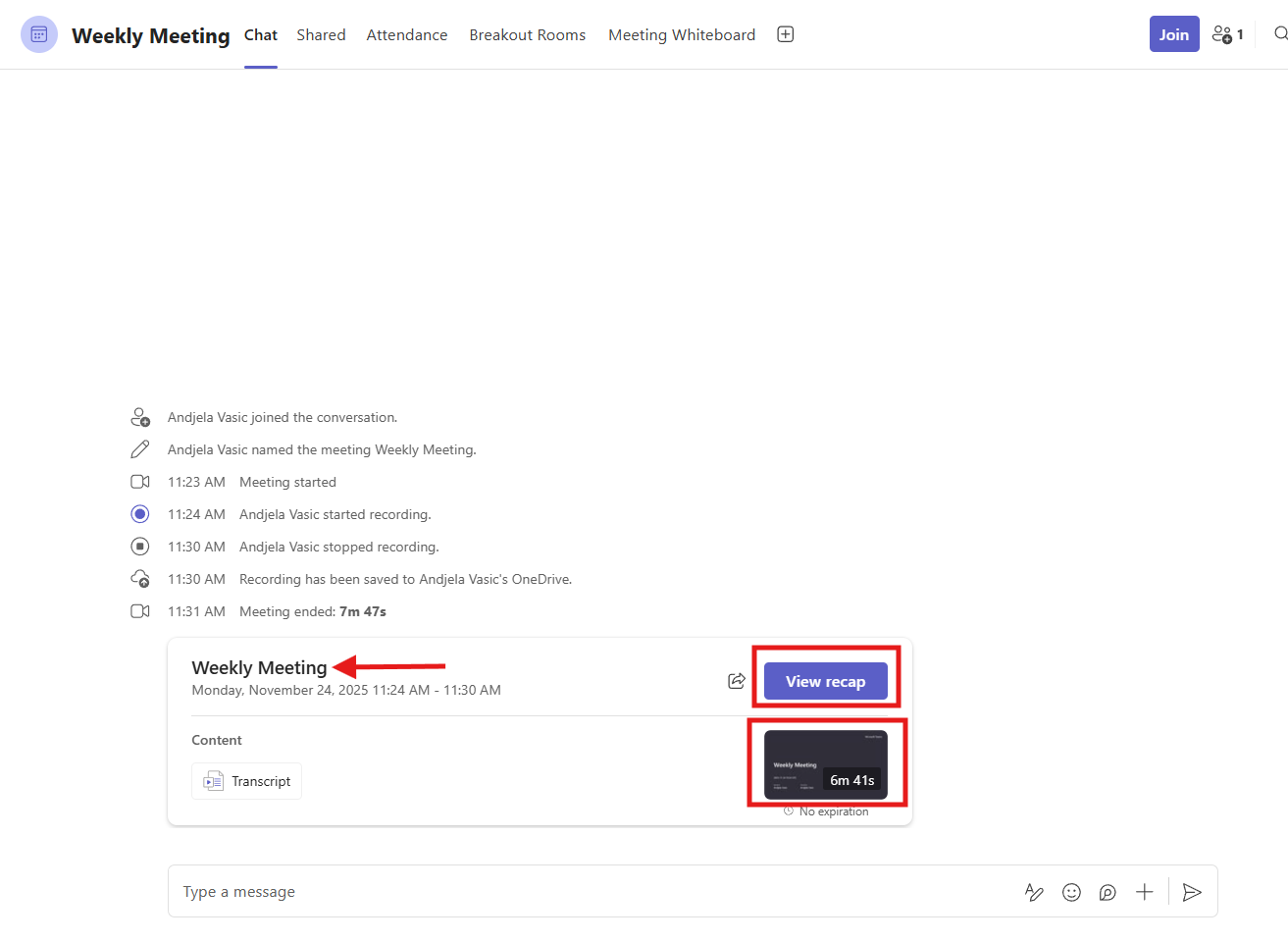
Step 1: Locate the Recording in the Chat History
Open the meeting chat in Teams and scroll until you see the recording message. You can either click the video thumbnail or select ‘View recap’ on the right side of the message.
Step 2: Open the Recording File in OneDrive for Business
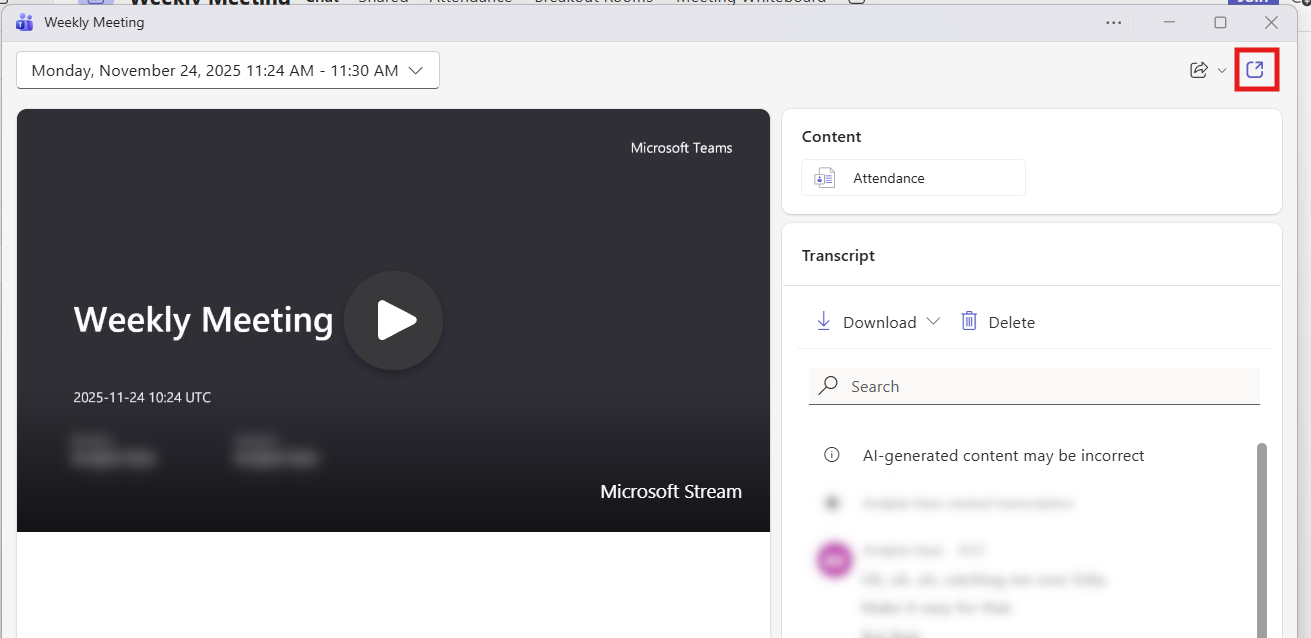
Teams opens a small preview window where you can watch the recording, but file options are limited here.
Look at the top-right corner of the page and select the ‘Open in browser’ icon (a square with an arrow). Teams switches you to the full recording page in your browser, where you can see file details, sharing options, and additional controls.
Step 3: Delete the Teams Recording
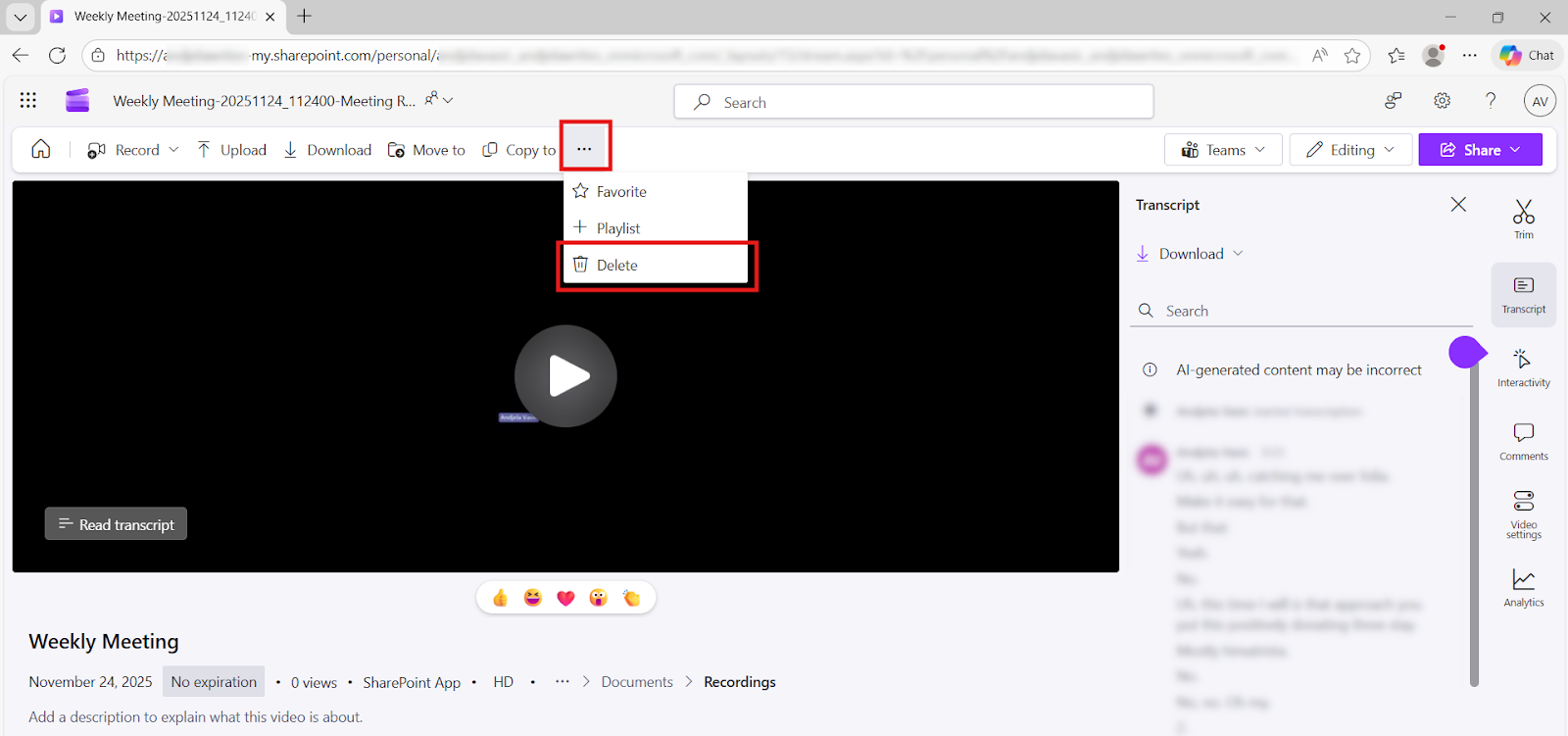
On the full recording page, open the three-dot menu next to the file name or toolbar actions and choose ‘Delete.’ The recording moves to the ‘Recycle bin,’ so you can still restore it.
Storage Note: OneDrive for Business includes 1TB of storage per user. Most Teams recordings take roughly 400MB per hour, according to Microsoft’s documentation.
Alternative Method: Delete Teams Recordings via the OneDrive Web Portal
You can delete the recording directly from OneDrive instead of scrolling through the meeting chat or hunting for the original message.
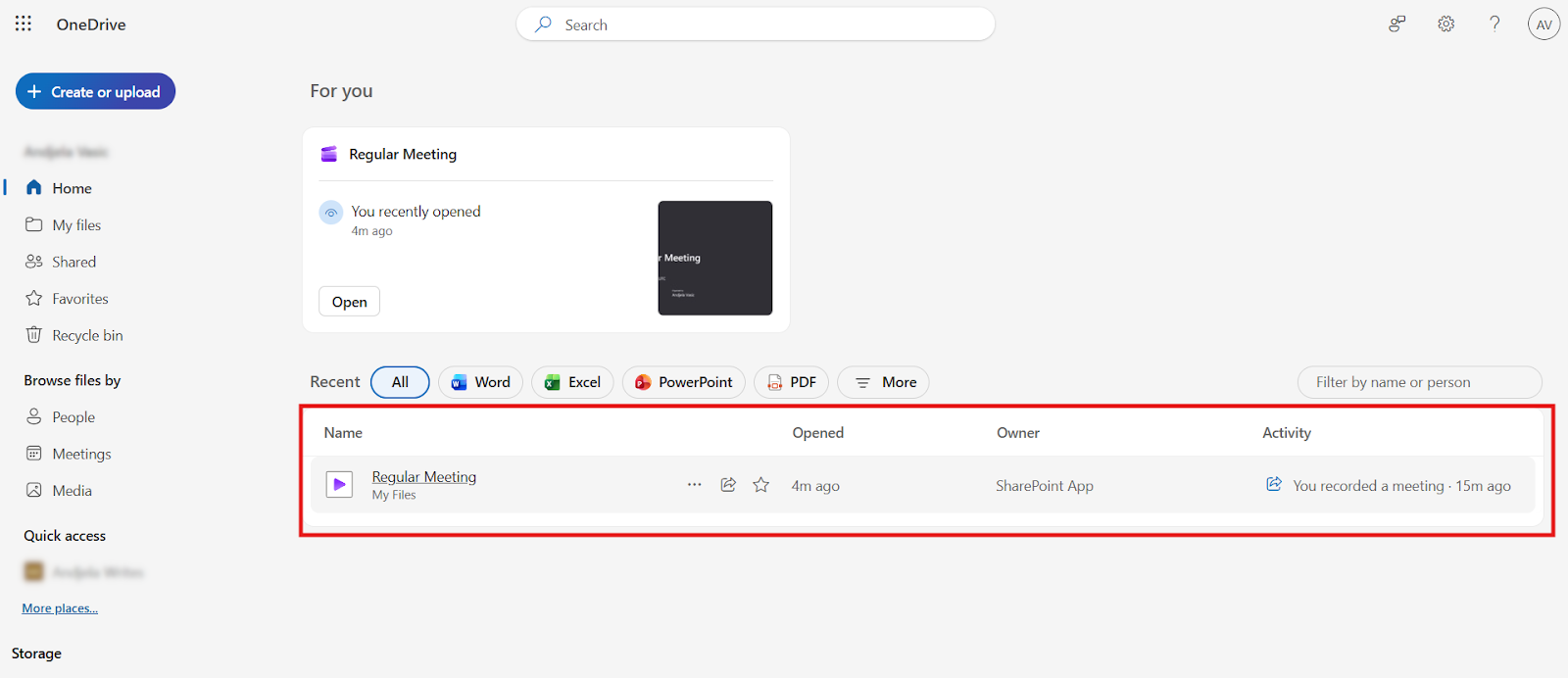
Open OneDrive in your browser and sign in with your Microsoft 365 account. Go to ‘My files’ and open your ‘Recordings’ folder, or check the ‘Recent’ section and scroll until you find the meeting video you want to remove.
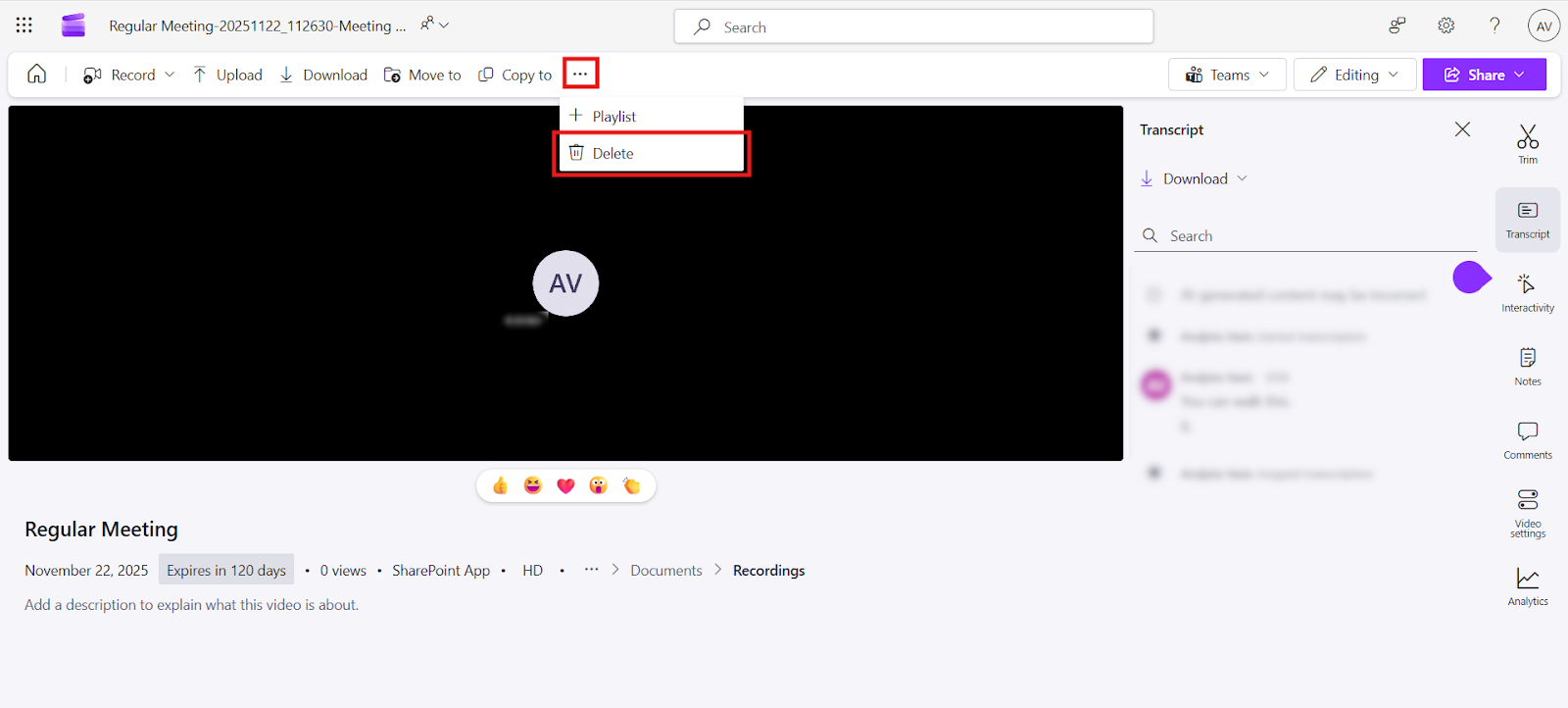
Open the file, then click the three-dot menu at the top of the page. Choose ‘Delete,’ and OneDrive will move the recording to the Recycle bin.
How Do You Delete a Recording in Teams for Channel Meetings? (SharePoint)
Delete a recording in channel meetings by navigating to your channel’s Files tab, opening the Recordings folder, and selecting ‘Delete’ from the three-dot menu. Teams removes the file for all channel members immediately.
Step 1: Navigate to the Files Tab Within the Channel
Go to the channel and select ‘Files’ at the top. You’ll see the folders and documents shared with that team, including the ‘Recordings’ folder created by Teams.
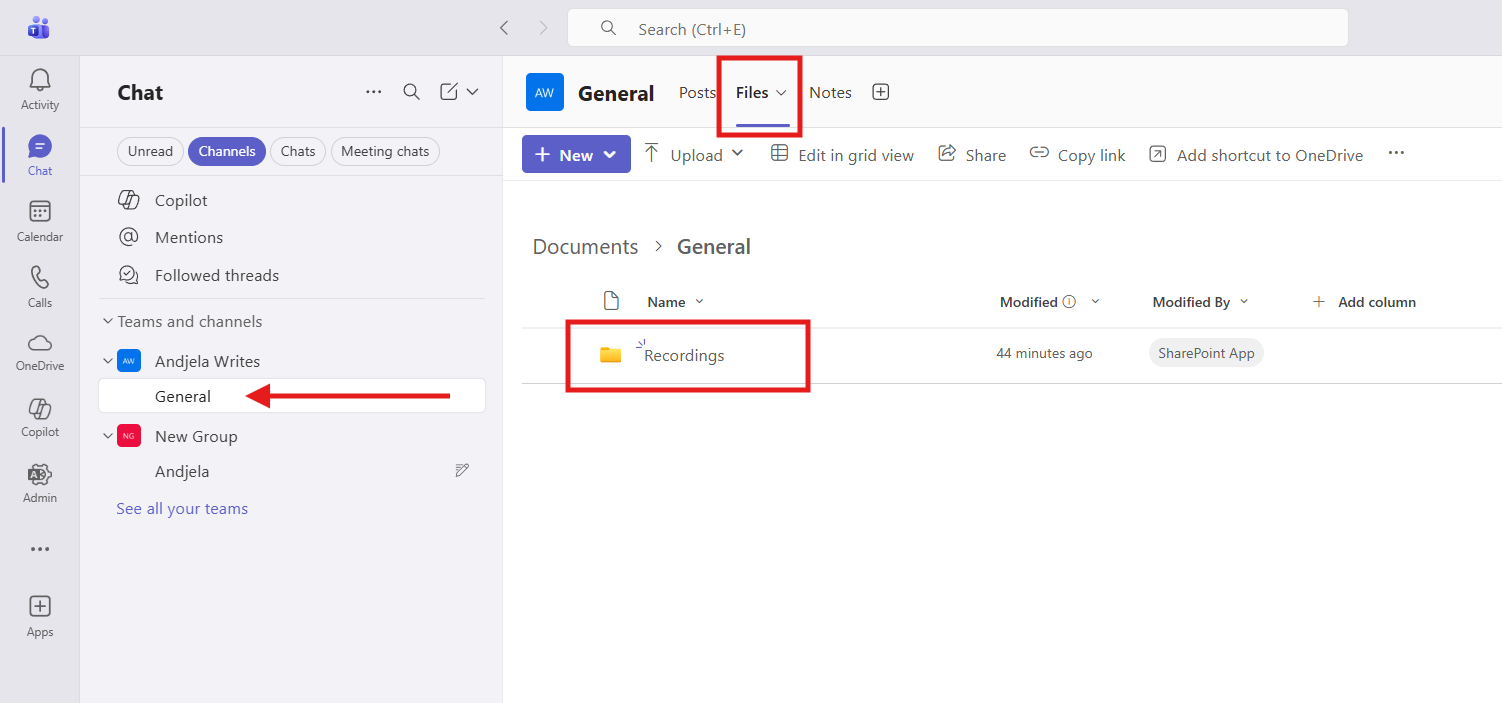
Step 2: Access the SharePoint Recordings Folder
Open the ‘Recordings’ folder to view every meeting video stored for that channel. Scroll until you find the file you want to remove.
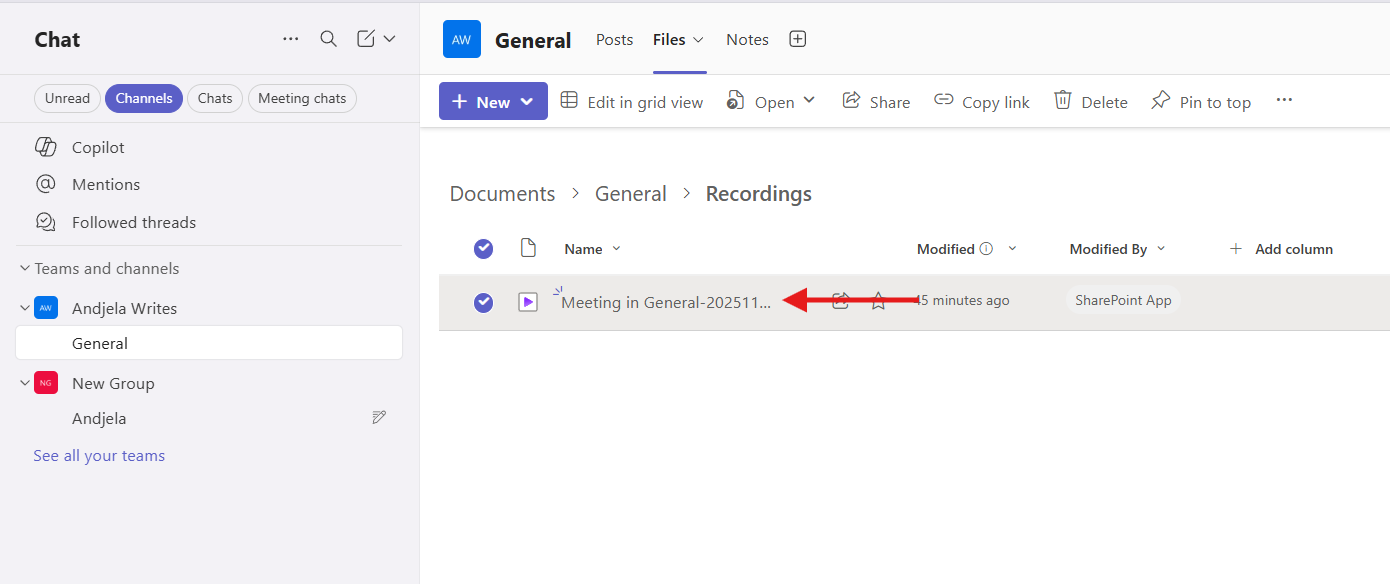
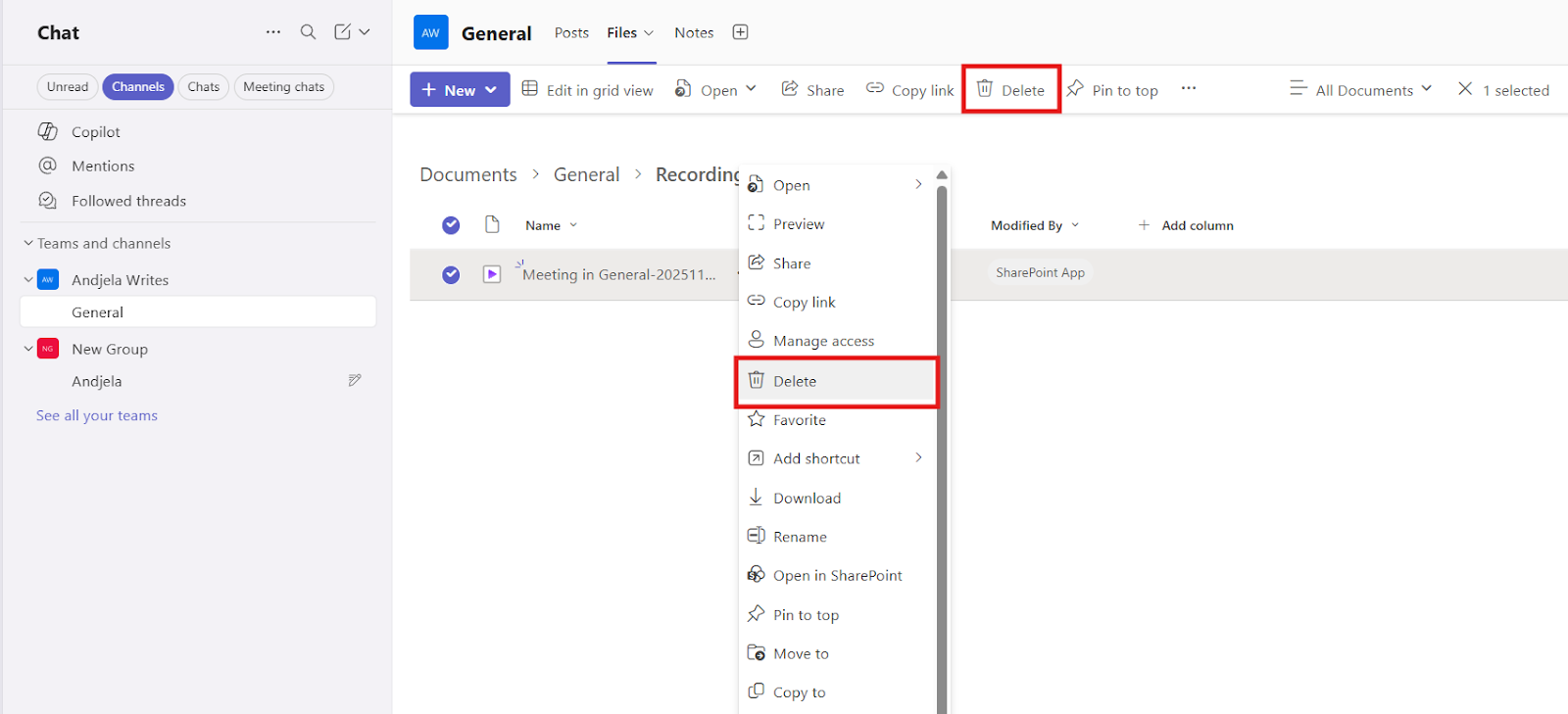
Step 3: Remove the Video File for the Entire Team
Select the recording and delete it from the toolbar at the top, or right-click the recording and choose ‘Delete.’ Teams immediately removes the file for everyone and sends it to the SharePoint Recycle bin.
Can You Store and Delete Teams Recordings With Notta?
Yes, you can store and delete Teams recordings with Notta! Notta gives you an extra layer of control over your Teams meetings by saving your recordings separately from your Microsoft account.
Notta records the audio, video, and transcript and saves everything directly to your Notta workspace, without using OneDrive or SharePoint. Even if an admin deletes the official Teams recording, your transcripts, notes, and media files are available until you remove them yourself.
Even though your recordings aren't stored on SharePoint or OneDrive, you don't have to worry about security. Notta hosts data on AWS and protects it with TLS 1.2 encryption in transit and AES-256 encryption at rest. It also meets major compliance standards like SOC 2 Type II, ISO 27001, GDPR, CCPA, and HIPAA.
How Do You Recover a Deleted Teams Recording?
There are two ways to recover deleted Teams recordings, depending on the meeting type: through OneDrive or SharePoint. For regular or private meetings, open the OneDrive tab and restore the recording from the Recycle bin. For channel meetings, open the channel’s SharePoint site, go to the Recycle bin, and restore it there.
Both methods return the file to the original folder.
How Do You Restore Files from the OneDrive Recycle Bin?
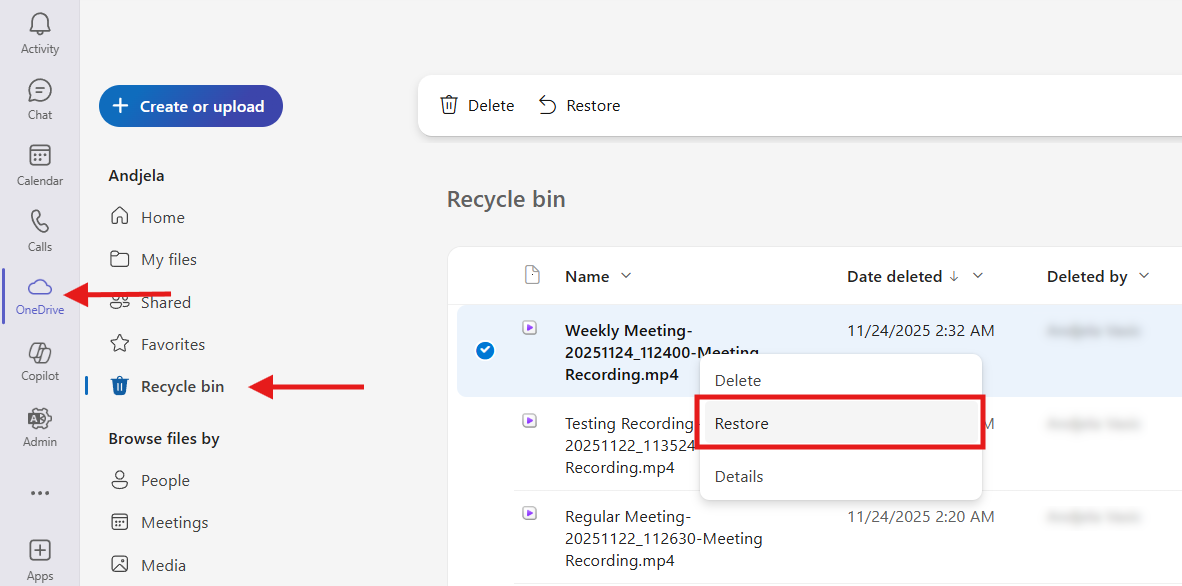 Open the OneDrive tab in the Teams sidebar or go to the OneDrive website and sign in. Click on the ‘Recycle bin’ tab and find the recording you want to recover. Right-click and select ‘Restore’ and you’ll find the recording back in the ‘My files’ folder.
How Do You Restore Files from the SharePoint Recycle Bin?
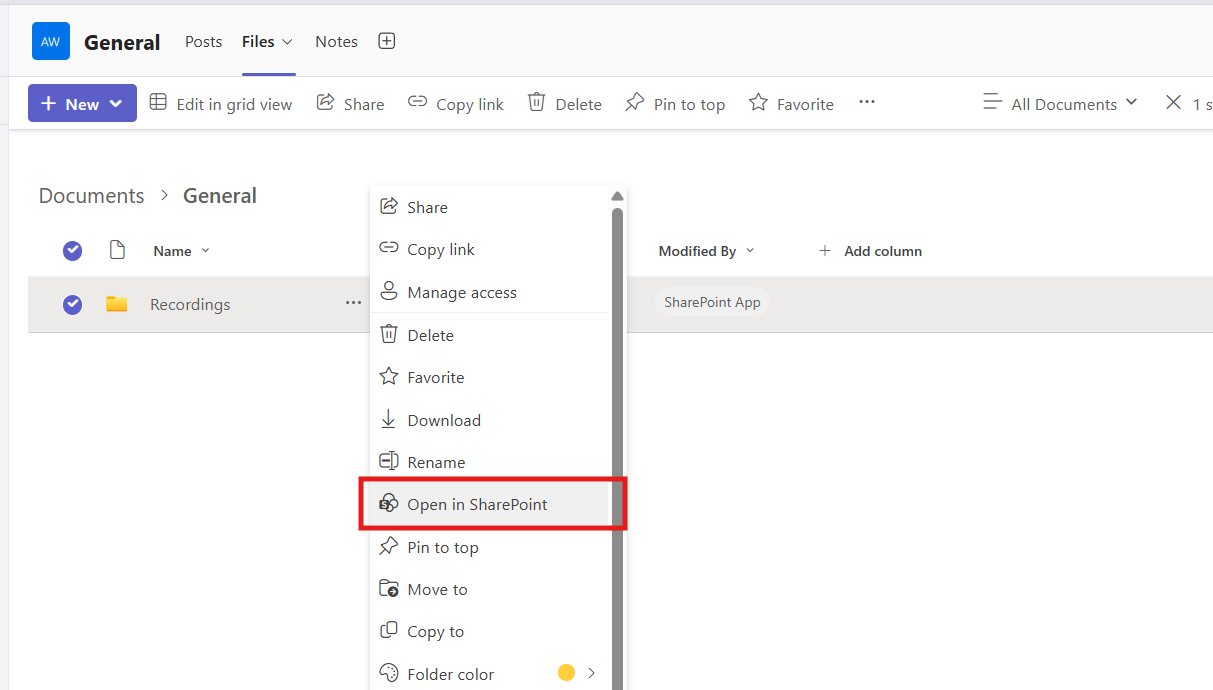
In the channel where the meeting took place, open the ‘Files’ tab, select the three dots next to the ‘Recordings’ folder or any file, and choose ‘Open in SharePoint.’
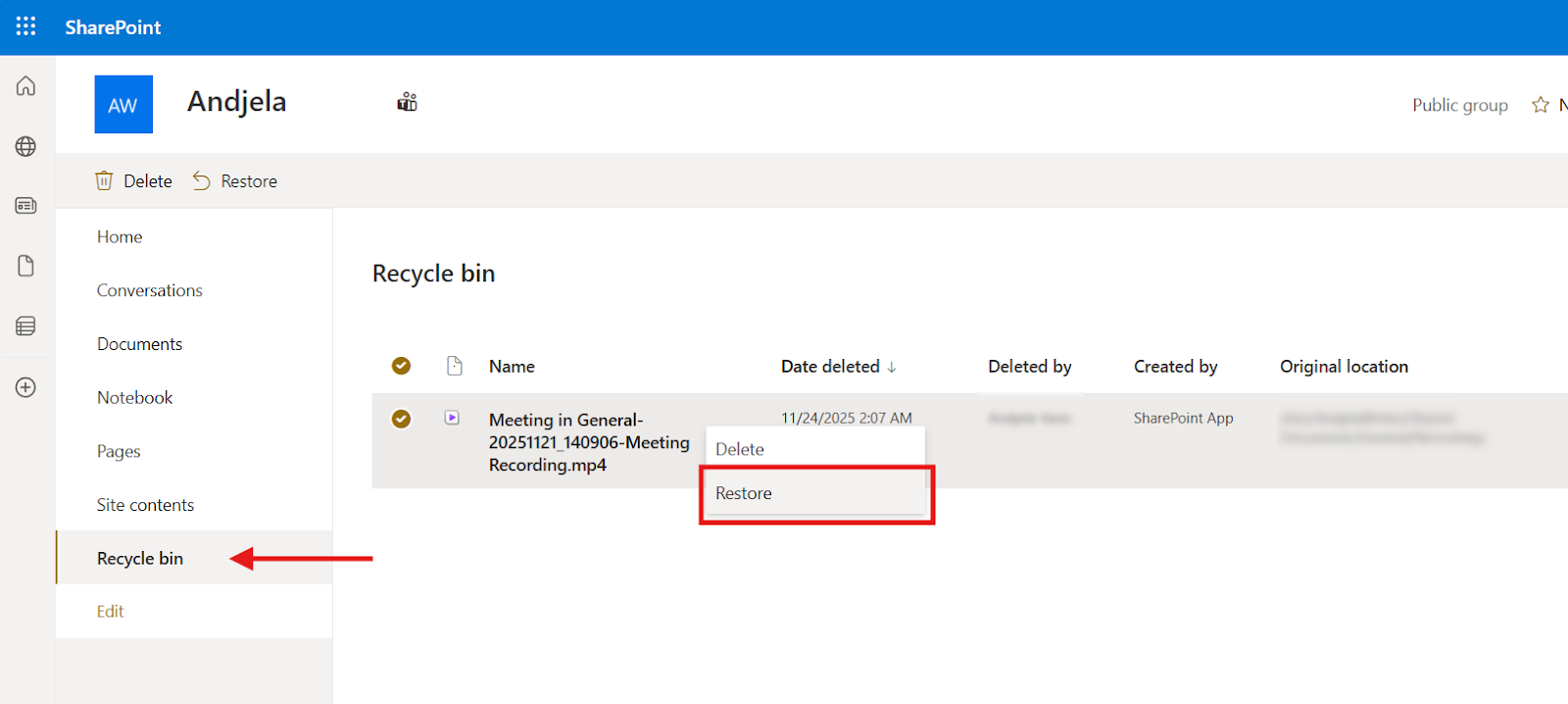
In SharePoint, select ‘Recycle bin’ from the left-side navigation and find the deleted recording. Recover it by right-clicking and selecting ‘Restore.’ SharePoint puts it back into the channel’s Recordings folder automatically.
How Long is the Recovery Window for Deleted Teams Recordings?
Deleted Teams recordings stay in OneDrive or SharePoint for up to 93 days. The 93-day retention period includes 30 days in the first-stage Recycle bin and 63 days in the second-stage (site collection). After that, Microsoft permanently deletes the file, and you can’t recover it through Microsoft 365.
If you're worried about losing your Teams recordings, you can record your Teams meetings with Notta. You keep full control over your audio, video, transcripts, and notes for as long as you need them, without worrying about deletion policies or admin restrictions.
Troubleshooting: Why Can't I Delete a Teams Recording?
Sometimes Teams won’t let you delete a meeting recording, and it comes down to three main issues. You don’t own the file or have delete permissions, or your organization has placed a retention or legal hold on it. Each problem requires a different solution.
Reason 1: You Are Not the File Owner
Teams only lets the person who started the recording (or someone they’ve given edit/delete access to) remove it. So even if you attended the meeting, you may only be able to watch the video, not delete it. Check who recorded the meeting in OneDrive or SharePoint, then ask them or your admin to grant you permissions to delete files.
Reason 2: Legal Hold or Retention Policies Are Active
Organizations use retention or legal hold policies to meet compliance requirements, which temporarily lock recordings. In other words, your company isn’t allowed to delete the file due to policy decisions or legal compliance.
Frequently Asked Questions (FAQs)
If I delete a Teams recording, does it delete for everyone?
Yes, deleting a Teams recording removes it for everyone. Once you delete the file from OneDrive or SharePoint, no one can open or watch it anymore, even if the thumbnail still appears in Teams. If you accidentally deleted a recording, you can restore it through the Recycle bin.
Can I delete a Teams recording if I am not the meeting organizer?
You can delete a Teams recording if you’re not the meeting organizer, as long as you have the right permissions. Attending the meeting doesn’t automatically give you the ability to remove the file. The recording owner or someone with edit/delete access in OneDrive or SharePoint must grant you those permissions first.
Does cancelling a Teams meeting delete the recording?
No, cancelling a Teams meeting doesn’t delete the recording. The video stays in OneDrive or SharePoint until someone with delete permissions removes it or a retention policy expires it.

