
How to Download a Teams Recording
Saving time and effort with Notta, starting from today!
To download a Microsoft Teams recording, open the meeting chat or your Recordings folder, locate the video file, click the three-dot menu, and select ‘Download.’ Teams stores personal meeting recordings in OneDrive and channel meeting recordings in SharePoint.
Not sure where to find your recording or which steps you should follow?
This guide teaches you how to download a Teams recording step-by-step, explains how to fix missing downloads when something goes wrong, and shows how Notta gives you full control over your recordings.
Where Does Microsoft Teams Store Recordings?
Teams used to save recordings in a separate video platform called Stream Classic. However, Microsoft moved everything to OneDrive and SharePoint in 2024, affecting over 320 million users globally. Your Teams meeting recordings are now in the same place as your regular files, so they’re easier to store and manage.
Are Teams Recordings Stored On OneDrive or SharePoint?
Teams uses two storage locations for recordings: OneDrive and SharePoint. OneDrive stores recordings of standard and private meetings, and you control who can access them. SharePoint stores recordings of channel meetings, and everyone in that channel automatically has access through the channel's shared files.
How Do You Download a Teams Recording from the Chat History?
You can download a Teams recording directly from the meeting chat by opening the recording card, selecting ‘Watch in browser,’ and choosing ‘Download’ in OneDrive. You can also use the chat’s ‘Files’ tab to download the video without scrolling through the conversation.
Where is the Teams Recording Link in the Meeting Chat?
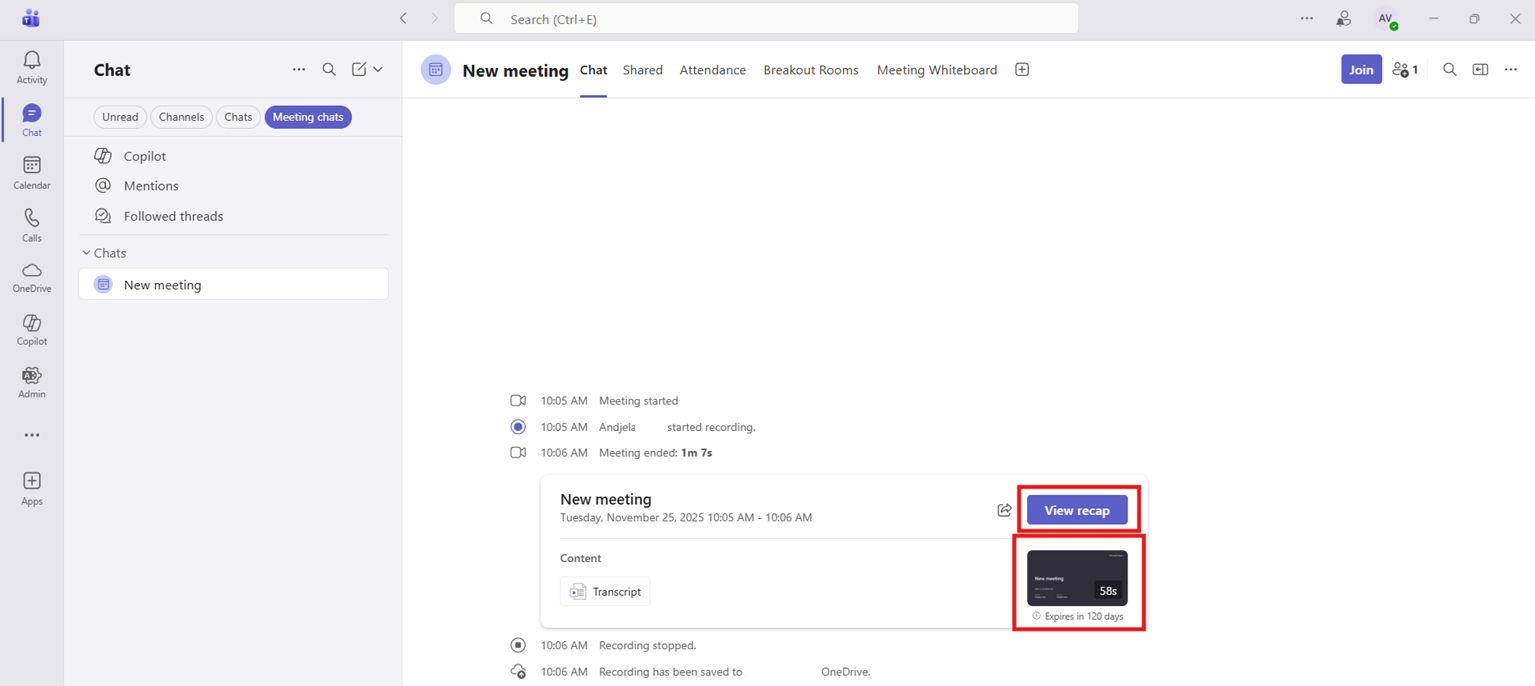
Open the meeting chat in Microsoft Teams and scroll until you see the recording card. Click on the thumbnail or the ‘View recap’ button to open it.
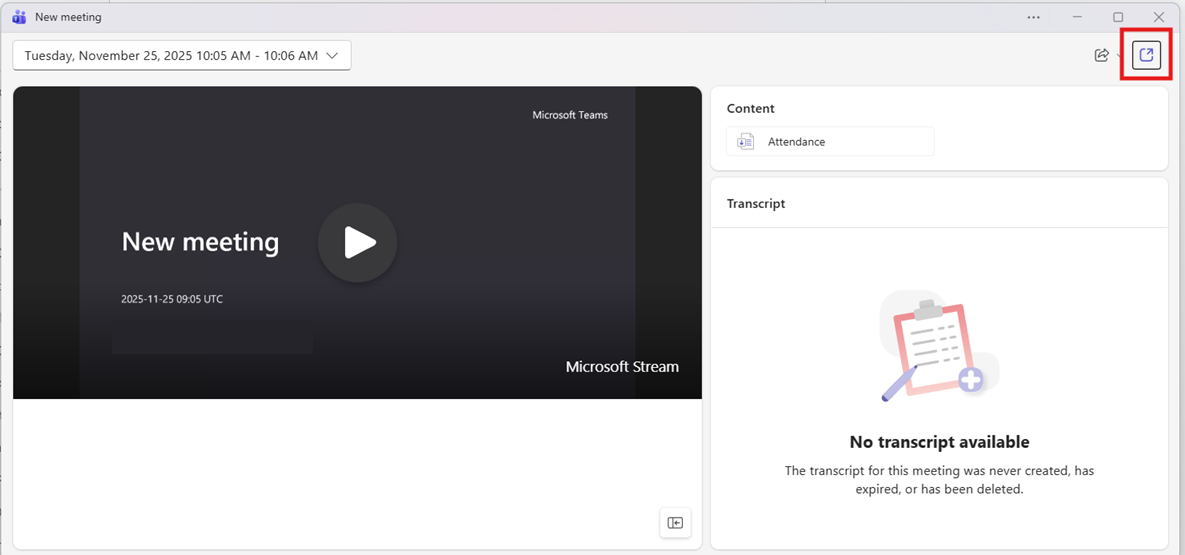
Click the ‘Watch browser’ icon (the small square with an arrow pointing up and right) on the card to open advanced file options.
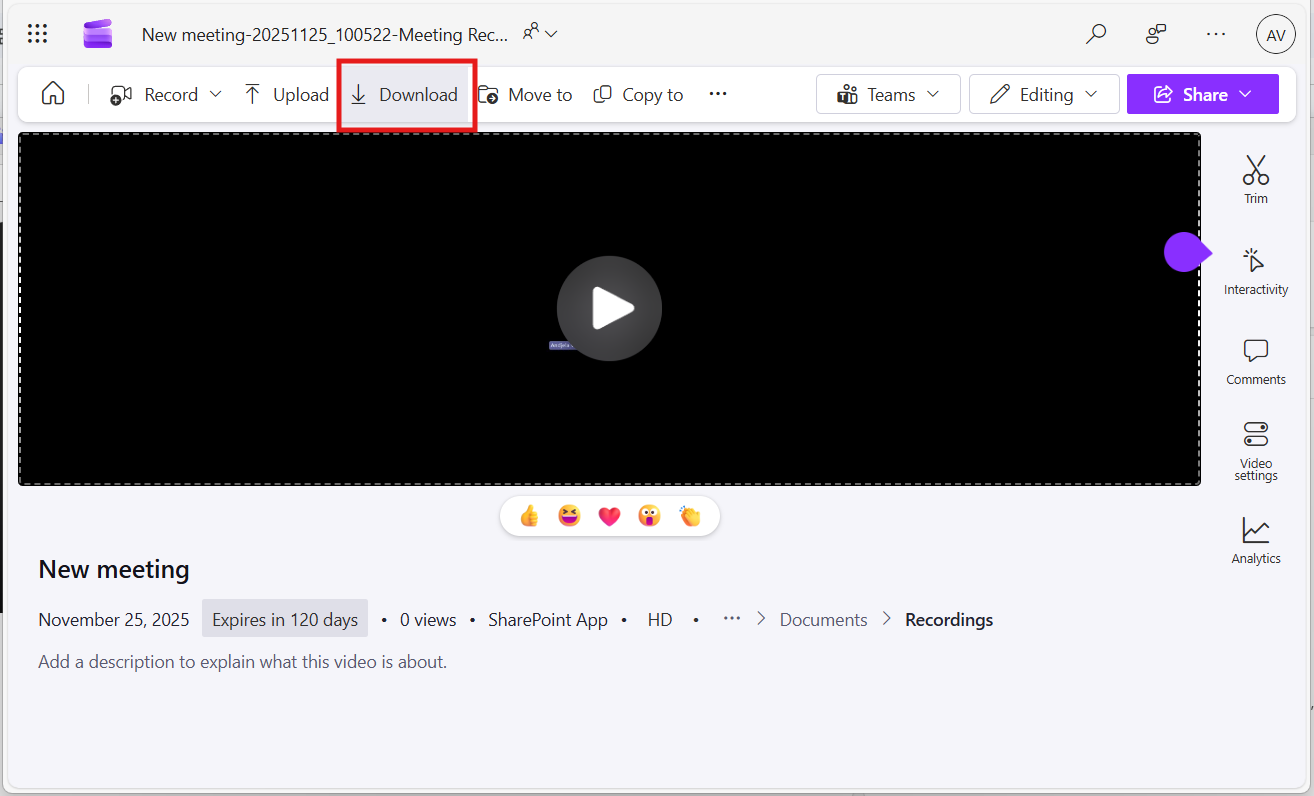
Click ‘Download’ in the command bar at the top to save the recording.
How Do You Download using the Chat Files Tab?
If you don't want to scroll through the entire chat history looking for the recording card, you can download Teams recordings directly from the Chat Files tab.
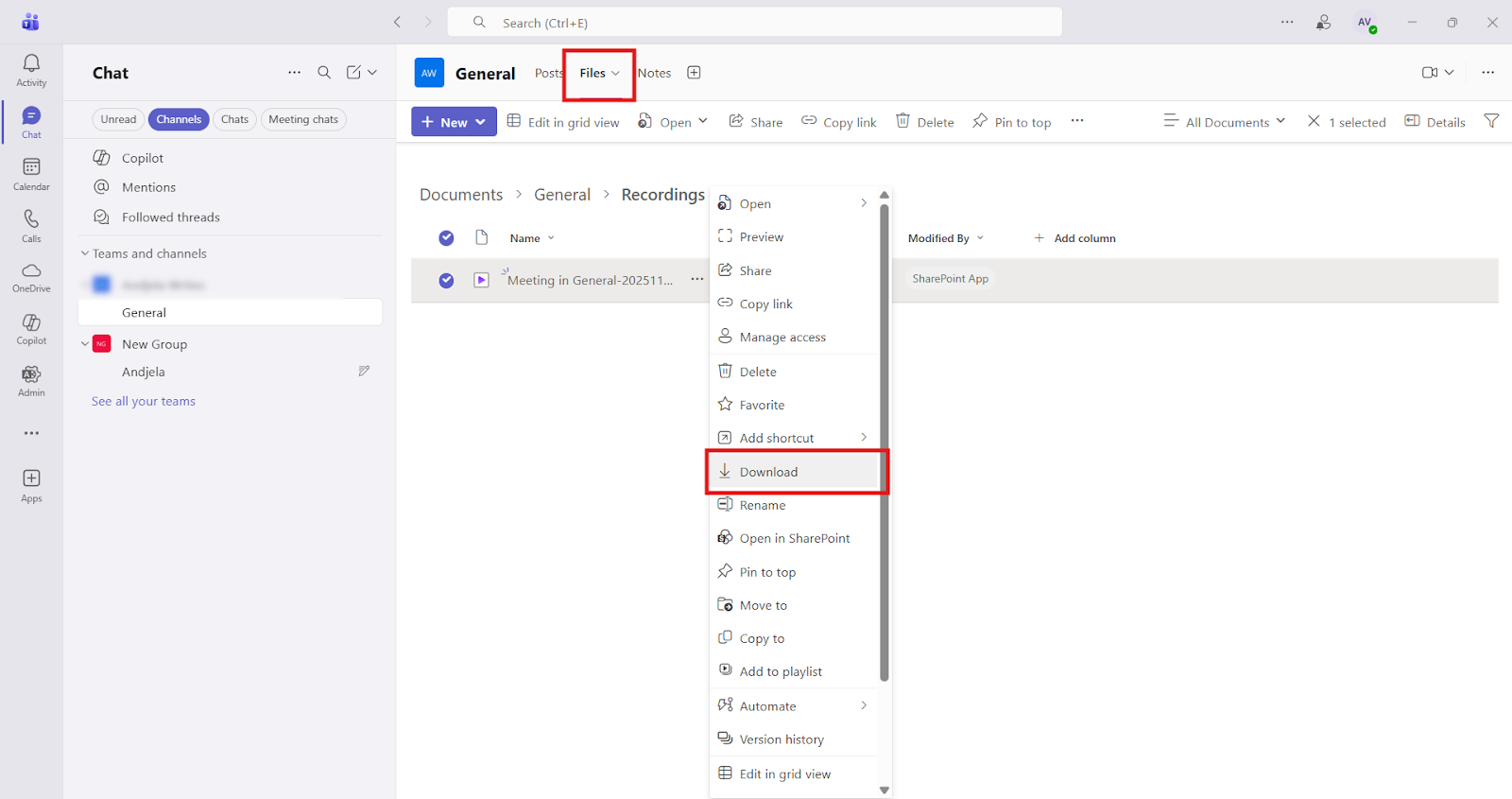
For channel meetings, open the channel where the meeting took place and select the ‘Files’ tab at the top, then open the ‘Recordings’ folder. Find the recording, open the three-dot menu next to it, and select ‘Download.’
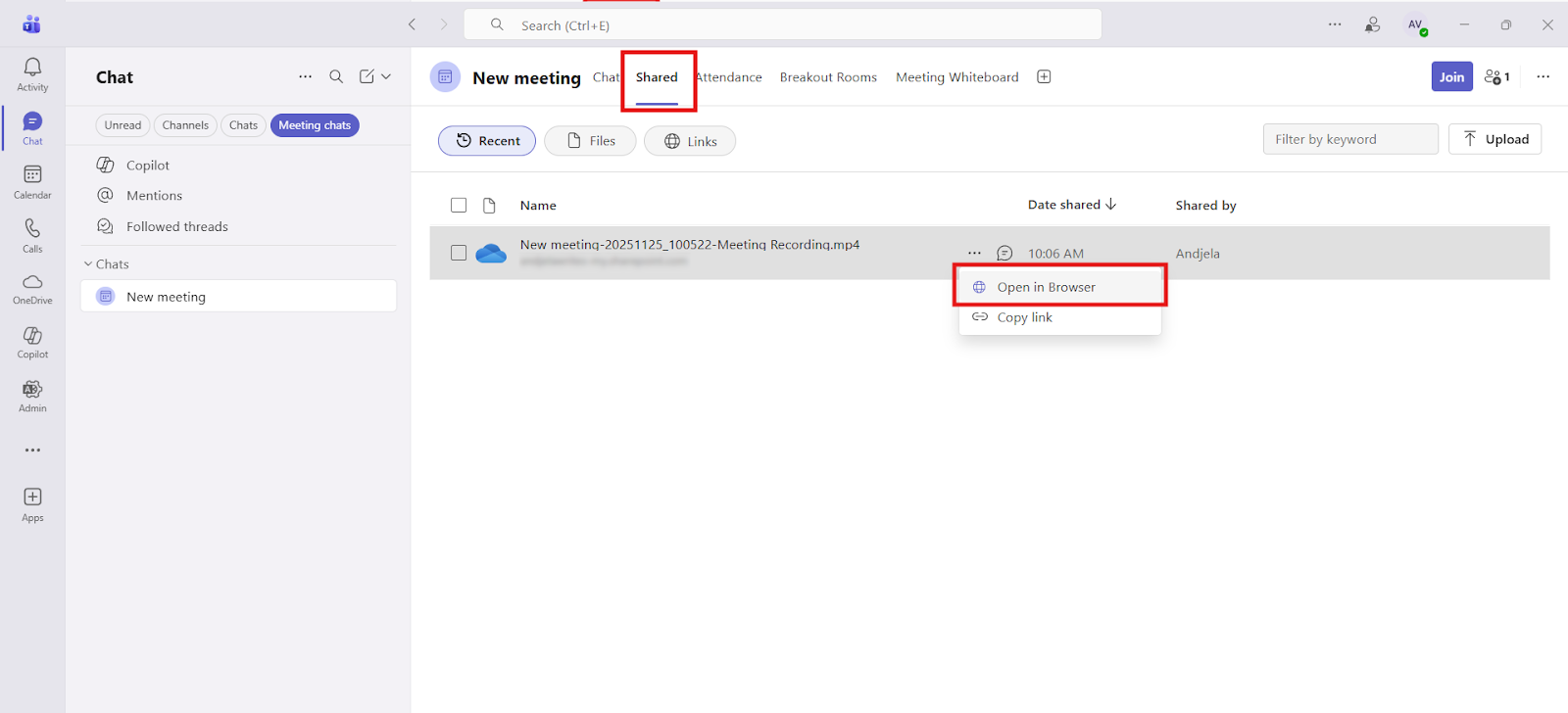
For non-channel meetings, open the meeting chat and switch to the ‘Shared’ tab at the top of the conversation. Locate the recording in the file list, open the three-dot menu beside it, choose ‘Open in Browser’, and download it.
How Do You Download a Teams Recording from OneDrive? (Non-Channel Meetings)
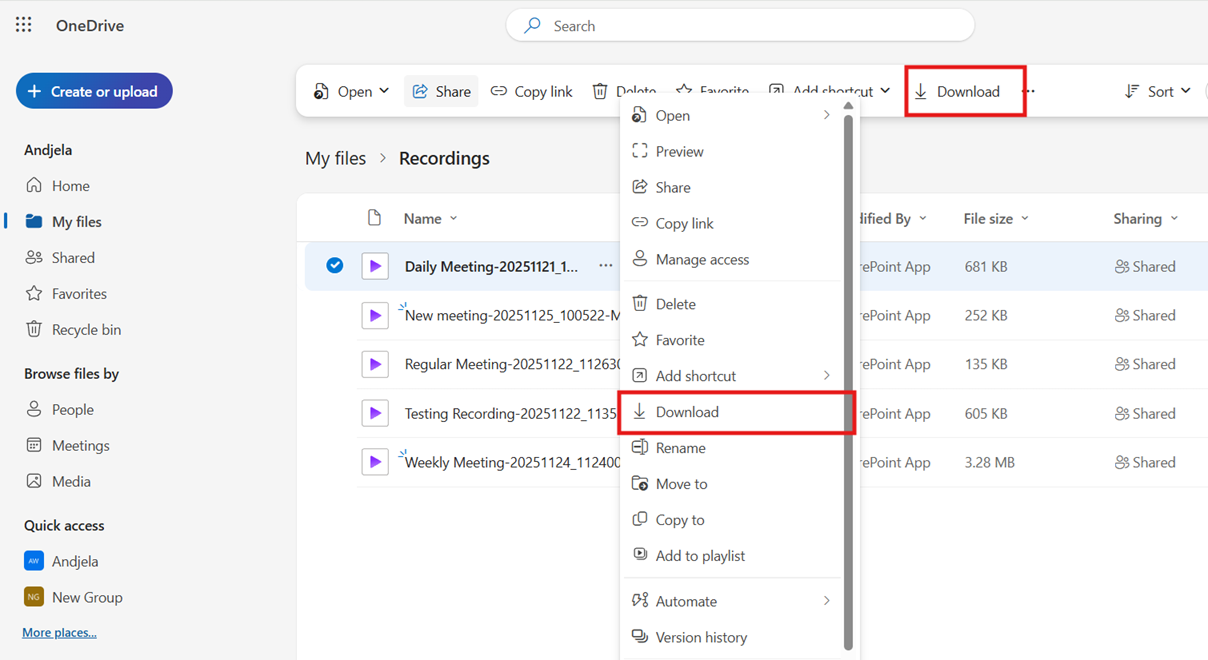
To download Teams recordings from OneDrive, sign in to OneDrive, open ‘My Files,’ and go to the ‘Recordings’ folder. Find your meeting video, open the three-dot menu, and select ‘Download’ to save the MP4 file to your computer.
Where is the "Recordings" Folder in OneDrive for Business?
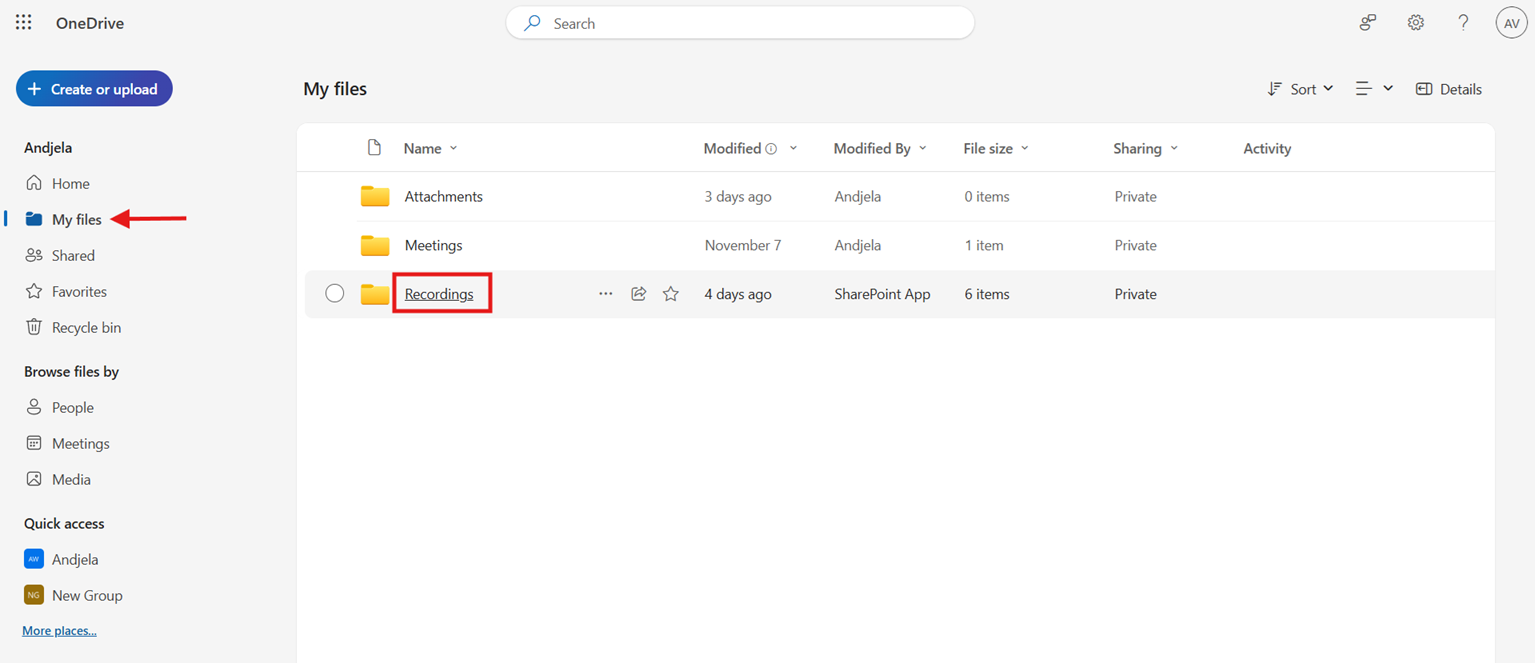
Open OneDrive in your browser (or the app) and sign in with your Microsoft 365 work account. Click ‘My files’ in the left navigation bar. Open the ‘Recordings’ folder, which stores all non-channel Teams meeting videos.
How to Download the Video File
In the ‘Recordings’ folder, find the meeting video you want to save. Hover over the file to reveal the three-dot menu, then select it to open the action list. Choose ‘Download,’ and your browser saves the MP4 file to your computer.
How Do You Download a Teams Recording from SharePoint? (Channel Meetings)
To download a Teams recording from SharePoint, open the ‘Recordings’ folder, find your video, and select the three-dot menu beside it. Click ‘Download’ to save the file. You can also download channel meetings recordings stored on SharePoint directly from Teams through the Channel Files tab.
Where are Teams Recordings Stored in SharePoint?
Open SharePoint, select the Documents folder, and locate the recording you want to download.
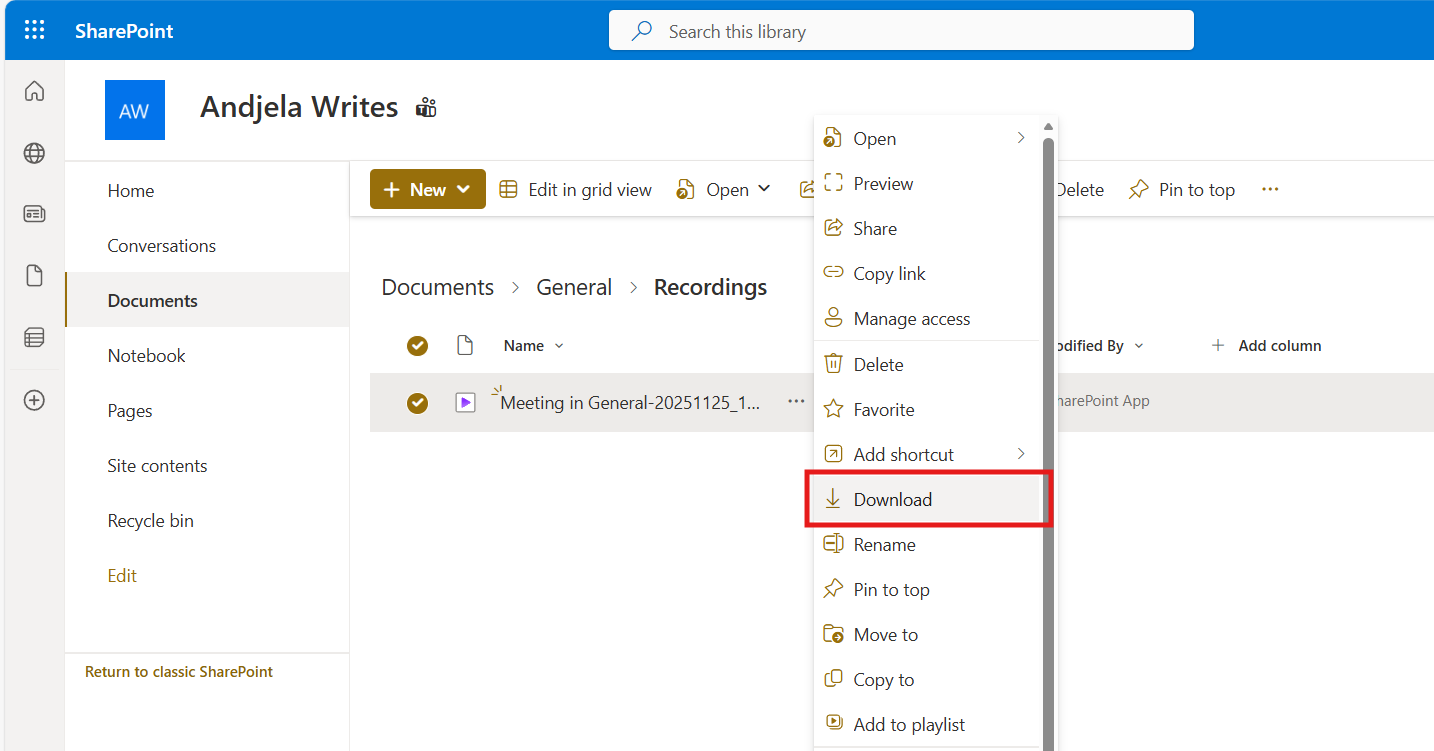
Hover over the recording and open the three-dot menu, then select ‘Download’ to save the file.
Find Your Recordings in the Channel Files Tab
You can also download your channel meeting recordings directly from Teams, without using SharePoint.
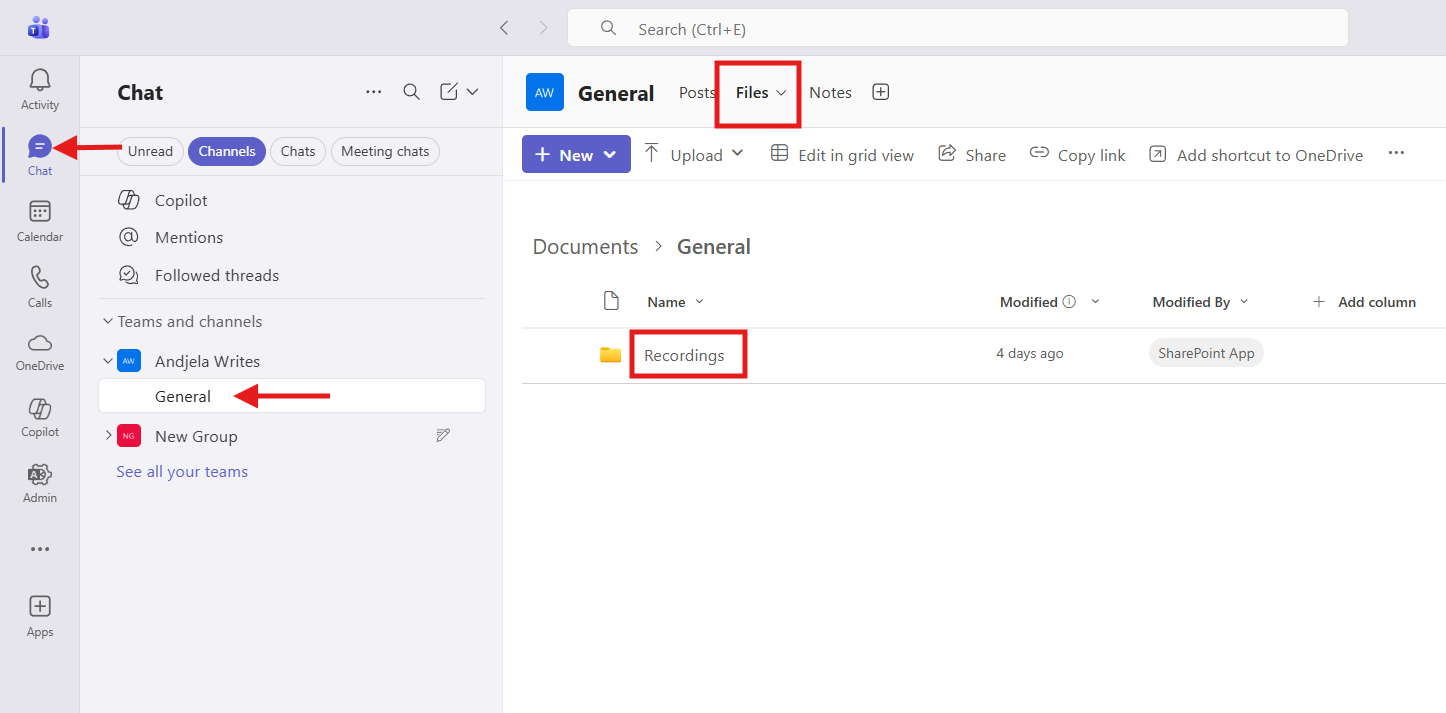
Open the Teams channel where the meeting took place and select the ‘Files’ tab at the top. Channel meetings save their recordings to the channel’s SharePoint-backed file storage, and they appear in the ‘Recordings’ folder.
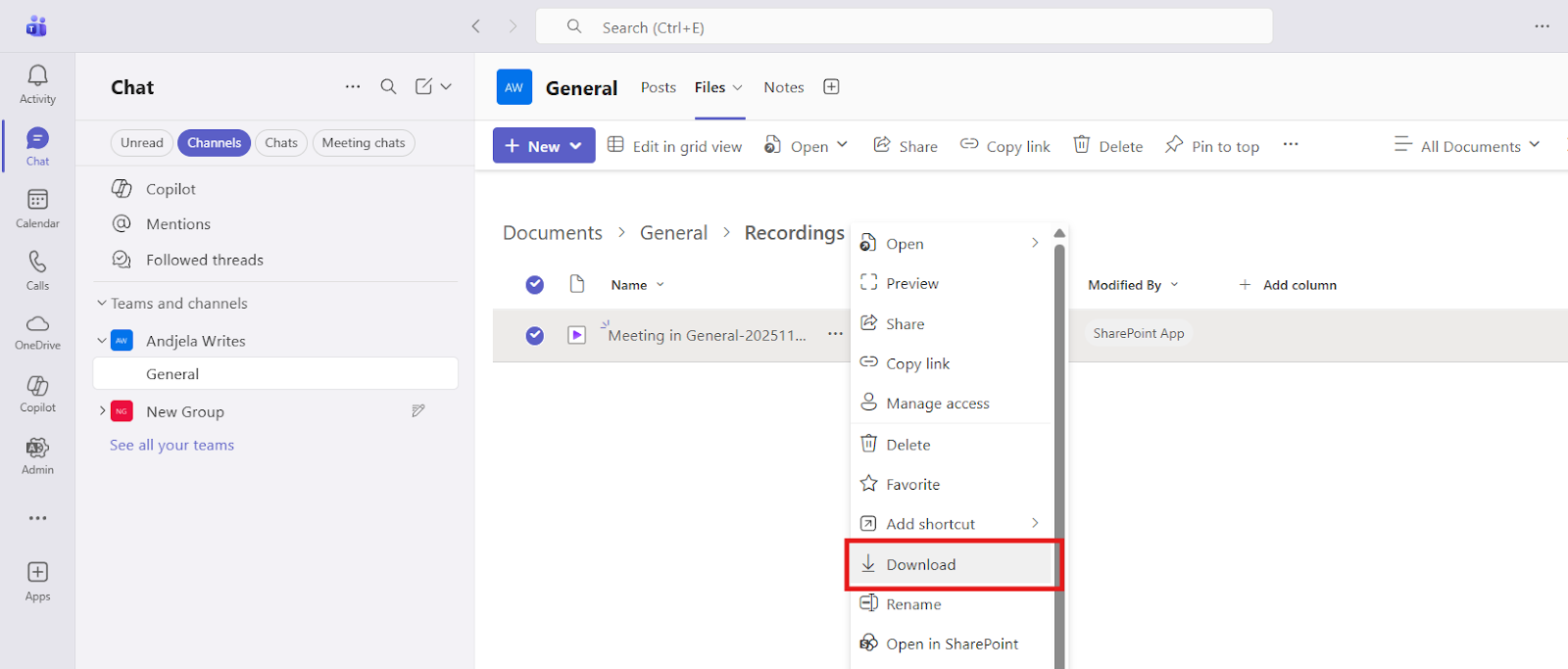
Hover over the recording and open the three-dot menu, then select ‘Download’. The video downloads straight to your computer, and you don’t need to open the full SharePoint site to save it.
How To Download Teams Recording on Mobile Devices
You can download Teams recordings on mobile through the ‘Files’ tab in the Teams app or the OneDrive app. Open the file list, tap the three-dot menu next to the recording, and choose ‘Download’ to save it to your device.
Access Recordings via the Teams Mobile App
Open the Microsoft Teams app on your phone and tap the ‘Files’ tab in the bottom navigation bar. You’ll see two sections: your regular Teams files and your linked ‘OneDrive’ folder.
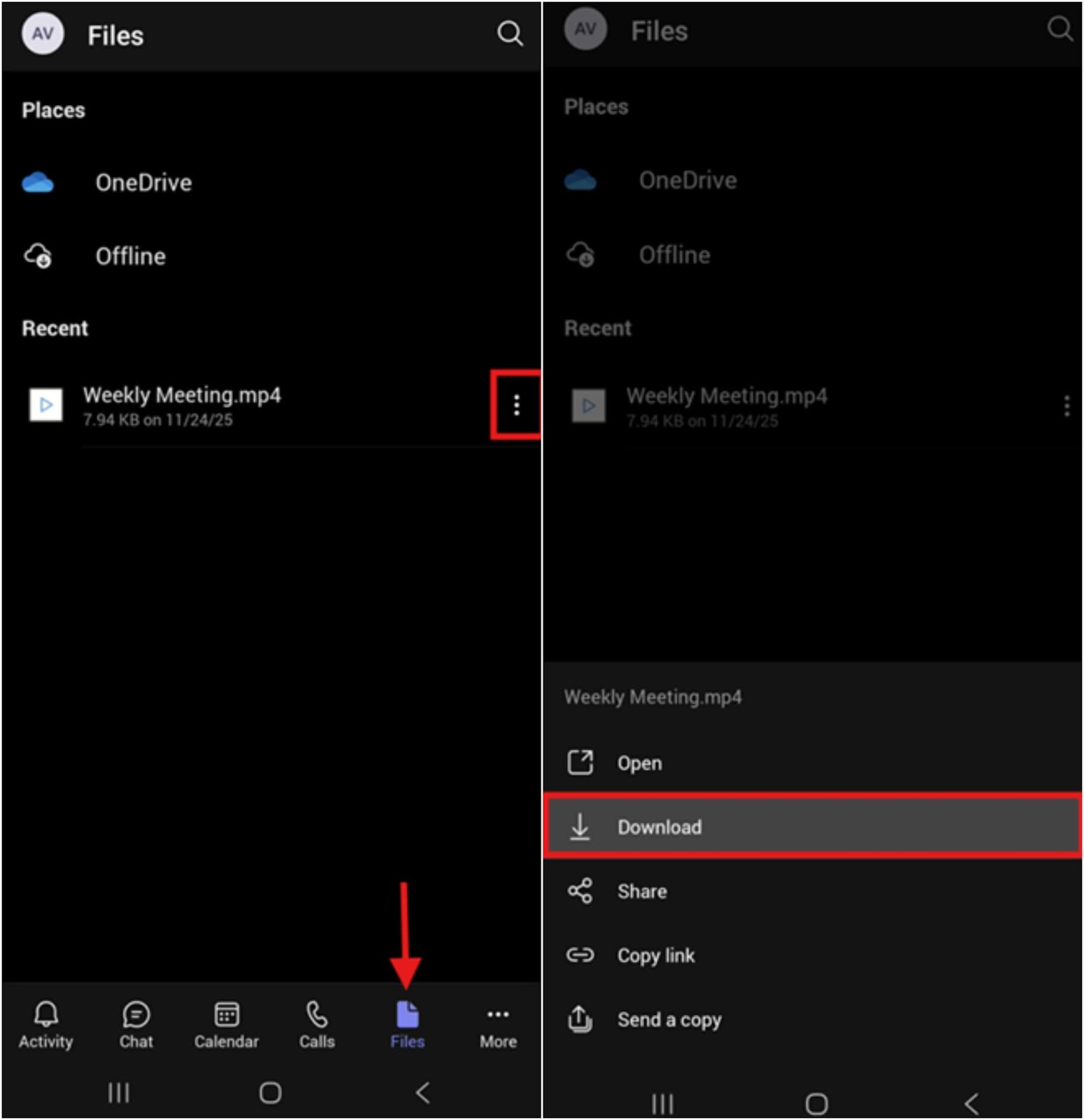
Find the recording you want and tap the three-dot menu next to it. A panel opens at the bottom with file actions. Tap ‘Download’ to save the video to your device.
Use the OneDrive App to Download on iOS and Android
Open the OneDrive app and sign in with the same Microsoft 365 account you use in Teams. Tap ‘My files’ at the top, then open the ‘Recordings’ folder where Teams stores meeting videos by default.
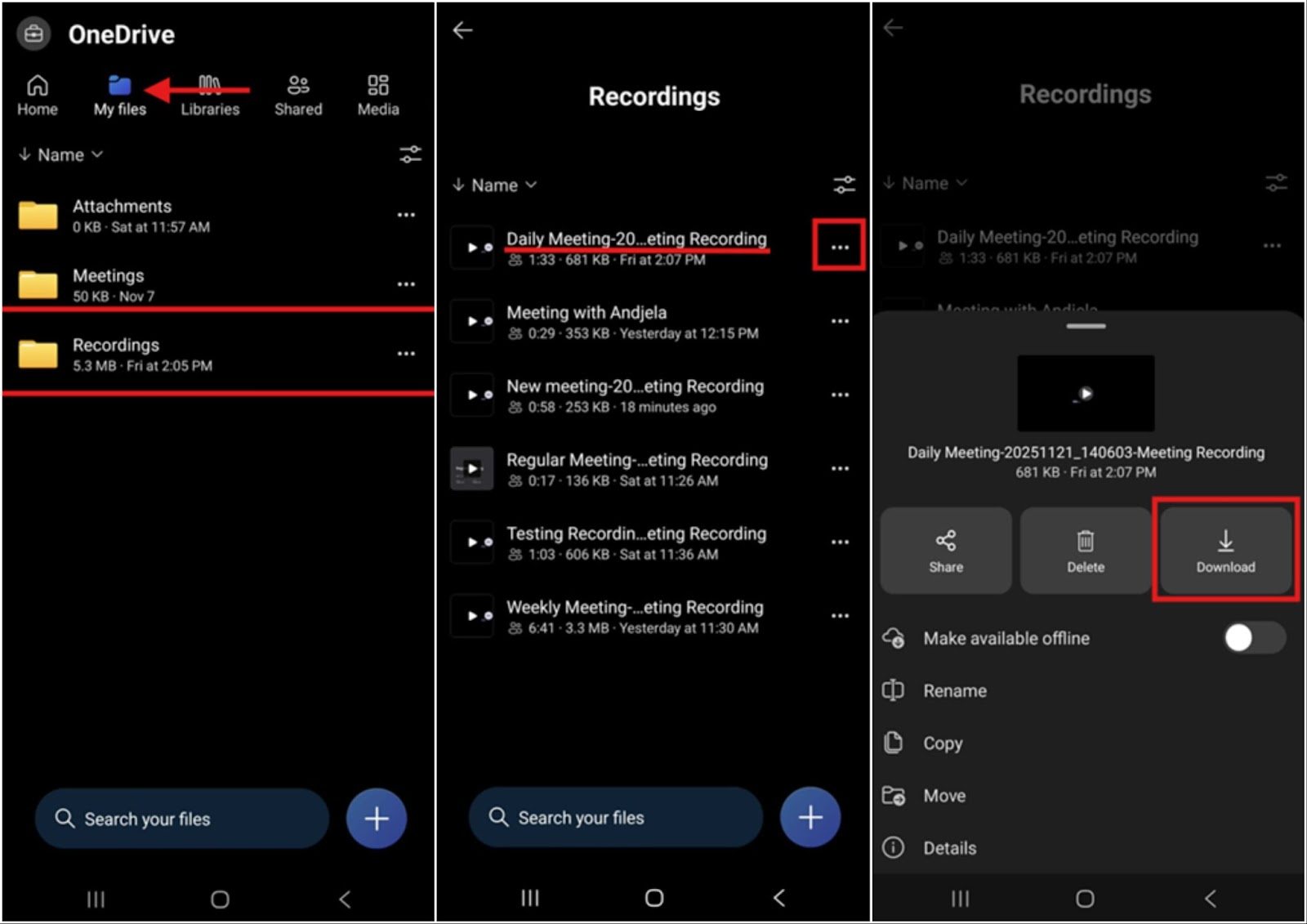
Find the file you want, tap the three-dot menu next to it, and choose ‘Download.’
Who Has Permission to Download a Teams Recording?
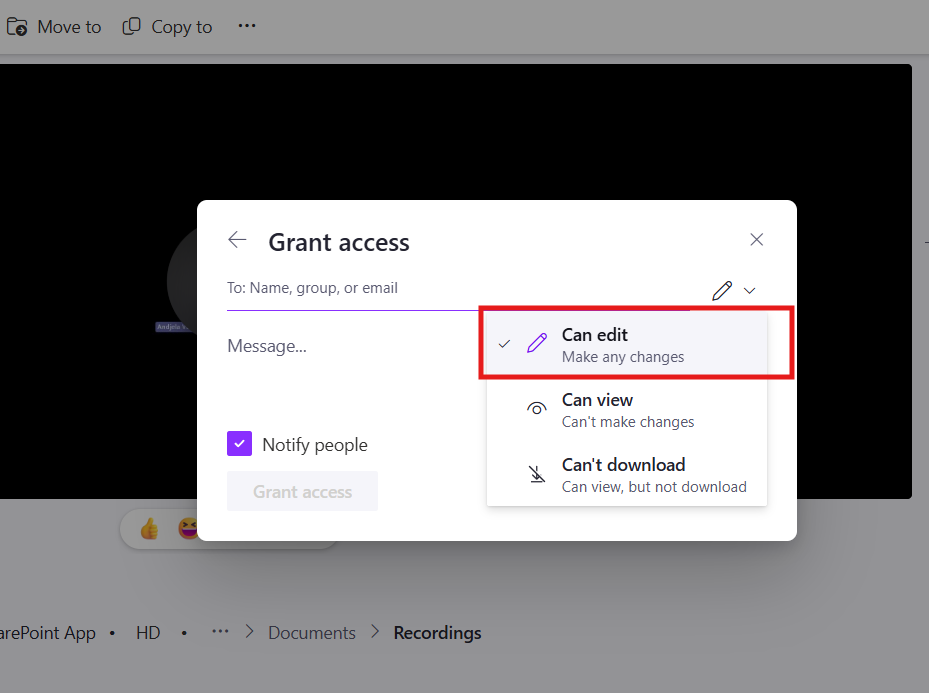
Only users with ‘Can edit’ permissions can download Teams recordings. The meeting organizer and file owner automatically get download rights, but you must upgrade anyone with ‘Can view’ or ‘Can’t download’ access in OneDrive or SharePoint before the download button appears for them.
External guests can download a Teams recording, but only if you give them ‘Can edit’ permission on the file in OneDrive or SharePoint. If they only have ‘View‘ access, the download button won’t appear, so the organizer or file owner must upgrade their permission level first.
How Do You Change Download Permissions for Teams Recordings?
Open the recording in OneDrive or SharePoint and select the ‘Share’ button in the upper-right corner. Choose ‘Manage access’ to open the permissions panel for the video
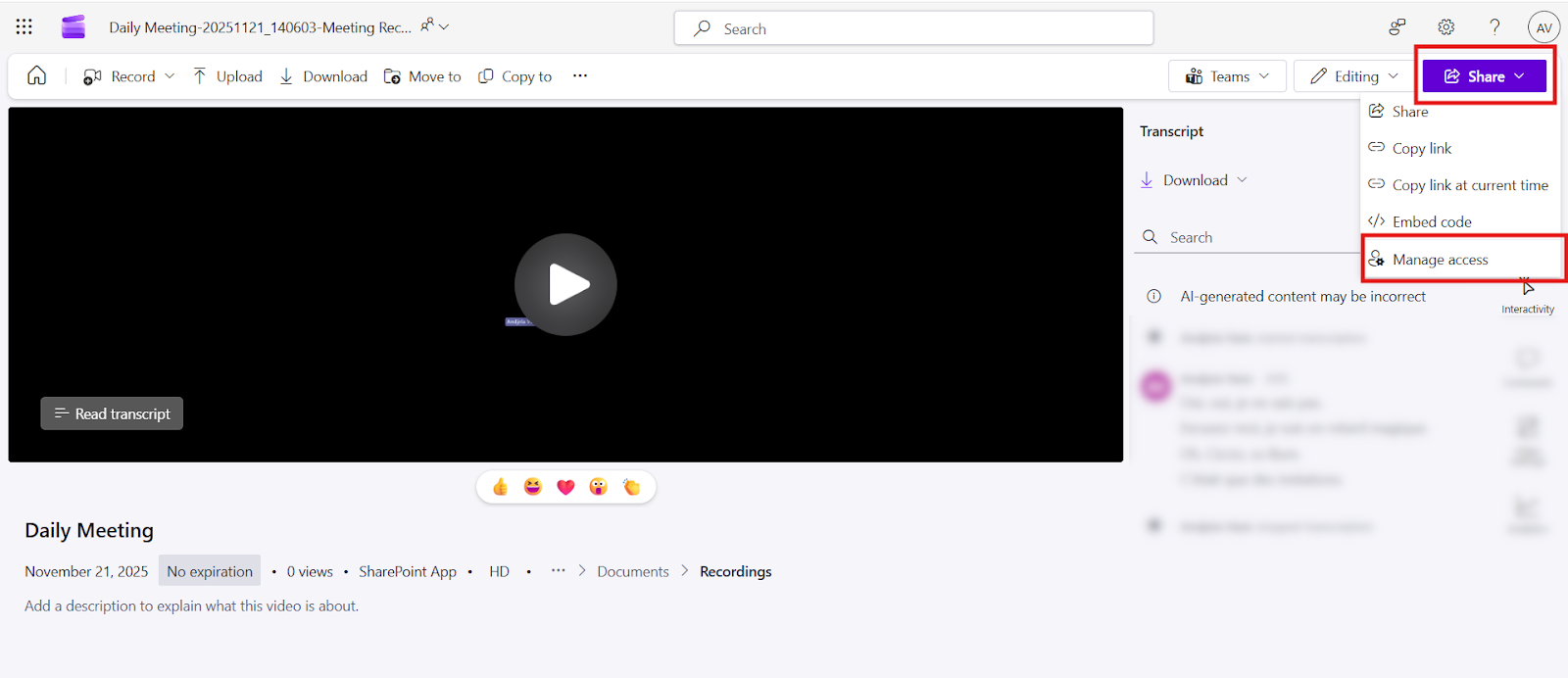
Open the ‘Grant access’ option to bring up the sharing window, then add the people you want to give access to. Click the pencil icon and change ‘Can view’ or ‘Can’t download’ to ‘Can edit’ to give them download rights.
Pro tip: If you need to share several recordings, update permissions on the entire ‘Recordings’ folder. Anyone with ‘Can edit’ access at the folder level can download all current and future recordings inside it.
How to Download Your Own Teams Recordings with Notta
Notta gives you a much simpler way to save your Teams meeting recordings. Instead of digging through OneDrive folders, channel libraries, or the meeting chat, your recording appears right in your Notta dashboard the moment the call ends.
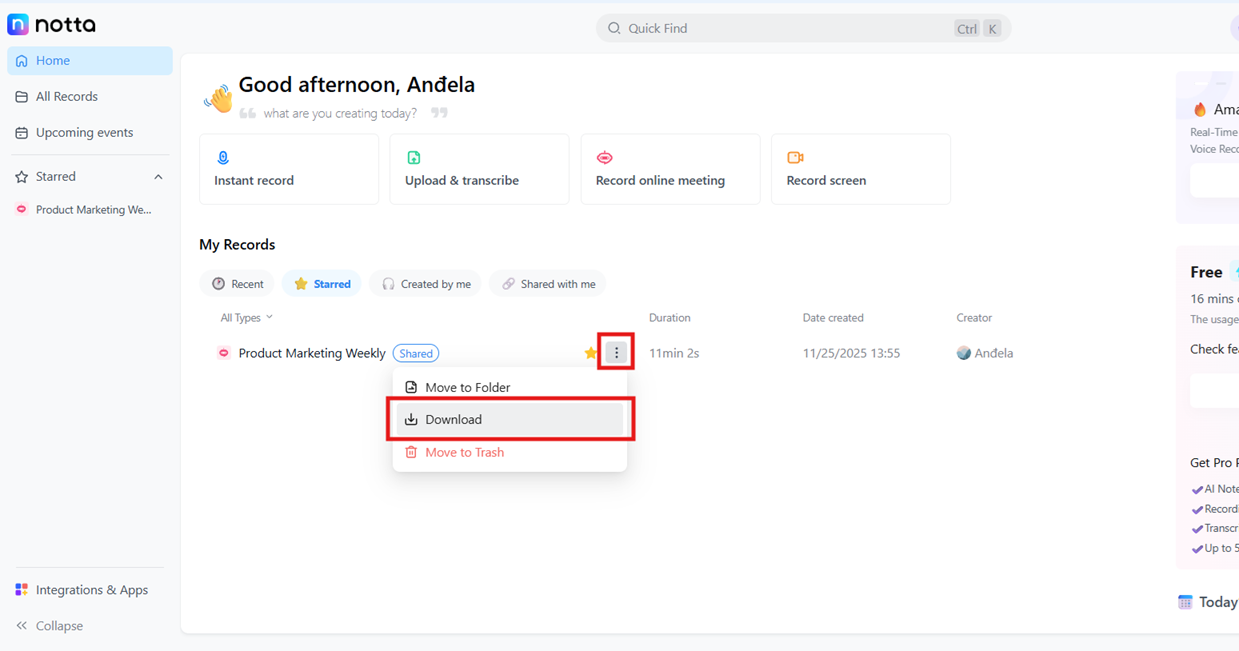
You download it in one click by opening the three-dot menu and choosing ‘Download,’ without worrying about permissions or expired files.
Notta also integrates directly with Microsoft Teams, so you can share your notes or transcript back into a Teams chat. You get a transcript with up to 98.86% accuracy and AI-generated notes that outline the meeting’s key points, decisions, and action items.
Everything’s accessible through your dashboard, so you control who has access, and your recordings never expire.
Troubleshooting: Why Can't I Download My Teams Recording?
You can’t download a Teams recording if the owner limits your access, the recording expires, or the upload failed. Fix the issue by updating your file permissions in OneDrive or SharePoint, restoring the recording from the recycle bin, or retrying the upload from the meeting details page.
What if the Download Button is Missing?
You won’t see the download button if you don’t have the right permissions. You need edit access to download the recording. Ask the organizer or file owner to change your access.
What To Do When a Teams Recording Has Expired
Your organization might be using the default 120-day retention period, so your recording has expired. Teams moves expired recordings to the recycle bin, where they stay for another 93 days (30 days in the first-stage bin and 63 days in the second-stage bin).
You can restore the file during that window. After that, Teams permanently deletes the recording, and only an admin can attempt to recover it.
How Do You Fix the "Recording Failed to Upload" Error?
This error appears when Teams can’t save the recording to OneDrive or SharePoint. Check that your OneDrive or SharePoint storage isn’t full and make sure your Microsoft 365 license is still active, because license changes interrupt the upload process.
Open the meeting details in Teams to trigger a reupload. If the file still doesn’t appear, contact your IT admin to recover the recording from Teams’ temporary storage and place it in the correct folder.
Note: By default, each OneDrive for Business gets 1 TB of storage, while SharePoint Online gives your organization a base quota of 1 TB plus 10 GB per licensed user. A standard Teams recording uses ~400 MB per hour.
Frequently Asked Questions
How long do Teams recordings stay available before expiring?
Teams recordings stay available for 120 days by default, but both admins and meeting organizers can change the expiration. Organizers can change or remove the expiry on individual files in OneDrive or SharePoint, and admins can change the organization-wide default. Deleted files stay in the Recycle bin for 93 days.
Can I download a transcript along with the video recording?
Yes, you can download a transcript along with the video recording. Open the meeting recording and use the ‘Download’ menu above the transcript to save it as a DOCX or VTT file. However, Teams’ built-in transcription is limited, while Notta offers up to 98.86% accuracy, full control over storage, and automatic notes.
What file format is the Teams recording download?
Teams recordings always download in MP4 format for both non-channel and channel meetings. You can convert the file to another format with any standard video converter if you want a MOV, MKV, or WebM file.
Is it possible to download a recording if I didn't attend the meeting?
Yes, it’s possible to download a recording if you didn’t attend the meeting. The recording appears in the meeting chat or channel ‘Files’ tab, and you can download it as long as you have ‘Can edit’ access. If you only see view access, ask the organizer to upgrade your permissions so the download button appears.

