How to Join a Teams Meeting with a Code: A Complete Guide
Saving time and effort with Notta, starting from today!
To join a Teams meeting with a code, open the Teams app, Calendar, or web browser, select Join with an ID, enter the Meeting ID (format: XXX XXX XXX) and Passcode, then click Join meeting. It works on desktop, web, and mobile, and you don’t need a Microsoft account to join as long as guest access is enabled.
That process may sound simple to some, but many people find it frustrating. According to the Owl Labs State of Hybrid Work 2024 report, 72% of employees started meetings late due to technical difficulties, including trouble getting into the meeting at all.
This guide shows you how to join a Teams Meeting with a code, how to join as a guest or signed-in user, and what to do if the code doesn’t work.
How Do You Join a Teams Meeting with a Meeting ID in the Desktop App?
You can join with a code directly from the Teams desktop app.
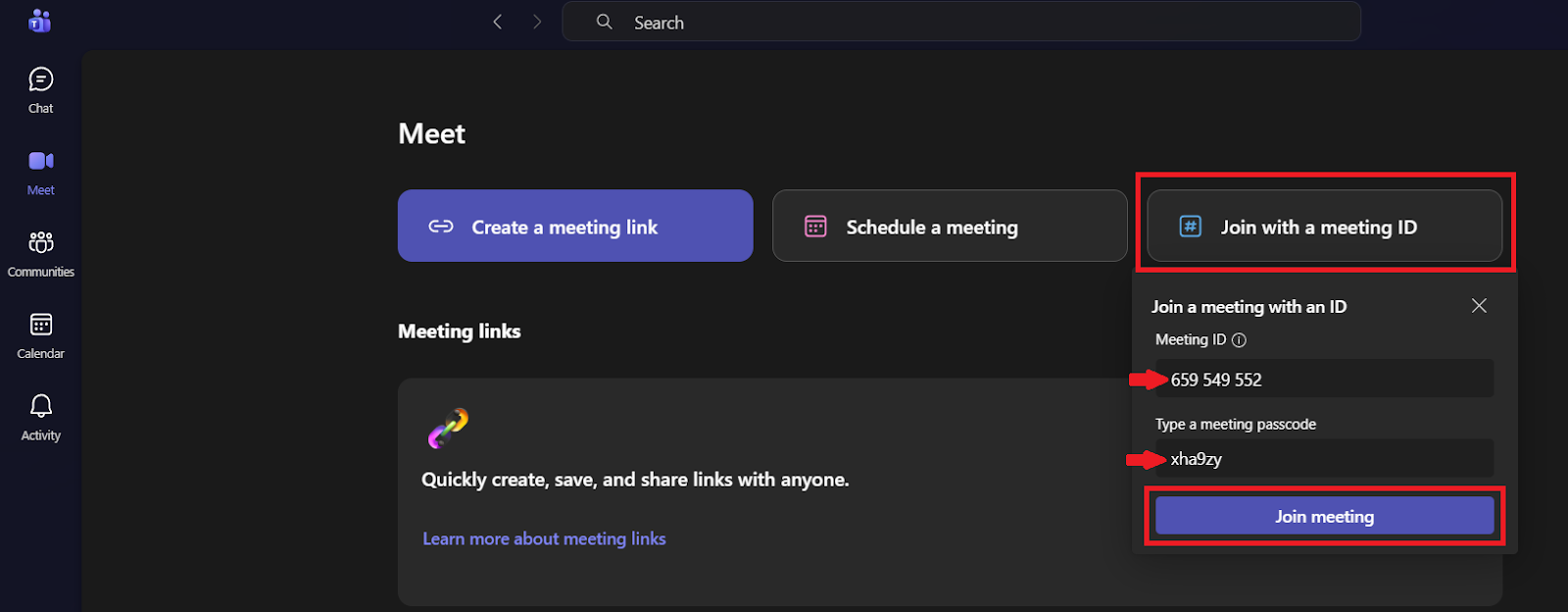
Go to the ‘Meet’ tab and select ’Join with a meeting ID’ on the Microsoft Teams desktop app. A panel will open on the right. Enter the Meeting ID and the meeting passcode, then select ‘Join meeting’ to enter the call.
Find "Join with an ID" in Your Teams Calendar
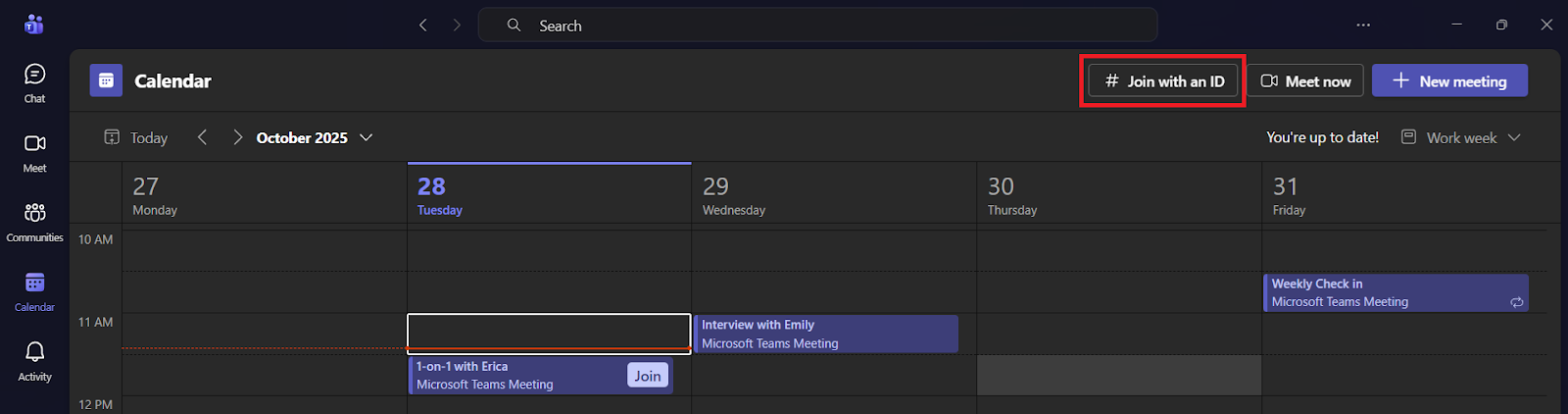
You can also join with a code from the ‘Calendar’ tab. Open ‘Calendar’ in Teams and select ‘Join with an ID’ at the top.
Enter Your Meeting ID and Passcode to Connect
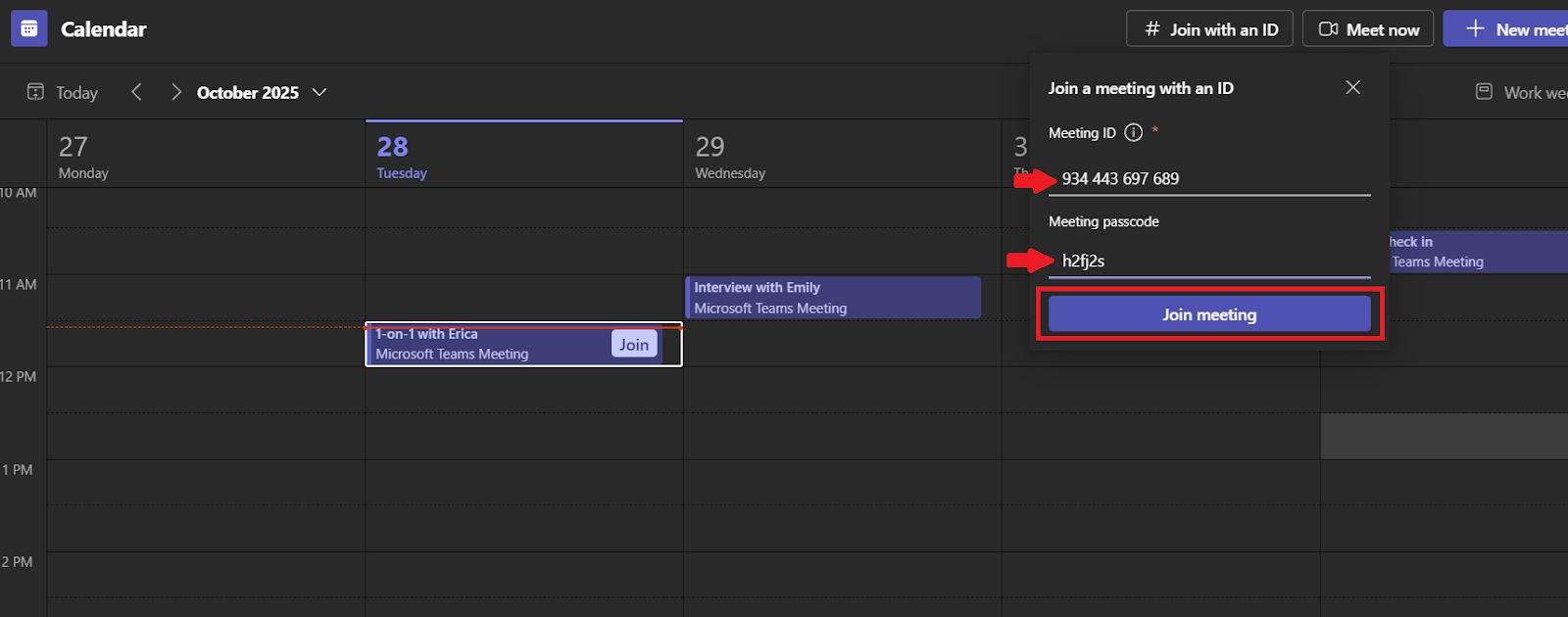
Type in the meeting ID and passcode, then click ‘Join meeting’ and you’re done!
How Do You Join a Teams Meeting with a Code in a Web Browser?
If you don’t have the desktop app or prefer your browser, you can join with a code on the web.
How Do I Access 'Join with an ID' on the Teams Web Version?
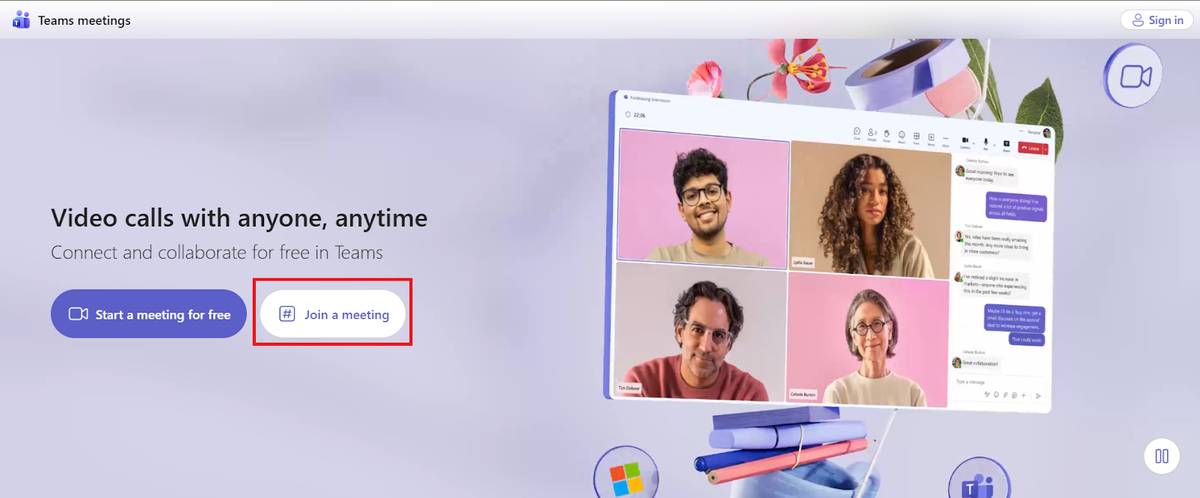
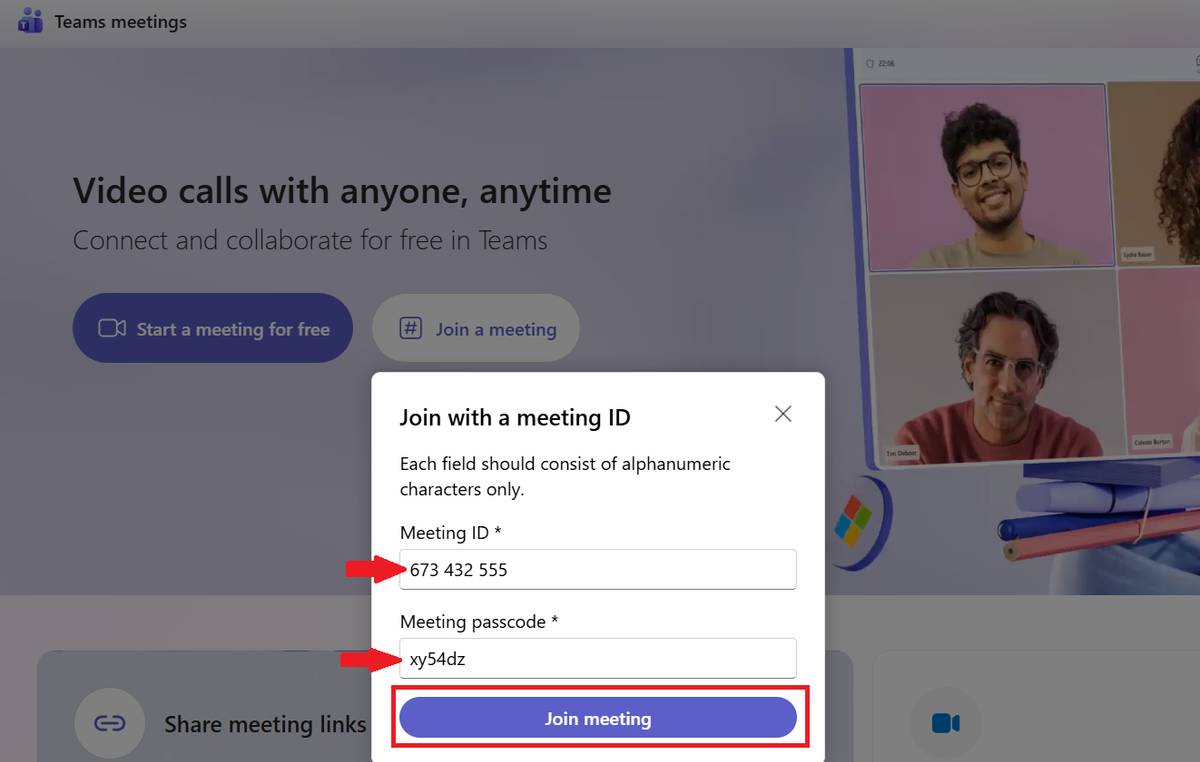
Open Microsoft Teams online (http://teams.live.com/free), and click the ‘Join a meeting’ option on the front page.
A new window will open, where you can input the meeting ID and password. Click ‘Join meeting’ to enter, and you’re all set.
Can I Join a Teams Meeting with a Code as a Guest?
If you’re not signed in, the meeting will open in your browser, and you’ll see a screen where you can add a temporary display name. Type your name, adjust your audio settings if you need to, and click ‘Join now’ to access the call as a guest.
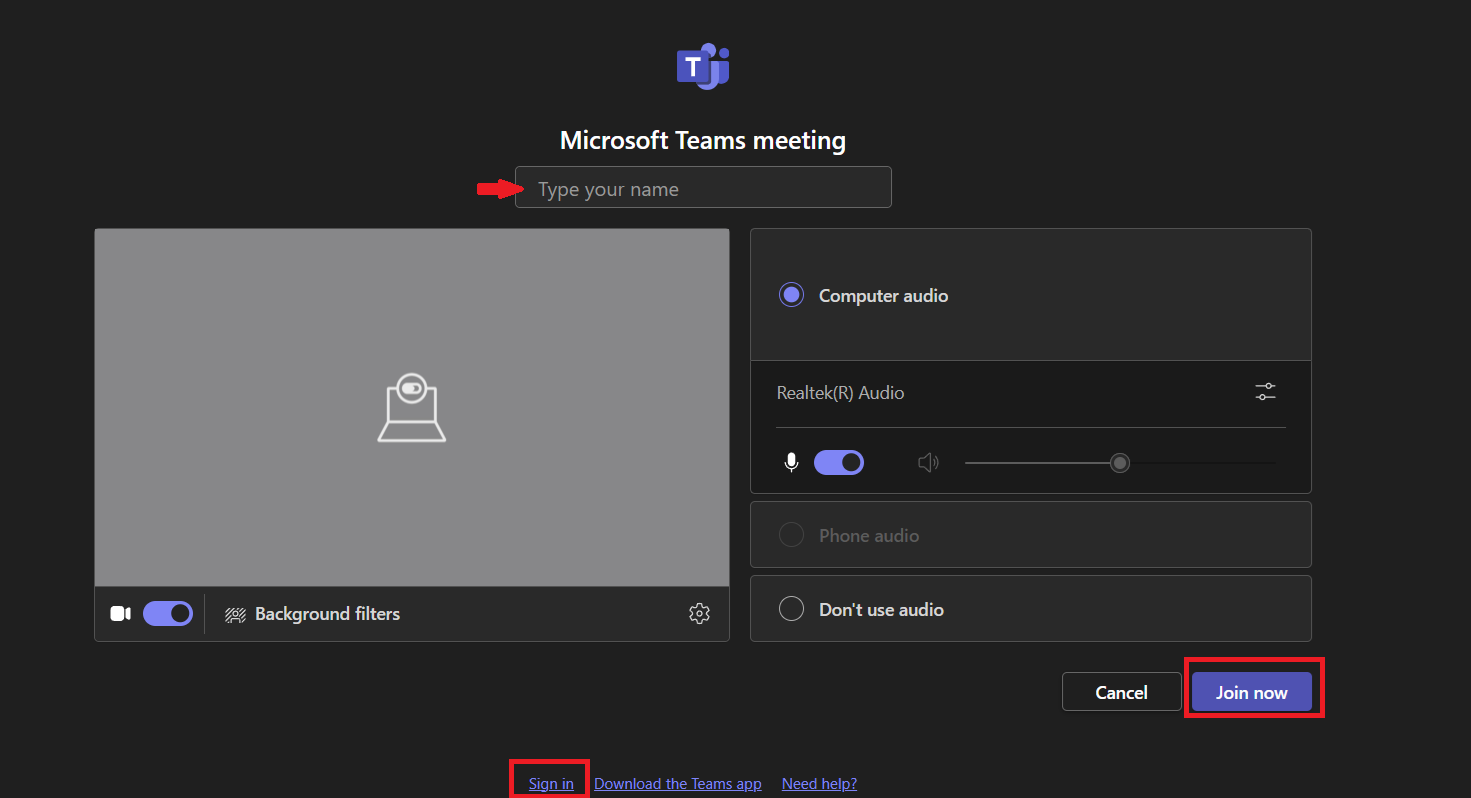
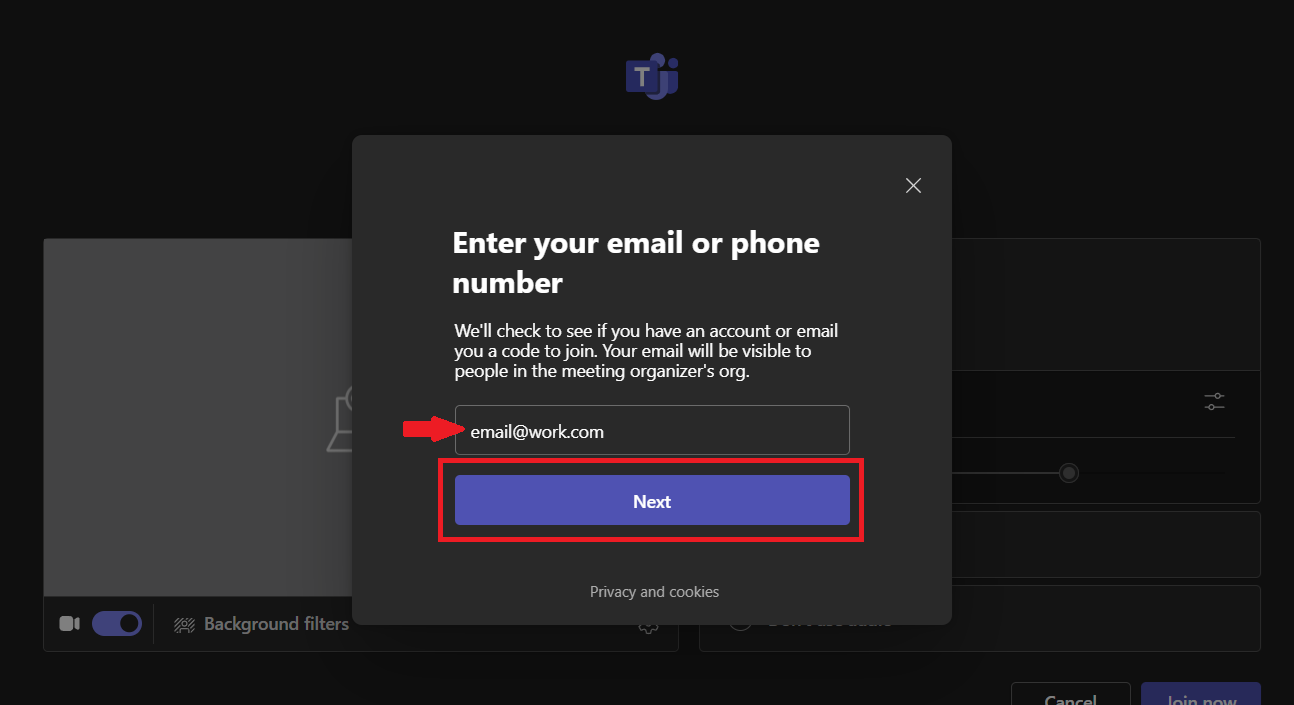
If you prefer to use your Microsoft account, or if the meeting requires authentication, select ‘Sign in’ at the bottom of the screen. Enter your email and sign in to join the meeting with your account profile.
How Do You Join a Teams Meeting Using the Mobile App?
Teams lets you join a meeting from your phone using your calendar or a Meeting ID. The path to the Join with ID option changes slightly depending on whether you’re on a personal account or a work or school account, but both methods take only a few taps.
How Do You Join a Meeting from the Mobile Calendar?
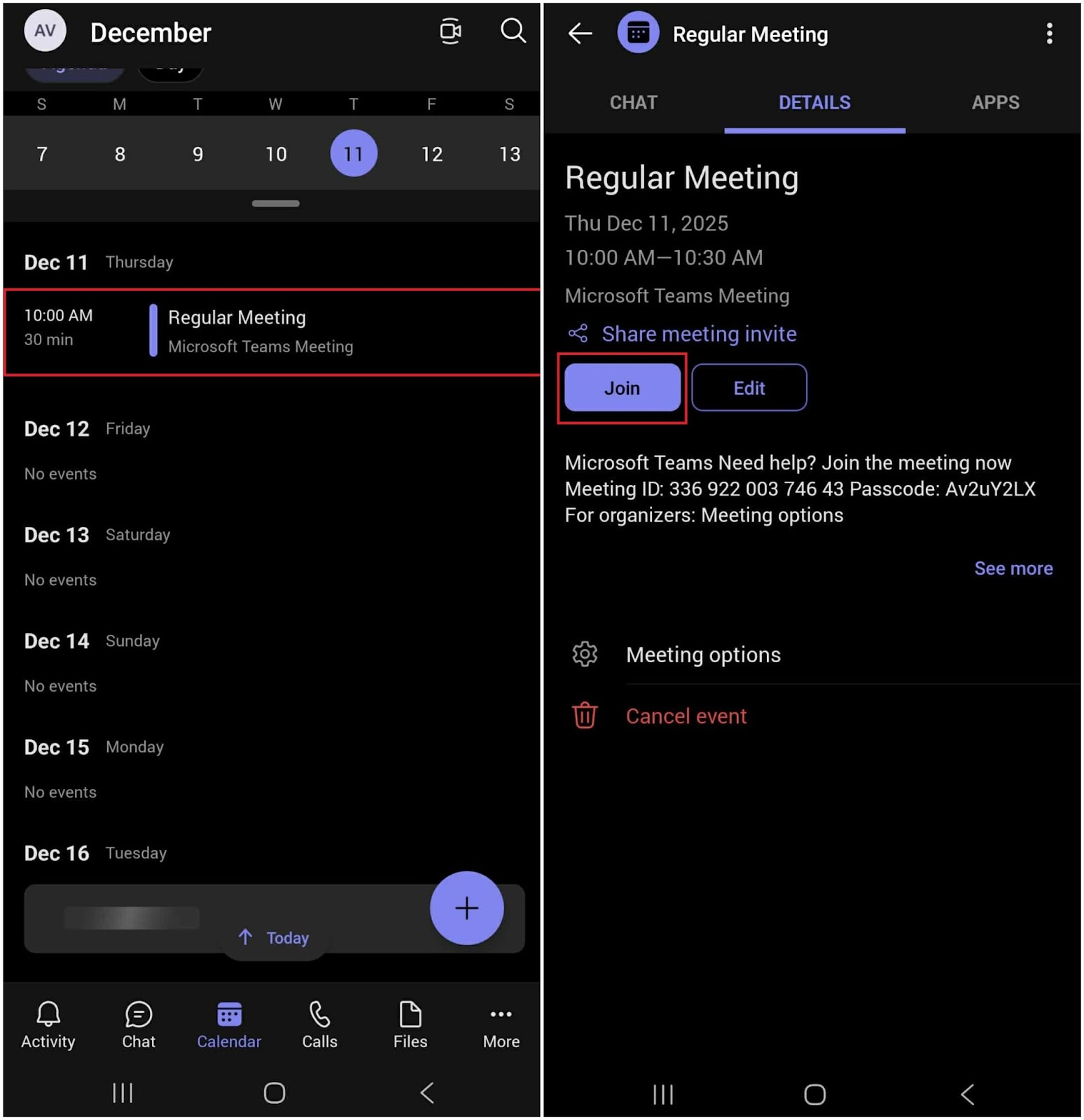
On a work or school account, joining a scheduled meeting from the Teams mobile calendar is straightforward. Open the ‘Calendar’ tab, tap the meeting in your list, and then tap ‘Join’ on the meeting details screen. Teams connects you automatically without asking for a Meeting ID or passcode.
Where is the "Join with an ID" Button in the Teams Mobile Calendar?
You can join even when the meeting isn’t in your calendar. The steps look slightly different depending on your account type.
On Work/School accounts:
Open the ‘Calendar’ tab and tap the ‘video camera' icon in the top-right corner, then tap ‘Join with a meeting ID.’ Type in the details, and tap ‘Join meeting’ to connect.
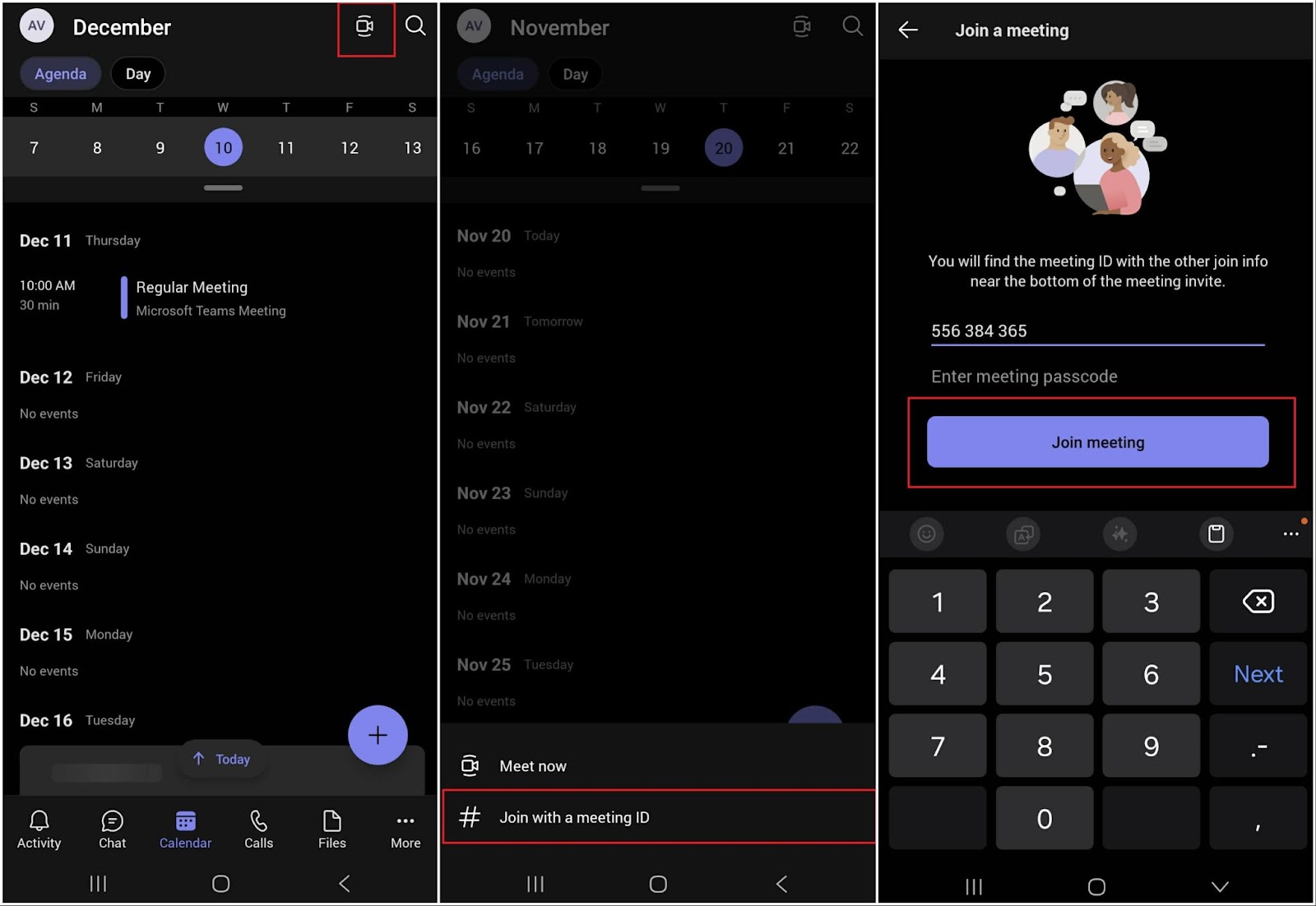
On Personal accounts:
Open the ‘Calendar’ tab and tap ‘Meet’ in the top-right corner. Select ‘Join with a meeting ID,’ enter the ‘Meeting ID’ and ‘Passcode,’ then tap ‘Join meeting’ to enter the call.
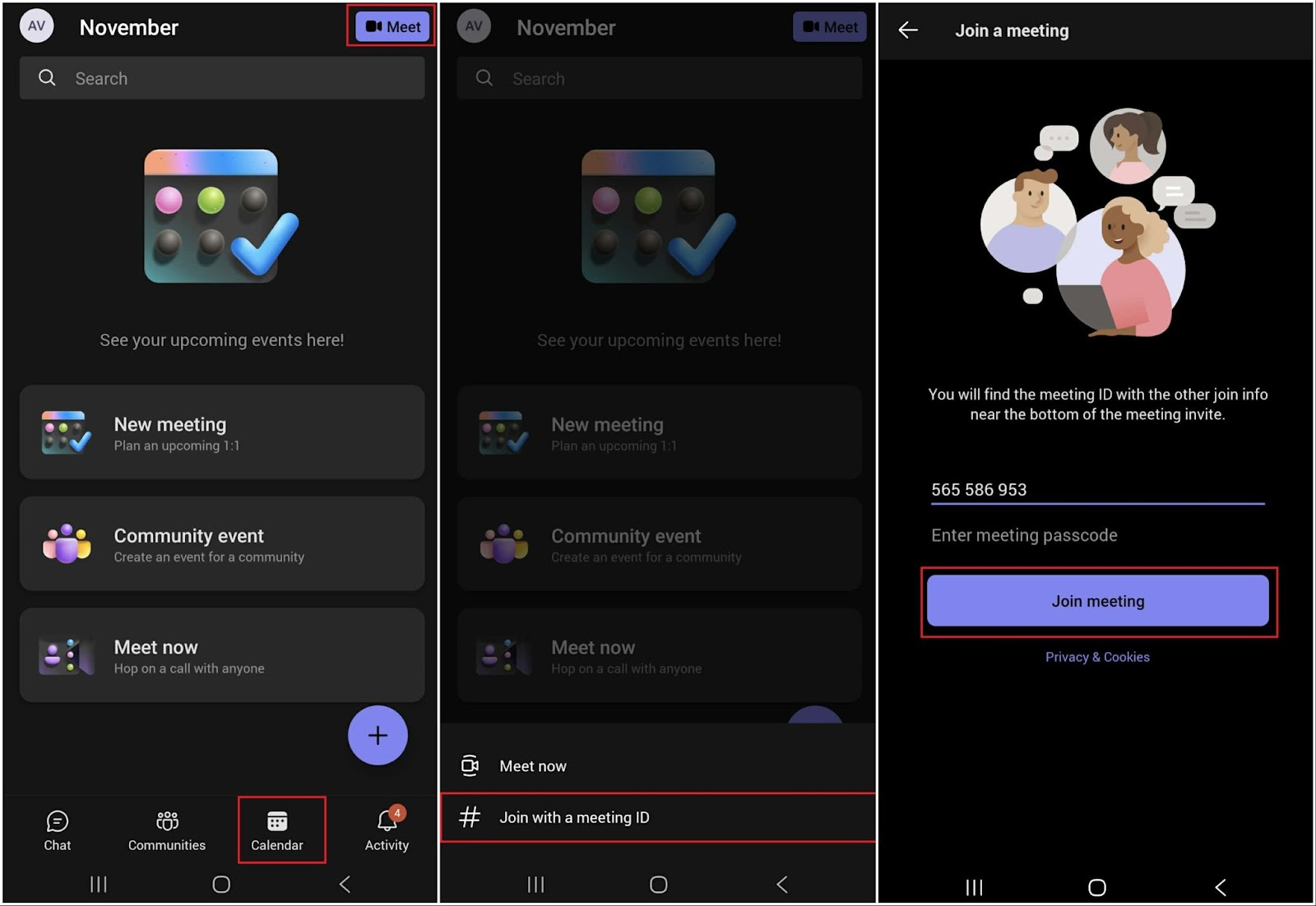
Important: Make sure you tap the ‘Meet’ button on the Calendar view (not on the Chat view) because the ‘Join with ID’ option only appears in the Calendar view.
Where Do I Find the Teams Meeting ID and Passcode?
The Meeting ID and Passcode appear in your calendar invitation, meeting email, or Teams calendar details. Open the meeting in your Teams Calendar and scroll down to find the Meeting ID (XXX XXX XXX format) and Passcode below the Join link.
Locating the Code in Your Email or Calendar Invitation
Open Teams and go to the ‘Calendar’ tab. On the desktop app, double-click the meeting to open its details. 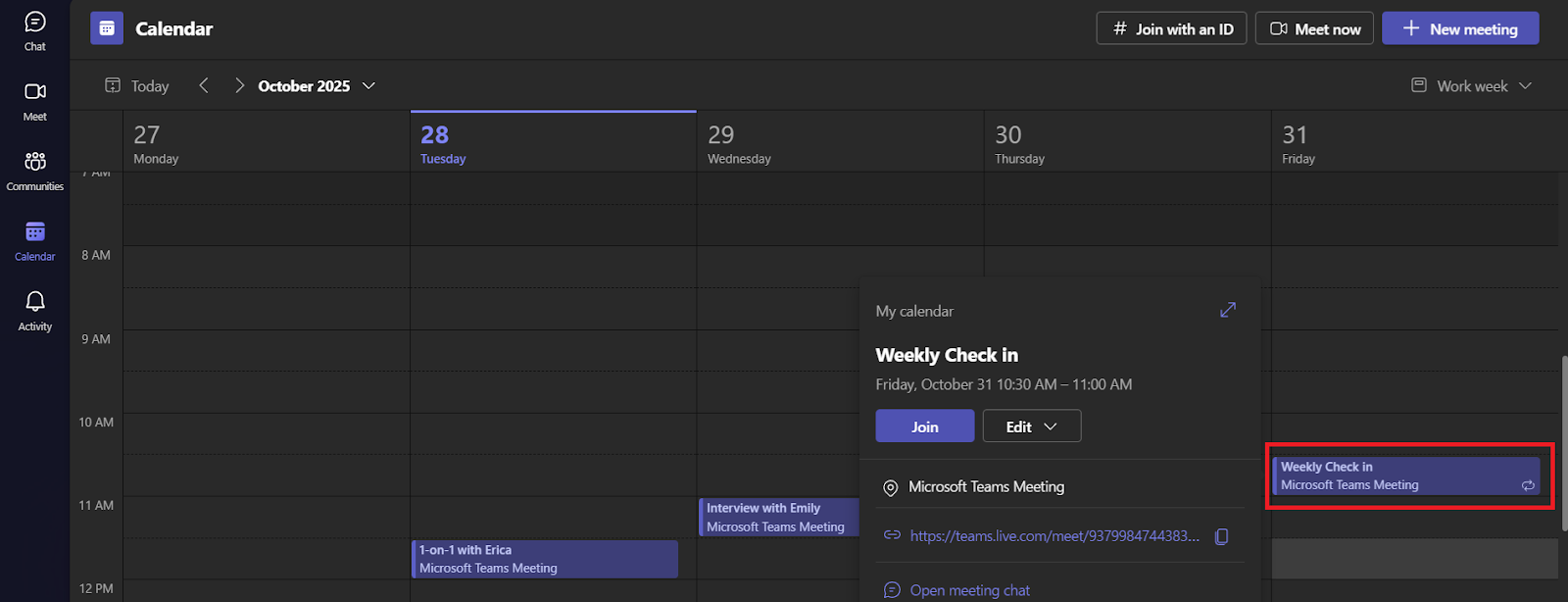
Scroll down to find the ‘Meeting ID’ and ‘Passcode’ in the info panel. The same details appear in the web and mobile versions when you open the meeting page.
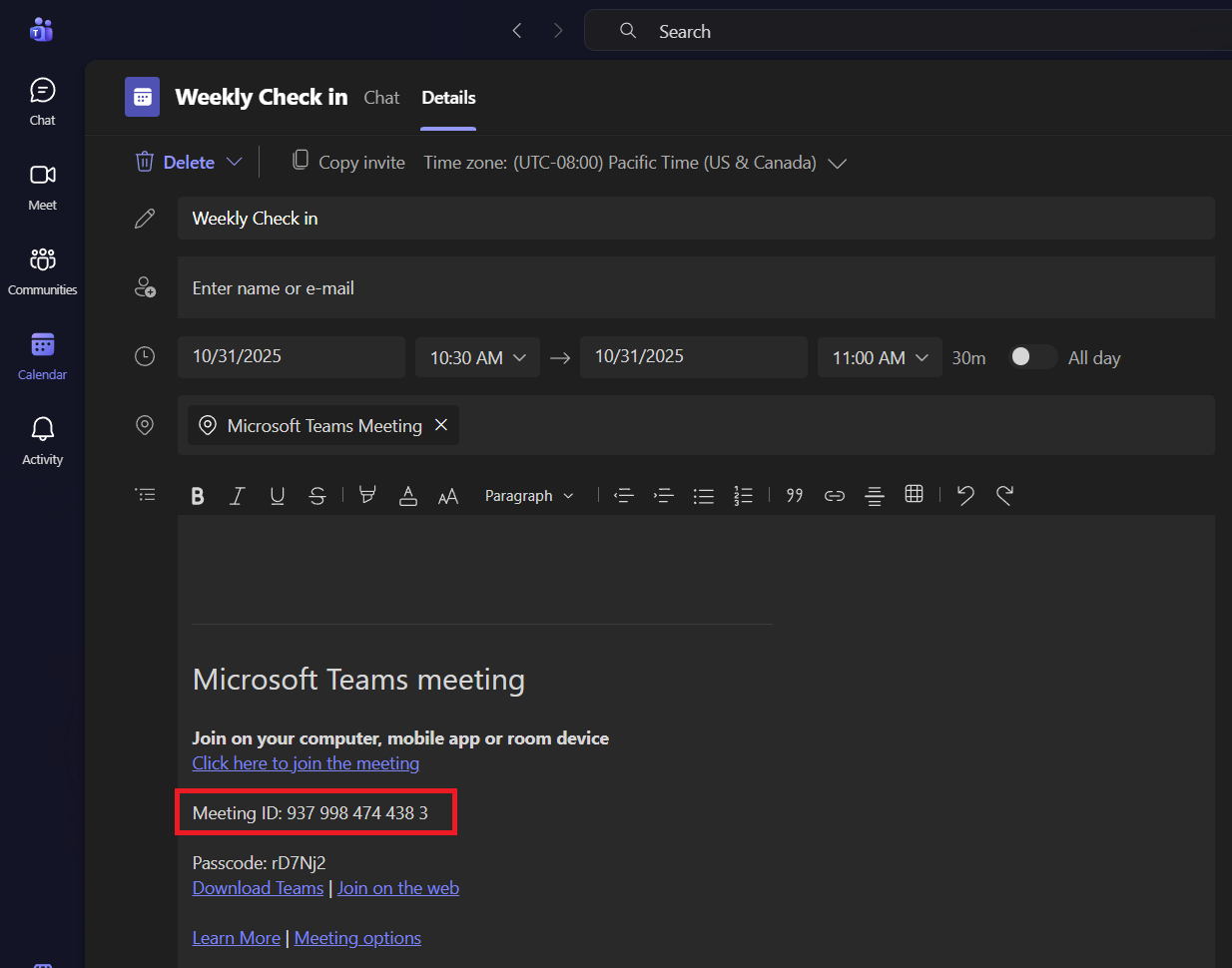
You can also find the Meeting code and password inside the meeting invite email or the chat message where the organizer sent the meeting link. In both cases, the ID and passcode are directly below the Join link.
You can’t extract the code or password from the join link alone. If you only have the link, ask the organizer to send the Meeting ID and passcode.
How Does Notta Improve Your Teams Meetings?
Notta improves your Teams meetings by taking notes for you, so you can focus on the conversation. It records and transcribes meetings with up to 98.86% accuracy, then creates custom summaries that highlight key points and action items.
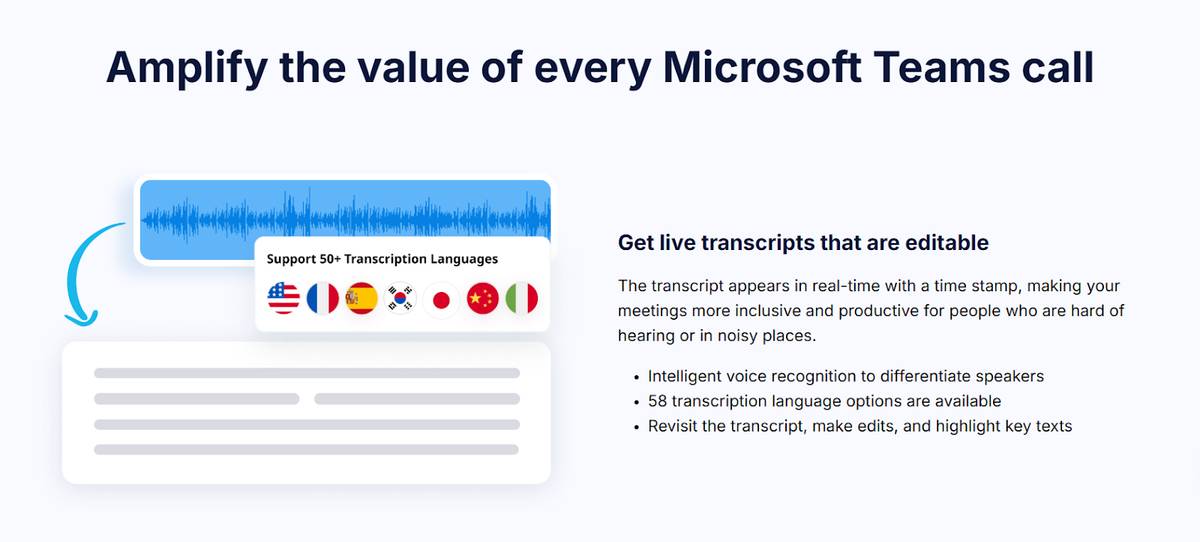
Its integration with Teams keeps everything organized. You can share your notes directly back into Teams chats or channels, so they don’t get scattered across messages.
When you sync Notta with your Google or Outlook calendar, the Notta Bot joins your meetings automatically - even if you can’t attend due to a problem with your Teams code! You’ll always have a record of what happened, keeping you on the same page with the rest of your team.
Troubleshooting: Can't Join Teams Meeting with a Code?
If you can’t join a Microsoft Teams meeting with a code, the issue is usually related to your account, the meeting settings, or the type of code you’re using. Here’s how to fix the most common problems.
Problem: The "Join with an ID" Button is Missing (Personal vs. Work Accounts)
The Teams interface places the ‘Join with an ID’ option in different spots depending on whether you’re using a personal Microsoft account or a work/school account.
Personal accounts show the button clearly in the top-right corner of the Calendar tab. Work and school accounts don’t show a standalone button in that spot, which makes it look like the feature is missing.
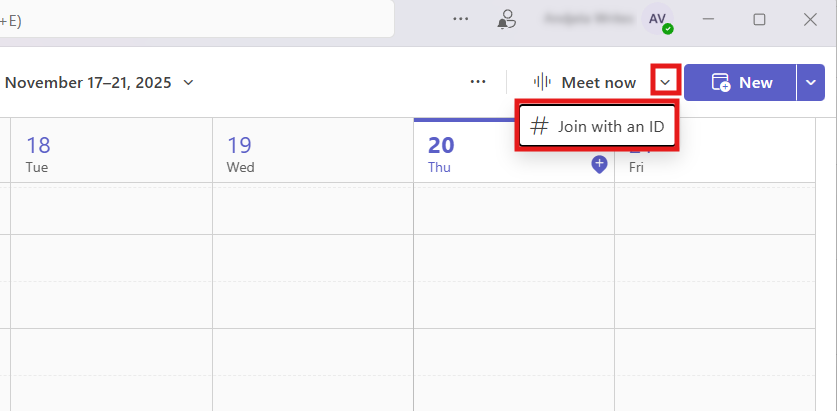
Fix: On a work or school account, click the small arrow next to ‘Meet now’ in the top-right of your Calendar, and the ‘Join with an ID’ option will appear in the dropdown.
Problem: You Received an "Invalid Meeting ID" Error
An “Invalid Meeting ID” error appears when you input the wrong Meeting ID, the organizer changes the meeting, or the meeting no longer exists.
Fix: Check the Meeting ID and Passcode for typos. If it still doesn’t work, ask the organizer to confirm the meeting is still active.
Problem: What to Do If You Only Have a "Team Code"
A “Team Code” (used for joining a team/channel) is not the same as a meeting join code or Meeting ID for a live meeting. A team code will let you join that team in Microsoft Teams, but won’t directly let you join a specific meeting.
Fix: Contact the meeting organizer and ask for the correct Meeting ID and Passcode (or join link) for the live meeting. Then use the ‘Join with an ID’ option or click the meeting link.
Frequently Asked Questions (FAQs)
Do I need a Microsoft account to join a Teams meeting with a code?
No, you don’t need a Microsoft account to join a Teams meeting with a code. You can join as a guest user by entering a temporary display name, unless the meeting organizer restricts access to signed-in users only.
Where to find the join code in Teams?
You can find the join code in Teams in the invitation email or in the meeting details inside Teams. Open Microsoft Teams, go to ‘Calendar’, and select the meeting to view the Meeting ID and Passcode.
Is a Teams Meeting ID the same as a Passcode?
No, the Teams Meeting ID is not the same as a Passcode. The Meeting ID identifies the meeting, and the Passcode works like a password and confirms that you’re allowed to join.
Can I join a Teams meeting by phone with just the ID?
No, you can’t join a Teams meeting by phone with just the ID. You need the phone number and the numeric conference ID in the meeting invite to join by phone.

