How to Keep Your Microsoft Teams Status Green
Saving time and effort with Notta, starting from today!
Green status in Microsoft Teams means Available. The green dot indicates you're actively using Teams, not in a meeting, and ready to receive messages. Teams automatically sets your status to green when it detects keyboard or mouse activity. Teams also assumes that you’ve vanished the second you stop typing. Whether you’re reading, thinking, or grabbing coffee, that yellow Away light shows up fast.
Here’s how to keep Teams status green and visible when you’re still hard at work (or taking a well-earned break).
What Does Green Status Mean in Microsoft Teams?
Green status in Microsoft Teams means Available. The green dot indicates you are actively using Teams, not in a meeting, and ready to receive messages.
According to Microsoft’s documentation, "Available is when you’re active in Teams and don’t have anything in your calendar (no meetings or calls, for example)."
That green circle shows your coworkers when you’re available to chat. Think of it as your digital “I’m here” sign. Teams automatically sets your status to green when it detects activity, so you don’t have to do anything manually unless you want to change it.
How Does Microsoft Teams Status Work?
Teams' status operates through three simple systems. Activity detection monitors keyboard and mouse input. Timer functions count idle minutes since the last interaction. Status override allows manual settings to override automatic detection. These mechanisms work together to give you an accurate presence indicator while still letting you control how you appear to others.
How Long Before My Teams Status Changes to Away?
Teams changes your status from Active to Away after five minutes of inactivity. The timer starts when you stop typing or moving your mouse, and it resets the moment you interact again. It’s Microsoft’s way of keeping presence information accurate across its 300 million monthly users.
Still, it’s frustrating if you’re deep in work but not physically typing, which is why many remote workers look for ways to keep their status green a little longer.
Your status won’t switch automatically if you’re in a meeting or sharing your screen, since Teams prioritizes those signals over inactivity. But once your system goes idle, that yellow Away light shows up quickly.
What Does Each Teams Status Color Mean?
Microsoft Teams uses six status indicators:
Available (Green) – You’re active, online, and ready to chat.
Busy / In a Meeting (Red) – You’re in a call or meeting. Teams sets this automatically from your calendar.
Do Not Disturb (Red circle with line) – You don’t want interruptions. Notifications are muted.
Away (Yellow) – You’re signed in but inactive for about five minutes.
Offline (Gray) – You’re signed out or your device is offline.
Focusing / Presenting – You’re sharing your screen or working during focus time, so Teams pauses your notifications.
You can also manually change your status at any time. Click your profile picture in the top right corner of Teams to select a different status or set a custom status message.
How Can I Keep My Microsoft Teams Status Green?
Now that you know what each status means, let’s learn how to keep Teams status green and make sure you stay visible when it matters most.
You can keep Microsoft Teams status green using five methods: adjust computer power settings to prevent sleep, use the Teams mobile app in foreground mode, create a private meeting with yourself, loop a PowerPoint slideshow continuously, or play a long YouTube video. Each method prevents inactivity detection.
Method 1: Prevent Your Computer from Going to Sleep
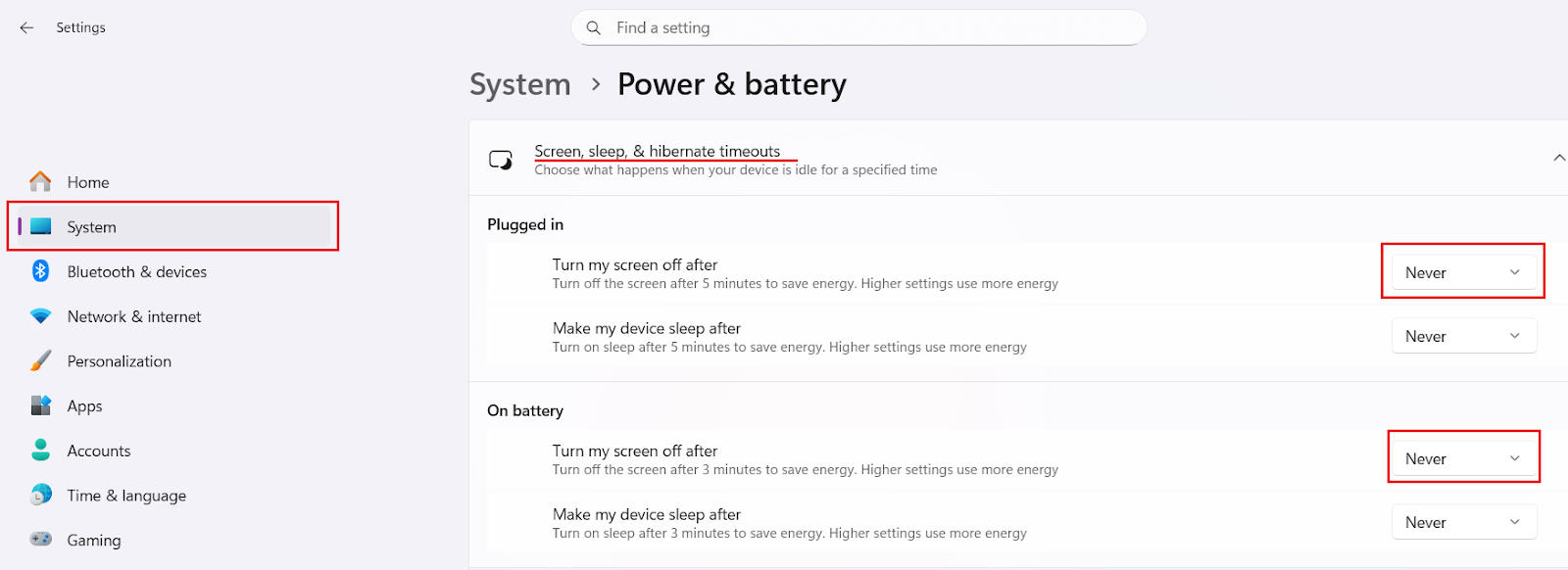
Teams automatically switches you to Away when your computer goes idle. The easiest way to stop that is by adjusting your power settings so your screen doesn’t turn off and your device doesn’t go to sleep. Keeping your system awake sends a constant “active” signal to Microsoft Teams, so your status stays green even when you pause for a moment.
For Windows users:
Open the ‘Start’ menu and click 'Settings’.
Go to ‘System’, then select ‘Power’ (or ‘Power & Battery’ on laptops).
Under ‘Screen and Sleep’, set both options to ‘Never’ or pick a longer duration.
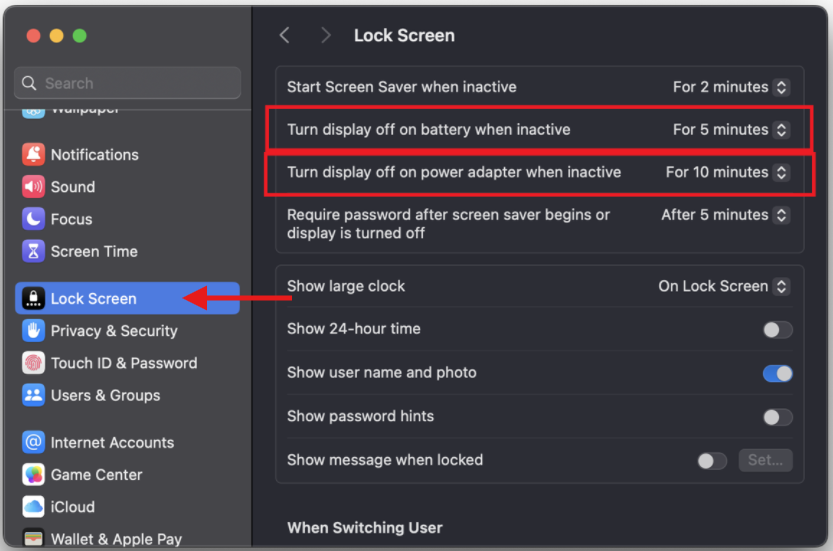
For Mac users:
Click the Apple menu and open ‘System Settings’.
Select ‘Lock screen’ in the left sidebar.
Adjust ‘Turn display off on battery when inactive’ and ‘Turn display off on power adapter when inactive’ to your preferred time.
Method 2: Staying Green with The Microsoft Teams Mobile App
The Microsoft Teams app can help you stay active even when you’re away from your desk. Your status stays green as long as the Microsoft Teams app is open and running in the foreground.
If you close the app or your phone locks, Teams will mark you as inactive after a few minutes. To avoid that:
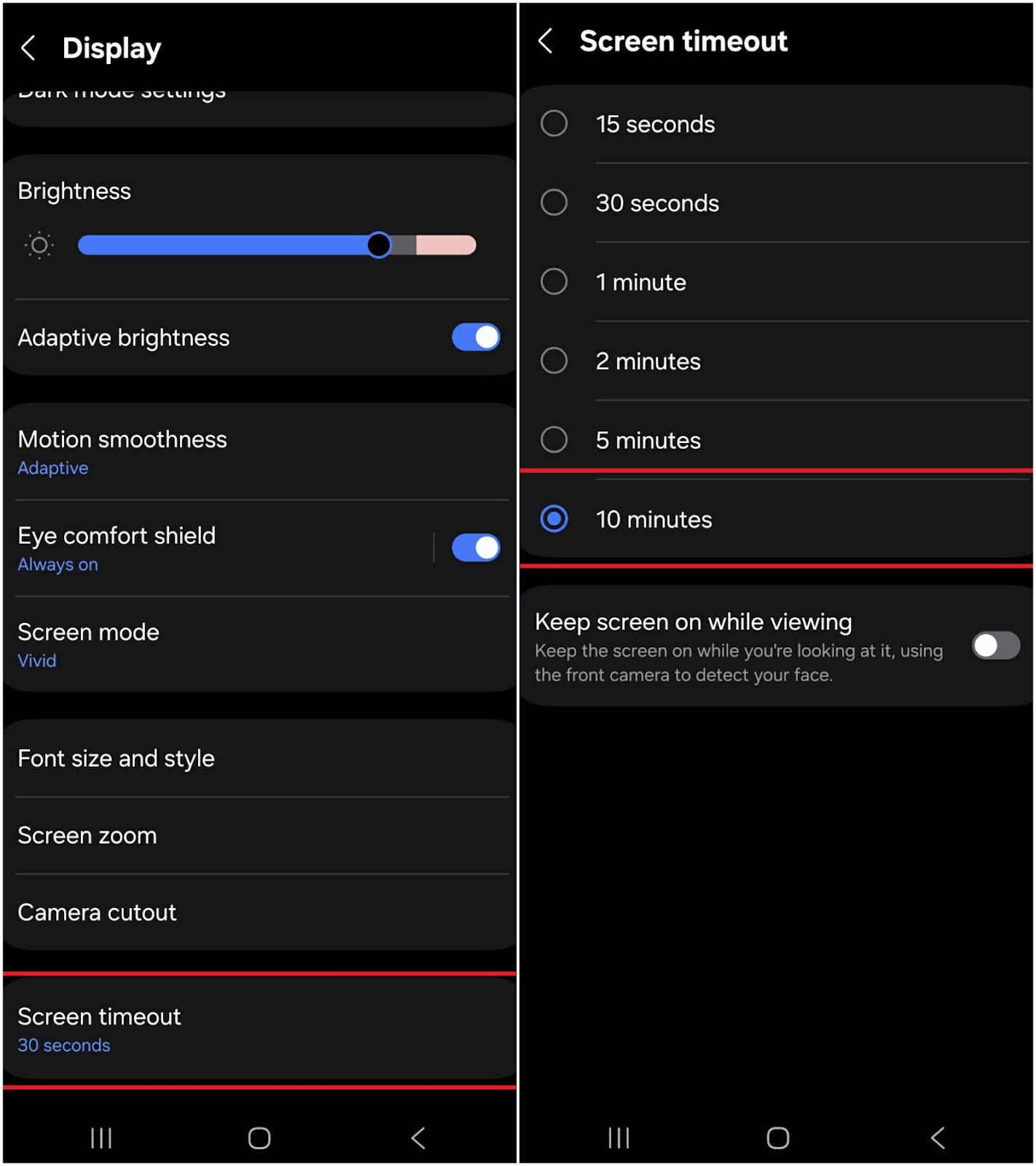
On Android:
Open ‘Settings’ and tap ‘Display,’ then ‘Screen timeout.’
Choose a longer duration or select ‘Never’ (if available).
Keep the Teams app open on your screen while working.
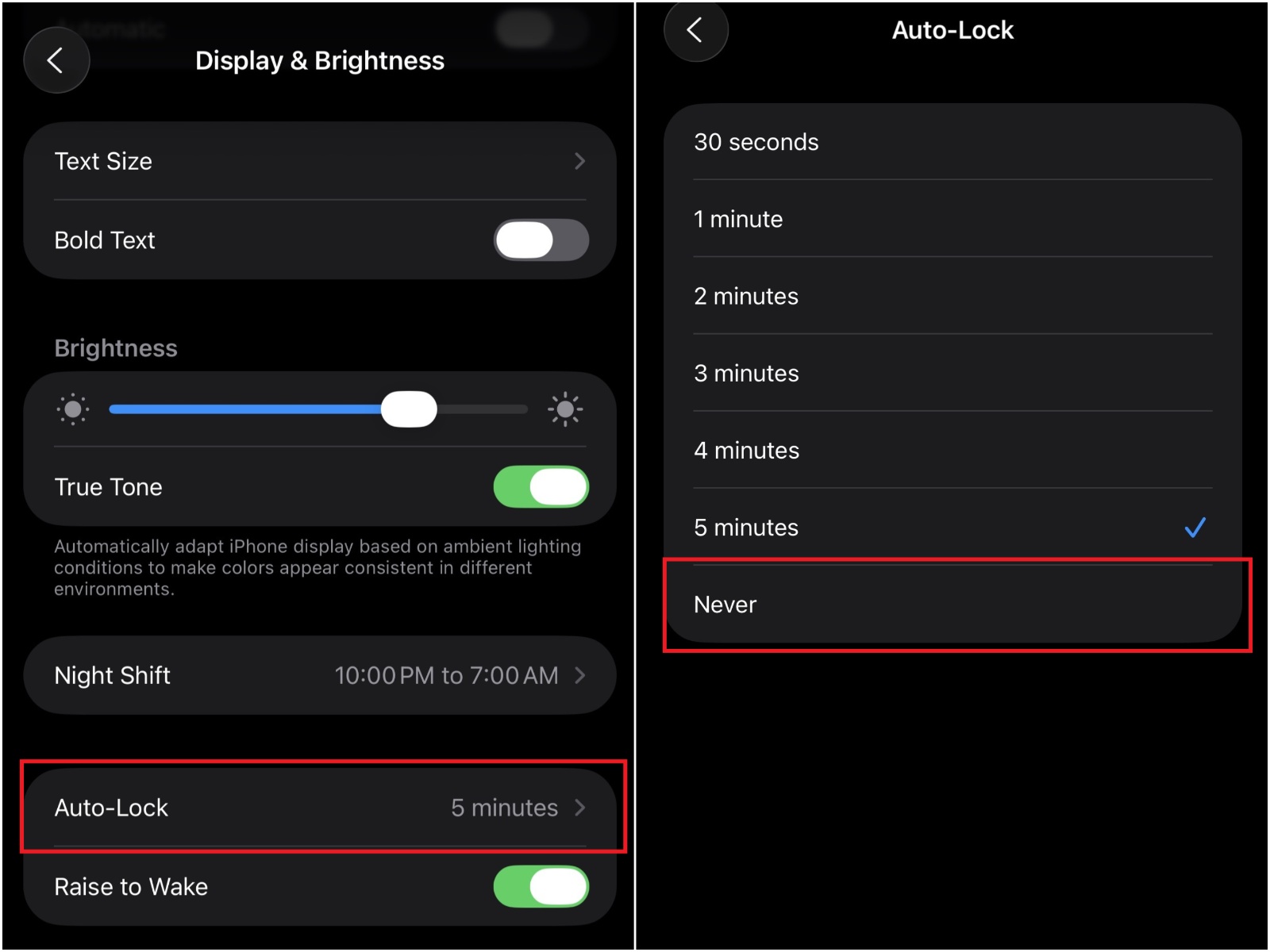
On iPhone:
Open ‘Settings’ and go to ‘Display & Brightness,’ then tap ‘Auto-Lock.’
Select a longer duration or choose ‘Never.’
Keep the Teams app open in the foreground, don’t minimize it.
Method 3: Using a Blank Meeting or Call with Yourself
Starting a private meeting with yourself is one of the easiest ways to keep Teams from turning you yellow. Create a meeting, don’t invite anyone, and join it from your account.
Teams shows you as “In a call” while the meeting is running, which keeps your green active status. It’s a low-effort way to look available during focused work or short breaks. Just use this method sparingly, since no one’s really in a meeting for eight hours straight.
Method 4: The PowerPoint Slideshow Loop Technique
Opening a PowerPoint file and running a continuous slideshow keeps your computer active. The constant motion prevents your system from idling and tells Microsoft Teams that you’re still there.
This trick works well if you’re multitasking or working on something offline. You can minimize the slideshow window or move it to a second monitor. It will run quietly in the background while you work and keep you active on Teams.
How to enable the PowerPoint loop:
Open any PowerPoint presentation (even one blank slide will do the trick).
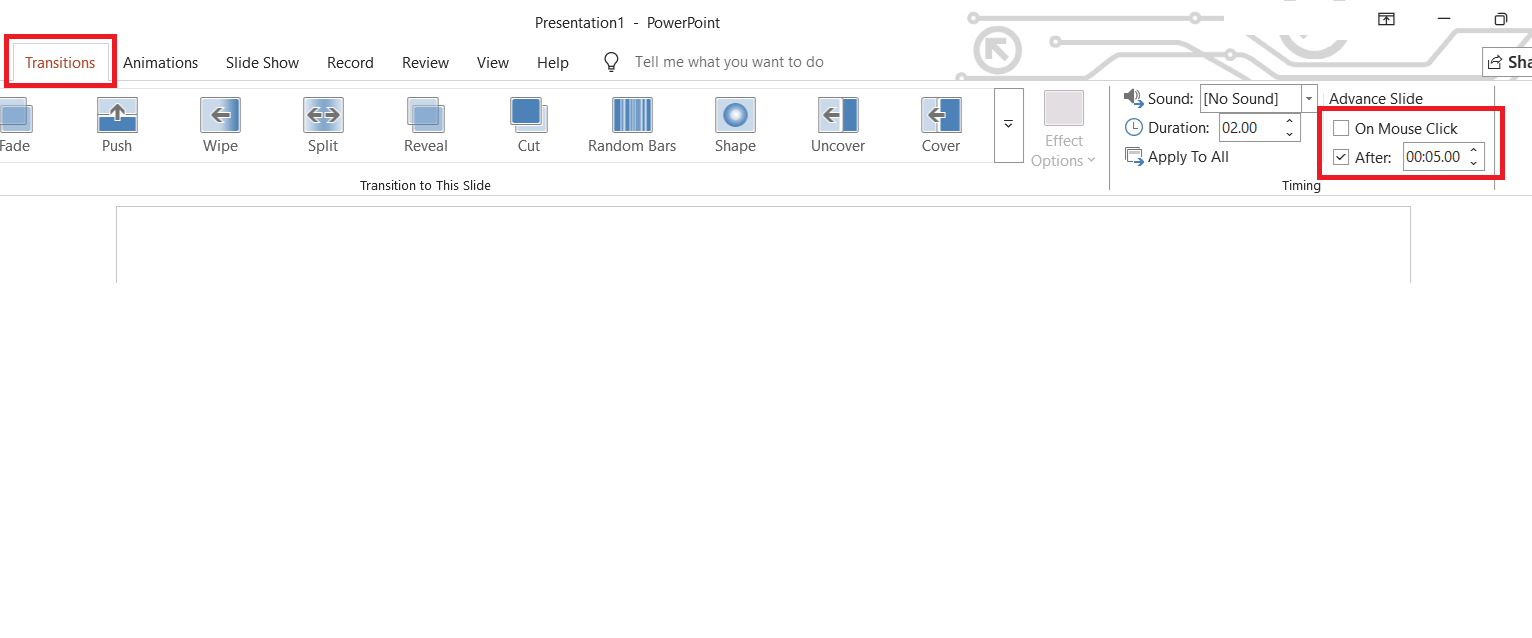
Go to the ‘Transitions’ tab and uncheck ‘On Mouse Click.’
Check ‘After’ and set the timer to a few seconds (for example, 5).
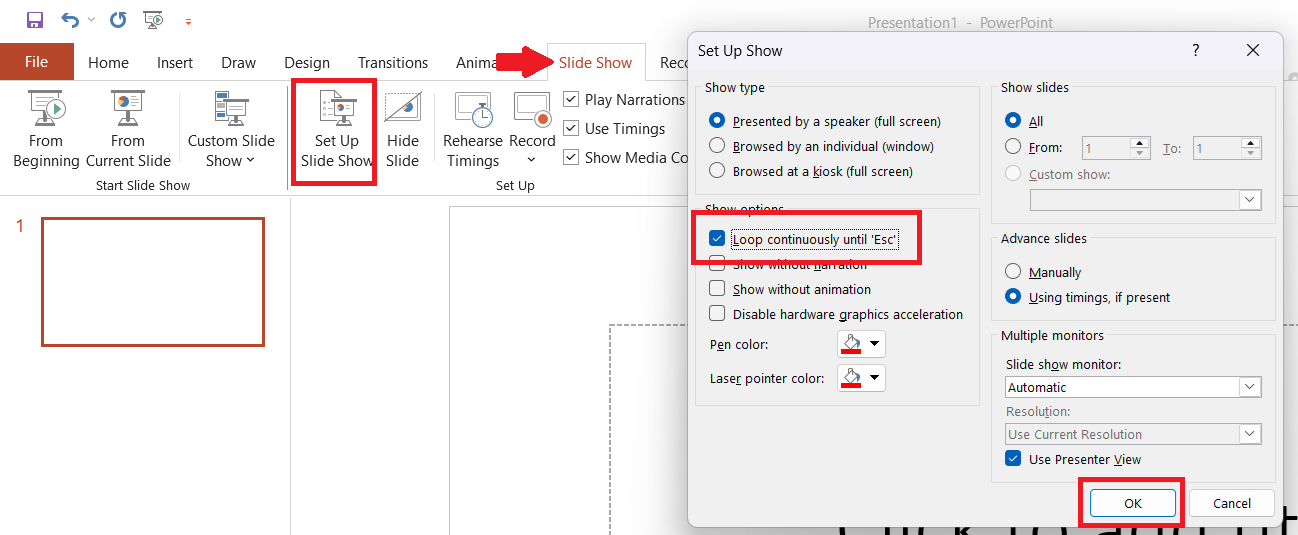
Go to the ‘Slide Show’ tab and select ‘Set Up Slide Show.’
Under Show options, choose ‘Loop continuously until Esc.’
Start the slideshow (press ‘F5’) and let it run.
Method 5: Playing a Long YouTube Video
The simplest way to achieve the green Microsoft Teams status is to play a long video or playlist on YouTube. As long as the video is running, your computer stays awake, and Teams marks you as active.
You can mute the tab or lower the volume so it doesn’t distract you. It’s an easy workaround that many remote workers use to avoid showing Away during quiet work sessions.
Can Your IT Department See if You're Faking Your Green Teams Status?
Now that you know how to keep Teams status green, the next question is natural: can your IT department tell you’re doing it?
The Microsoft 365 Admin Center gives IT teams access to company-wide usage reports, including how many messages you’ve sent, meetings you’ve joined, and your last active date, but not whether you’re using mouse jigglers, looping videos, or fake meetings. The Teams Usage Activity Report is designed to track engagement and adoption trends, not to monitor individuals in real time.
That said, a 2025 ExpressVPN survey found that 73% of companies now use online monitoring tools, including real-time screen tracking (59%) and web browsing logs (62%). But unless your company installs third-party tracking software like ActivTrek or Teramind, Microsoft Teams itself doesn’t reveal how you stay active. So while digital surveillance is on the rise, your IT department can’t directly see if you’re faking your green Teams status.
What Are the Best Practices for Teams Status Management?
The APA’s Work in America 2024 report found that 51% of monitored employees report daily tension, and 47% feel micromanaged. Feeling watched can create pressure to look constantly active.
We all have days when we’re not at our best, and it’s tempting to use little tricks to stay green on Teams. Everyone does it once in a while, but it shouldn’t become a habit.
These simple practices help you stay transparent, manage your time, and keep your presence meaningful instead of just visible.
How to Communicate Your Availability Effectively
Your status is only one part of workplace communication. Pair it with a clear status message so teammates know what you’re doing. For example, set “Working on a report, back at 3 PM” instead of staying green all day.
These small notes show that you value transparency and respect others’ time. They also help prevent unnecessary check-ins or assumptions that you’re ignoring messages.
Using Calendar and Focus Time to Manage Expectations
Focus Time in MS Teams is a feature from the Viva Insights app that automatically sets your status to Focusing, blocks time in your Outlook calendar, and silences notifications so you can work without interruptions.
Use this to your advantage. Block off time in your calendar for deep work or breaks so your status updates automatically. It helps coworkers know when you’re available and reduces pressure to always appear active.
Enhance Your Teams Meetings with Notta
Learning how to keep your Teams status green helps you stay visible, but real productivity comes from what you accomplish during meetings. Notta makes your Microsoft Teams meetings more efficient by taking notes for you.
Notta automatically joins meetings from your Calendar, transcribes them in real time with up to 98.86% accuracy, and generates clear summaries you can share or review later.
Notta gives you speaker labels, timestamps, and searchable transcripts, so you never have to rely on memory or handwritten notes. It also organizes summaries into Key Points, Decisions, and Action Items, making it easy to follow up with the team and keep the project moving. With support for 58 languages, your team stays aligned no matter who’s in the room.
Try Notta for free and make your meeting time count.
Frequently Asked Questions (FAQs)
How do I make Teams appear green all the time?
You can make Teams appear green all the time by adjusting sleep settings or using the mobile app in the foreground. Alternatively, you can play a YouTube video or loop a PowerPoint presentation in the background. As long as Teams detects activity, your status will stay green.
How Long Until Teams Goes Yellow?
Teams goes yellow and changes your status to Away after five minutes of inactivity. The timer resets whenever you move your mouse, type, or interact with the app.
Can I keep my Teams status green on a Mac?
Yes, you can keep your Teams status green on a Mac. Go to System Settings, select Battery or Power Adapter, and set “Turn display off after” to ‘Never’. This keeps your Mac active and prevents Teams from switching you to Away.
Does setting my Teams status to "Do Not Disturb" keep me active?
No, setting your Teams status to “Do Not Disturb” doesn’t keep you active. “Do Not Disturb” blocks notifications, but it doesn’t stop Teams from marking you as Away when your device goes idle.
How Can I Change Idle Time on Teams?
You can’t change the idle time directly in Teams. The only workaround is to keep your device active or manually set your status.

