How to Record Zoom Meeting on iPhone: The Complete Guide
Saving time and effort with Notta, starting from today!
Recording a Zoom meeting on iPhone sounds simple until you try it. Zoom's built-in Record button is locked behind paid plans starting at $16.99/month, workarounds are illegal in 11 U.S. states, and Zoom cloud recordings take up to 24 hours to process.
In this guide, you’ll learn how to record a Zoom meeting on iPhone using Zoom’s cloud tools or a free alternative like Notta. We’ll explain the limitations of each method, the consent rules you need to know, and the fastest way to save and access your recordings.
Can You Record a Zoom Meeting on iPhone?
Yes, you can record a Zoom meeting on iPhone through cloud recording, which requires a licensed Zoom account (Pro, Business, Education, or Enterprise plan starting at $16.99/month).
If you subscribe to any of these plans, you can start recording with the ‘Record’ button in the mobile app. For free recording, use the Notta app to capture meeting audio and video without a paid Zoom plan.
What is the Difference Between Cloud Recording and Local Recording?
Cloud recording saves your meeting directly to Zoom’s online storage, so nothing is stored on your iPhone. You can access the recording later through the Zoom web portal under ‘Recordings & Transcripts.’ Local recording saves the meeting to your device or computer, but Zoom does not currently support local recording on iPhone.
Do You Need a Paid Zoom Account to Record on iPhone?
Yes, you need a paid Zoom account to record on iPhone using the Zoom app. Recording is available only on Pro, Business, Education, or Enterprise plans, or when a licensed host gives you host or co-host privileges.
If you want to record a Zoom meeting without a paid Zoom plan, use the Notta app.
How Do You Record a Zoom Meeting on iPhone as a Host?
To record a Zoom meeting on iPhone as a host, first enable ‘Cloud Recording’ in the Zoom web portal. Start your meeting in the mobile app, tap the ‘Record’ icon, and choose ‘Start Recording’ to save it to the cloud. You can pause or stop the recording in the app, then access and share it later through the Zoom app or web portal.
How Do You Enable Cloud Recording in Your Zoom Settings?
You can enable cloud recording in your settings through the Zoom web portal. Once you're logged in, click ‘Settings’ in the navigation panel, then ‘Recording’ and enable ‘Cloud recording’.
Pro Tip: To enable recording for all users in the account, open ‘Account management’, then ‘Account settings.’ Navigate to the ‘Recording & Transcript’ tab, then toggle ‘Cloud recording’ on.
Where is the 'Record to Cloud' Button in Zoom?
Start your meeting in the Zoom mobile app. Tap the ‘Record’ icon in the meeting controls toolbar, then ‘Start recording.’ Zoom will indicate that it’s recording in the top-right corner of the meeting window.
Note: Since Zoom doesn't support local recording on iPhone, the button is not named 'Record to Cloud' since all recordings are automatically cloud recordings.
Can You Pause or Stop Your Zoom Recording on iPhone?
You can pause or stop your Zoom recording at any time on iPhone. Tap the ‘Record’ icon again to access the recording controls, then choose ‘Pause Recording’ for a temporary pause or ‘Stop Recording’ to end it and send the file to the cloud.
Where Does Zoom Save Recordings on iPhone?
Zoom saves all iPhone recordings to the cloud, not to your device. To access them, sign in to the Zoom web portal, then open ‘Recordings & Transcripts’ in the navigation menu. You can view, download, delete, or share your cloud recordings.
Zoom also allows you to view your cloud recordings from the mobile app. Open the Zoom app, tap ‘Meetings,’ then switch to the ‘Recorded’ tab to see a list of recordings linked to your account. The app redirects you to the cloud recording file, but full management options still require the Zoom web portal.
How Do You Share Your Zoom Recording Link from iPhone?
Share your Zoom recording link on iPhone by opening the Zoom app, tapping ‘Meetings,’ and switching to the ‘Recorded’ tab. Select your recording, tap ‘Share,’ and copy or send the cloud link through email or chat apps.
Can You Record a Zoom Meeting on iPhone as a Participant?
Yes, but you can only record a Zoom meeting on iPhone as a participant if the host gives you permission. Zoom restricts mobile cloud recording to licensed hosts, so the ‘Record’ button appears only when the host enables it for you. Without that permission, the app won’t show any recording options if you're just participating in the meeting.
How Do You Request Recording Permission from the Host?
Ask the host directly to grant you recording rights. The host can tap ‘Participants’ in the meeting, select your name, and choose ‘Allow Record.’ The ‘Record’ button appears in your meeting controls, and you can start a cloud recording from your iPhone.
What If the Zoom Host Denies Recording Permission?
You can’t override the host’s settings, so Zoom won’t let you record in the app without permission. Your only alternative is to use a third-party method, such as the iPhone’s built-in screen recorder or an external tool like Notta. Always make sure you have legal and ethical consent before using a workaround.
Can You "Secretly" Record a Zoom Meeting on iPhone?
You can record a Zoom meeting secretly on iPhone using the built-in screen recorder, which won’t notify other participants. However, it’s illegal in regions with all-party consent laws, which require everyone in the meeting to agree to being recorded. Always check your local laws and get permission before you record a Zoom meeting.
Can You Record Zoom with the iOS Screen Recorder?
Yes, you can use the iPhone’s built-in screen recorder to capture a Zoom meeting’s video, but this method has limitations. It’s free and doesn’t notify participants in Zoom, but it’s illegal in regions that require all-party consent. iOS screen recording doesn’t capture internal app audio, so you must record through your microphone, resulting in low-quality sound.
How Do You Add the Screen Recording Button to Control Center?
To add the screen recording button on your iPhone, swipe down from the top-right corner to open Control Center. Touch and hold the background, tap ‘Add a Control,’ and choose ‘Screen Recording’ to add it.
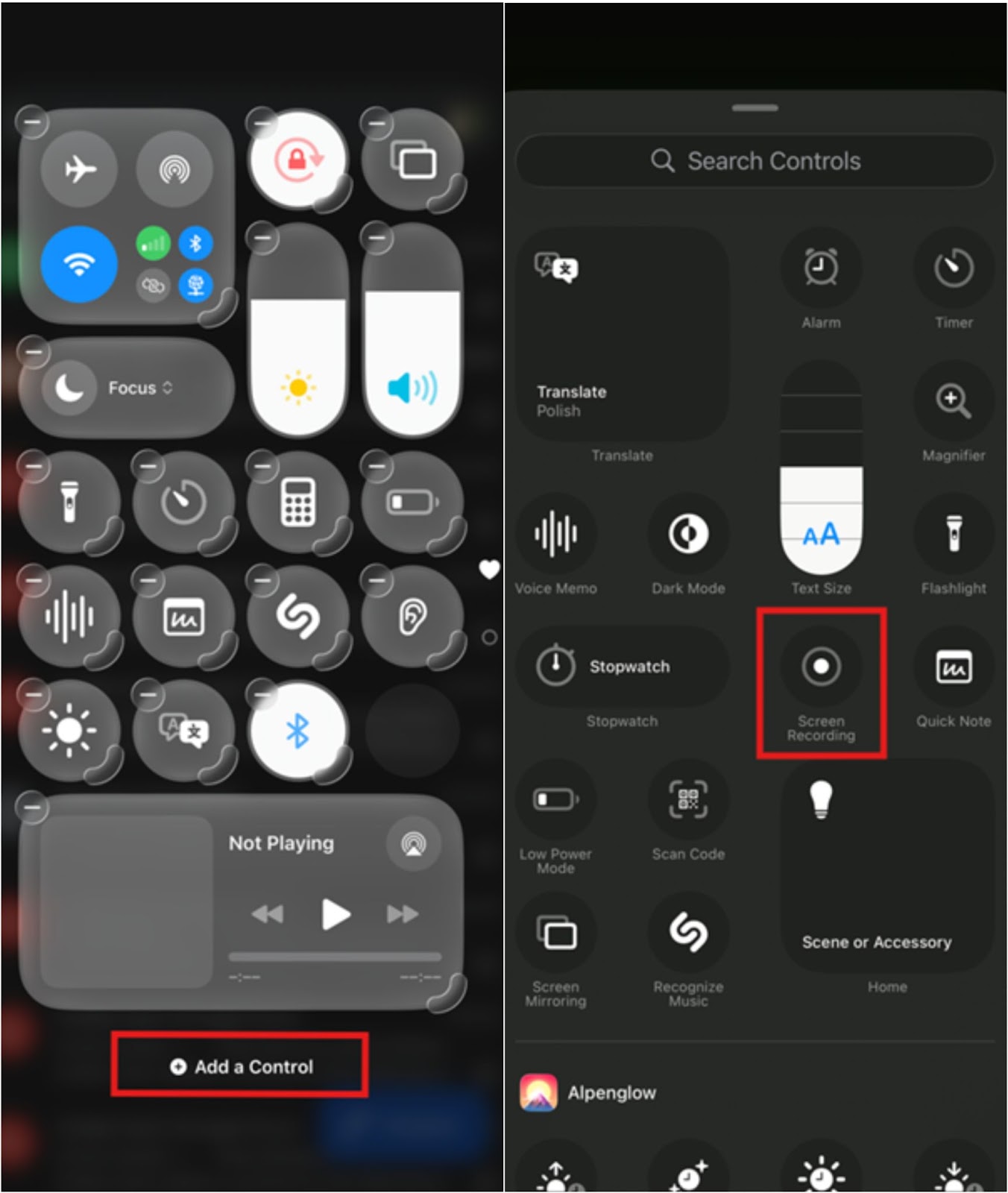
How Do You Use the Screen Recorder to Record Zoom on iPhone?
Open Control Center by swiping down from the top-right corner on Face ID models or swiping up from the bottom on Home button models. Press and hold the gray ‘Record’ button to open the Screen Recording options, and tap the 'Microphone' button to turn on the Microphone.
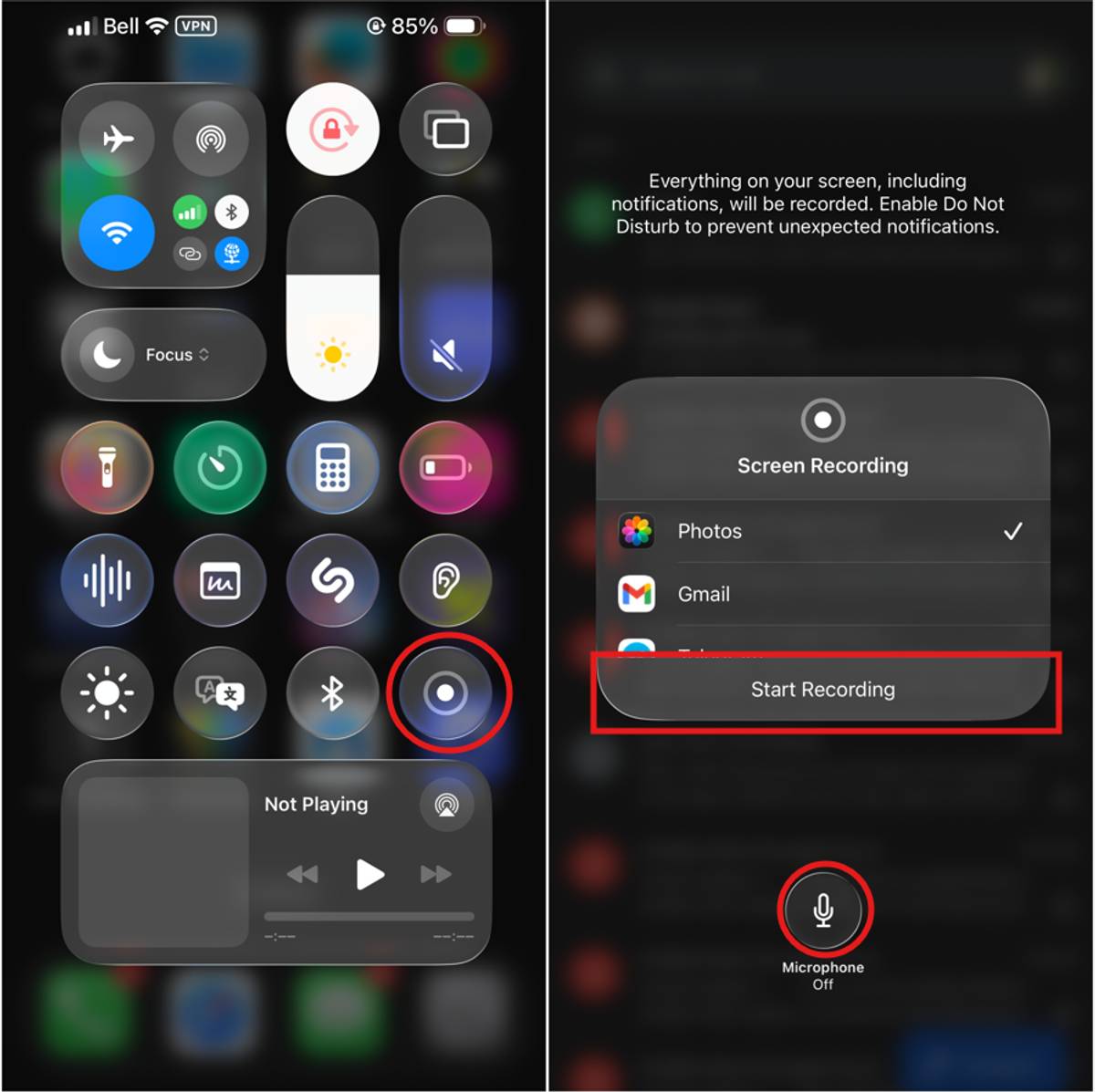
Once your mic is enabled, tap ‘Start Recording'. Your iPhone will display a 3-second countdown before recording begins, which you can use to switch back to the Zoom app.
Why is There No Sound on My Zoom Screen Recording on iPhone?
Your Zoom screen recording on iPhone doesn’t have sound when you start recording without enabling the microphone. The iPhone screen recorder doesn’t capture internal Zoom audio on its own, so you must press and hold the ‘Record’ button in the control center and turn the microphone on before you begin. If you skip that step, the video records with no sound.
Note: Turning on the Microphone doesn’t record Zoom’s internal audio. It only captures the sound coming through your iPhone’s speaker as your microphone hears it, producing significantly lower audio quality with echo and background noise.
Where does iPhone Store Zoom Screen Recordings?
iPhone screen recordings save automatically to the ‘Photos’ app in your ‘Screen Recordings’ album. You can view, edit, and share the file just like any other video in your library.
What is the Best Way to Record Zoom Meetings on iPhone?
Notta is the best way to record Zoom meetings on iPhone if you want clear audio and accurate transcripts. Other options include Zoom cloud recording with a paid license starting at $16.99/month, and iOS recording with lower-quality audio and potential legal concerns. Notta combines free recording with AI-powered transcription and built-in compliance features.
| Feature | Zoom Cloud | iOS Screen Recorder | Notta |
|---|---|---|---|
| Cost | Starting at $16.99 | Free | Free plan available |
| Video quality | Up to 1080p with full HD enabled | Matches your iPhone resolution (up to 1440p) | Dependent on original video stream resolution |
| Audio quality | Direct capture (high) | Microphone capture (low) | Direct capture (high) |
| Storage | 10GB cloud; Unlimited on Enterprise | iPhone/iCloud storage | Encrypted cloud storage |
| Processing time | Twice the duration of the recording; up to 24 hours | Instant | Real-time transcription |
| Notification | Yes (automatic) | No | Yes (bot) |
| Transcription | Available in paid accounts; 20 languages | No | Yes, 58 languages |
| Best for | Compliance | Personal notes (with consent) | Free recording with AI notes |
Notta records your meeting audio and video, processes the file immediately, and secures your recording with the industry-standard AES-256 encryption algorithm.
You don’t have to wait for Zoom’s long cloud-processing queue, and you don’t have to rely on your device’s storage or microphone settings.
By recording your Zoom meeting with Notta, you avoid common issues with Zoom’s built-in cloud recording and iOS screen recording. Zoom requires a paid plan to record on iPhone, and screen recording results in low-quality audio or silent files because iOS can’t capture internal call audio.
As a bonus, Notta automatically transcribes the meeting and generates notes with organized key points, action items, timestamps, and speaker identification. Combined with Notta's playback speed controls, you can review your entire meeting in less time and get back to work even faster.
Troubleshooting Common iPhone Recording Issues
Troubleshooting iPhone Zoom recording issues comes down to three common problems: missing recording permissions, slow cloud processing, or deleted files. Most issues have straightforward fixes, from upgrading permissions to checking Zoom’s Trash folder or using a faster third-party recorder like Notta.
Why is the "Record" Button Missing on My Zoom App?
The ‘Record’ button is missing on your Zoom App because you’re not using a paid Zoom plan. If you’re on a free plan, you won’t see the option at all, so the only way to record is with a third-party tool like Notta.
Four Zoom plans include iPhone recording capability, with pricing starting at $16.99 per month. All plans include 10GB of cloud storage (except Enterprise, which offers unlimited storage).
Pro: $16.99 per month per user with 10GB of cloud storage
Business: $21.99 per month per user with 10GB of cloud storage
Education plans: $10-$15 per user per month and 10GB of cloud storage
Enterprise: Custom pricing and unlimited storage
These plans include cloud recording rights, and the ‘Record’ button appears automatically in the mobile app.
What to Do If Your Zoom Recording Fails to Process
Zoom recordings take a long time to process through Zoom’s cloud servers. Processing speed depends on server load, meeting length, and your account’s available cloud resources, so delays occur during peak usage hours.
You can’t speed up Zoom’s queue, so all you can do is wait or use a third-party app to access your recording much faster. For example, Zoom takes twice the meeting's length to process a recording (up to ~24 hours for long meetings), while Notta can process an hour-long recording in 5 minutes.
How Do You Recover a Deleted Zoom Recording on iPhone?
You can recover a deleted Zoom cloud recording by signing in to the Zoom web portal and opening ‘Recordings and Transcripts’ in the navigation menu. Select the ‘Trash’ tab to view deleted files. Search by meeting ID or pick the recording from the list, then click ‘Recover.’ Confirm the recovery, and the file reappears on your main ‘Recordings’ page.
If you don’t see the 'Trash' tab, the Trash feature is disabled, and you’ll need your Zoom admin to turn it on.
Legal and Ethical Considerations for Recording Calls
Before recording any Zoom call, be sure to check your local laws and regulations. Two-party consent laws exist in 11 U.S. states, multiple Canadian provinces, Australian states, and the EU, requiring that everyone on the call consent to being recorded.
You should always notify attendees and be transparent about how you will use the recording, even when the law doesn’t require it.
What are Two-Party Consent Laws?
Two-party (or all-party) consent laws require every participant to agree before you record a conversation. Eleven U.S. states, including California and Florida, follow this standard according to the Digital Media Law Project. You must get explicit permission before recording a Zoom meeting if even one participant is located in an all-party consent region.
These laws protect privacy and prevent anyone from recording a conversation without the participants’ knowledge. In practice, that means you should ask for consent verbally or in writing before recording. It only takes a moment and ensures your recording is valid legally and ethically.
Here’s a quick overview of how major jurisdictions approach recording laws:
United States: Several states require all-party consent for recording, including California, Florida, Pennsylvania, Washington, Illinois, and Massachusetts.
Canada: Businesses must follow PIPEDA, which requires organizations to disclose when and why they record conversations.
Australia: Several states require all-party consent for recording private conversations, and interception of communications without permission is prohibited under the Telecommunications (Interception and Access) Act.
European Union: GDPR requires a lawful basis for recording and generally expects clear, informed consent from all identifiable participants.
United Kingdom: UK GDPR and RIPA rules require notifying participants when recording, unless the recording is strictly for personal use.
How Should You Notify Attendees About Zoom Recording?
Tell participants you’re recording before the meeting starts. Add a quick note in the calendar invite, mention it in the first minute of the call, and explain why you plan to record. Zoom shows an automatic notification when recording begins, but do not rely on this alert alone.
Explain how you’ll store the recording, who can view it, and how long you’ll keep it. Many teams use a short script or disclaimer like: “I’m going to record this meeting so we can review the details later. The recording will be stored securely and shared only with our team. Let me know if you have any concerns before we start.”
Frequently Asked Questions (FAQs)
How do I record a Zoom meeting on iPhone with audio?
You can record a Zoom meeting on an iPhone with audio by using the Notta app, which captures both the video and audio. Just paste the meeting link into Notta before you join the call. It works even if you’re on a free Zoom plan.
Can I record a Zoom meeting on iPhone without the host knowing?
Yes, you can record a Zoom meeting on an iPhone without the host knowing, but it is illegal in regions with all-party consent laws. You can use iPhone screen recording or third-party apps. However, many regions require all participants to consent to being recorded, so always check your local laws first.
Why can't I record a Zoom meeting on my phone for free?
You can’t record a Zoom meeting on your phone for free because mobile cloud recording requires a paid account. However, you can still record the meeting using free alternatives such as Notta or the built-in iOS screen recorder.
Does iOS screen recording notify Zoom participants?
No, the built-in iOS screen recorder does not notify Zoom participants. Only official Zoom recording methods and the Notta bot trigger a recording notification. If you use iOS Screen Recording, Zoom won’t alert the host or attendees, which may be illegal. Always check your local laws before recording a Zoom meeting!

