How to Share a Zoom Recording: Quick and Easy Methods for Any Device
Saving time and effort with Notta, starting from today!
The best way to share a Zoom recording depends on how Zoom saved the meeting and how you want others to access it. Zoom lets you share recordings through secure cloud links, email, messaging apps, or by uploading local files to other platforms.
If you missed a Zoom meeting or need to share a recording with colleagues who didn’t attend, we’ve got you covered.
In this guide, you’ll learn how to share Zoom recordings on desktop and mobile, adjust privacy settings, and choose the best option for your situation.
How to Share a Zoom Recording: Step-by-Step Guide
Share a Zoom cloud recording by accessing the Zoom web portal, clicking Recordings & Transcripts, selecting your video, and clicking the Share icon to copy a link. Send this link via email, chat apps, or text message. For local recordings saved on your computer, upload the file to Notta first, then share the link.
Where are Zoom Recordings Stored?
Zoom recordings are stored in two locations: Zoom’s cloud or on your local device. Cloud recordings are saved to your Zoom account and shared through links managed in the Zoom web portal, while local recordings are saved as video files on your computer, typically in a Zoom folder inside your Documents directory.
You can also upload both types of recording to Notta. This gives you a single platform to store recordings, generate transcripts, and share access without worrying about Zoom’s storage limits.
How Do You Share a Zoom Cloud Recording?
Sign in to the Zoom web portal with the account that hosted the meeting. Open ‘Recordings & Transcripts’ from the left sidebar and locate the video under ‘Cloud Recordings.’
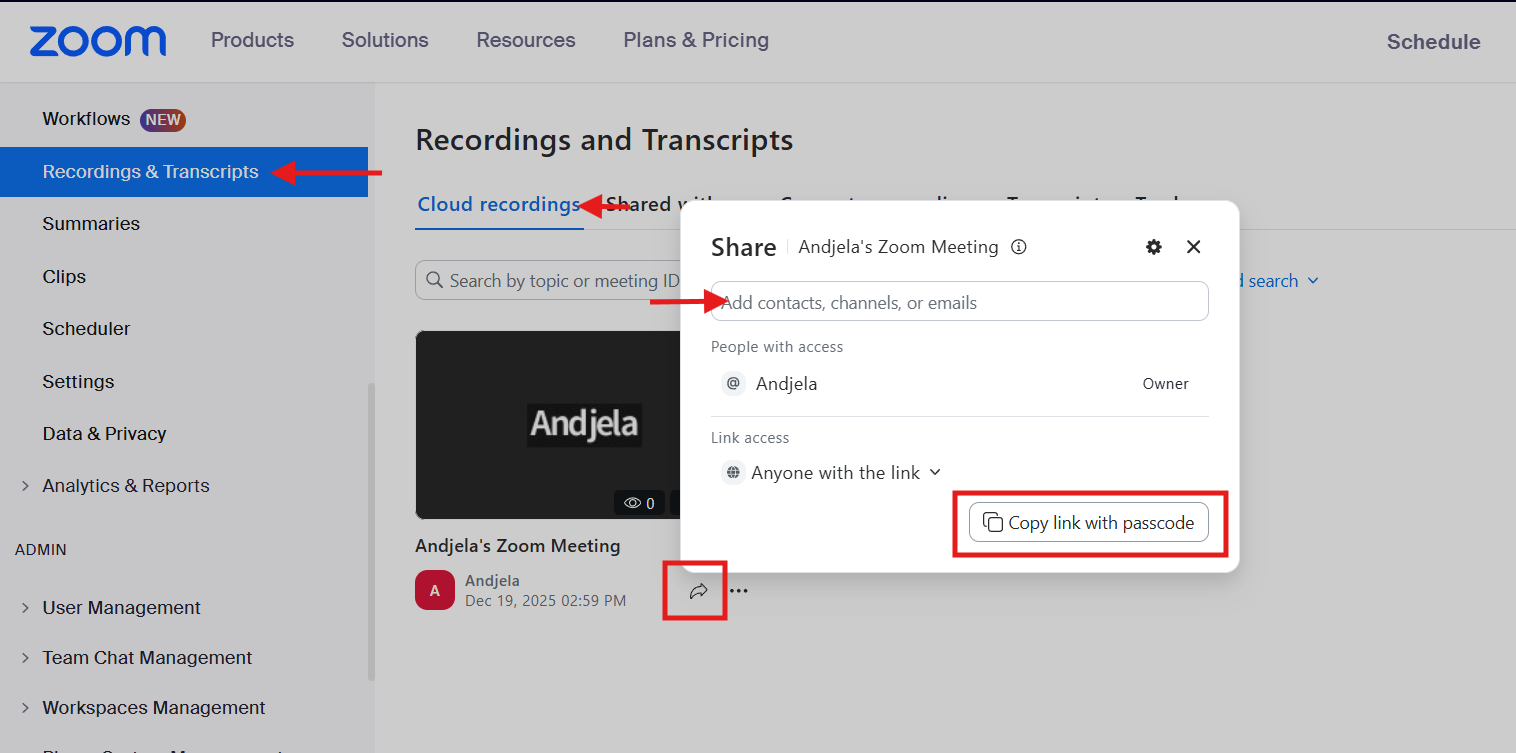
Click the ‘Share’ icon next to the recording to open the sharing panel, where you can add email addresses, channels, or contacts, or copy a shareable link to send via email or chat apps.
How Do You Adjust Zoom Cloud Recording Privacy Settings?
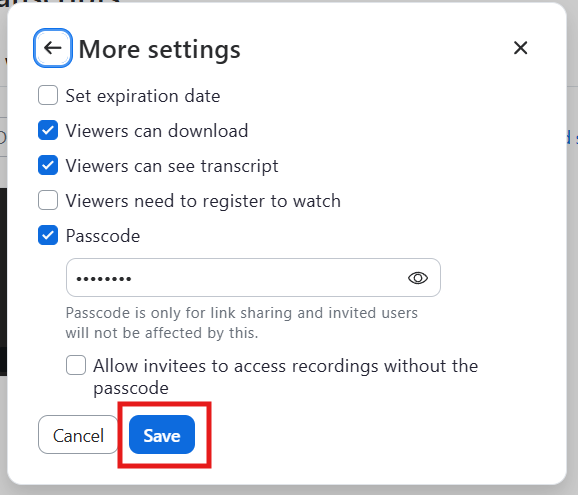
Click the ‘gear’ icon in the same panel to open and customize sharing settings. This allows you control how people access the recording, including options like password protection and viewer permissions. Click ‘Save’ to apply the setting changes.
How Do You Share a Local Zoom Recording? (Windows & Mac)
Zoom saves a local recording as a video file on your computer, so you need to share the file itself instead of a Zoom link. After the meeting ends, Zoom saves local recordings in the ‘Documents’ folder within a ‘Zoom’ subfolder on both Windows and Mac.
Your PC may sync files to a cloud service like OneDrive. In that case, right-click the recording file, select ‘Share,’ and copy a link or send access by email without attaching the file.
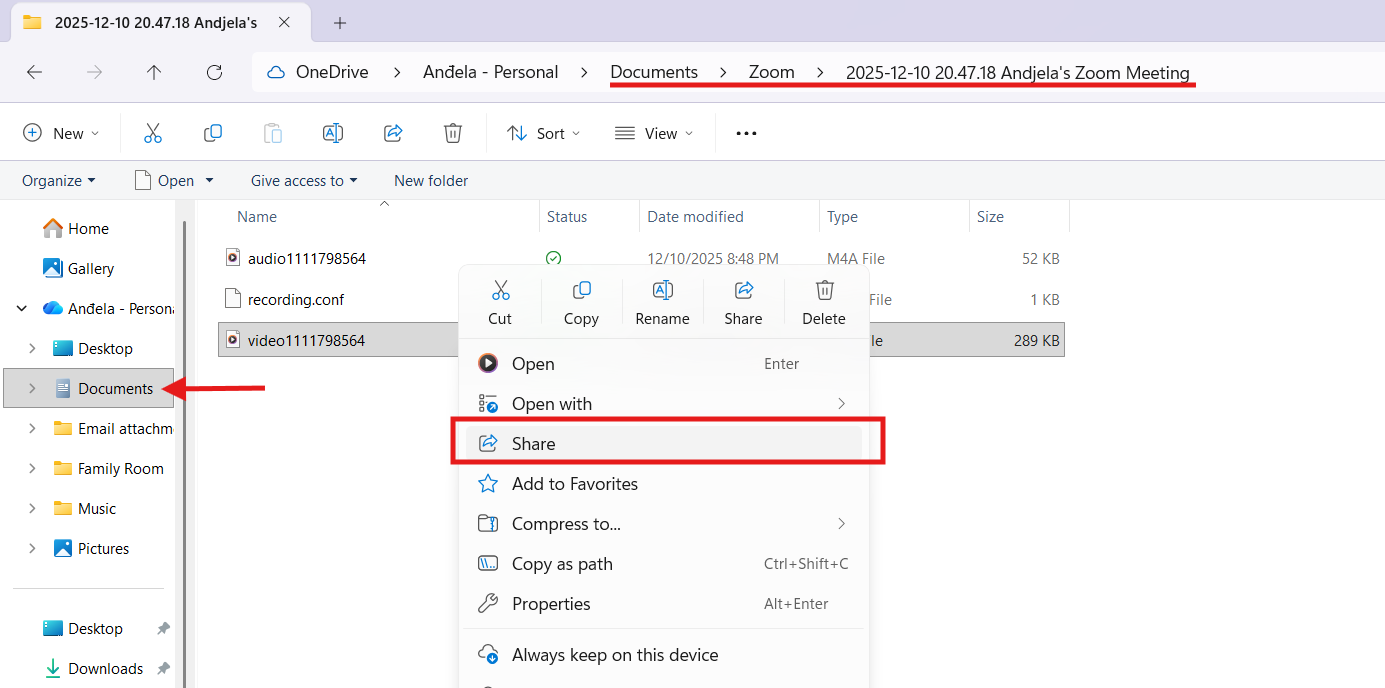
Pro Tip: Zoom saves two files for each meeting: an audio-only file and a combined audio/video file. The 'audio only' filename begins with 'audio', while the combined audio/video filename begins with 'video' (see the screenshot above)
Alternatively, attach the video (or audio) recording directly when you write an email, like you would with any other attachment. Gmail allows attachments up to 25 MB per email, while Outlook limits attachments to 20 MB.
If the file is too large to attach to an email, upload the MP4 recording to a third-party service such as Dropbox, Box, Google Drive, Vimeo, or Notta, then share the link from that platform instead.
How Do You Share a Zoom Recording with Email?
You can share a Zoom recording with email in two main ways, depending on the type of recording. If you recorded to the cloud, copy the recording’s ‘Share’ link from the Zoom web portal and paste it into any email. If you recorded locally, attach the video file to your email the same way you would attach any other file, as long as it stays within your email provider’s size limits.
If the local screen recording is too large to send as an attachment, upload the audio or video file to Notta. Open your Notta dashboard, upload the recording file, then copy the share link and include it in your email.
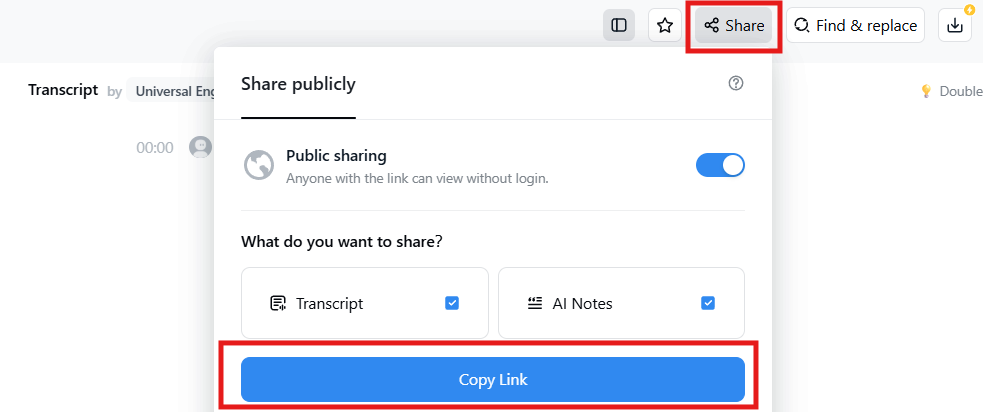
Notta also generates a transcript and meeting notes, so participants can review and search the meeting information without downloading the entire video file.
How Do You Share a Zoom Recording on Mobile? (iOS & Android)
Share a Zoom recording on mobile by opening zoom.us in your phone's browser (Safari for iPhone, Chrome for Android), signing in, navigating to ‘Recordings & Transcripts,’ and tapping the ‘Share’ icon next to your video. Select 'Copy link with passcode,' then paste the link into WhatsApp, Messages, or email.
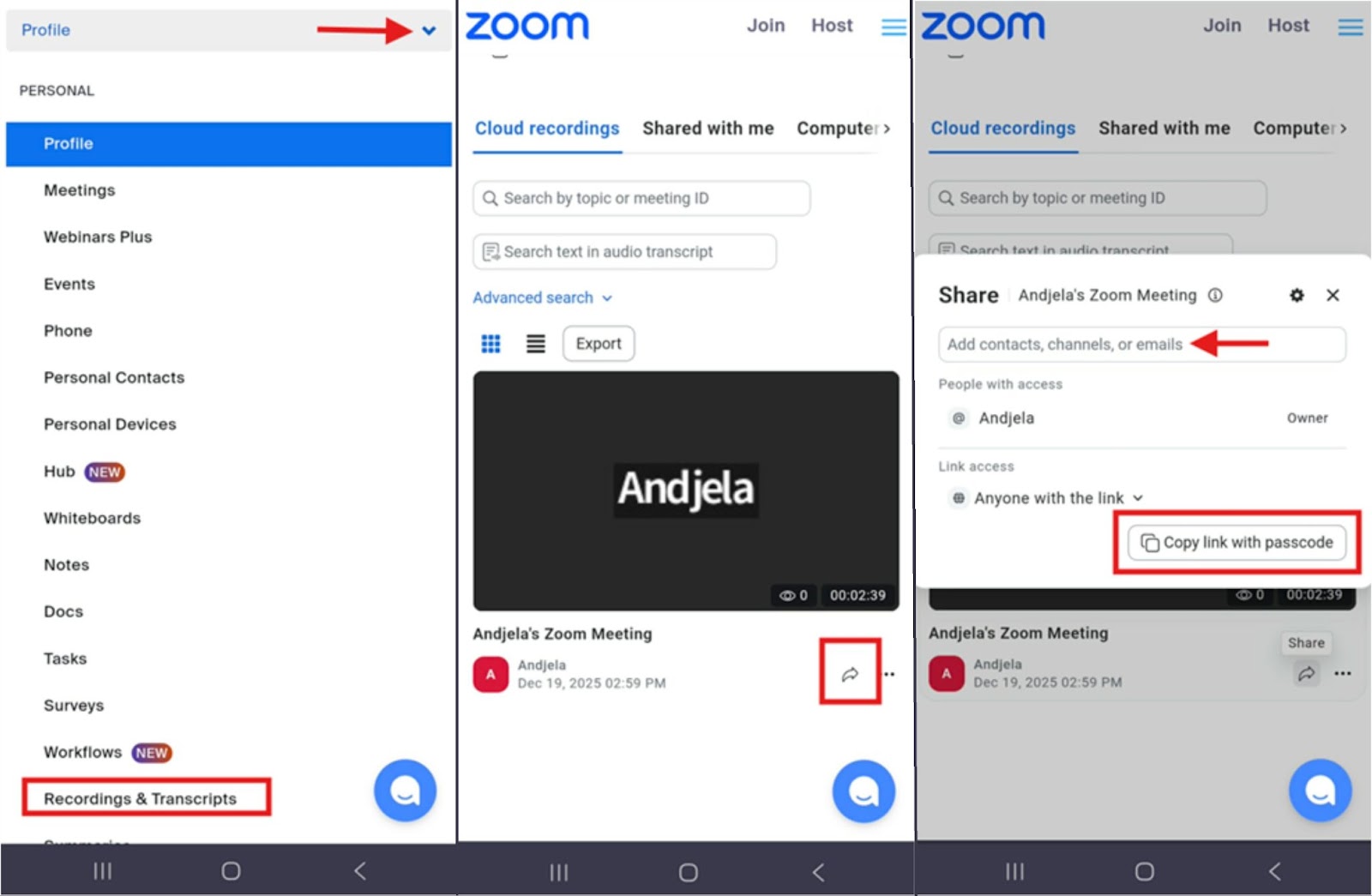
Note: Zoom only supports cloud recordings on mobile devices, and local recording is not available.
How Do You Share a Zoom Recording with Notta?
Uploading and sharing Zoom recordings is easy with Notta. You can upload a Zoom recording file to your Notta dashboard, generate a shareable link, and send it by email, chat apps, or text message. Notta automatically creates a transcript with up to 98.86% accuracy, so recipients can review the recording contents without watching the full video.
If you record your Zoom meeting directly with Notta, you can skip the uploading step. Notta directly integrates with Zoom, so it records the meeting and generates a transcript automatically during the call.
You can also collaborate with other participants directly in your Notta dashboard by sharing access to the recording and transcript, so you don’t have to send files or links back and forth.
Try Notta today to get more from your Zoom recordings and share them the easy way!
Frequently Asked Questions (FAQs)
How do I share a Zoom recording that is too large?
Share a large Zoom recording by uploading it to cloud storage instead of emailing the file directly. Upload the MP4 file to Google Drive (supports up to 15 GB), Dropbox (up to 50 GB on paid plans), or Notta (up to 5 GB), then copy the shareable link and send via email. This bypasses email attachment limits of 20-25 MB while letting recipients stream the recording without downloading the file first.
How to Share a Zoom Recording Directly to YouTube or Vimeo?
Share a Zoom recording on YouTube by downloading the MP4 file from your Zoom account. Open YouTube Studio, click ‘Create,’ then select ‘Upload videos.’ Choose your recording, add a title and description, and publish. For Vimeo, install the Vimeo integration from the Zoom App Marketplace to share recordings directly.
Can I share a Zoom recording via WhatsApp or text message?
Yes, you can share a Zoom recording via WhatsApp or text message. Log in to the Zoom web portal, open ‘Recordings & Transcripts,’ tap the ‘Share’ icon next to the recording, select ‘Copy link with passcode,’ and paste the link into WhatsApp or a text message. Recipients can tap the link to view the recording in their mobile browser.
Do you need a Zoom account to view a shared recording link?
No, you don't need a Zoom account to view a shared recording link. Recipients can click the link and watch the recorded session in any web browser without signing in, unless the host restricted the recording to 'Only authenticated users can view.'

