
How To Take Meeting Notes with Gemini
Saving time and effort with Notta, starting from today!
Google's Gemini AI makes note-taking simple. It generates notes from your Google Meet call and saves them in Docs.
For many teams, that’s a decent starting point because you don’t need bots or extensions to make it work. But Gemini's note-taking abilities have limits. You can't customize notes, it only works in Meet, and each note is stored as a separate Doc that can clutter your Drive.
If you want to know how to use Gemini to take meeting notes, we'll guide you through the steps. We'll also help you decide when it makes sense to use Gemini, and when another tool might serve you better.
Let's dive in.
How to Use Gemini to Take Meeting Notes
To use Gemini for meeting notes, join your Google Meet call, click the Gemini pencil icon in the top-right corner, and select 'Start taking notes.' Gemini automatically transcribes your meeting and saves the notes to Google Drive. The feature requires a Google Workspace Business Standard plan or higher.
Gemini lets you take notes directly in Google Meet without relying on extra apps or bots. Follow these steps to enable the feature during your call and review your notes afterward.
Here's how it works:
1. Join your Google Meet call. To start, open Google Meet and join your meeting. Look for the Gemini pencil icon in the top-right corner of your screen. If you can’t find it, you probably don’t have access to Gemini’s AI notetaker on your plan.
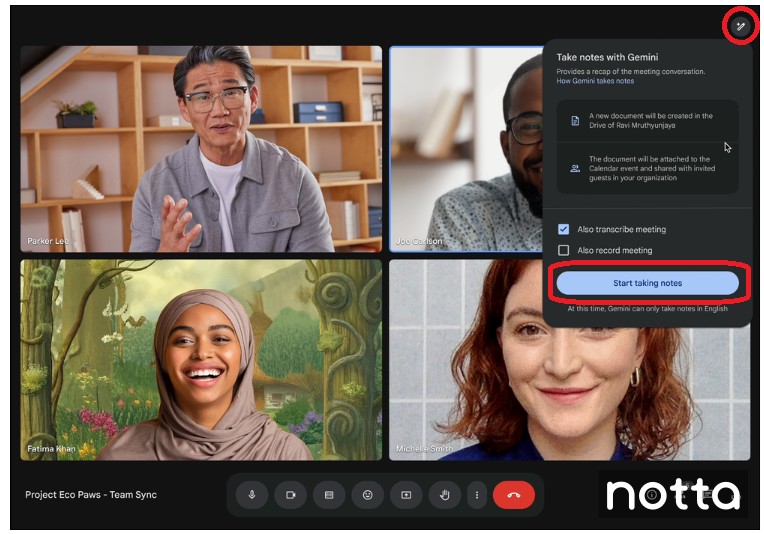
2. Click ‘Start taking notes’. From that moment, Gemini automatically takes notes and creates a document you can review later.
3. Access your notes after the meeting. Gemini automatically saves the notes as Google Docs in the organizer’s Drive. The file is also attached to the Calendar event, and both the organizer and the person who enabled Google Gemini get an email with the recap.
4. (Optional) Choose your meeting language. To take notes with Gemini AI, you need to change the language ahead of time in Google Calendar by opening the meeting event, going into the video call options, and then selecting ‘Meeting records’ and choosing your language. The process isn’t very intuitive, and with only eight supported languages available for a single meeting, the flexibility is limited.
Keep in mind that the ‘Take notes for me’ option only appears if your organization is on an eligible Workspace plan and the administrator has enabled it.
What Are the Limitations of Gemini's Note-Taking Tool?
Google Gemini sounds great on paper, but in practice, the experience is limited. Here are the biggest issues users run into.
1. Slow performance
Gemini AI lets you see a ‘summary so far’ during the meeting, but the full notes are slow to appear afterward.
Teams often have to wait for them in Google Drive or by email instead of getting immediate access. This delay makes it harder to move forward with follow-ups and decisions in fast-paced work environments.
2. Inaccurate transcriptions
Accuracy is a consistent issue. The tool sometimes mishears names, confuses multiple speakers, or misses key parts of the discussion altogether. That forces you to spend extra time reviewing and fixing mistakes, which defeats the purpose of automation.
Instead of saving time, it often creates another task on your to-do list.
3. Inefficient file use on Google Drive
Each transcript is stored as a Google Doc by default. Over time, this leads to cluttered drives that are harder to manage.
Teams end up wasting time renaming, moving, or archiving documents just to stay organized. Google’s AI assistant adds another layer of digital cleanup, instead of improving efficiency.
4. Limited language support
Gemini’s note-taking works in eight languages: English, French, German, Italian, Japanese, Korean, Portuguese, and Spanish. Even that list is limiting on its own, but the bigger drawback is that Gemini only supports transcription in a single language per meeting.
If participants switch between languages, the transcript and summary quickly become unusable. If you rely on bilingual or multilingual communication, this is a major limitation.
5. Google Meet only
The feature is locked to Google Meet. If your team uses Zoom, Microsoft Teams, or Webex, you won’t be able to take advantage of it.
Many companies rely on multiple meeting platforms, so this lack of flexibility is a serious drawback. Instead of being a universal solution, it only fits one narrow use case.
6. No integrations
Gemini doesn’t integrate with tools most teams already use, like Asana, Trello, or Salesforce, or even with other Google Workspace tools other than Docs and Calendar. That means you can’t push action items or tasks directly into your workflow.
Instead, you’ll be copying and pasting information between apps, which wastes time and increases the chance of errors.
7. Restricted to certain Workspace plans
The feature isn’t available to all Google users. It’s restricted to specific Workspace subscription tiers, and there’s no free version available.
It’s hard to access for individuals, small teams, and startups, especially those that can’t justify paying for higher-tier Workspace subscriptions. This split is inconvenient for organizations that want everyone on the same system.
Another restriction is that only the host can control note-taking when host management is turned on. This reduces flexibility for other participants, even internal team members, who might also want to take notes with Gemini.
8. Edit history exposes changes
Transcripts are stored in Google Docs, and Docs automatically track every version and edit. That means anyone with access can see exactly what was changed and when they were made.
For casual use, this might not matter, but it’s a serious risk in meetings with sensitive or confidential information. Teams need stronger privacy controls than what Google Gemini currently offers to be a valuable service for sensitive or confidential meetings.
9. No support for uploading existing files
Gemini only takes notes during live Google Meet calls. You can’t upload past recordings, audio, or video files to generate transcripts or summaries.
As a result, Google Gemini is far less versatile for teams that want to document client calls, webinars, or offline meetings. Instead, you’re limited to real-time use inside Meet.
Why Is Notta Better Than Gemini for Meeting Notes?
Notta offers more features than Gemini for meeting notes, including support for 58 languages, bilingual transcription, customizable summaries, and integration with Zoom and Microsoft Teams. Notta provides a free version, while Gemini requires a paid Workspace subscription.
Follow these steps to see how you can take better meeting notes with Notta.
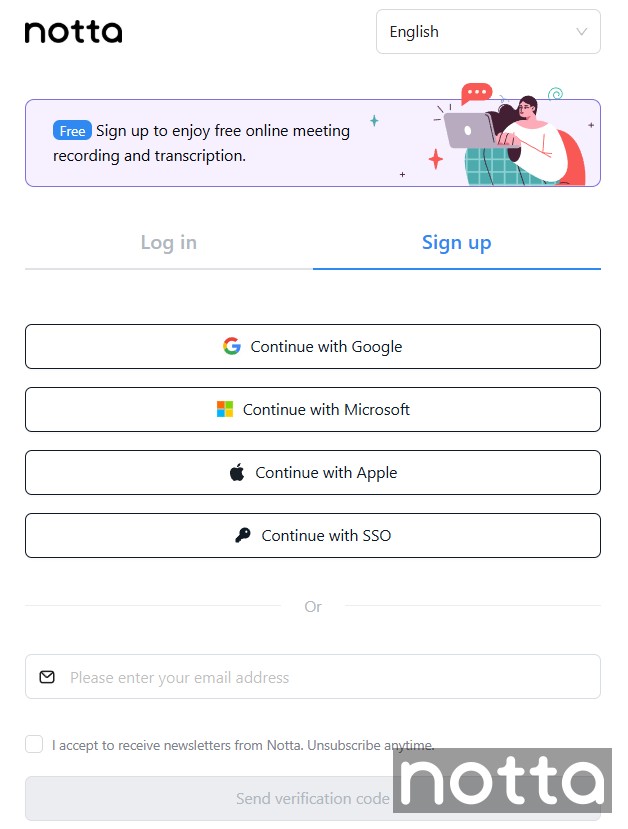
Step 1: Sign up or Log in to Notta
Gemini’s ‘Take Notes for Me’ feature is only available if your account is tied to a paid Google Workspace Business Standard or Business Plus plan. Notta’s AI-powered tool makes everything easier. Signing up takes a few seconds, and anyone can create a free account.
You can sign up with a Google, Microsoft, or Apple account, or simply enter your email and confirm it with a verification code.
During sign-up, Notta will also ask you about your role and how you plan to use the app (for work, study, interviews, etc.), so it can recommend features and tailor your experience.
Step 2: Record and Transcribe Your Meeting
Log in, and the Notta dashboard will open. Click ‘Record online meeting’.
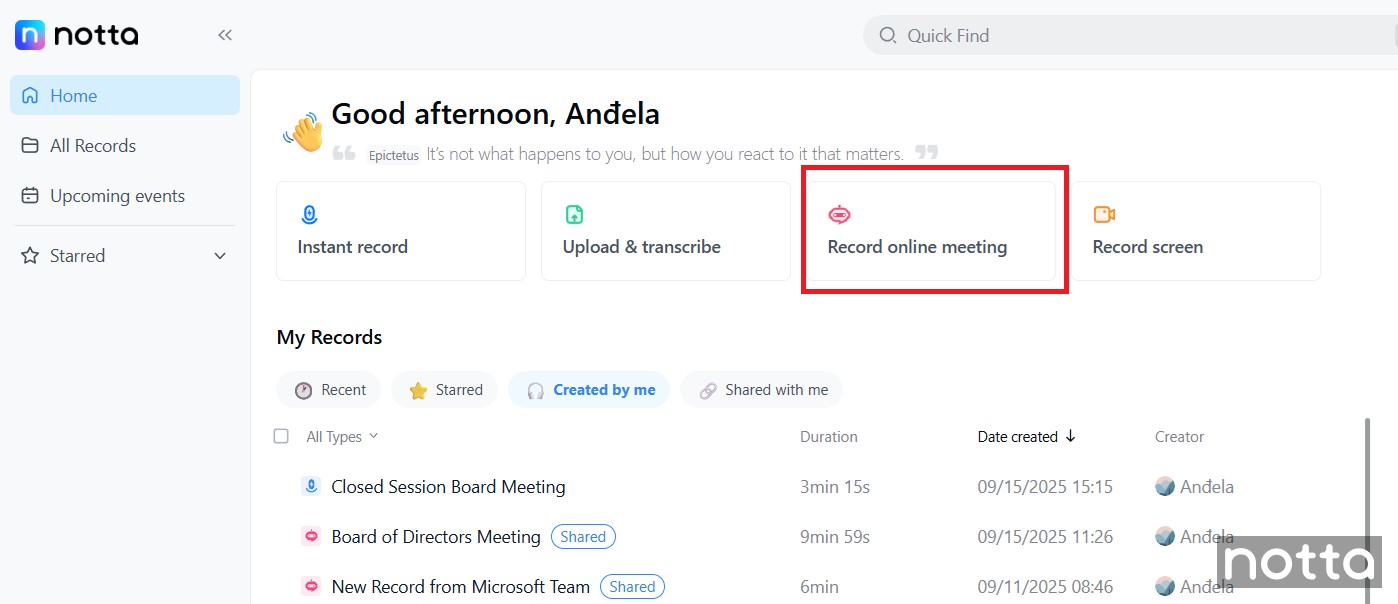
A new window will open where you can choose from 58 different transcription languages. Copy and paste your Google Meet link in the designated box and click ‘Transcribe now’. The Notta bot will join your meeting and start transcribing automatically.
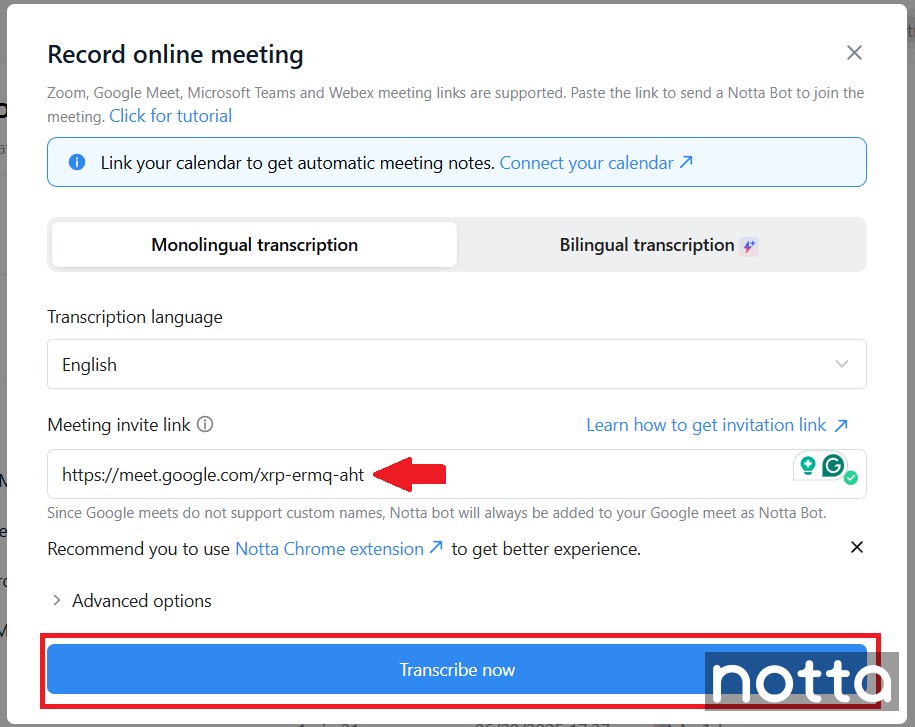
Unlike Gemini, Notta gives you the option to choose bilingual transcription, providing added flexibility to international teams.
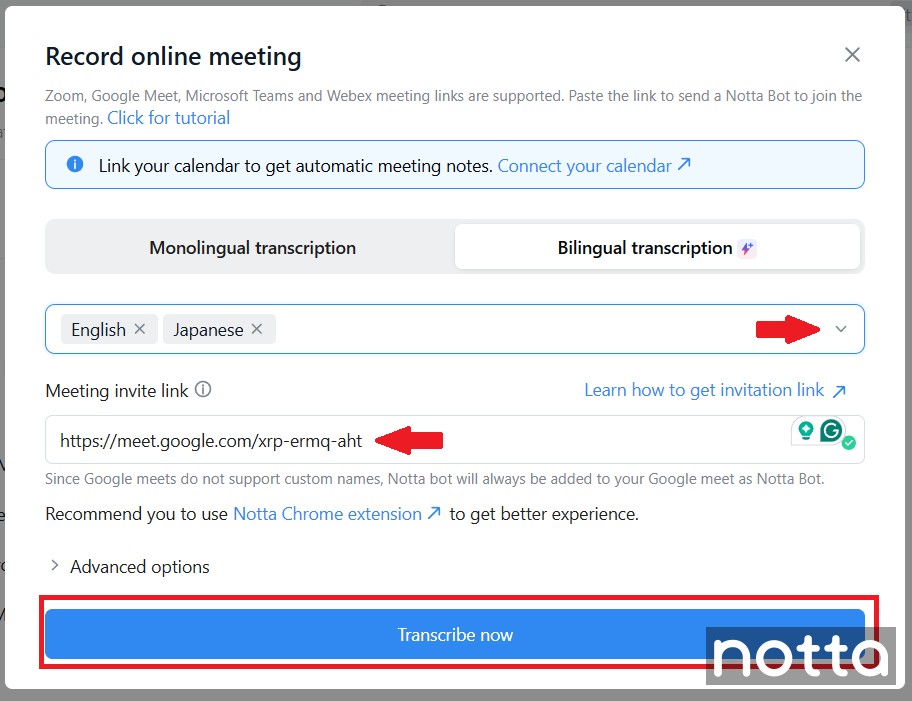
Open the ‘Bilingual transcription’ tab, pair between 23 languages, paste the meeting link, and click ‘Transcribe now’ to enable real-time transcription.
Step 3: Get an Instant AI-generated Summary
You’ll find the finished transcript in Notta as soon as the meeting ends. Next, you can select a template type so the AI summary notes are relevant for your meeting.
Depending on the template, Notta’s notes come pre-organized into sections like topics, reviews, progress, issues, and decisions, so everything is clear and ready to use.
Click ‘Generate Now’ to continue.
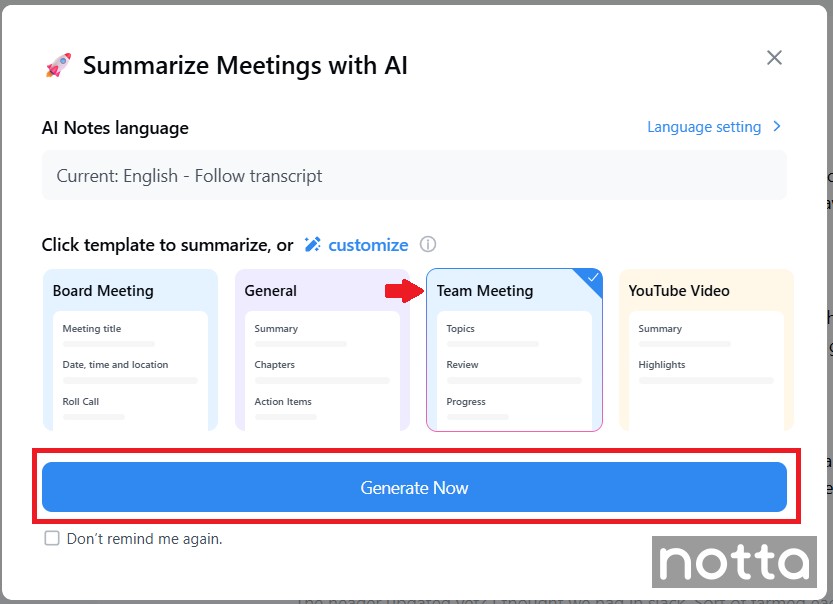
Notta also lets you create custom templates, or you can use built-in ones for interviews, lectures, team meetings, and project reviews. This option gives you far more flexibility and customization than Gemini, which only produces a standard summary.
Editing in Notta is also simple, with a user-friendly interface that allows you to double-click anywhere on the transcript or summary text to make changes.
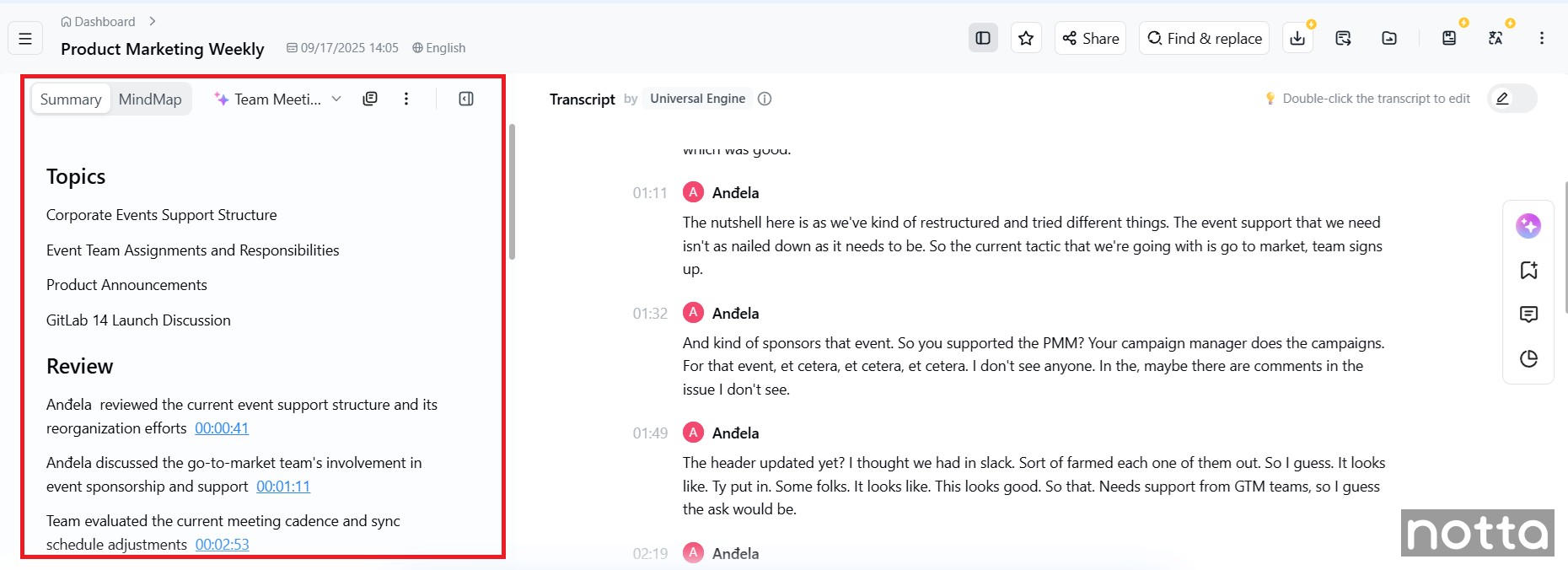
Step 4: Edit Your Notes and Share with Your Team
Clean up speaker names, capture key points, and add any context you need, and you’re ready to share your notes.
You can invite teammates to view or edit the transcript so it’s easy for teams to collaborate on the same document.
Click the ‘Share’ option from the top-right menu to generate a link or send direct invites for quick access.
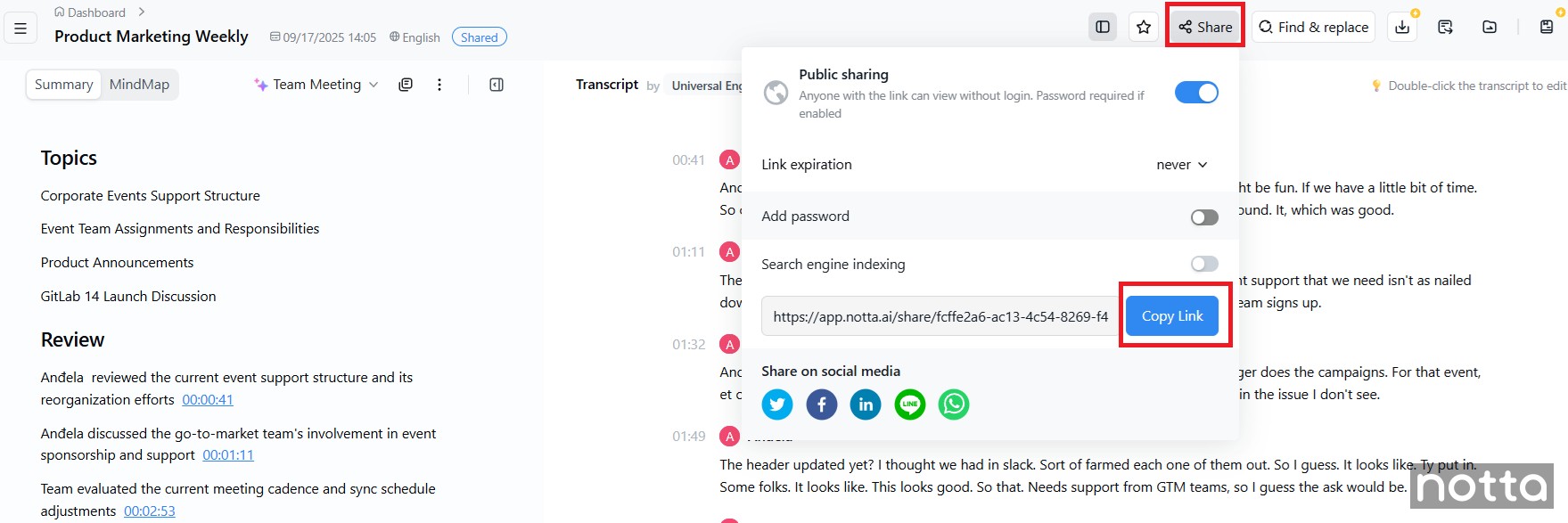
You’re not limiting yourself by skipping Google Gemini. Notta lets you send notes straight to Google Drive, just like you would with Google’s own tools.
Click the ‘Send to’ icon at the top-right of the menu, select ‘Send to Cloud Storage’ and choose Google Drive.
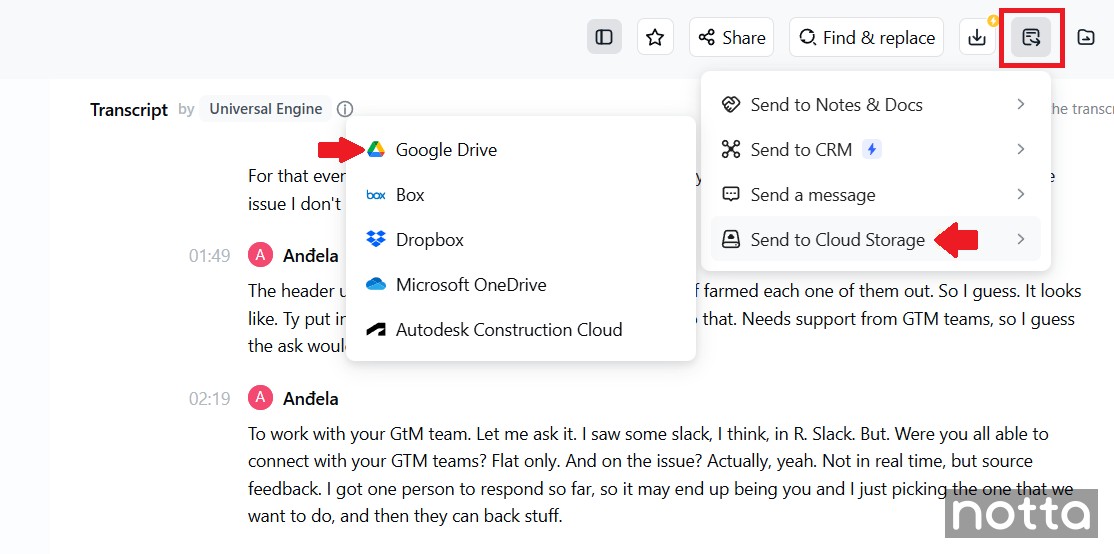
You can also share to Box, Dropbox, Microsoft OneDrive, and Autodesk Construction Cloud, or export to PDF, Word, or TXT.
Notta integrates with other platforms, like Zoom, Microsoft Teams, and Slack, giving your team flexibility no matter how you work.
Gemini vs. Notta
| Feature | Notta | Gemini |
|---|---|---|
| AI Transcription | Yes | Yes |
| AI Summary | Yes | Yes |
| Meeting Recording | Yes | Yes |
| Team Collaboration | Yes | Limited |
| CRM Integrations | Yes | No |
| Free Version | Yes | No |
| Customizable Summaries | Yes | No |
| Zoom and Teams Support | Yes | No |
| Bilingual Transcription | Yes | No |
| Supported Languages | 58 | 8 |
Instead of waiting for Google to drip out one new feature at a time, Notta already gives teams the flexibility they need. It isn’t limited to one app or one type of user, unlike Google Gemini.
With a free plan, support for 58+ languages, and built-in collaboration features, Notta is the best choice for teams that want reliable notes every time.
1. Free plan and accessibility
Notta makes it easy for anyone to get started. You don’t need a Business or Enterprise subscription, and signing up takes seconds. The free version includes real-time transcription and summaries, so even individuals or small teams can benefit. That low barrier to entry makes Notta more accessible than tools locked behind premium tiers.
2. Works across different platforms
Not all of your meetings are in Google Meet, and Notta understands that. It also works with Zoom, Microsoft Teams, and even in-person conversations. No matter where your meeting happens, Notta can capture and transcribe it. This flexibility saves you from juggling multiple apps or missing out on notes when you’re not using Google Meet.
3. Broad language support with bilingual transcription
Gemini AI supports only eight languages, while Notta supports 58 and also allows bilingual conversations. If participants switch between English and Spanish, or Japanese and English, the transcript stays accurate. This makes Notta a better fit for teams that speak multiple languages, so no one is left out of the conversation.
4. Customizable summaries
Notta doesn’t just generate a generic recap. You can adjust summaries to highlight decisions, capture key points and action items, or provide a quick overview, depending on what your team needs.
The output is more practical than a one-size-fits-all document that Google Gemini offers. Instead of spending time editing, you get a summary that already matches the intended purpose.
5. Integrations with CRMs and project tools
Notes are most useful when they connect with the tools you already work with. Notta integrates with Salesforce, HubSpot, Trello, and more, letting you send action items and updates directly into those systems. This reduces manual note-taking and copy-paste work, allowing teams to enhance productivity and improve their workflow.
6. Centralized transcript and note library
Instead of scattering new Google Docs across Drive, Notta organizes all your transcripts and notes in one place. You can search past meetings and filter by date. Having one clean library means less digital clutter and faster access to the information you need.
7. Strong privacy without edit history exposure
With Google Gemini, every edit in Docs leaves a trace. Notta takes a cleaner approach by letting you edit notes directly without exposing every change. On top of that, Notta follows strict security standards: it’s SOC 2 Type II certified and GDPR compliant, meaning your data is encrypted in transit and at rest.
Access controls let you decide who can view or edit your notes, and multi-factor authentication adds another layer of protection. For teams that handle sensitive information, this combination of privacy and compliance ensures that meeting data stays safe and under your control.
While Gemini limits your options, Notta combines features that would normally require several tools, saving valuable time and reducing unnecessary complexity.
Frequently Asked Questions about Google Gemini Notes
How do I turn on Gemini on Google Meet?
To turn on Gemini in Google Meet, open your meeting and click the ‘Take notes with Gemini’ pencil icon in the top-right corner. Click ‘Start taking notes’, and Gemini AI generates a notes document and saves it to your Google Drive.
What Google Workspace Plans Are Eligible for Gemini Notes?
The following Google Workspace plans are eligible for Gemini Notes: Business Standard, Business Plus, Enterprise Standard, Enterprise Plus, and Frontline Plus. It’s not available on Business Starter, personal Google accounts, or most Education editions.
What is the Best AI Note-taker for Google Meet?
The best AI note-taker for Google Meet is Notta because it lets you transcribe meetings in 58 languages, offers bilingual transcription, and creates customizable summaries. The notes are fully editable and shareable via link or export to formats like PDF, Word, or text.

