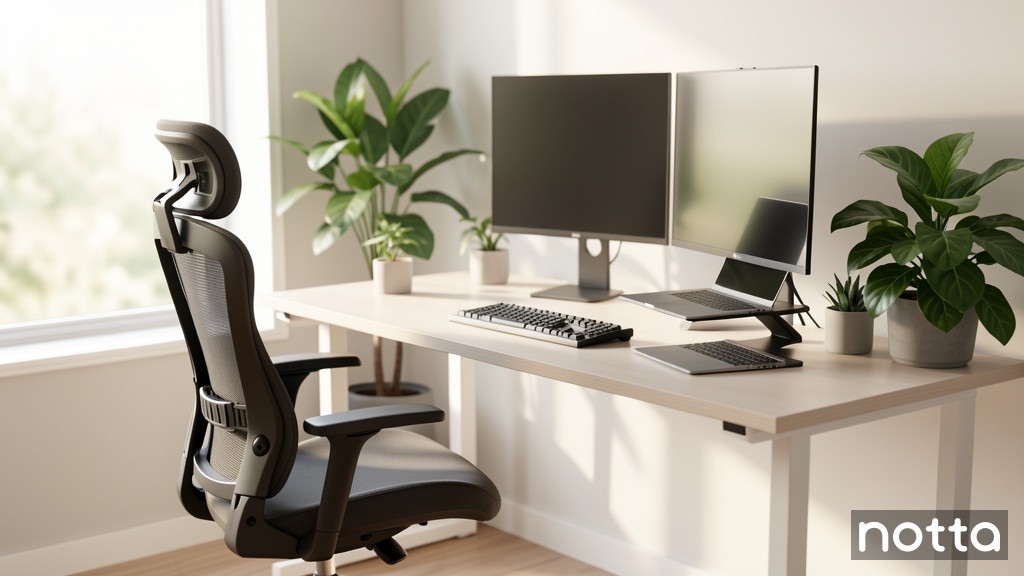
Top Work-from-Home Must-Haves for Productivity and Comfort
Saving time and effort with Notta, starting from today!
Working from home requires more than just a laptop and Wi-Fi. Without the right setup, remote work leads to physical strain, constant distractions, and blurred boundaries between work and life. The right equipment and environment transform your home into a productive workspace that supports focus, comfort, and professional presence.
But you don’t need a complete overhaul to improve your WFH setup. Even small, intentional changes reduce strain and make your day easier.
Our guide breaks down the most practical work-from-home must-haves that help you create a more comfortable, productive home office setup.
Quick Checklist: 15 Work-From-Home Must-Haves
Ergonomic office chair ($200–$1,500)
Desk or standing desk converter
External monitor (24″ or larger)
Laptop stand or monitor arm
Ergonomic keyboard
Ergonomic mouse
Noise-cancelling headphones
High-quality webcam
External microphone or headset
Task lamp with adjustable color temperature
Stable high-speed internet
USB hub or docking station
Cable management tools
Dedicated workspace or room divider
Meeting recording and transcription software
Let’s take a closer look at each item and how it fits into a real WFH setup.
What are the Basic Work-from-Home Essentials?
Getting the basics right makes a noticeable difference in your work-from-home day. You’ll need a reliable computer with 8-16GB of RAM, a stable internet connection of 50+ Mbps, ergonomic furniture, proper task lighting, and collaboration software. Together, these essentials improve daily productivity and physical comfort.
1. Reliable laptop or desktop computer
Your computer is the heart of your work-from-home setup. Whether you prefer a laptop you can move around or a desktop with more power, choose one with a fast processor, at least 8-16GB of RAM, and updated software to manage video calls, cloud apps, and multitasking. A sluggish machine adds minutes of delay to every task, so investing in reliable hardware pays off in everyday productivity.
2. Stable, high-speed internet connection
A stable internet connection is essential for video conferencing, file sharing, and cloud-based apps. Aim for at least 50 Mbps download and 10 Mbps upload for smooth conferencing and large file transfers. Faster speeds matter even more if multiple people share your network. Without consistent bandwidth, meetings freeze, uploads lag, and your workflow stalls.
3. Ergonomic desk setup
An ergonomic desk setup keeps your screen, keyboard, and mouse within comfortable reach. Set your desk at elbow height, with enough space to position your monitor at eye level and keep your hands relaxed. A desk that’s too low or crowded forces you into an awkward posture, while a properly adjusted desk supports comfort and extended focus without fatigue.
Pro tip: Invest in a standing desk to alternate between sitting and standing and reduce stiffness and lower back strain. If a full desk isn’t in your budget or doesn’t fit your space, a standing desk converter does the same job on top of your existing desk.
4. Supportive ergonomic chair
A supportive ergonomic chair helps maintain proper posture and reduce back and shoulder strain during long work sessions. A systematic review found that ergonomic chairs (including adjustable seating, lumbar support, and proper backrest design) are linked to lower levels of reported discomfort for people who sit for extended periods.
Choosing a chair designed for long-term comfort reduces aches and fatigue. Popular ergonomic options include models from Herman Miller and Steelcase, which feature adjustable lumbar support, seat depth, and backrest tension.
5. Proper task lighting
Proper lighting reduces eye strain, headaches, and fatigue. A task lamp or ring light with adjustable brightness and color temperature lets you adapt to different times of day and reduce screen glare. Look for LED lamps in the 4000-5000K range, which closely mimics natural daylight and helps you stay focused without straining your eyes.
6. Quiet, distraction-free work environment
A quiet workspace improves concentration and communication during video calls. Using a room with a closing door, noise-cancelling headphones, or sound-absorbing elements like rugs and curtains reduces background noise.
Pro tip: Schedule “quiet hours” with others in your home. Block meeting-heavy hours on a shared calendar or set visible signals like a 'Do Not Disturb' sign to let others know you’re busy so they shouldn’t interrupt.
7. Clean or professional background for video meetings
A clean video backdrop helps you come across as more professional on calls. An uncluttered background (even a blank wall) or subtle décor looks better than a messy room. If your space doesn’t allow that, use a virtual background or a green screen instead.
8. Remote work and collaboration software
Tools like Slack, Asana, Trello, or Notion help your team communicate, track tasks, and manage deadlines. Instead of chasing updates across email threads and chat messages, you can see task status and recent updates at a glance.
9. Meeting and transcription tools for virtual calls
A work-from-home setup isn’t complete without the right software. For virtual meetings, tools that record and transcribe conversations save time and improve productivity. Notta lets you generate searchable transcripts, capture action items, and revisit details you might otherwise forget. As a result, it naturally slots into any calendar packed with meetings.
10. Basic storage and organization for your workspace
Visual clutter is overwhelming and distracts you from the task at hand. Use a drawer organizer for small items, a vertical file holder for notebooks and relevant documents, and a labeled tech pouch for chargers and adapters you don’t use daily. Routing cables through adhesive clips or an under-desk tray keeps them off your work surface.
These systems prevent items from creeping back onto your desk and help keep your workspace under control.
11. Whiteboard or digital notepad
A whiteboard adds a flexible way to visualize ideas, track tasks, and organize thoughts in a home office without relying on paper notes. Options range from traditional wall-mounted boards in melamine or glass to magnetic boards for attaching documents, glass boards with a clean, modern look, and even whiteboard desks that double as a writing surface.
For smaller spaces, decorative or retractable designs, such as boards hidden behind framed art or mounted on doors, combine function with a clean workspace.
What's Essential for a Work-from-Home Desk Setup?
Essential desk equipment solves a lot of common work-from-home problems. External monitors make multitasking easier, ergonomic keyboards and mice reduce strain, adjustable task lighting prevents eye fatigue, noise-cancelling headphones improve focus, and cable management keeps visual clutter under control. These items transform your basic WFH setup into a comfortable, professional workstation.
1. External monitor (or dual monitors)
An external monitor makes it easier to read, write, and multitask without constantly switching windows. A 24-inch or larger display gives you enough space to view documents at full size, while dual monitors are useful for meetings, research, and design. Bigger screens also reduce eye strain because you’re not squinting or leaning forward as often.
Pro tip: Choose a curved screen if you use an ultrawide display, as the curve keeps content within your natural field of view and reduces head and eye movement
2. Laptop stand or adjustable monitor stand
A laptop stand or monitor stand raises your screen to eye level, which prevents neck and upper back strain. Without one, laptop users tend to hunch forward, especially during long work sessions. Adjustable stands let you fine-tune height and angle so your posture stays neutral throughout the day.
3. Monitor arm (single or dual)
A monitor arm lets you position your screen at true eye level while freeing up valuable desk space. Adjustable arms let you fine-tune height, distance, and angle throughout the day, which reduces neck strain and supports better posture. Monitor arms also simplify cable management by routing cables to keep your workspace clean and flexible.
For dual-monitor setups, a dual arm keeps both screens aligned at the same height and distance, which improves focus and reduces constant head movement.
4. Ergonomic keyboard and mouse
A 2025 ergonomics study from Lamar University found that poor typing posture and misaligned wrists increase the risk of musculoskeletal disorders such as carpal tunnel syndrome and tendonitis. If that sounds unfamiliar, consider yourself lucky. These conditions are common among people who spend much of the day at a keyboard, highlighting the importance of an ergonomic setup.
External keyboards allow better wrist alignment than laptop keyboards, and ergonomic mice help keep your hand in a more natural position. Mechanical keyboards work best for all-day typing because they require less force per keystroke and reduce finger fatigue.
5. Desk mat (full-size)
A full-size desk mat creates a smooth, consistent surface for typing and mouse movement while protecting your desk from wear. It also visually defines your workspace and reduces distractions caused by uneven surfaces or sliding accessories. A desk mat covers more area than a standard mouse pad and keeps your keyboard, mouse, and frequently used items in place throughout the day.
6. Noise-cancelling headphones
Noise-cancelling headphones block ambient sound in shared environments, such as a busy home, coworking space, or coffee shop. Look for active noise cancellation (ANC), which reduces ambient sounds by about 20-40 decibels on average. Headphones provide the best comfort and noise isolation for long sessions, while earbuds offer greater flexibility if you move around a lot.
7. High-quality webcam and microphone
A dedicated webcam and microphone instantly improve how you look and sound on calls. A 1080p webcam is enough for clear video without overloading your system, and an external USB microphone delivers more natural sound than most laptop mics.
8. USB hub or docking station
If you use a laptop, a USB hub or a docking station keeps your setup clutter-free. Look for one with at least 5 to 8 ports, including USB-A, USB-C, HDMI, and Ethernet if possible. A single hub lets you connect your monitor, keyboard, mouse, webcam, and charging cables without constantly plugging and unplugging devices.
9. Cable management tools
Cable clutter is distracting and makes your desk harder to clean and adjust. Use cable clips, sleeves, or a cable tray under your desk to keep wires organized and out of the way. A tidy desk reduces visual noise and makes your workspace feel calmer and more intentional.
10. Backup power and surge protection (UPS)
An uninterruptable power supply (UPS) protects your computer and internet equipment from sudden power cuts and voltage spikes that can interrupt work, corrupt files, or damage your devices.
Even a small UPS unit gives you a few critical minutes to save your work and shut down safely, instead of losing progress mid-task or mid-meeting. More importantly, a UPS adds reliability and peace of mind, especially in areas with unstable power.
11. Blue light glasses
Blue light glasses reduce exposure to short-wavelength blue light emitted by screens, which increases visual glare and contributes to eye discomfort during prolonged screen use. By filtering part of this spectrum, these lenses make screens appear softer and reduce visual fatigue, especially in the evening when contrast sensitivity drops and ambient lighting is lower.
12. Optional green screen for virtual meetings
If your space doesn’t allow for a clean background on video calls, a compact green screen or backdrop improves your appearance. Foldable or chair-mounted options work well in small spaces and provide a consistent, professional look without rearranging your room.
What are the Best WFH Must-haves for Comfort?
Comfort matters just as much as equipment when you work from home. Workspace boundaries, clear work-life separation, ergonomic accessories like footrests, regular movement breaks, and proper hydration reduce physical strain and mental fatigue. These habits help you avoid the slow buildup of fatigue that leads to burnout.
1. Dedicated workspace separate from your living space
A clearly defined work area gives your brain context and helps you switch into work mode. In a Prodoscore survey, 93% of remote workers said having a dedicated home office made working from home more enjoyable and improved their productivity.
A separate home office isn’t realistic for everyone, but you can still apply this tip. Using the same desk or corner strictly for work still gives your day some structure and makes it easier to disconnect afterward.
2. Clear boundaries between work hours and personal time
Without clear boundaries, work easily spills into personal time and increases stress. A study published in Human Resource Development International found that technology pressure, such as constant emails and messages, makes it harder for employees to keep work from intruding into home life, which significantly increases work-to-home conflict.
Setting clear start and end times and using end-of-day rituals, like changing clothes or taking a short walk, limits that spillover and protects your personal time.
3. Comfortable, professional work-from-home wardrobe
Being comfortable matters, but being ready for virtual meetings matters too. Keep a small rotation of “camera-ready” tops or layers near your desk, such as a clean knit, button-down, or structured cardigan. Having those pieces within reach reduces decision fatigue and stress when unexpected calls pop up, while still letting you dress comfortably for the rest of the day.
4. Easy access to hydration and coffee
Keeping yourself properly hydrated will support sustained focus and reduce mental fatigue. Research has shown that even mild dehydration can impair attention, memory, and concentration, which directly affects your work. Keeping water and coffee within arm’s reach reduces unnecessary breaks and maintains energy and focus throughout the workday.
If you're a regular coffee drinker, having a setup you enjoy makes a surprisingly big difference in daily morale. A quality grinder, an espresso machine, or just a reliable drip brewer is all it takes to turn your coffee break into a quick mental recharge.
5. Padded footrest for under-desk comfort
A chair or desk setup that prevents your feet from resting flat on the floor can increase strain on your legs and lower back. The Occupational Safety and Health Administration (OSHA) recommends that you use a footrest to maintain proper posture, especially if the desk height isn’t adjustable.
6. Small desk ornaments or personal touches
A few personal items, like a plant, a photo, or an art piece, create a more inviting workspace. Keeping these touches small adds personality without cluttering your desk or distracting you from work.
7. Regular movement and screen breaks
Sitting still for long periods increases your stiffness, fatigue, and mental fog. Standing up every 30 to 60 minutes, stretching briefly, or taking a short walk improves circulation and resets your focus. Follow the 20–8–2 rule: sit for 20 minutes, stand for 8, and move for 2 to stay energized and focused throughout the day. It works best with a sit/stand desk!
Why is Notta a Work-from-Home Must-Have?
Working remotely goes hand in hand with virtual meetings, but some meetings create more confusion than they resolve. Between back-to-back calls, scattered notes, and missed follow-up tasks, it’s easy to lose focus and waste time after the call ends. Notta gives you control over your meetings with less effort.
Notta records your meetings, transcribes conversations with up to 98.86% accuracy, and generates AI-created notes you can share with your team. You can focus on the discussion instead of juggling notes or worrying about missing details.
Notta integrates with Zoom, Google Meet, and Microsoft Teams, and automatically joins meetings scheduled through Google Calendar and Outlook.
After the meeting, you can review searchable transcripts, share notes with teammates, and keep follow-up tasks organized in one platform. Notta also supports in-person meetings, which makes it a practical choice for hybrid work models.
Use Notta as part of a smarter, more organized work-from-home setup.
Frequently Asked Questions (FAQs)
What equipment do I need to work from home?
Essential work-from-home equipment includes a reliable computer with 8-16GB RAM, high-speed internet (50+ Mbps), ergonomic chair and desk, and a webcam and microphone for meetings. Productivity tools like Notta record and transcribe meetings so you can focus on the discussion instead of taking notes.
Is remote work dying in 2026?
No, remote work isn’t dying in 2026, but it’s less popular than it used to be during the peak pandemic years. According to Backlinko, the percentage of fully remote workers declined by 2.4%, from 10.2% in 2023 to 7.8% in 2025, while hybrid work increased by 6.8% over the same period. Fully remote roles may be slowly declining, but hybrid work is clearly on the rise.
How do I create a healthy work-from-home space?
Create a healthy work-from-home space by using ergonomic equipment like a supportive chair and a proper desk setup. Good lighting and a quiet environment help reduce eye strain and distractions. Clear boundaries between work and personal life are essential for long-term productivity and well-being.

