
Can Copilot Take Meeting Notes?
Saving time and effort with Notta, starting from today!
Microsoft is investing heavily in AI in the workplace, and its AI assistant promises to make meetings more productive. But can Copilot take meeting notes in a way that actually helps your team?
The answer is yes, but it requires some setup.
In this guide, I'll teach you how to set up Copilot to take meeting notes, share some best practices to improve the output, and show you a simple alternative if Copilot proves to be more trouble than it’s worth.
How Do I Use Copilot to Take Notes in Teams Meetings?
According to Microsoft’s Work Trend Index, early users reported that Copilot made it 84% easier to take action after a meeting, and 86% said it helped them catch up on what they had missed. Those numbers are impressive, but you only get results like that if Copilot is set up correctly.
As the meeting organizer, you control how participants use Copilot..
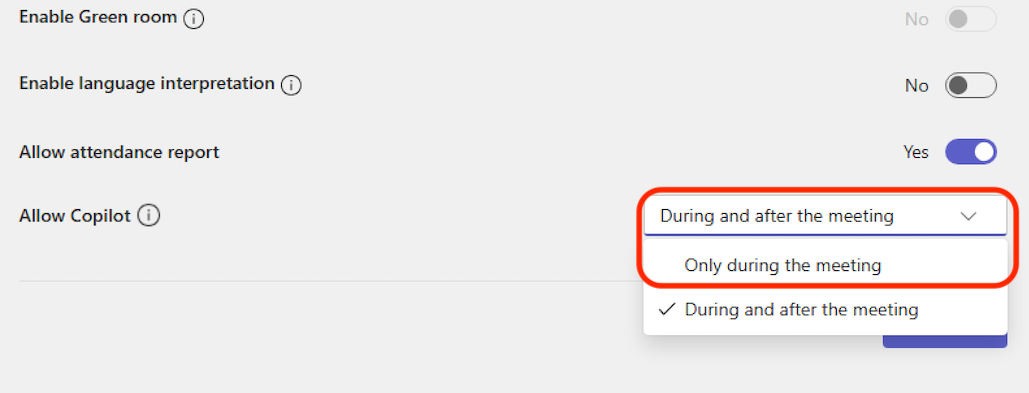
To enable Copilot, open your Teams calendar, schedule a meeting, then go to ‘Meeting options’ and select ‘Allow Copilot’.
(Image credit: Microsoft)
From there, you can choose to make Copilot available during and after the meeting (with transcription turned on), only during the meeting (live notes that disappear after the meeting ends), or turn it off entirely, which also disables recording and transcription.
If you’re a participant, you don’t have any control over the settings. Your access to Copilot depends on the organizer’s choice, and you may not be able to use it at all.
How to enable transcription
Microsoft Copilot only works for meeting notes if transcription is turned on. When you record a meeting, transcription starts automatically. If you’re not recording, you can enable transcription in two ways:
Prompted by Copilot: You’ll see a prompt to start transcription the first time you use Copilot in a meeting. Confirm it to enable both transcription and Copilot.
Manual start: After you’ve joined your Teams meeting, click ‘More actions’ (…) in the toolbar, then go to ‘Record and transcribe > Start transcription’. Click ‘Confirm’ to start the transcription, and everyone will receive a notification that the transcription is active.
If you don’t see the Copilot option in Microsoft Teams, it likely means you don’t have a Teams Premium or Microsoft 365 Copilot license.
Where Can I Find My Copilot Meeting Notes After the Meeting?
If Copilot and transcription were enabled during your meeting, you can go back and review the notes in two places: the meeting chat or the Recap tab.
Access Your Notes From the Meeting Chat
To access your notes from the meeting chat, click the Copilot icon in the upper-right corner. Copilot will open on the right side of the window, ready to respond to preset prompts or any other questions.
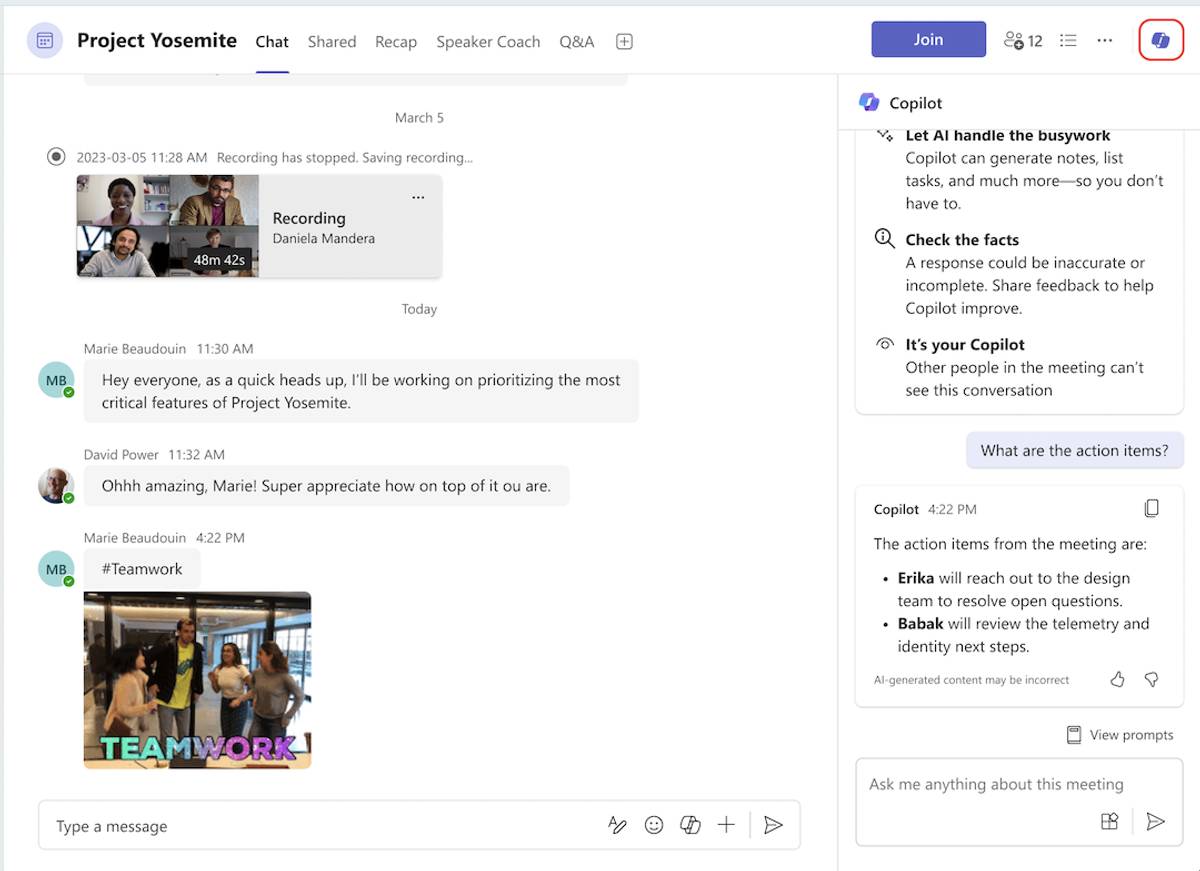
(Image credit: Microsoft)
Copilot can also pick up context from before the meeting officially started. Once you turn on transcription, it will include chat data from up to 24 hours before the meeting.
For example, if team members shared agenda items, questions, or early decisions in the chat, Copilot will include them in its notes, giving you a more complete record of the discussion.
Access Your Notes Using the Recap Tab
You can also access your notes using the ‘Recap’ tab located in the upper left corner. Click on the 'Recap' tab, and Copilot will open on the right side of the window, where you can prompt it to answer questions from the meeting.
If you’re on a Premium license plan, you’ll also get the Intelligent Recap feature that automatically generates notes, tasks, and timeline markers.
Microsoft’s own teams report strong results from using it. As Chanda Jensen, Senior Product Manager at Microsoft Digital, explains, “Intelligent Recap has been a game changer for our employees, in terms of being able to get the notes, catch up on what they missed, and work asynchronously. It’s one of the most highly used features in Microsoft Teams.”
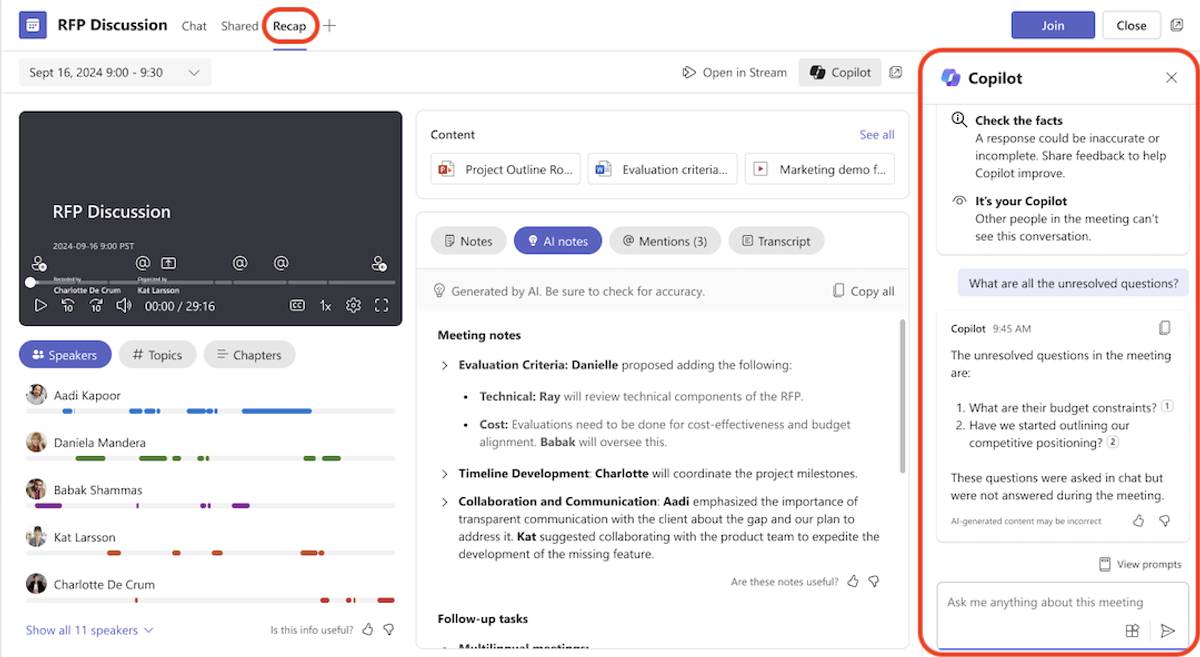
(Image credit: Microsoft)
The only drawback (and it's a major one) is that Copilot’s recap isn’t permanent. In recurring meetings, Copilot rewrites earlier summaries as soon as the new meeting starts. If the transcript expires, Copilot won’t be able to retrieve any past notes or conversation history.
Now that you know where to find your notes, let's explore what types of notes Copilot creates.
What Types of Meeting Notes Can Copilot Generate?
Copilot creates four types of meeting documentation to capture different aspects of your discussions. These formats help teams track decisions, assign tasks, and reference past conversations.
Summaries of key points & decisions. Copilot can generate highlights of key points, giving you a clear overview of what your team agreed (or disagreed) on during the meeting.
Action items. It can note action items, including who is responsible for each task and the related deadlines, e.g., “Sarah will finalize the presentation by Friday, and Mark will confirm the budget by 6 pm.”
Word document. If the recap is longer than 1300 words, you can open it in Word for easier editing and collaboration.
Excel table. When notes include numbers or tasks, you can export them as a table in Excel to track progress.
How Can I Get Better Results from Copilot Meeting Notes?
To make sure your Copilot notes are clear and useful, there are a few best practices to keep in mind. Depending on the type of meeting, you need different prompts, so use your judgment and adapt these tips to the situation:
Be specific. Vague prompts lead to vague answers, which could cause you to miss important details. Instead of telling Copilot, “Summarize the meeting,” try, “Create a one-paragraph summary of our client call that highlights budget changes and delivery timelines.”
Give context. Copilot can adjust the tone and style of its responses. For example, you might say, “Write a professional and lighthearted recap of today’s meeting.”
Provide positive instructions. Action-oriented phrasing is more effective than negative phrasing. Instead of “Don’t include small talk,” it’s better to say “Summarize only the project updates and action items.”
Use cue words. You can guide Copilot's responses by using specific words. “Summarize today’s meeting. Include: Action items, Decisions, Next steps.”
Review as you go. Copilot is smart, but it’s not perfect. Double-check names, numbers, and decisions to make sure the final notes are accurate before sharing them.
Download or export important summaries immediately. Copilot's notes aren't permanent, and transcripts expire after 60 days by default. You also can’t recover past notes or chats.
These practices improve note quality, but Copilot’s limitations determine whether it fits your workflow.
What Are the Requirements and Limitations of Copilot Meeting Notes?
Before you get too excited about using Copilot, keep in mind that it's not something you can just switch on yourself. Its availability depends on licensing, privacy settings, and organizational controls, and you need your IT admin to assign you the right license.
Microsoft 365 License Requirements
Copilot in Teams isn’t included with every Microsoft account. Your organization needs a Teams Premium license (add-on) at $10 per user to unlock meeting notes and other AI features.
For smaller companies or teams on a standard Microsoft 365 plan, this is an unexpected (and expensive) upgrade just to get automated note-taking.
External Participant Restrictions
Microsoft Copilot only works in meetings your organization hosts. If the invitation comes from a client or partner, you will not be able to use any Copilot features.
As a result, you’ll only get notes for internal meetings but not for external meetings, which are just as important.
What Are the Best Alternatives to Copilot for Meeting Notes?
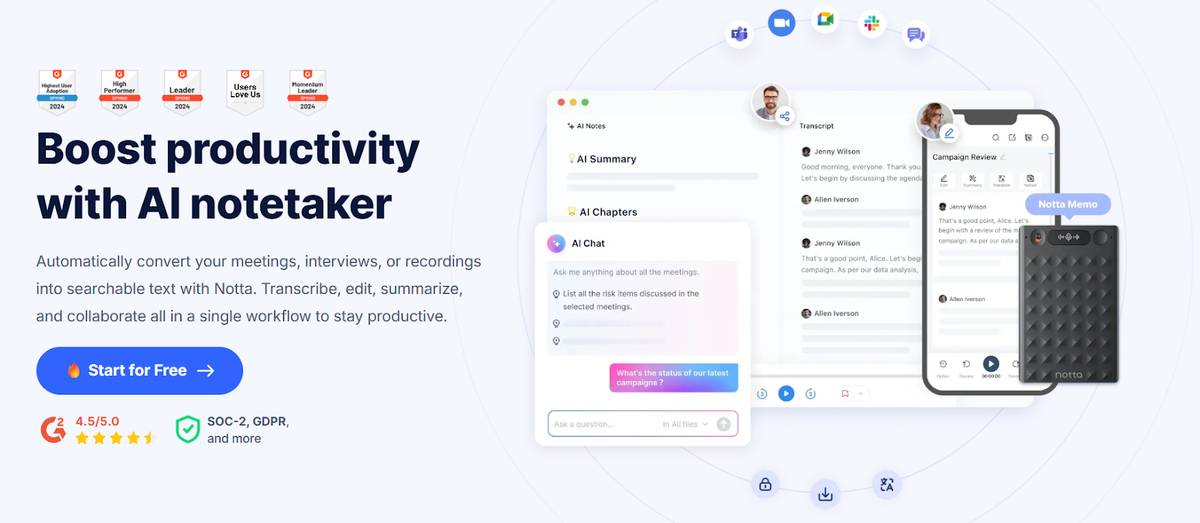
Licensing limits and meeting restrictions can turn into big problems. A Premium license adds extra costs, and external meetings often fall outside Copilot’s reach. Notta is an excellent alternative for automated meeting notes, with none of Copilot's drawbacks.
With Notta, you get everything Copilot offers plus additional features that work outside the Microsoft 365 platform.
Unlike Copilot, Notta works with most video conferencing platforms, including Microsoft Teams, Google Meet, Zoom, and Webex. You can also upload audio and video files, so even if you miss a meeting, you can still get a full transcript with AI notes using a recording.
Notta doesn’t depend on the meeting organizer’s settings. Even if the organizer turns off recording, transcription, or Copilot, you can still use Notta to generate a meeting transcript because it works independently of Teams’ built-in features.
Copilot is convenient for Microsoft Teams meetings, but Notta brings that same convenience to every meeting platform. You can even sync the Notta bot to your Google or Microsoft Outlook calendar, and it will automatically join and transcribe all your meetings.
Setting up and using Notta is simpler because you don’t need an IT admin to approve your license. Just create an account, and Notta can start taking automatic notes immediately.
The best part? You can try it out for free today!

