

How to Take Meeting Notes in Teams
Saving time and effort with Notta, starting from today!
Microsoft Teams stores meeting notes as Loop components, which are collaborative content blocks that sync through OneDrive. On desktop, you can create and edit notes before, during, and after meetings with full functionality. On mobile, note-taking is more limited: you can edit notes during a meeting, but you can’t create them when scheduling. Loop components also require an internet connection and only work within Microsoft 365 apps.
This article shows you how to take meeting notes in Teams, explains the limitations of Teams’ built-in note-taking tools, and highlights the benefits of using Notta to take more effective meeting notes.
How Do You Take Meeting Notes in Teams?
To take notes in a Teams meeting, click the ‘Notes’ icon at the top of the meeting window on desktop, or tap the three-dot menu and select ‘Notes’ on mobile.
On desktop, you can also create notes before a meeting by opening ‘Calendar,’ selecting ‘New,’ and clicking ‘Add an agenda note’ in meeting details.Type directly into the Notes pane, use @ to tag participants, and press / to insert lists or formatting.
Behind the scenes, Microsoft Teams stores these meeting notes as Loop components, which sync through OneDrive and allow multiple participants to edit the same notes across Teams and other Microsoft 365 apps in real time.
Note: There are minor UI display differences between the iOS and Android versions of Microsoft Teams, but the steps are identical. The screenshots in this article display the Android version.
How Do You Prepare a Meeting Agenda in Teams?
The best way to run an effective meeting is to set and follow a clear agenda. This helps establish a structure and allows your meeting participants to prepare effectively.
Unfortunately, Microsoft Teams does not allow you to create an agenda or other meeting notes while scheduling a meeting on a mobile device. Mobile users can edit and access notes during and after an existing meeting, but only desktop users can add them to a meeting in advance.
Step 1: On desktop, open Microsoft Teams andclick the 'Calendar' tab, and then click 'New' to schedule a new event or channel meeting.
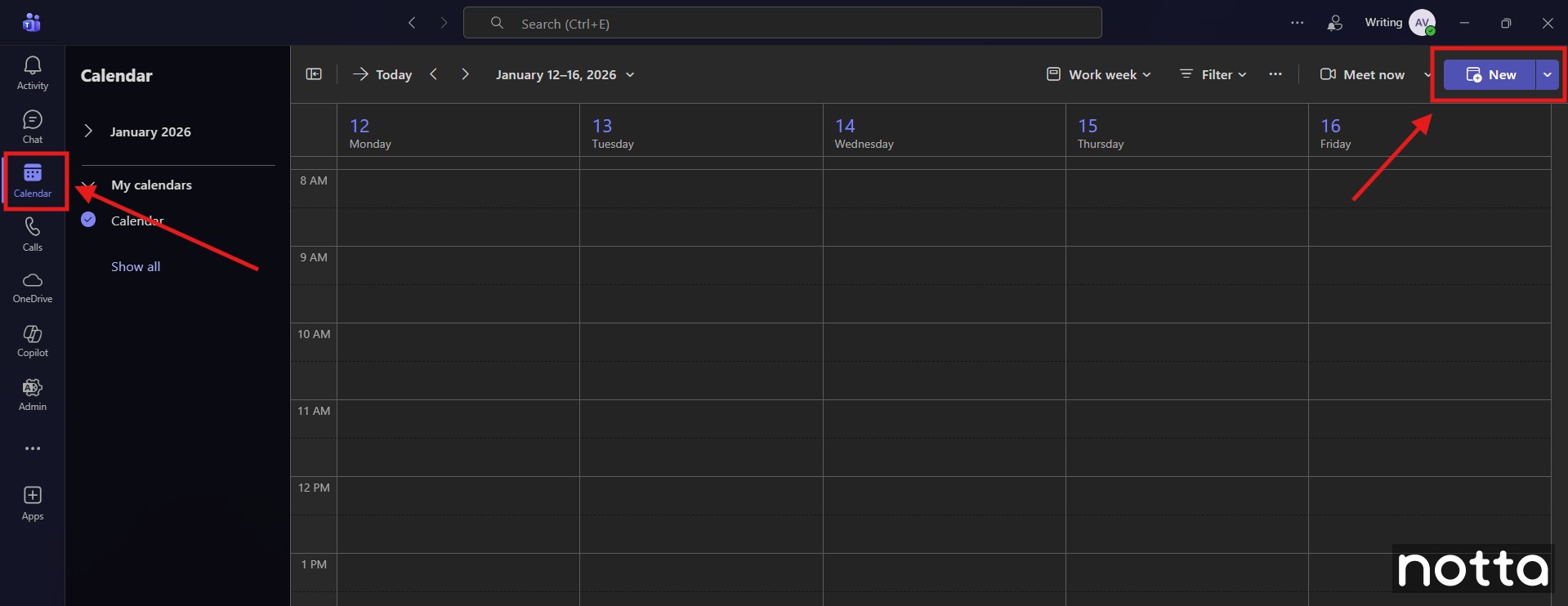
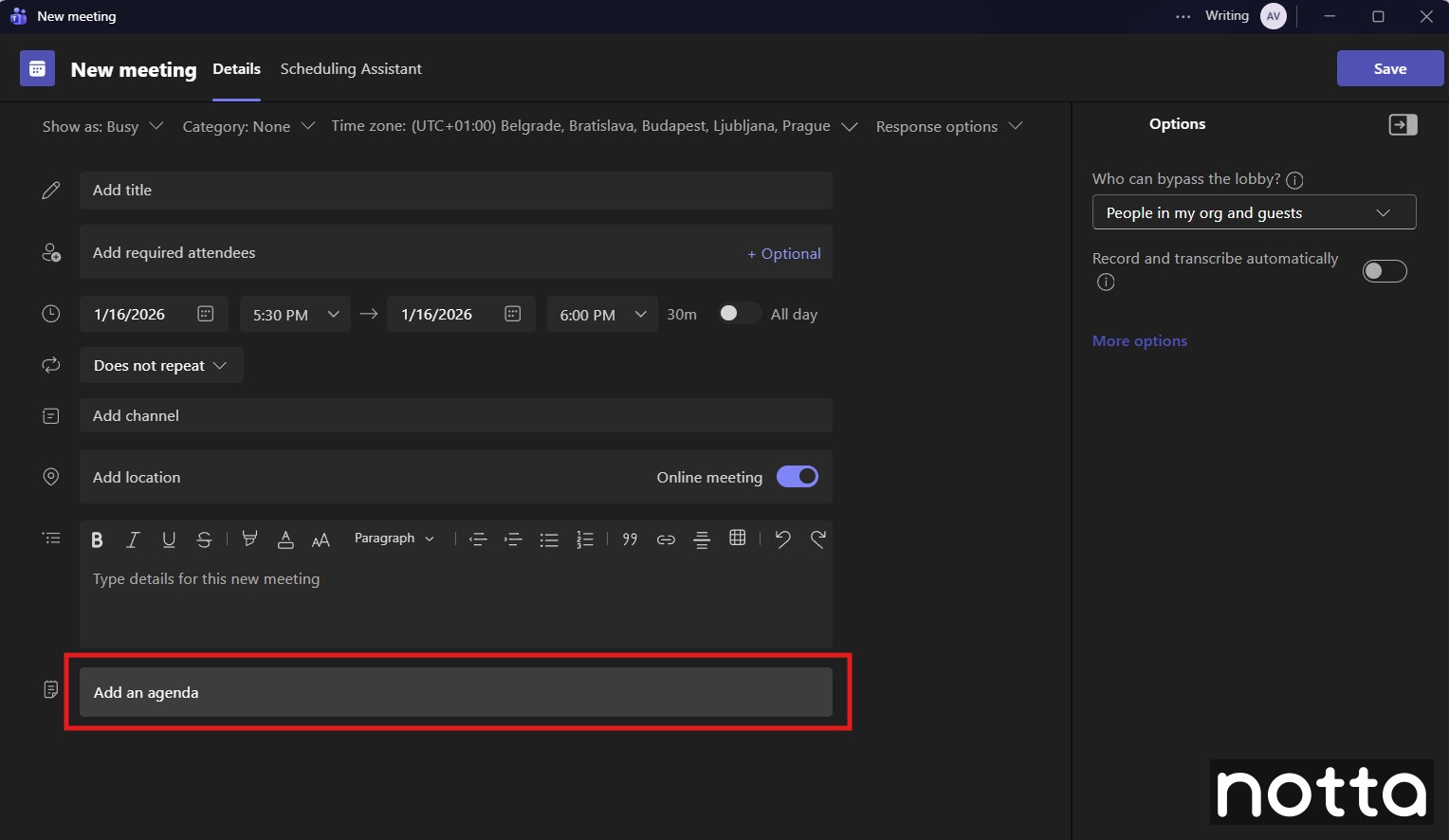
Step 2: Enter all the relevant meeting and participant details, then click 'Add an agenda note' at the bottom of the window. Teams will create a new Loop component to store the meeting notes.
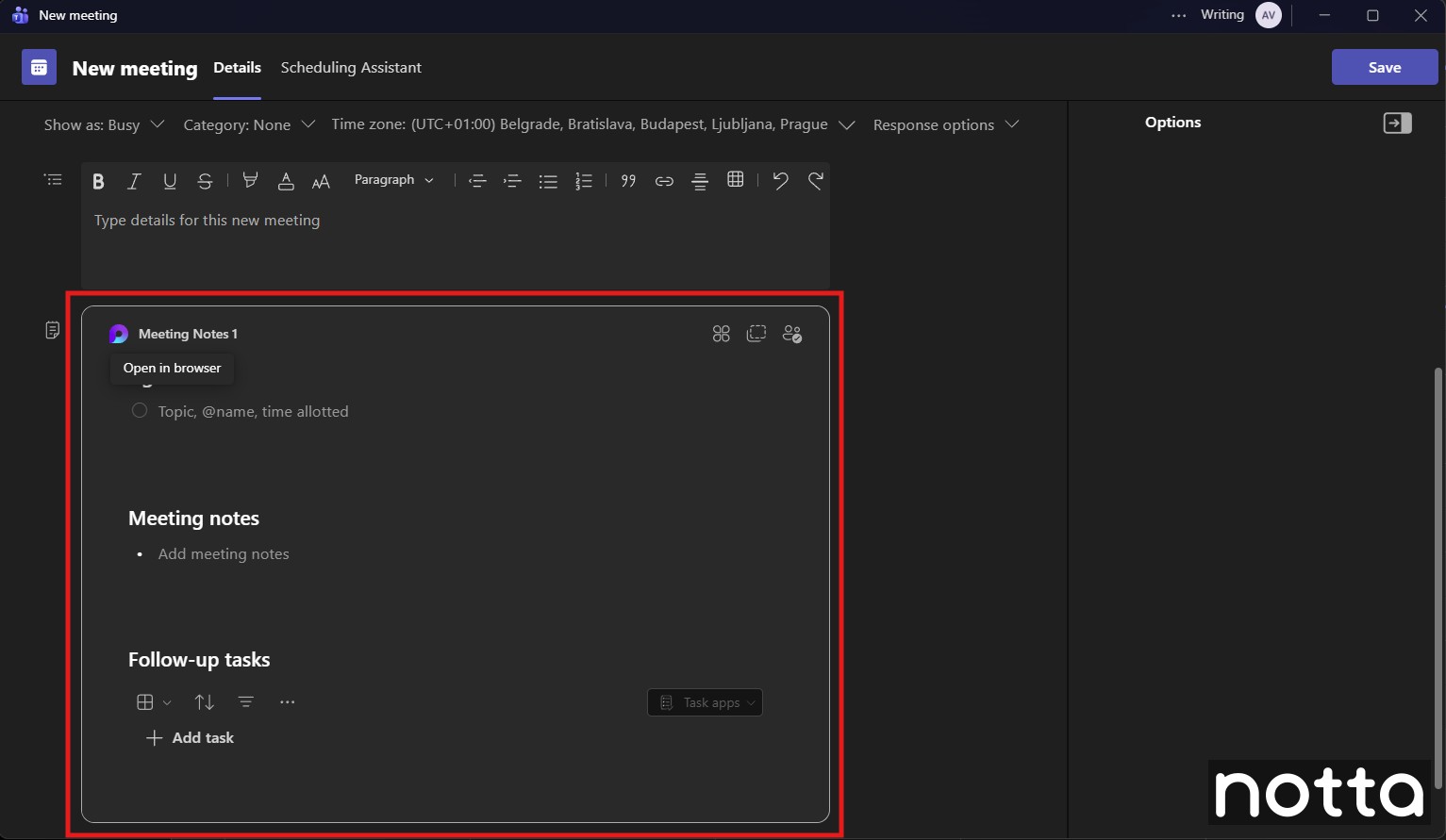
Step 3: Enter the agenda item details. Press ‘Enter’ after each item to insert a new checklist item automatically. You can also click ‘+’ or press ‘/’ to open the insert menu at any time. Repeat until you finish building the agenda.
Step 4: Click 'Send' or 'Save' in the upper right corner of the window to schedule your meeting.
How Do You Access Notes During a Teams Meeting?
During your meeting, you can access, edit, and review your agenda while capturing key discussion points using rich text objects and @mentions.
On Desktop
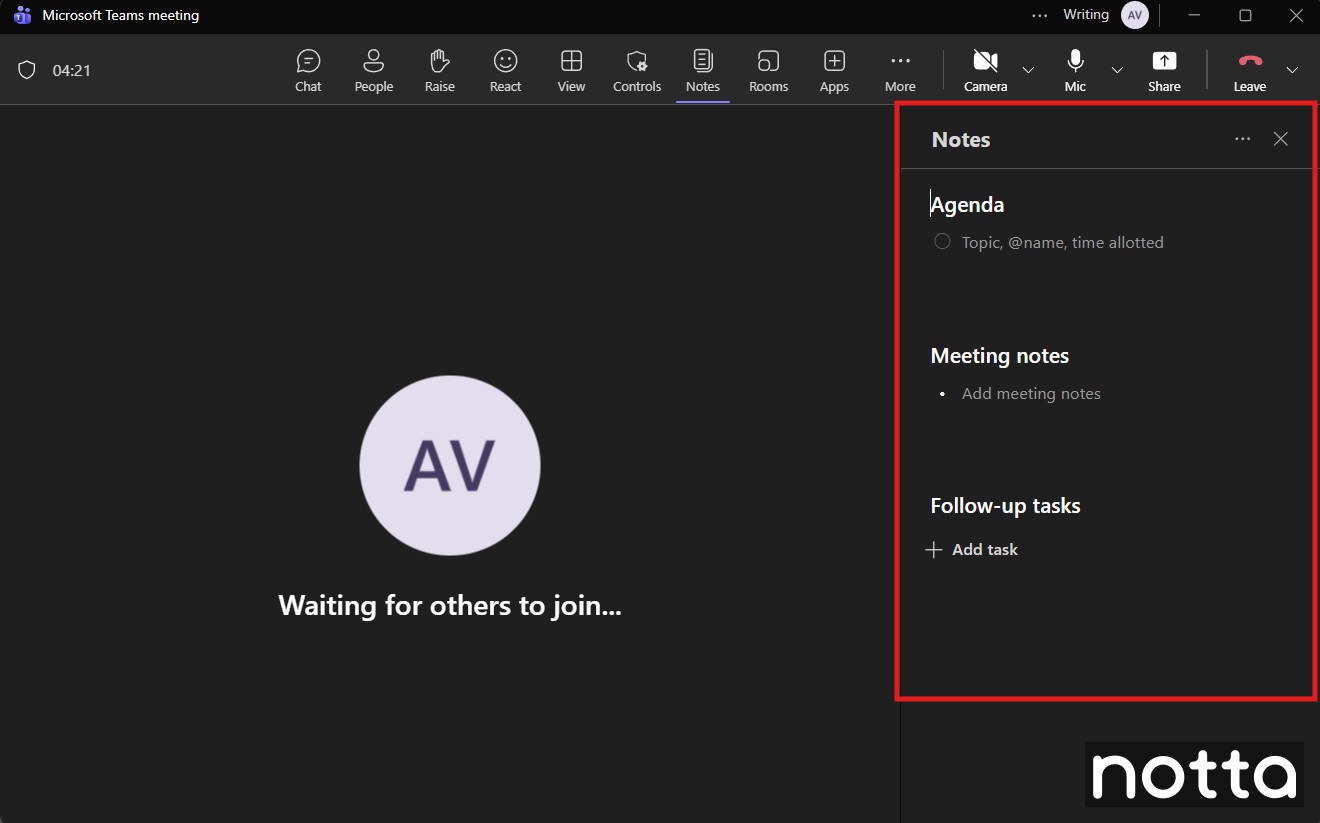
Step 1: During a meeting, click 'Notes' at the top of the meeting window to open the Meeting Notes pane.
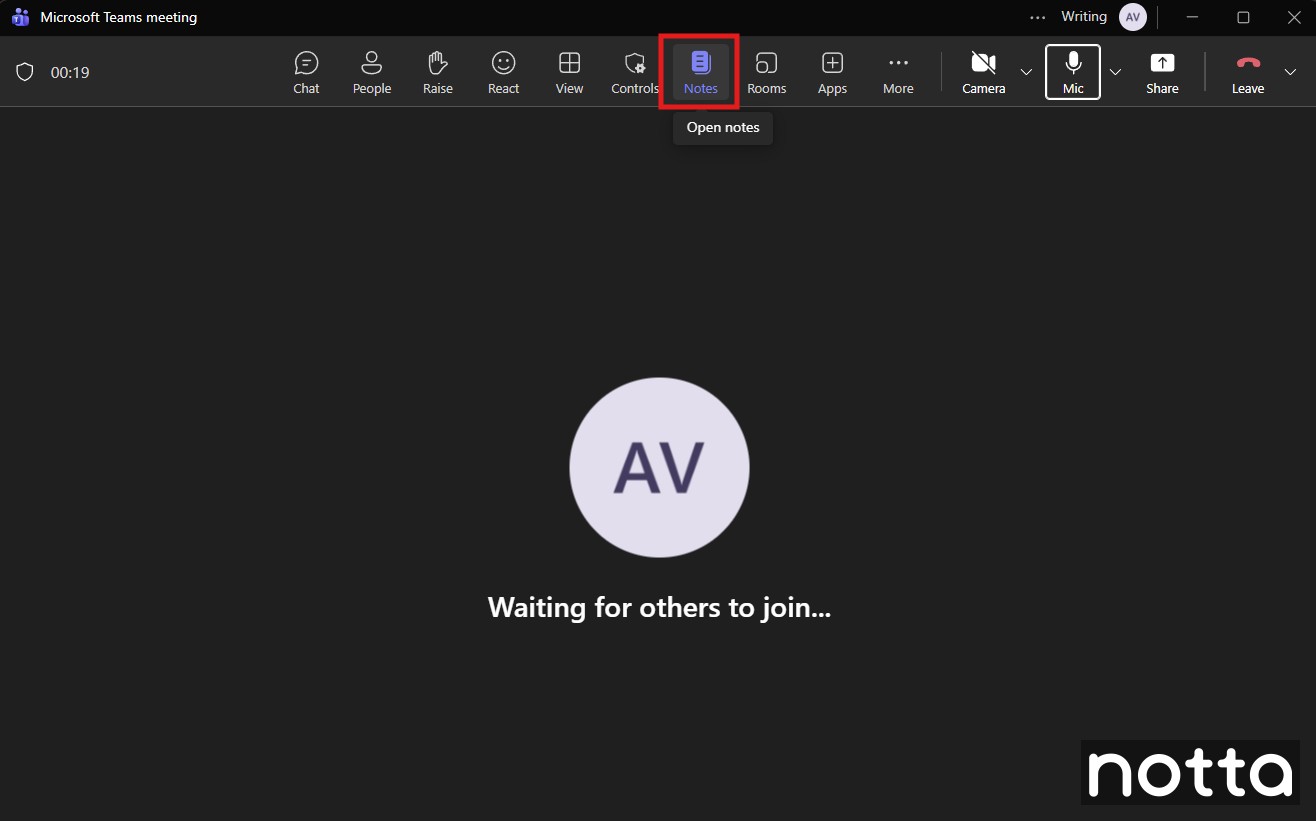
Step 2: Create, review, and edit existing notes directly within the Meeting notes pane. You can use the @ symbol to tag meeting participants or use the / key to open the context menu and insert rich text objects like numbered lists, images, or code snippets.
On Mobile
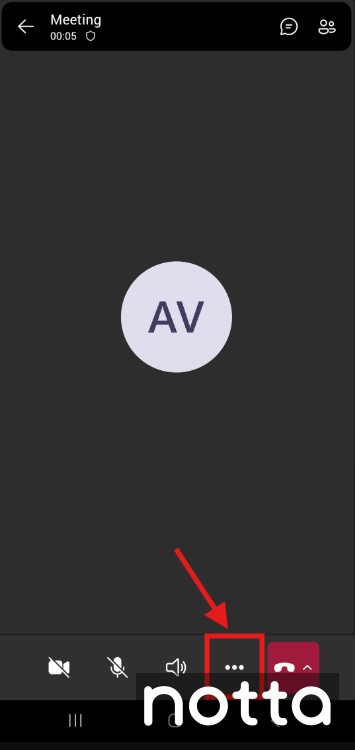
Step 1: To access Notes during a meeting on Android or iOS, tap the three-dot icon at the bottom of the screen.
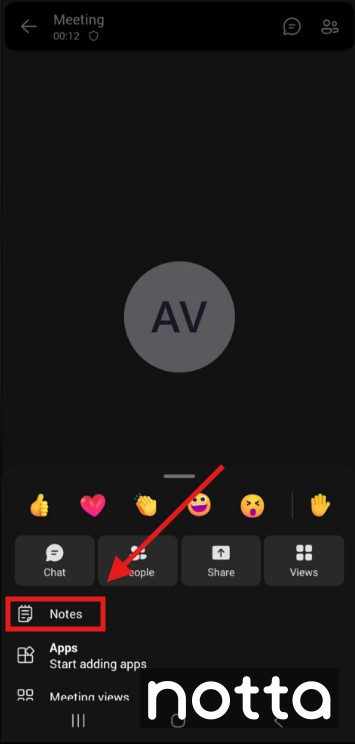
Step 2: Tap 'Notes'.
The meeting notes will be displayed, and the meeting stream will appear as a floating pop-up window.
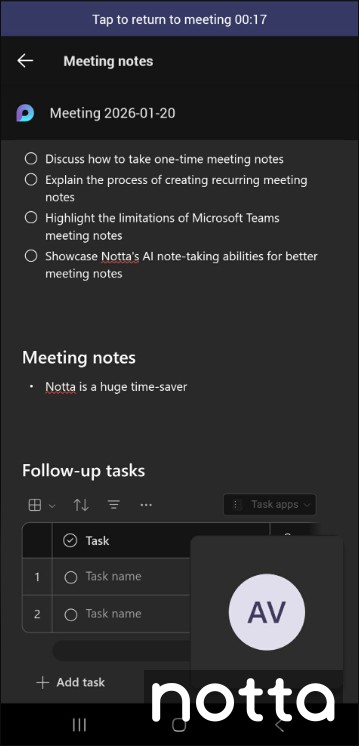
If you cannot view the meeting notes clearly, you can tap and drag the meeting overlay window to reposition it.
How Do You Create Follow-Up Tasks After Teams Meetings?
Once your meeting ends, you can review your meeting notes and create follow-up tasks for each meeting participant.
On Desktop
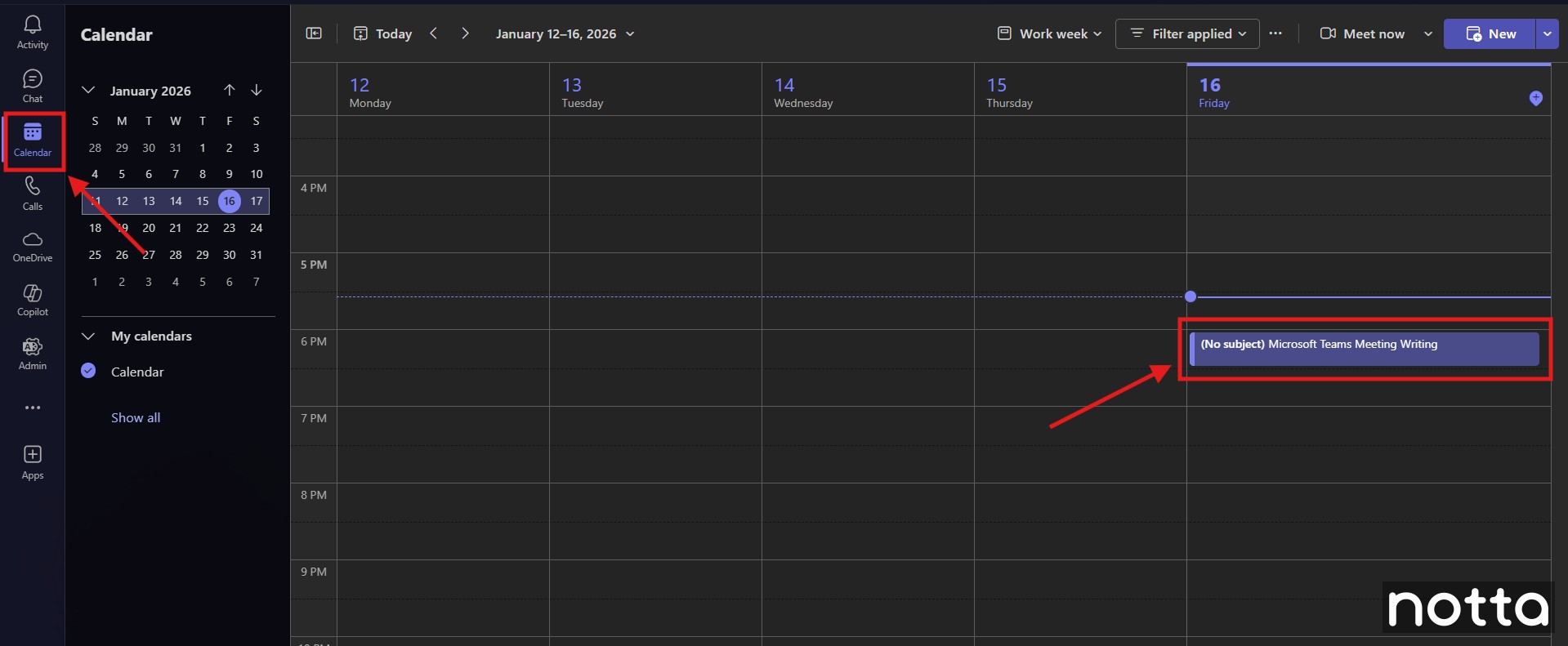
Step 1: Click the Teams 'Calendar' tab, then select the meeting you just completed to display the meeting info pop-up window.
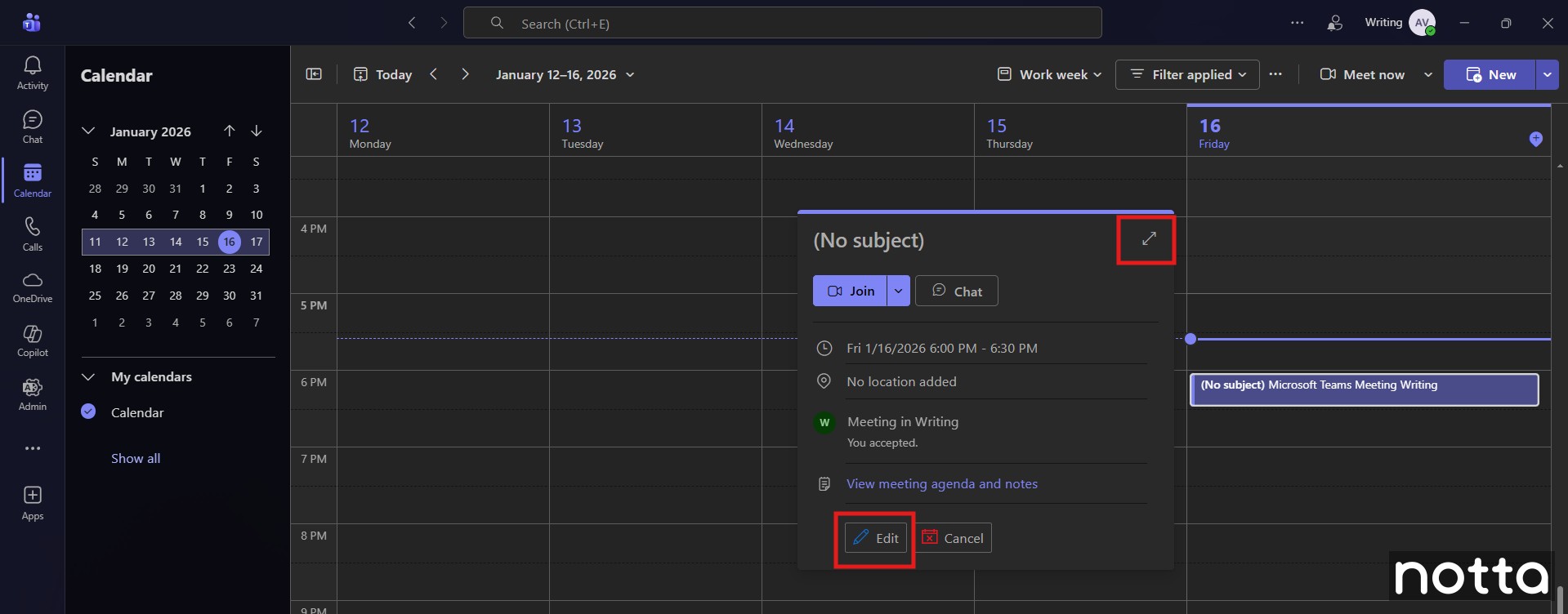
Step 2: Click the small arrow icon in the upper right corner of the meeting info pop-up window to expand the details. If you created the meeting, you can also click the 'Edit' button.
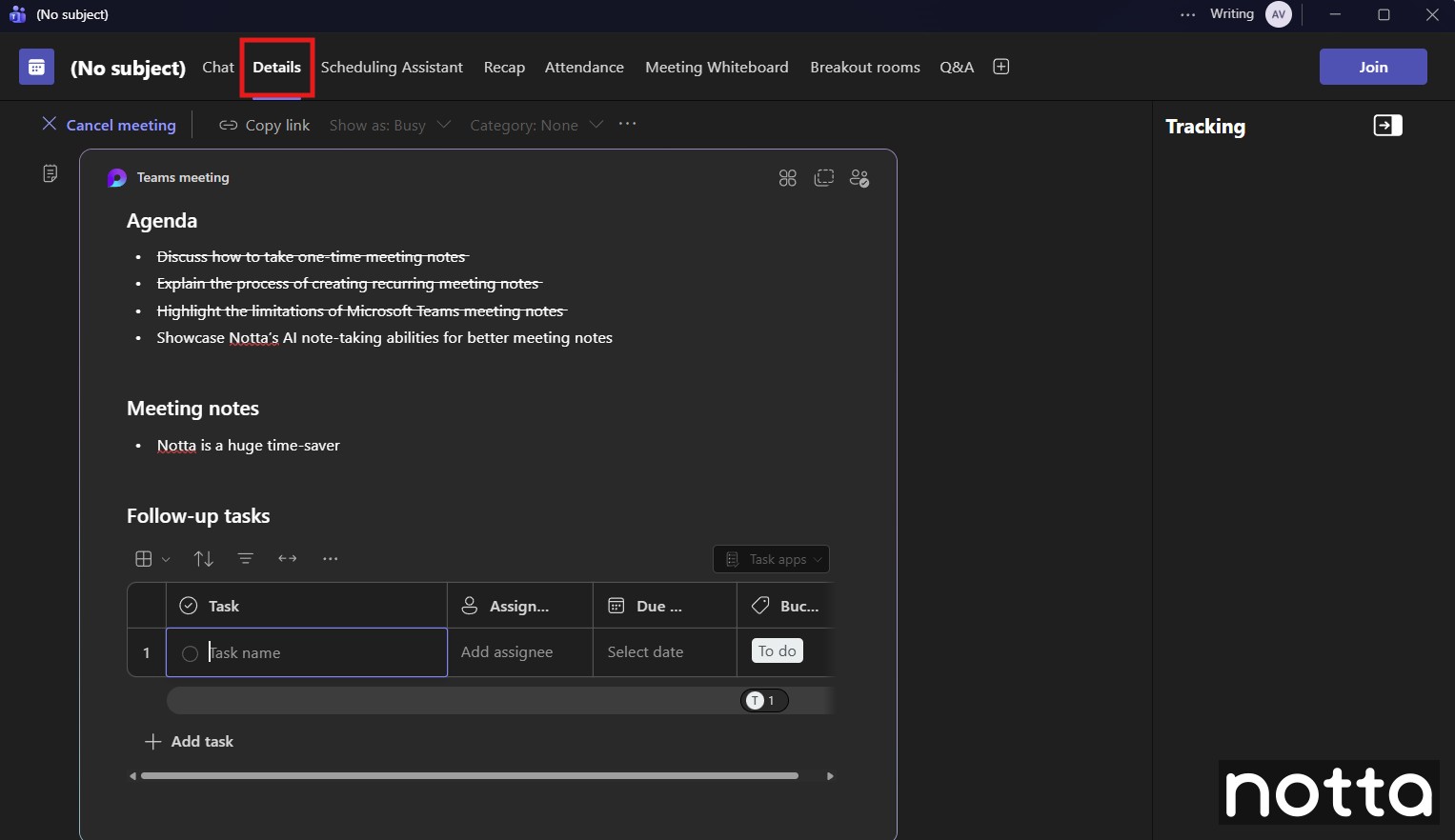
Step 3: Click the 'Details' tab, then scroll down to the Meeting Notes section at the bottom of the window.
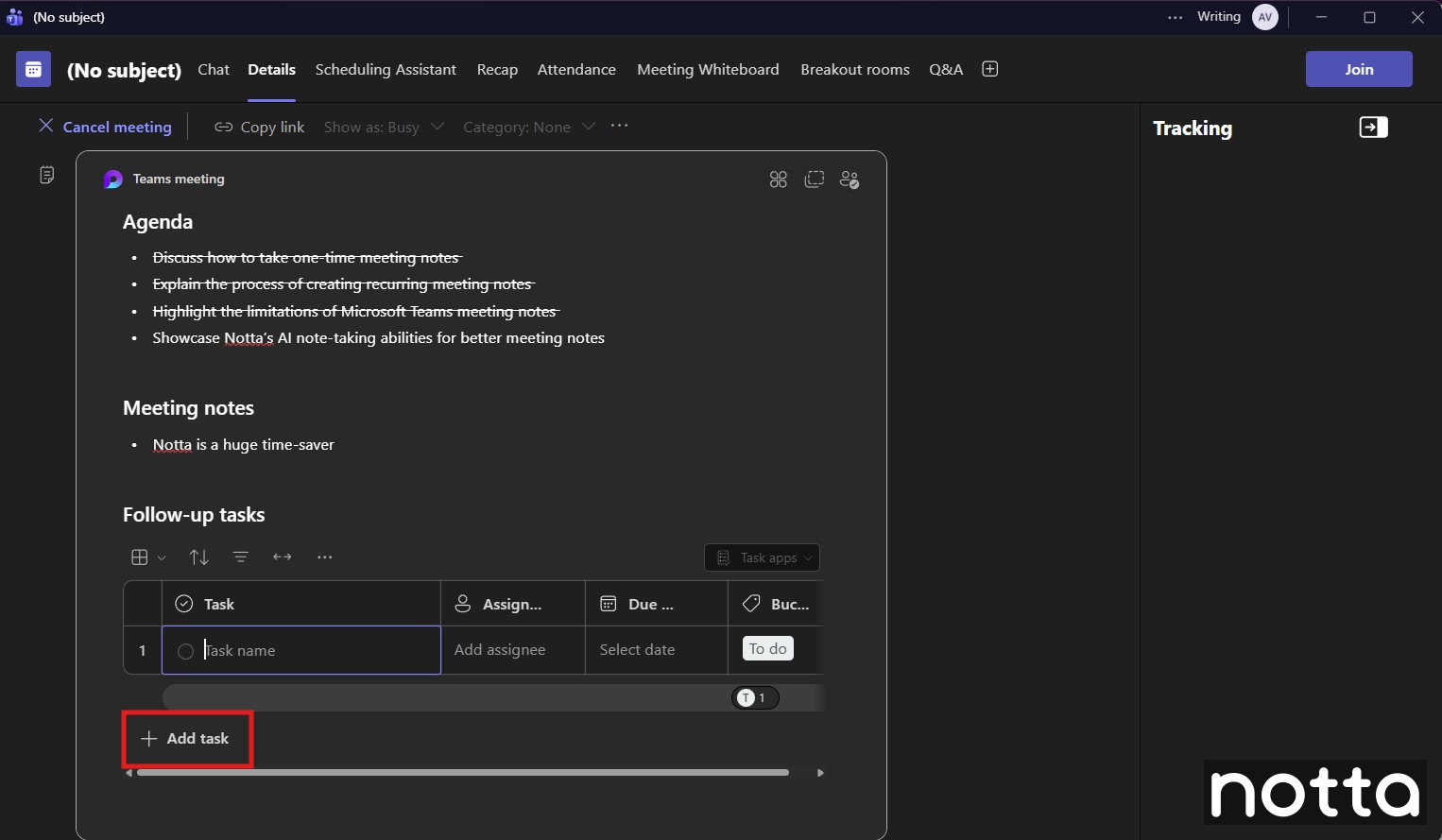
Step 4: Click the 'Add task' button, and enter the task details. You can assign tasks to a specific team member using the 'Assigned to' column or add your own mentions using the @ symbol.
On Mobile
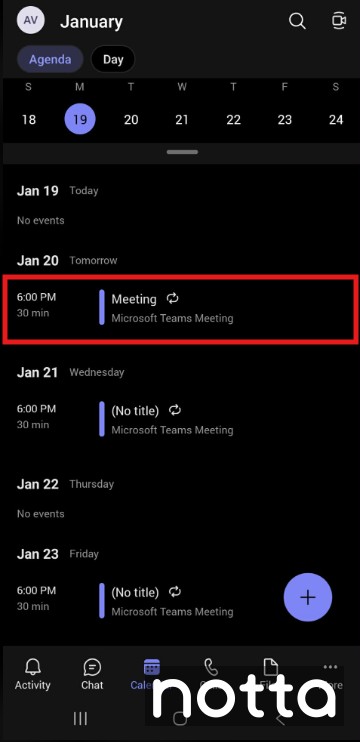
Step 1: Open the MS Teams app andtap 'Calendar' to switch to the Teams calendar view, then tap the calendar entry for the meeting you just finished to open the meeting details.
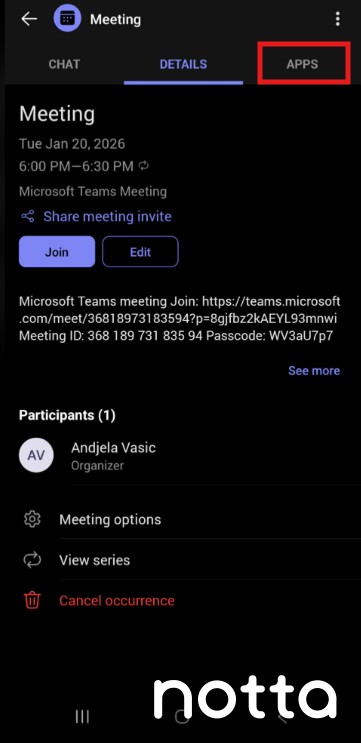
Step 2: Tap 'Apps' in the upper right corner of the screen.
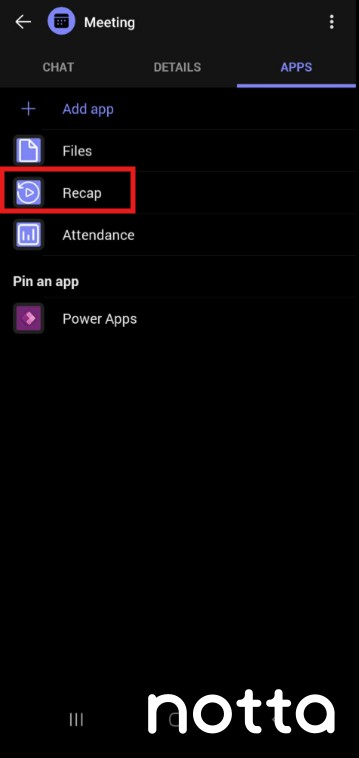
Step 3: Tap 'Recap' to open a summary view of the meeting, including your agenda, meeting notes, and follow-up tasks.
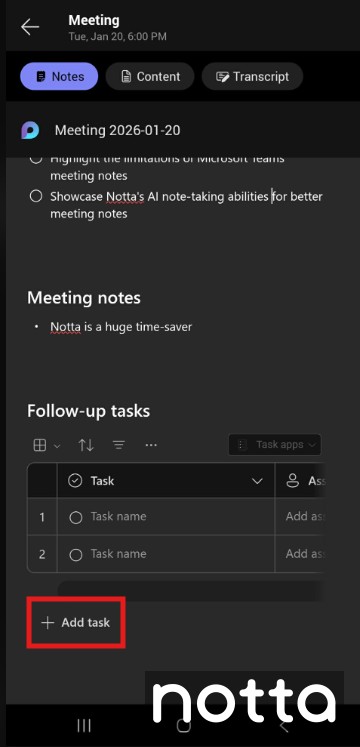
Step 4: Tap 'Add task' to create a new follow-up task. Use the 'Assigned to' column to tag specific team members, or type the @ symbol to add tags anywhere.
How Do You Get Recurring Meeting Notes in Teams?
You need to schedule a recurring meeting to get recurring meeting notes in Teams. When you add notes to a meeting series, Microsoft Teams attaches the same notes to every occurrence of the meeting.
Note: This process only applies to the desktop version of Teams. Agendas are unavailable when creating a meeting or meeting series in the mobile app.
Step 1: Click 'Calendar' to switch to the calendar view, then click the 'New' button in the upper-right corner to create a new Microsoft Teams meeting.
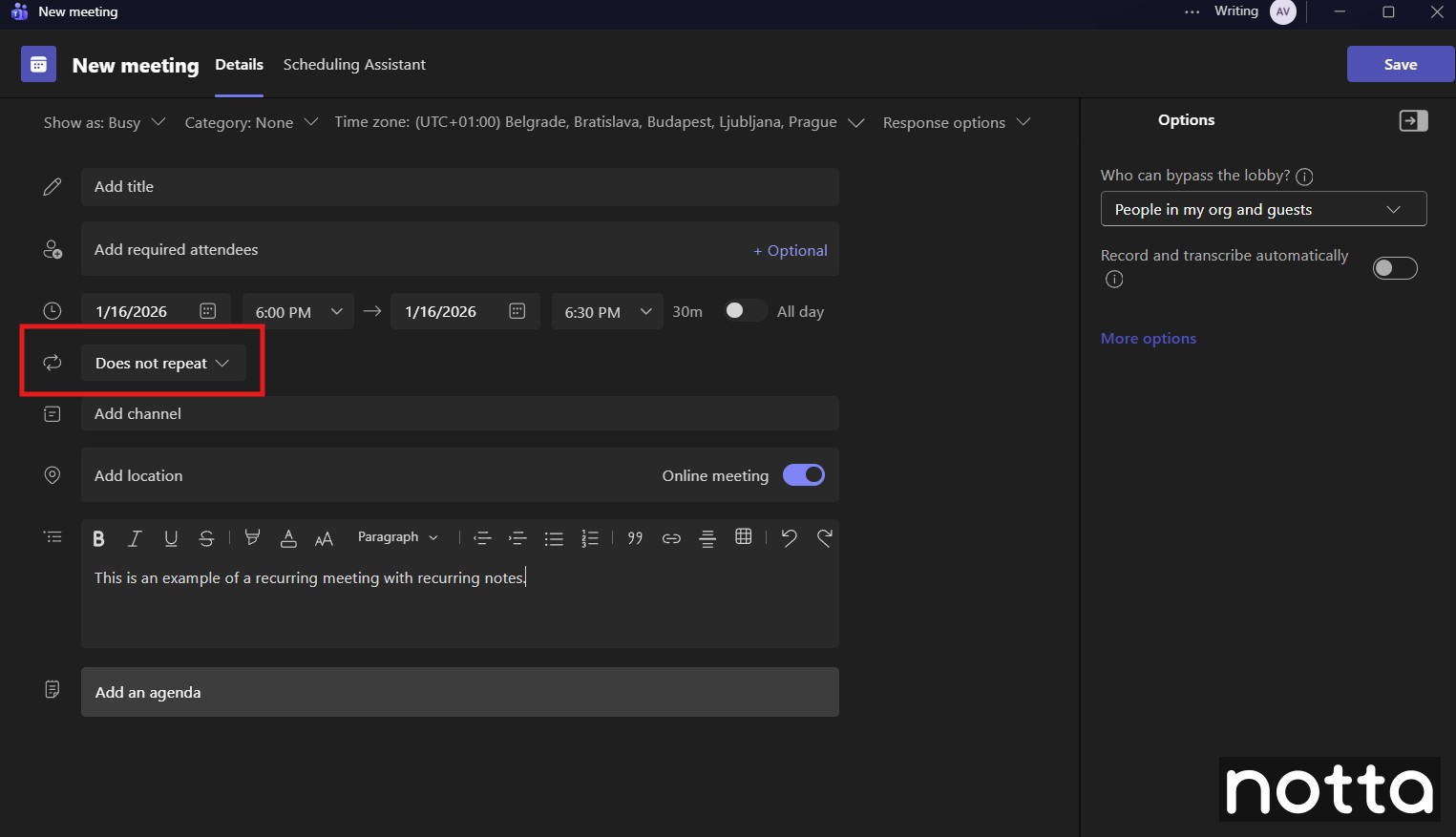
Step 2: Enter your meeting details, then open the 'Repeat' dropdown menu and select your desired recurrence schedule.
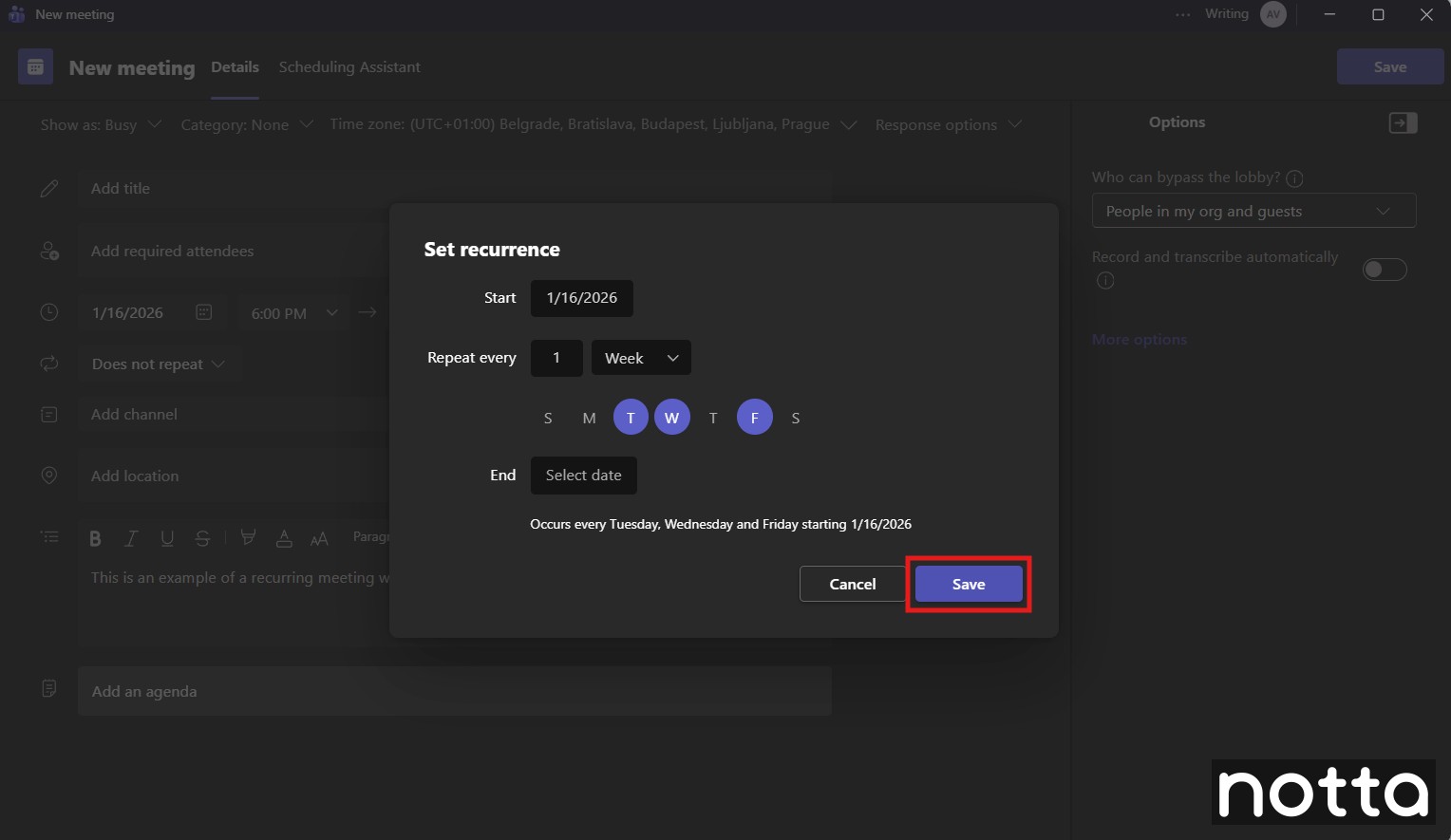
Step 3: Adjust the details in the 'Set recurrence' window, then click the 'Save' button.
Step 4: Click 'Add an agenda' to create recurring meeting notes.
A small highlight banner across the top of the meeting notes Loop component will notify you that you are viewing and editing meeting notes for the entire meeting series.
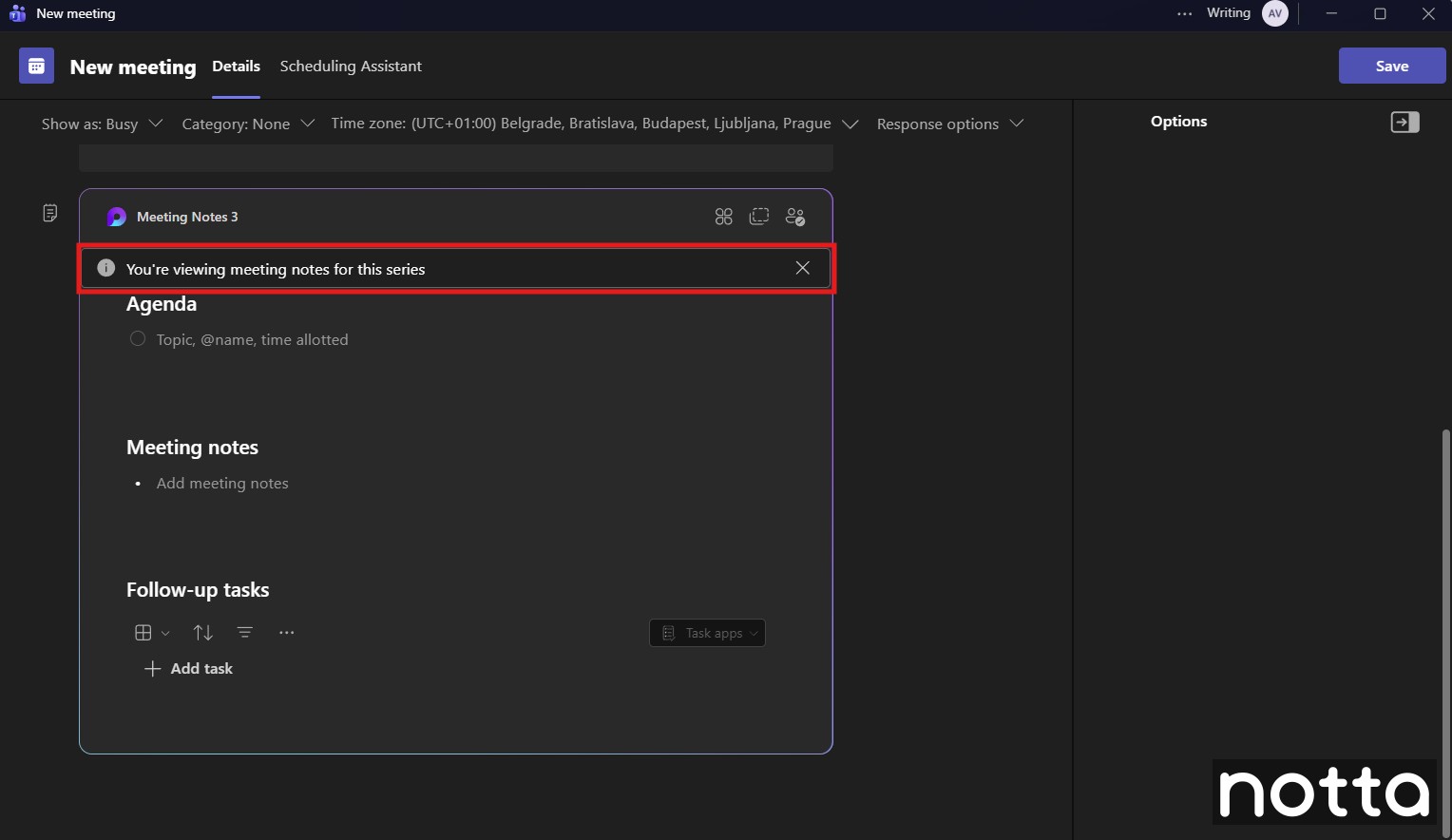
Agenda items, meeting notes, and follow-up tasks are all part of the same Loop component, so they carry over from meeting to meeting.
What are the Limitations of Teams Meeting Notes?
Teams meeting notes have five key limitations that affect productivity and accessibility. Mobile users can’t create notes when scheduling meetings, and Loop components require a continuous internet connection with no offline editing. Notes are locked within the Microsoft 365 ecosystem, with limited export options, while external participants often can’t view or edit shared notes. On top of that, the Loop system is facing integration challenges across Microsoft apps.
The built-in meeting notes feature works for small groups committed to Microsoft software, but these limitations cause problems in other situations:
Mobile App Limits. The mobile version of Microsoft Teams has limited features compared to the desktop app. You can’t create meeting notes when scheduling meetings on mobile.
Restricted Offline Access. Microsoft Teams requires an internet connection to access, review, and edit meeting notes. You cannot edit a Loop component offline and sync changes later, so you must complete all note-taking and edits while online.
Platform Dependence. Creating all your meeting notes within a Loop component will lock you—and your notes—into the Microsoft Office 365 software platform. Loop components only work inside Microsoft apps, and some Microsoft tools still don’t fully support them. Transcribe Microsoft Teams recordings with Notta for more flexible notes.
Limited External Collaboration. External participants who join using a link and other team members who were not directly invited to the meeting are unable to view and edit your meeting notes.
Integration Challenges. Users report issues with syncing and sharing behavior when using Loop components across Microsoft 365 apps. Because the Loop system is still evolving, these inconsistencies make it harder to rely on Loop components for critical records.
What Are Best Practices for Teams Meeting Notes?
Effective Teams meeting notes follow clear, repeatable structures that make decisions and action items easier to track. These practices help improve note quality and follow-through.
Before the meeting:
Create agendas 24 hours in advance so participants can prepare
Use numbered lists for discussion topics that require decisions
Include time allocations for each agenda item (e.g., "Budget discussion - 15 minutes")
Add relevant document links or background information
During the meeting:
Assign one participant as primary note-taker (rotate this role)
Let Notta capture notes automatically so you can stay focused on the conversation
Use @ mentions to assign action items in real-time
Bold key decisions for quick reference
Timestamp important discussion points for future reference
After the meeting:
Review notes within 2 hours while details are fresh in your mind
Generate action items with deadlines using Notta
Share note summary via Teams chat for participants who missed the meeting
Archive completed meeting notes monthly to improve search performance
What is the Best Way to Take Meeting Notes in Teams?
Notta is the best way to take meeting notes in Teams because it replaces manual note-taking with AI-generated notes. While Microsoft Teams’ built-in notes rely on participants to capture key points during the meeting, Notta automatically records and transcribes live meetings, generates summaries, and creates action items using a standard invite link. Teams get a complete record of each meeting, even for participants outside the Microsoft Teams platform.
| Feature | Teams Built-In Notes | Notta |
|---|---|---|
| Note Creation | Manually typed during the meeting | Automatically generated |
| Note Coverage | Limited to what participants write | Complete conversation transcript |
| Searchability | Basic text search | Full transcript search with timestamps |
| Platform Dependence | Microsoft 365 only | Platform-agnostic |
| Offline Access | No offline access | Yes (downloaded notes) |
| Export Options | Limited; manual copy and paste | Download (TXT, DOCX, PDF, SRT), copy, or share directly to Microsoft Teams chat |
| Best For | Structured meetings with a clear agenda and a designated note-taker | Complete meeting notes with reliable follow-up and documentation |
Here's how to use Notta with Microsoft Teams:
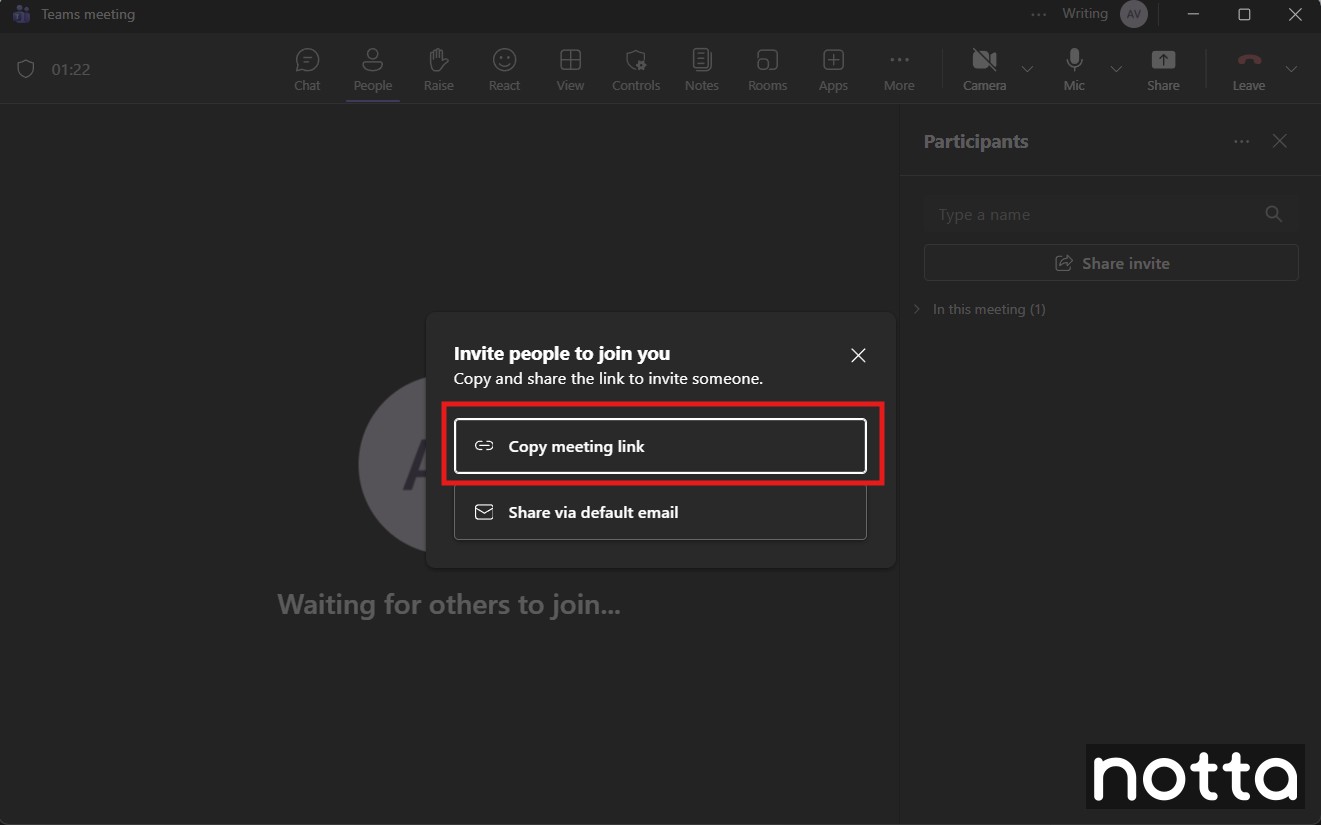
Step 1: During a meeting, click 'People' to display the participants list, and click the 'Share Invite' button.
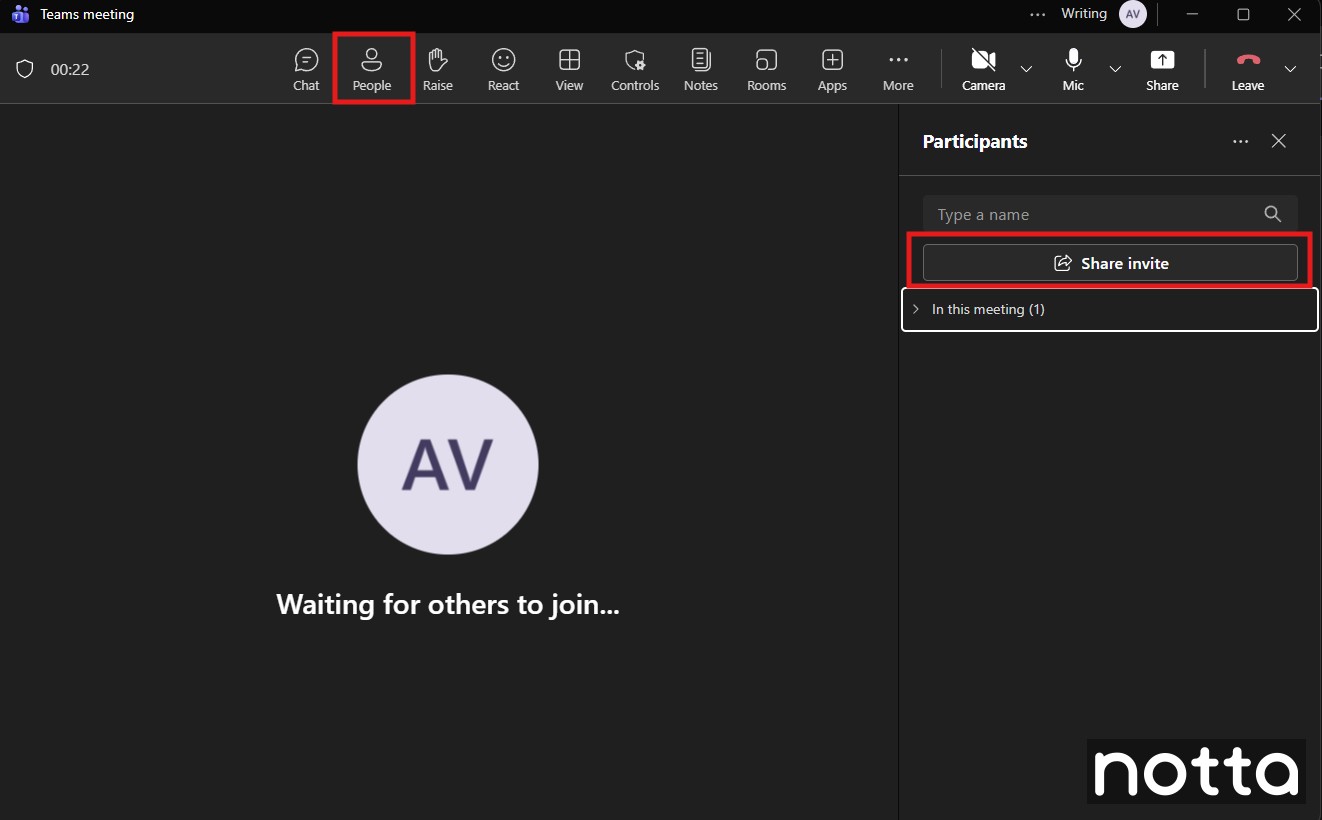
Step 2: Click 'Copy meeting link' in the pop-up window.
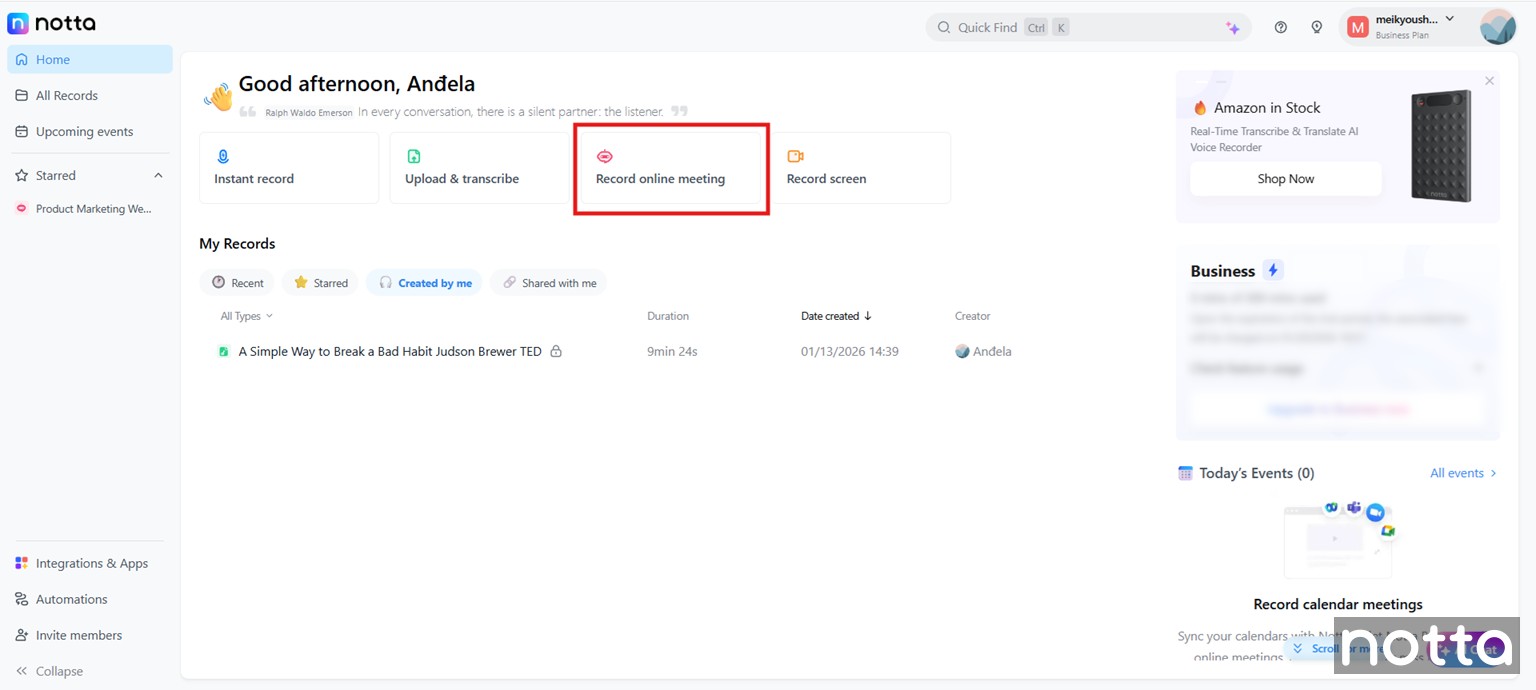
Step 3: Log in to Notta in your browser, then click 'Record online meeting' on your dashboard. If your meeting participants are bilingual, you can enable bilingual transcription to capture both languages.
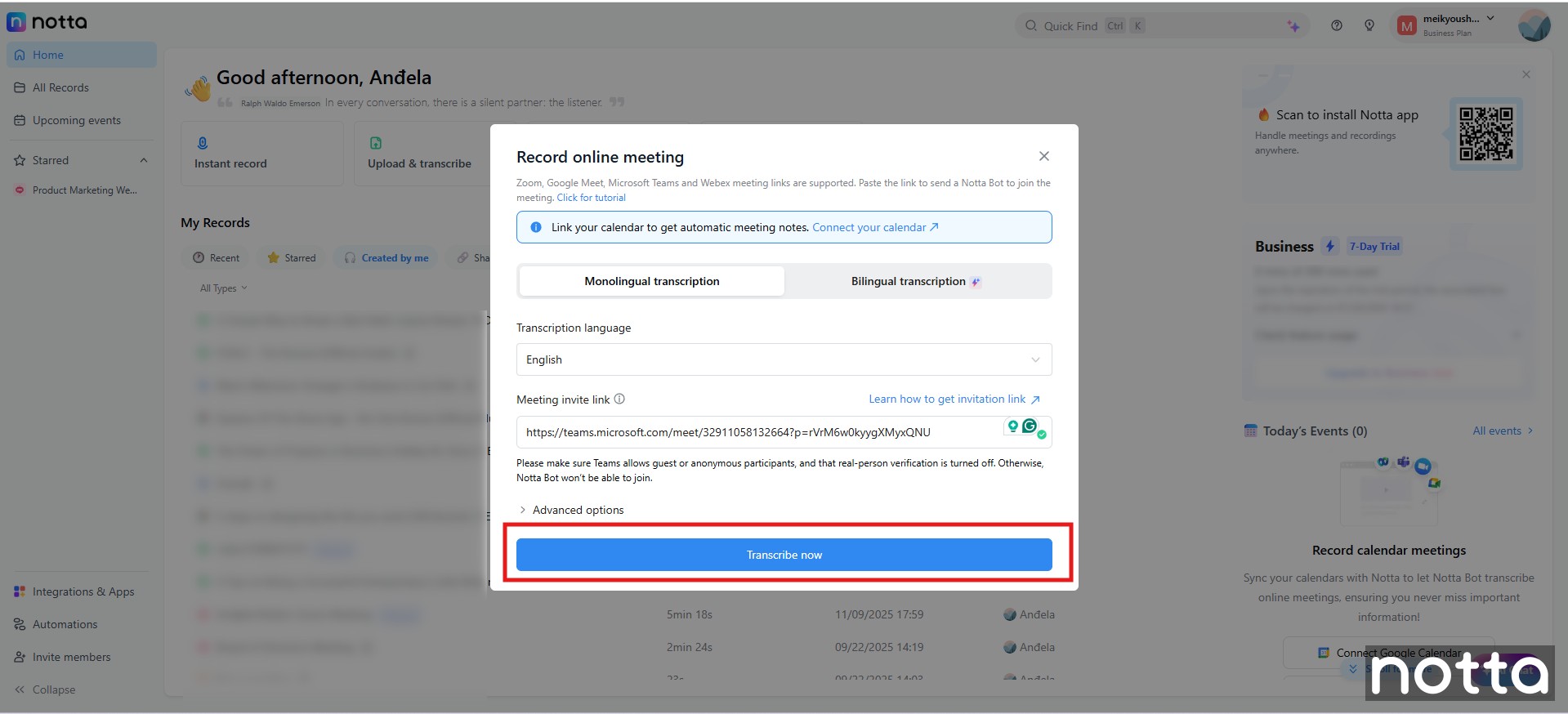
Step 4: Paste the meeting link into the 'Meeting invite link' field, and click 'Transcribe now.'
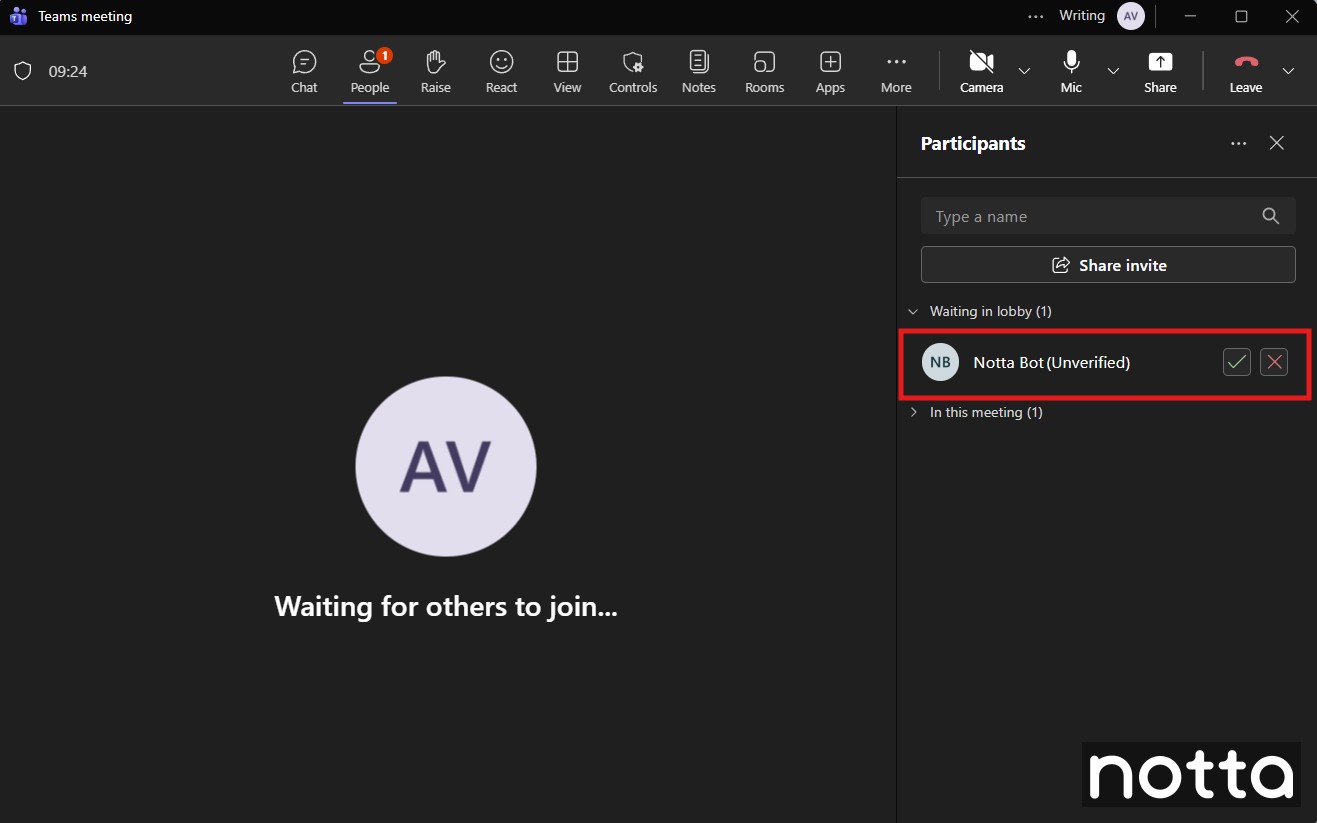
Step 5: Switch back to Microsoft Teams. You will see a new participant named 'Notta bot' in the list. Click the checkmark icon to allow the Notta bot to access, record, and transcribe your meeting.
That's all there is to it! Notta will automatically handle everything else for you so that you can focus on the content of your meeting instead of spending all your time taking notes.
Frequently asked questions
Are meeting notes in Teams private?
No, meeting notes in Microsoft Teams are not private. All invited meeting participants can view, edit, and save them, except external attendees. Teams uses basic access controls, so avoid including sensitive or privileged information in Microsoft Teams meeting notes.
Are meeting notes automatically saved in Teams?
Yes, meeting notes are saved automatically in Teams. Any changes you make to your Teams meeting notes on any platform (desktop/web/mobile) sync instantly and appear for all meeting participants.
Where are notes stored in Teams?
During a meeting, you can access and edit notes using the ‘Notes’ tab in the meeting window. After a meeting, you can review meeting notes by opening the meeting details in your calendar and selecting the ‘Details’ tab.
As we discussed earlier, this one is largely about the language rather than changing the content. I've updated the headers to questions, so here's what's next:
1. Rewrite the intro using a short/sweet Claude snippet how-to style intro
2. Review the entire text for long-windedness and weird language. Don't be afraid to cut deep; we want clarity and directness above all. Keep a close watch for passive voice, filler words, and qualifiers. I think this was a 'pay per word' article, so there's a lot of fluff. Hemingway can speed this up, or use Claude's analysis for it when you get there.
3. Check the steps and UI, and update as needed. We can probably compact a few of the steps for mobile and combine the screenshots side by side as you've been doing lately. As noted, it uses iOS screenshots, but if the UI has changed a lot, we can swap them to Android since you don't have iOS access. Just update the note at the beginning.
4. Run it all through Claude and follow its recommendations to get the score up.
5. Finish up in Surfer. Let's go for mid 70s.
We'll talk on Slack about the Teams account access and screenshots as needed.
Surfer score is 74 (quite easily I might add, so we can go higher)
Claude: https://claude.ai/share/6973c83f-3f16-42f5-8ddf-d99f520a8540
I'll run the final version through Claude again once we agree on the table

