
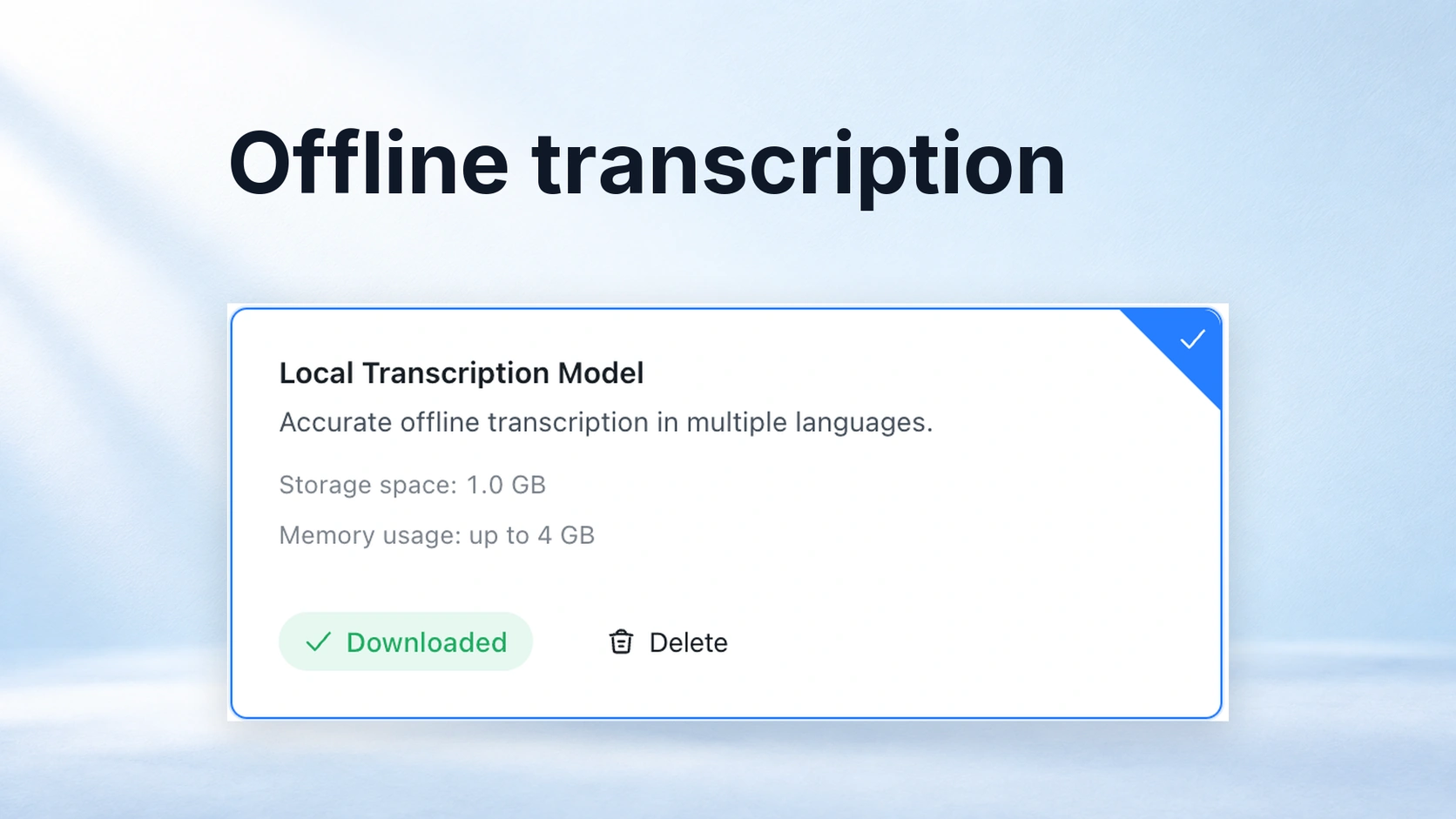
Offline Transcription Software: 4 Tools for Windows and Mac
Viraj Mahajan
I'd choose Notta Desktop Privacy Mode for local recording and transcription, or MacWhisper for batch files and captions on a Mac. Buzz is a free app, while whisper.cpp gives technical users more control. Each can turn audio into text on your computer after you've prepared its local tools.
The right choice depends on what you want to transcribe. A saved interview, a conversation you're recording and a paragraph you want to dictate are different jobs. Here's how I'd pick software that fits yours.
What counts as offline transcription?
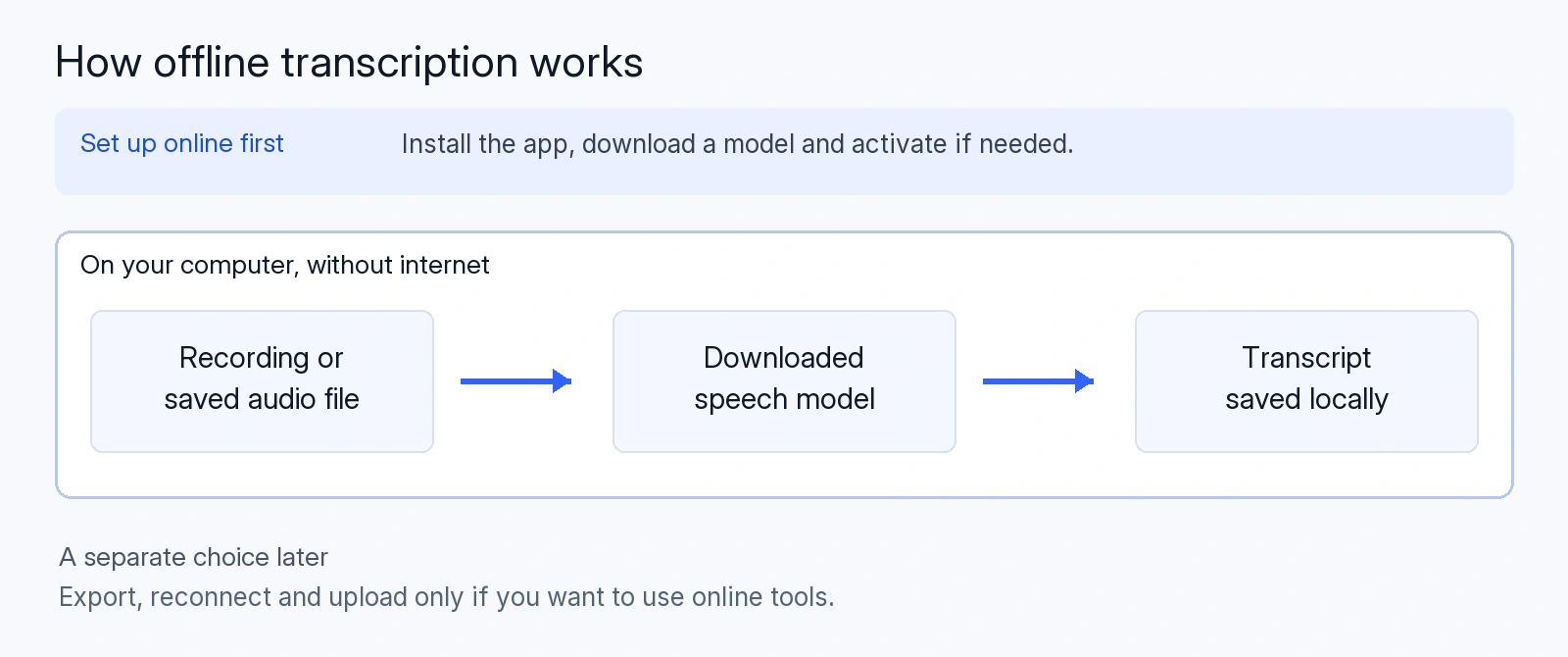
Offline transcription software turns speech into text on your computer, using a downloaded speech-recognition model. You can create a new transcript without sending the recording to a cloud service. The app and model need to be ready before you disconnect, and some paid tools also require activation or occasional license checks.
The useful distinction is what happens to your audio:
- Offline recording: saves audio now, but may need an upload before you get a transcript.
- Local transcription: creates the transcript on your computer, including when you have no internet connection.
- Local dictation: turns your own speech into text for something you're writing, such as an email.
If you're bringing home a two-hour interview, look for file transcription and an editor. If you want to speak instead of type, dictation matters more. A tool can do both, but one feature doesn't establish the other.
Offline transcription software: feature comparison
All four choices below can process audio locally. Their differences are easier to see when you compare your computer, recording source and setup.
| Tool | Computer | What you can transcribe | Prepare before going offline | Price basis |
|---|---|---|---|---|
| Notta Desktop Privacy Mode | Windows and Mac | Microphone, computer audio and saved audio/video files | Sign in and download a local model | Available on all plans, including Free |
| MacWhisper | Mac | Saved files and microphone recordings; app audio with Pro | Download a local model; activate Pro if you're using paid features | Free edition; direct-download Pro is a one-time purchase |
| Buzz | Windows, Mac and Linux | Saved audio/video files and microphone input; computer audio needs extra setup | Install the app and download a local model | Free and open source |
| whisper.cpp | Windows, Mac and Linux | Saved files; microphone input through its streaming example | Install or build the tool and download a model | Free and open source |
For a free app with menus and an editor, I'd start with Buzz. For batches of recordings or caption work on a Mac, I'd look at MacWhisper Pro. Notta combines recording and local transcription in Privacy Mode. whisper.cpp suits you if you're comfortable working with commands or scripts.
The model is the downloaded software that recognizes speech. Choose one that covers your language, rather than assuming every model in an app does the same job.
Four offline transcription tools to consider
1. Notta Desktop Privacy Mode
Notta Desktop Privacy Mode is where I'd start if you want to record a conversation and keep its audio and transcript on your computer. You can also import an existing audio or video file for local transcription.
Say you have an interview saved on your laptop and want to work on it during a flight. With Privacy Mode prepared, you can transcribe the file without uploading it. For a conversation you're recording directly, Notta creates the transcript after you finish recording. The recording and transcript stay in the local folder you chose.
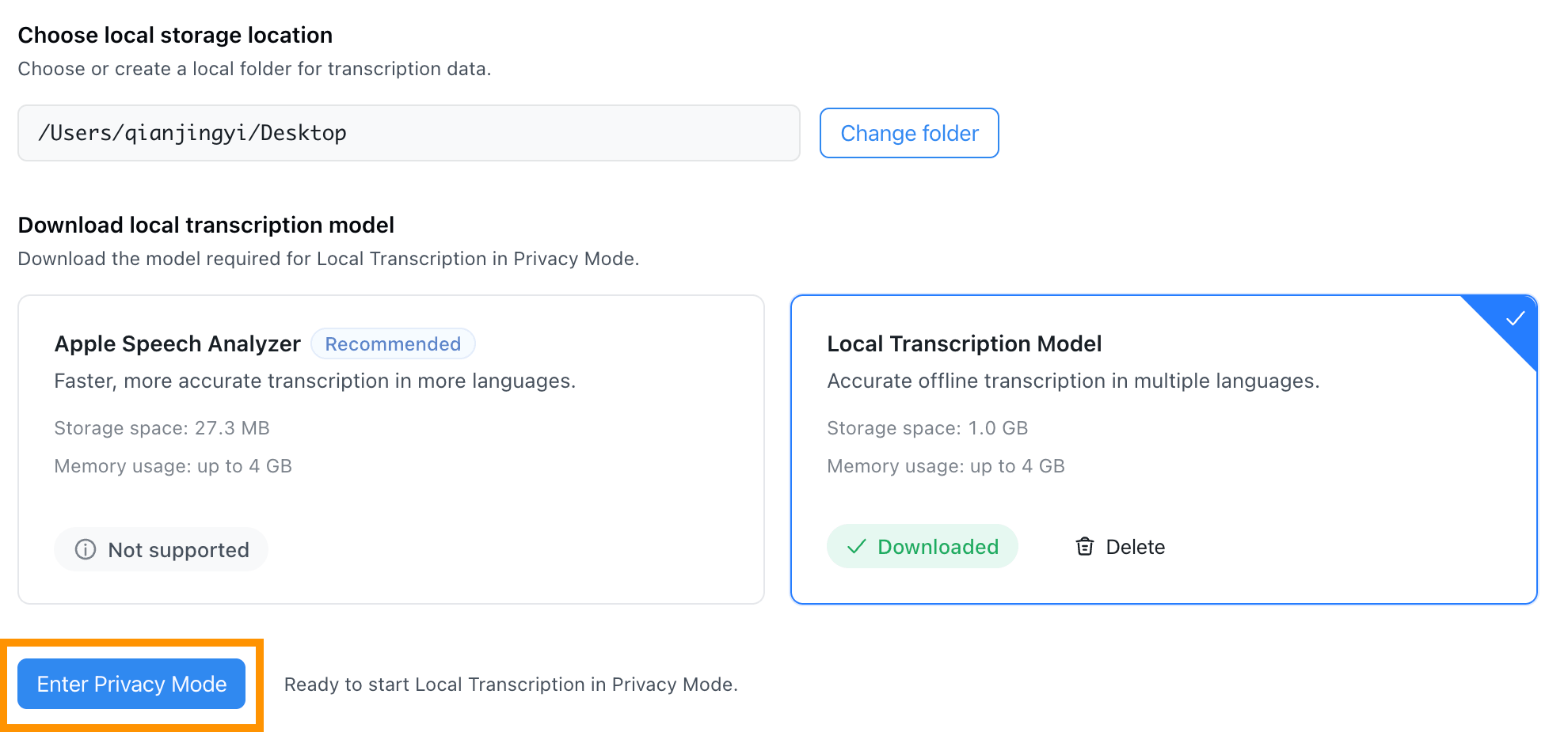
Notta's local model supports English, Japanese, Simplified Chinese and Cantonese. On macOS 26 or later, Apple Speech Analyzer adds language choices including French, German and Spanish. Pick the model and language that match your recording before you leave your connection behind.
You can review and export the finished transcript locally. I'd choose this workflow when keeping the recording beside its text matters more than getting a shared online workspace immediately.
Before you disconnect: sign in, download the model and choose your storage folder. Privacy Mode needs an online license check roughly once a month.
Availability: included with all Notta plans, including Free.
2. MacWhisper
MacWhisper is a useful choice if you're on a Mac and want to transcribe files, correct the text and export the result. It also records your microphone, while Pro adds app-audio recording.
I’d lean toward it for a folder of interviews or podcast recordings. You can work with the transcript in an app instead of building your own transcription setup. Pro adds batch processing, which is useful when you'd rather queue several files than open them one at a time.
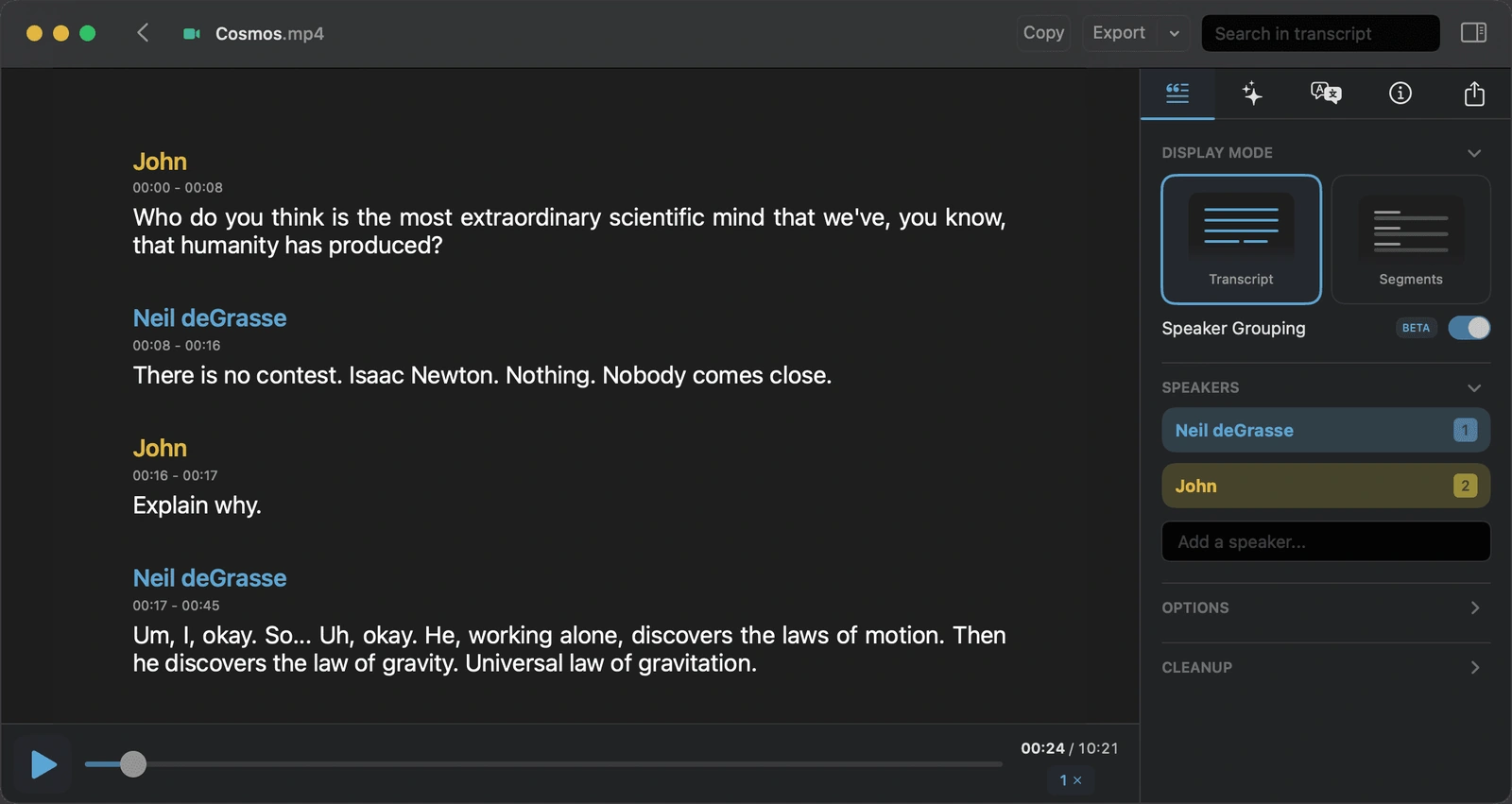
MacWhisper offers different local models. Multilingual Whisper models handle multiple languages, while English-only versions focus on English. Some model choices also provide live meeting text or local speaker recognition on compatible Macs. If separating several voices is central to your work, choose a model that includes that feature.
You can export transcripts as plain text or subtitle files, including SRT and VTT. That makes it a practical fit when the next step is editing captions or moving text into another document.
Before you disconnect: download the local model and activate Pro if needed. Choose local transcription rather than a cloud provider. A YouTube link also needs to be downloaded before it can become an offline file task.
Price: a free edition is available. Pro bought directly from the developer is a one-time purchase; the App Store edition uses different purchase options.
3. Buzz
Buzz is the free option I'd look at first if you want local transcription without using commands. It has a graphical app for Windows, Mac and Linux, with file import, microphone transcription and an editor.
For example, you can bring in a recorded lecture, choose a local model and work with the transcript on your computer. You can also transcribe from your microphone while recording. It's a useful middle ground between a paid desktop app and building a tool yourself.
Buzz uses local models including Whisper. Choose a multilingual model for languages other than English; English-only models have .en in their names. Speaker identification is available as a separate step for file transcripts, with its own model and hardware requirements.
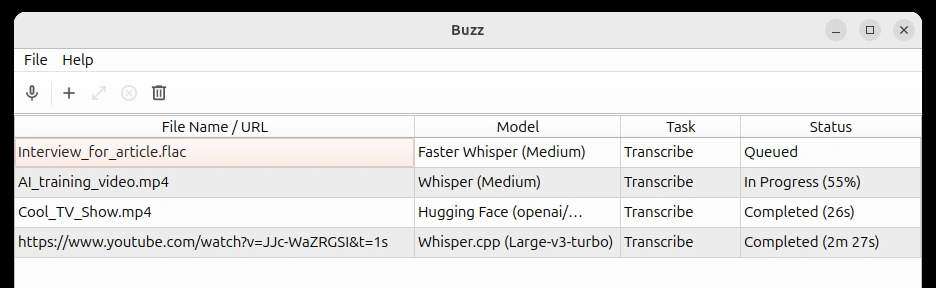
The app exports TXT, SRT and VTT. Those options cover a readable transcript and timed subtitles, so you can keep working in your document or video editor afterward.
Computer audio takes more preparation. Buzz needs an extra audio-routing tool to hear sound from other apps. If your job is transcribing saved recordings, you can skip that setup and import the files directly.
Before you disconnect: install the app and download the models you'll use. Select a local model rather than the OpenAI API option, which uses online processing. Buzz also supports moving downloaded model files from a connected computer to an offline one.
Price: free and open source.
4. whisper.cpp
whisper.cpp is a local transcription engine for people comfortable with commands and scripts. It runs on Windows, Mac and Linux.
I'd consider it when you want to repeat the same transcription job, such as processing recordings in a regular folder. You control the model, input file and output settings instead of working through an app's menus. If you prefer a ready-made editor, Buzz is the easier starting point.
The basic file workflow is straightforward once setup is complete: give the tool an audio file, choose your model and save the transcript. It can produce plain text, subtitle files such as SRT and VTT, and structured formats including JSON. A separate streaming example supports microphone input.
Choose a multilingual Whisper model for languages other than English. Models marked .en are English-only. Speaker options include separating stereo channels and experimental turn detection; those don't automatically identify everyone in a room by name.
Before you disconnect: install or build the tool, download your model and check that your file can be opened. For a first attempt, I'd use a short local recording before setting up a large batch.
Price: free and open source, with no subscription for the local engine.
What about Audacity?
Audacity can transcribe audio locally through its OpenVINO Whisper plugin. However, the plugin currently needs a matching Audacity version and doesn't work with the latest release. I'd treat it as an option for an existing compatible setup, rather than the simplest new installation.
Prepare a recording to transcribe without internet
Prepare the app, model and recording while you're connected, then try the actual task before you need it away from Wi-Fi. Here's a practical example: an interview file saved on your laptop that you want to turn into an editable transcript.
- Save the recording on the computer. Open it and check that it plays. A file visible in a cloud folder may still need to be downloaded.
- Prepare the app and model. Install the software, complete any activation and download the speech model. Choose the recording's language where the app asks for it.
- Choose local processing. In Notta, enter Privacy Mode. In apps with several providers, select the downloaded model instead of an online service.
- Try a short file while disconnected. Create a fresh transcript, then open it and export a copy. This checks the task you'll actually need, beyond whether the app opens.
- Work through the full recording. Correct names and important details against the audio, then save the transcript where you can find it again.
If you plan to record directly, check your microphone before leaving too. Recording computer sound needs the right app settings or audio setup. A remote call still needs its own internet connection, even when transcription happens locally.
Get permission to record and follow your organization's recording rules. For a study with specific consent requirements, the research local-versus-cloud guide covers that decision in more detail.
When online tools make more sense
An online service can be a better fit when your next task is sharing a meeting with your team or creating follow-up work from several sources. Offline transcription answers where the text is created; it doesn't decide where you must use it afterward.
If you're allowed to upload the material, you can manually export a Privacy Mode record and import it into Notta's online workspace. Notta Brain can then help turn meeting context and other files into a presentation, report or infographic. Privacy Mode records don't transfer automatically.
Notta Memo serves a different need: recording phone calls and face-to-face conversations with a dedicated device. It can save audio without a connection for later syncing. That is offline recording, with transcription handled later, rather than a local transcription engine inside the recorder.
FAQs
Can I transcribe audio to text without internet?
Yes. An offline transcription app can create text from a local recording using a downloaded speech model. Prepare the app, model and any required activation before disconnecting. The four tools above offer local processing, but choose the local mode when an app also offers online providers.
What free offline transcription software can I use?
Buzz and whisper.cpp are free, open-source options. I'd choose Buzz for an app with menus and an editor, or whisper.cpp if you want command-line control. MacWhisper also has a free edition. For free choices beyond offline tools, see the free transcription software guide.
Does offline transcription software ever need internet?
It can need internet for installation, model downloads, updates or license checks. Those are separate from sending audio to a server for transcription. For example, Notta Privacy Mode needs periodic online license validation, while its prepared local recording and transcription tasks can run without a connection.
Can Otter.ai transcribe offline?
Otter can keep recording audio when you're offline, but transcription needs an internet connection. Live text pauses during the outage and resumes after reconnection, when the audio can upload for processing. If you need a new transcript before you reconnect, choose a local transcription tool instead.
For Notta's local recording and file workflow, explore Privacy Mode and prepare it before your next offline session.
