
Give your AI agent the context from your meetings.
Bring Notta transcripts, summaries, and recordings into your agent’s existing workflow. Once connected, ask for what you need without opening Notta to copy, upload, or download content yourself.
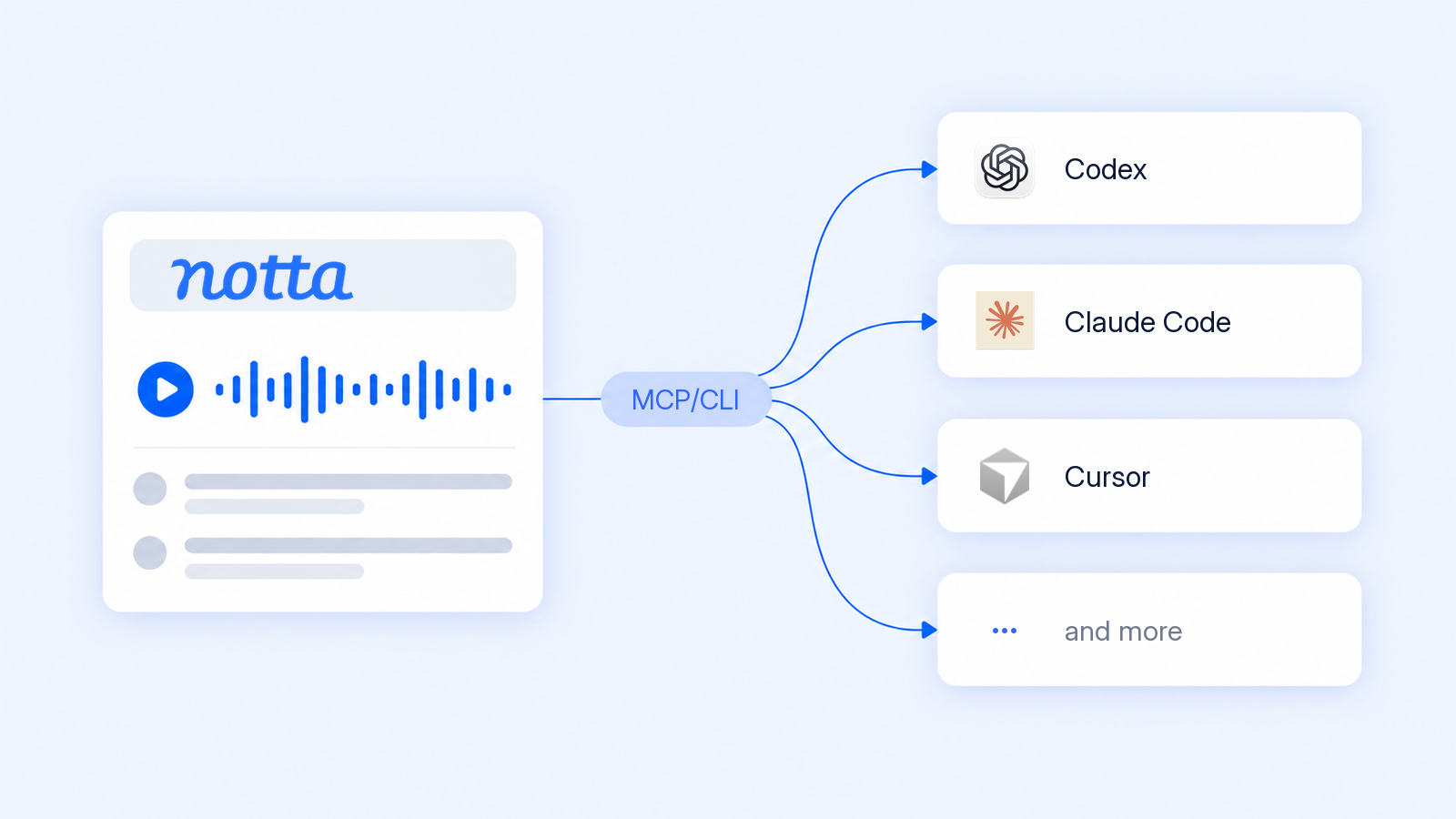
Put Your Meetings to Work Where You Use AI
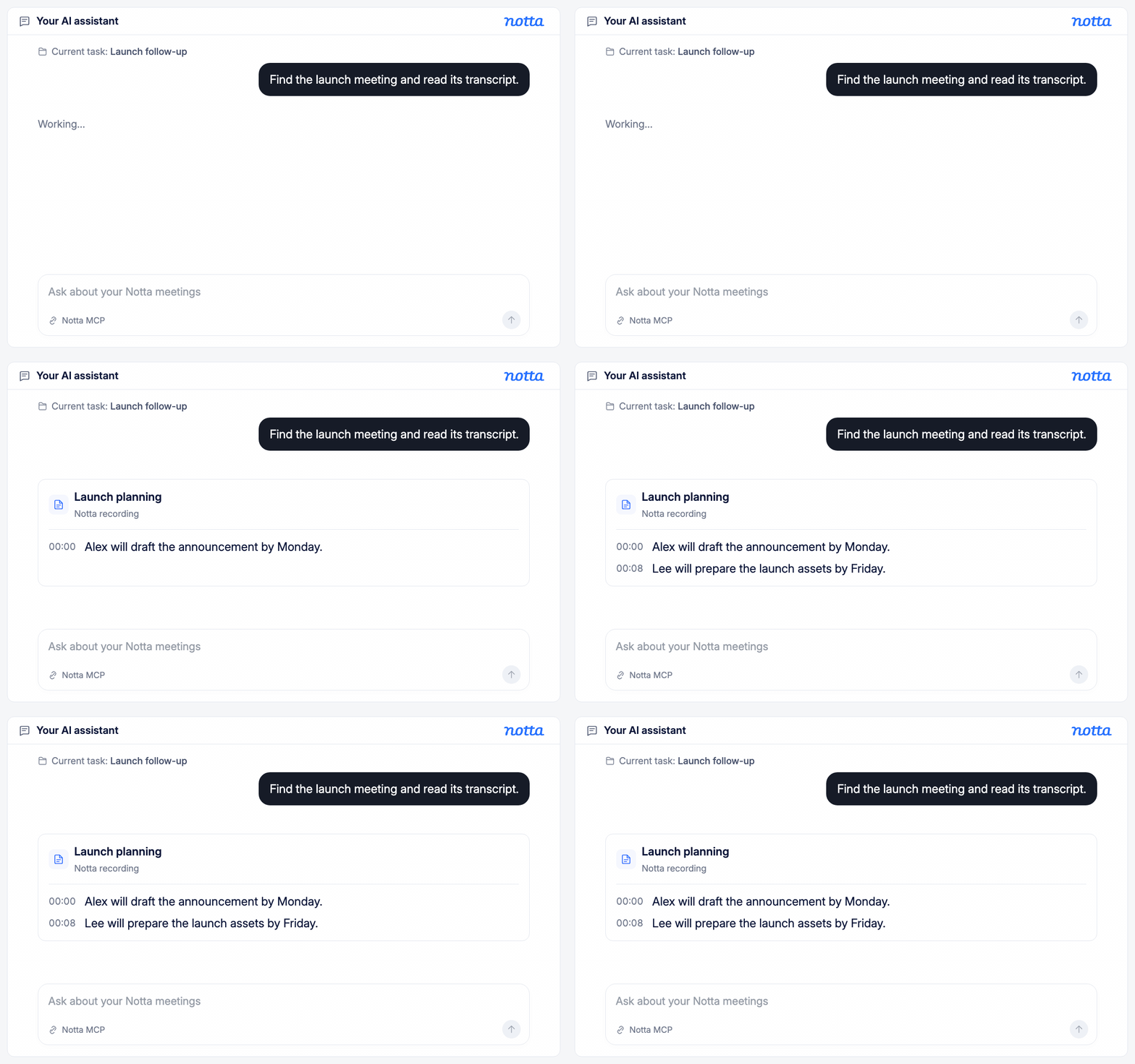
Keep meeting context within reach
Ask your agent to find a Notta recording and read its transcript. Bring the details of a conversation into your current task without switching apps or transferring files.
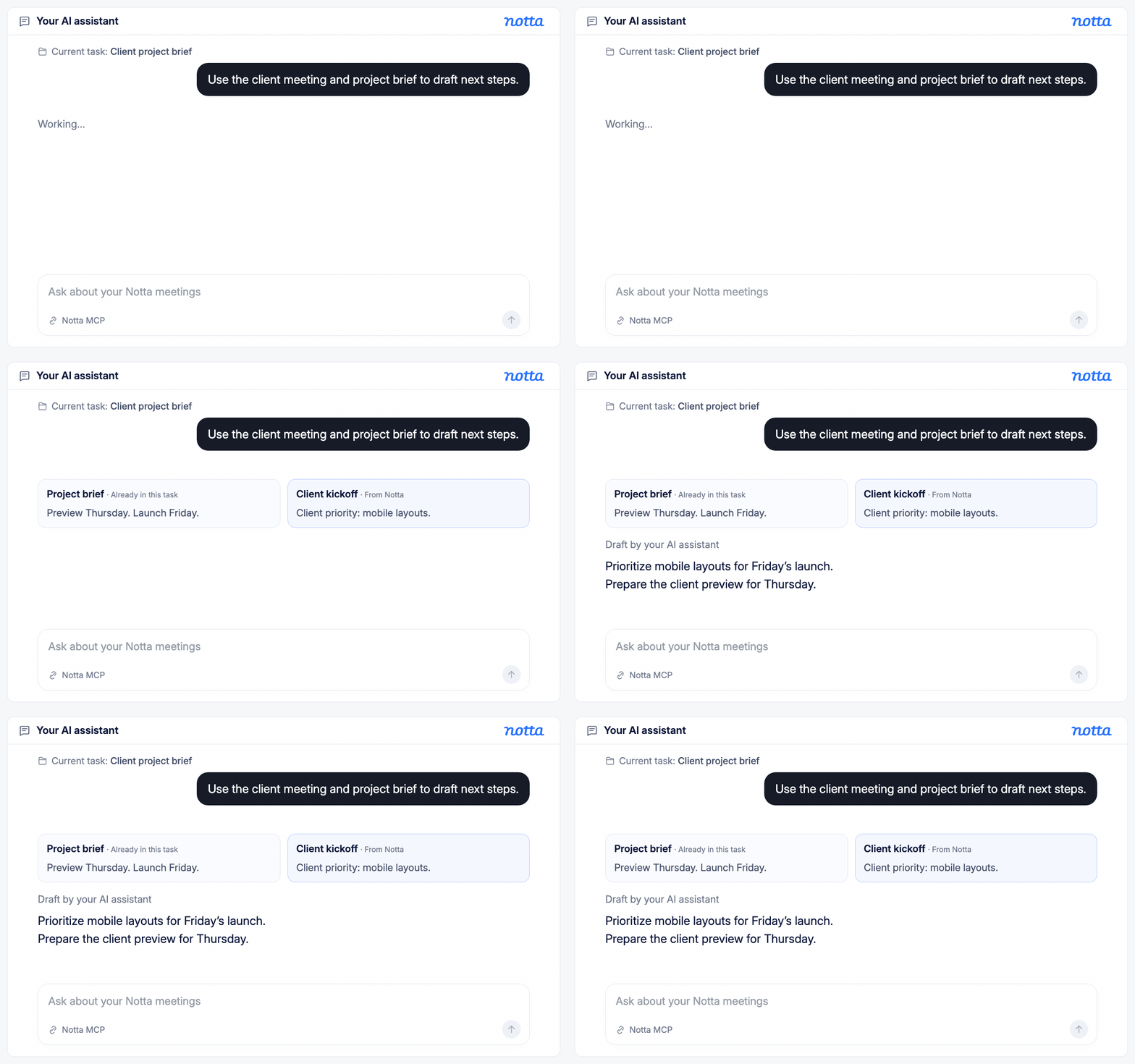
Connect conversations to ongoing work
Let your agent use meeting content alongside the documents and tools it already has access to. Apply client requirements and meeting decisions to briefs, follow-ups, and project updates.
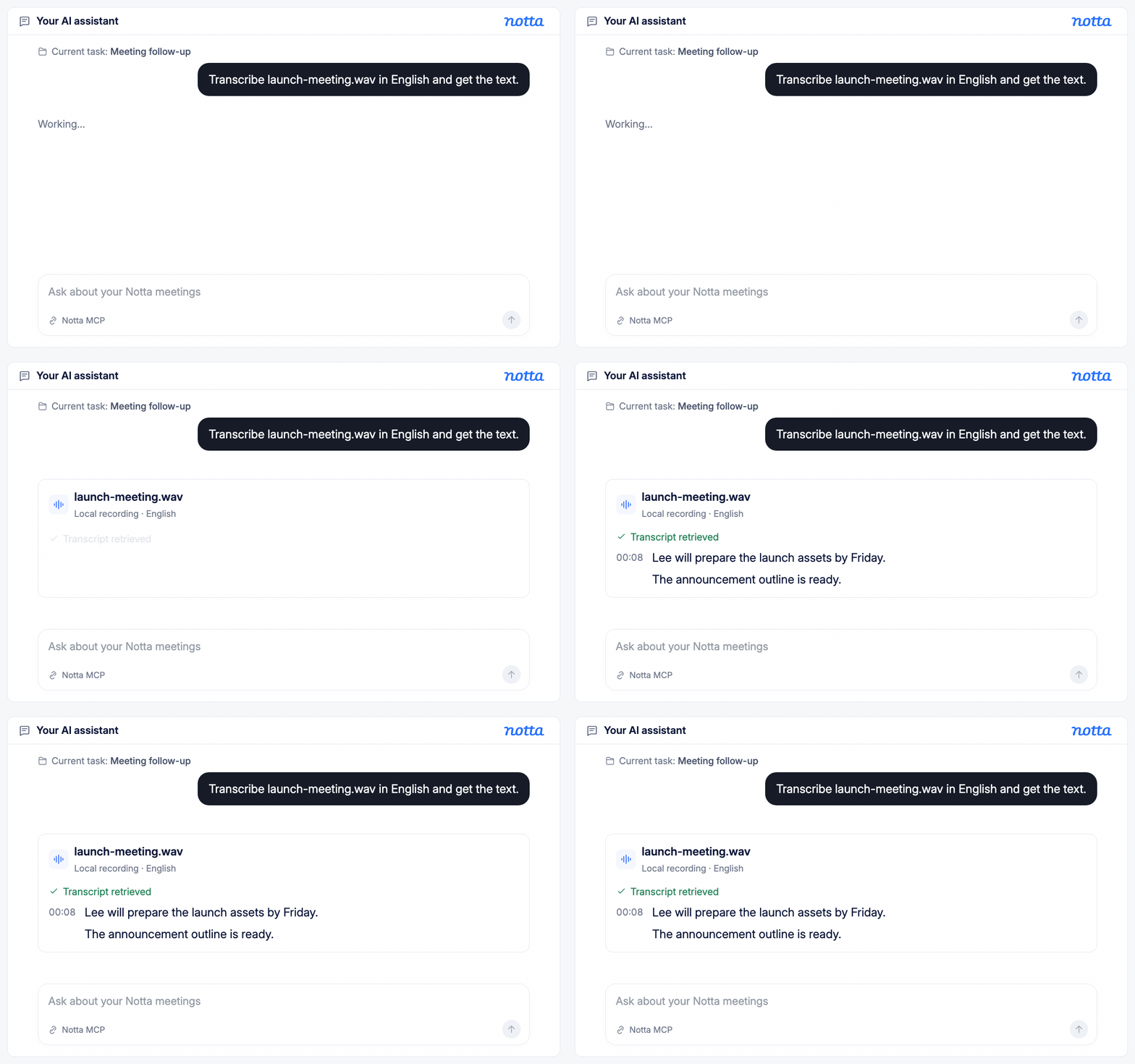
Transcribe recordings with a simple request
Ask your agent to transcribe a local audio or video file. It can upload the file to Notta, check when transcription is complete, and retrieve the text for your next task.
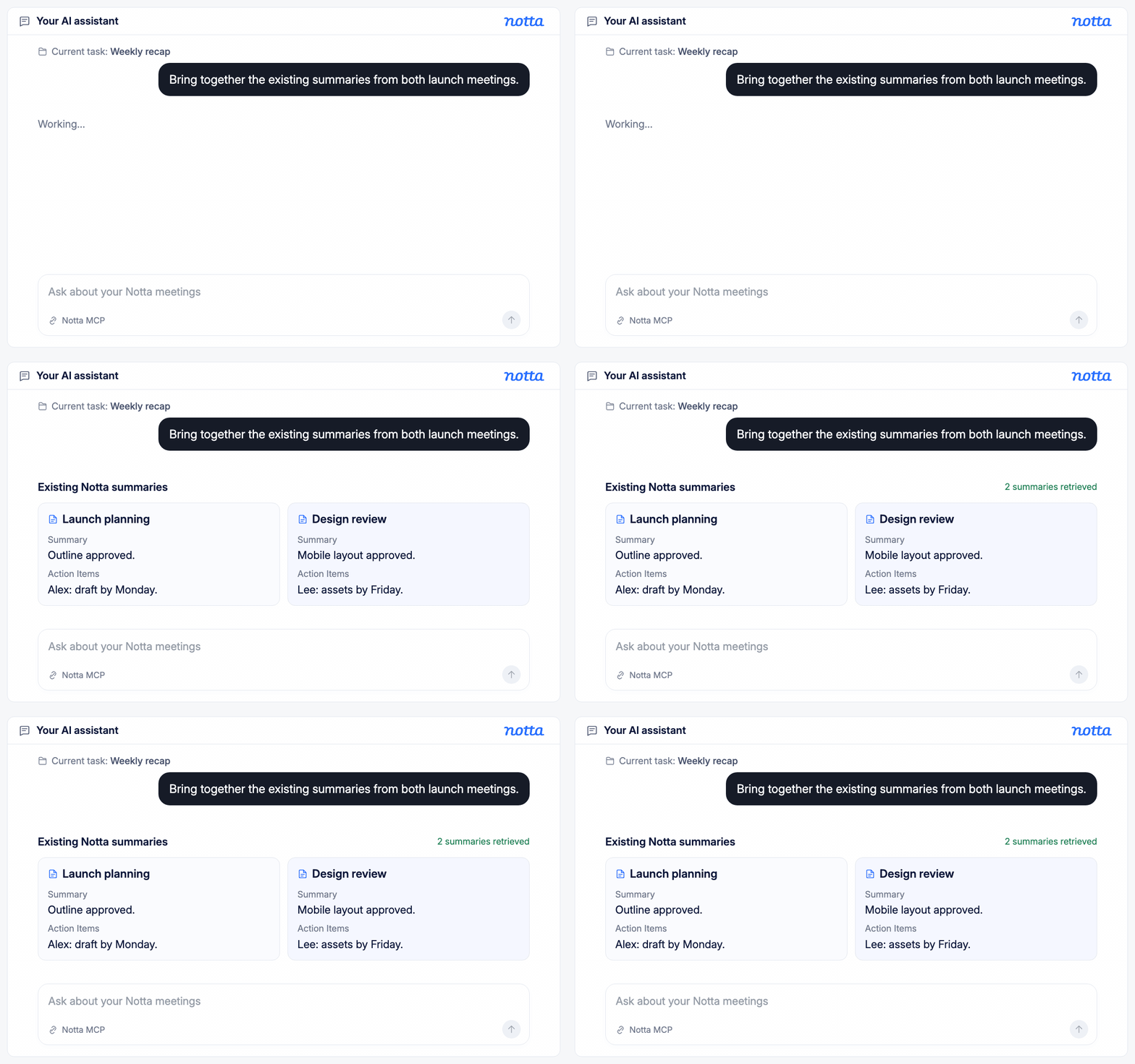
Bring meeting summaries together
Ask your agent to retrieve existing Notta summaries from the meetings you need. Use them to prepare a recap or compare discussions without opening each recording and copying the content.
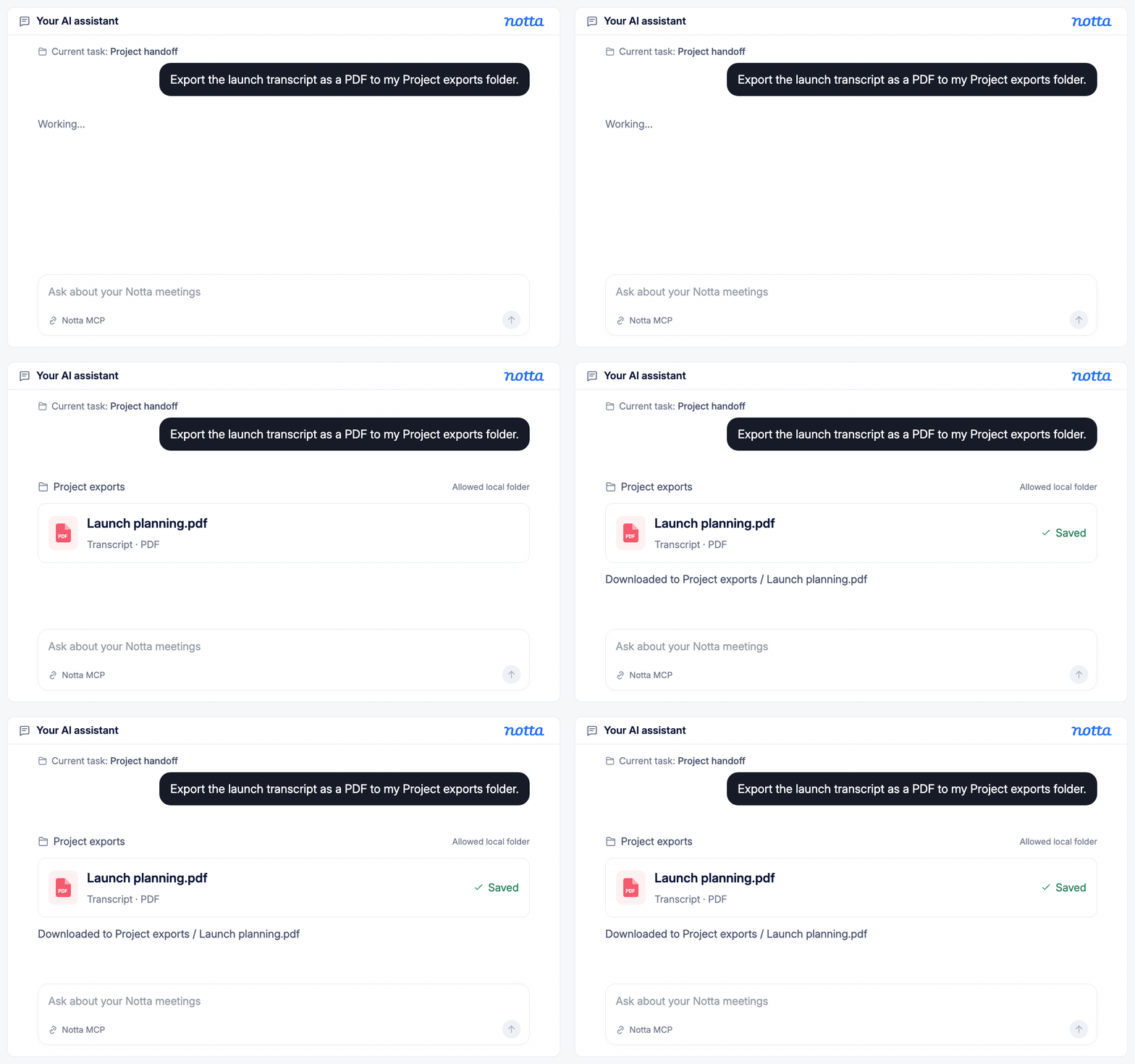
Export meeting content in one request
Tell your agent which recording to export, your preferred format, and where to save it. It can prepare and download the file to an allowed folder without you opening Notta.
How to Get Started with Notta MCP and CLI
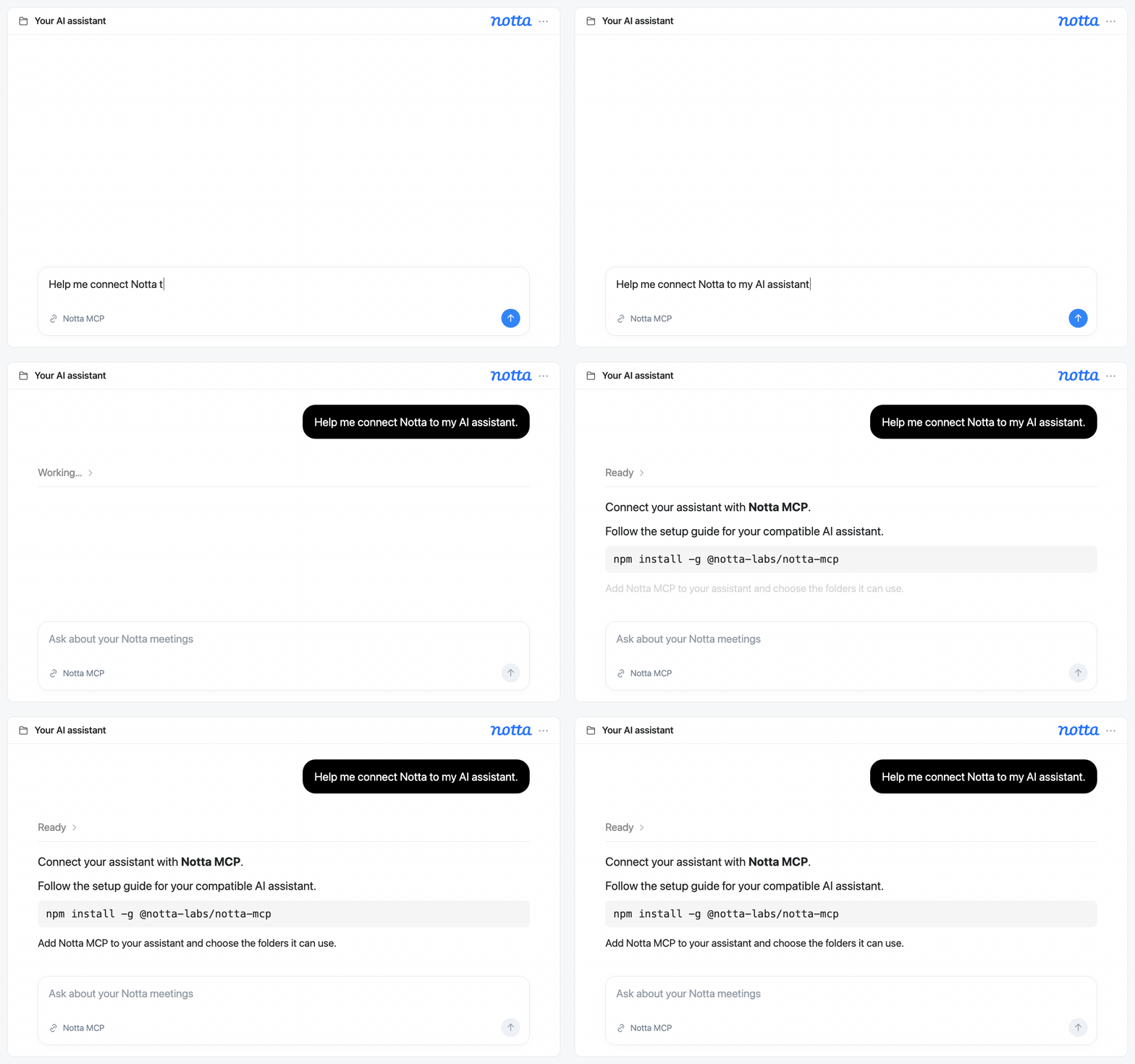
1. Choose how you want to connect
Choose MCP to work through a compatible AI assistant, or CLI to use typed commands. Follow the setup guide to install your chosen tool.
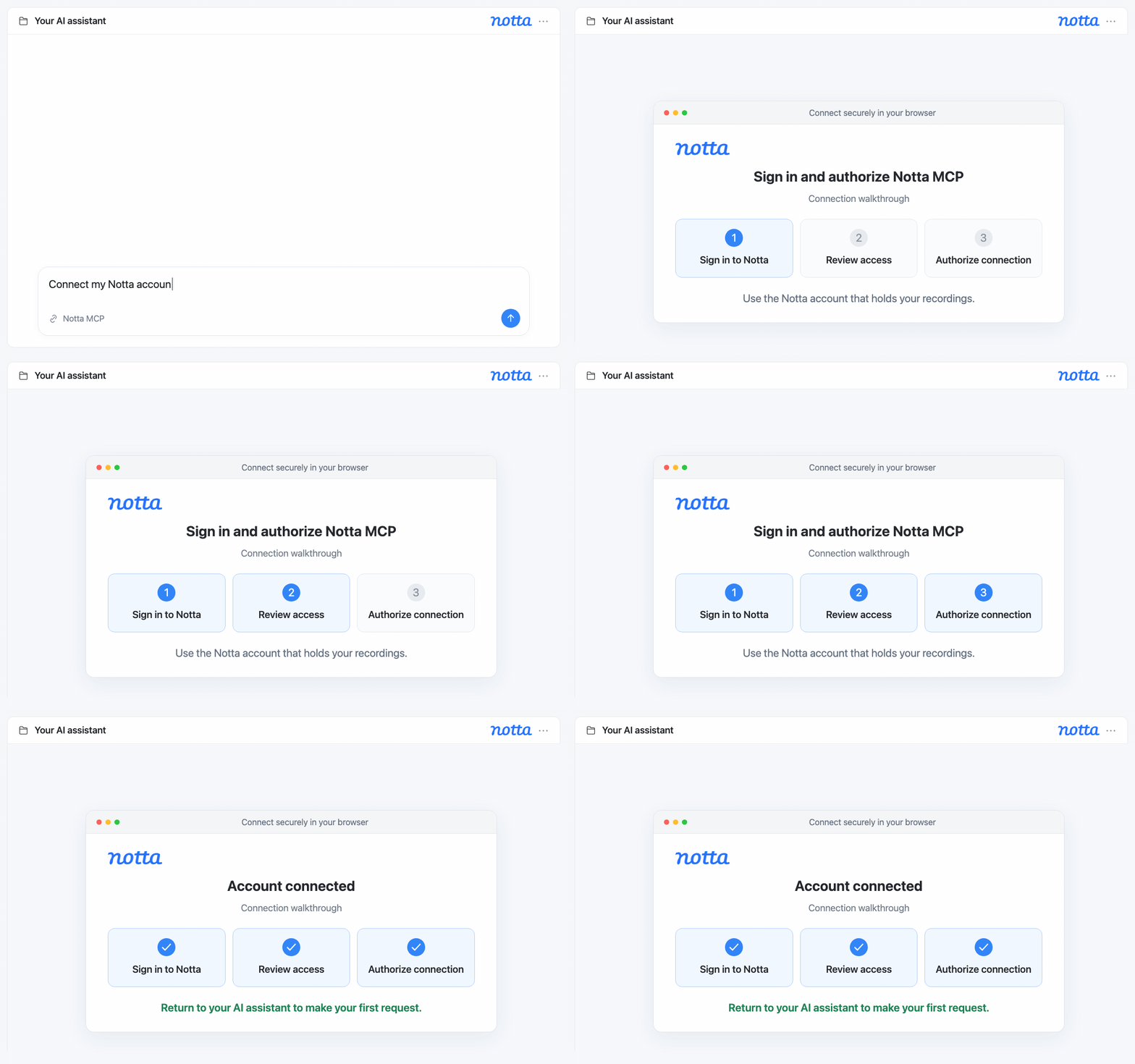
2. Connect your Notta account
Follow the prompts to sign in through your browser and allow the connection to Notta. Make sure you’re using the account that holds your recordings.
3. Make your first request
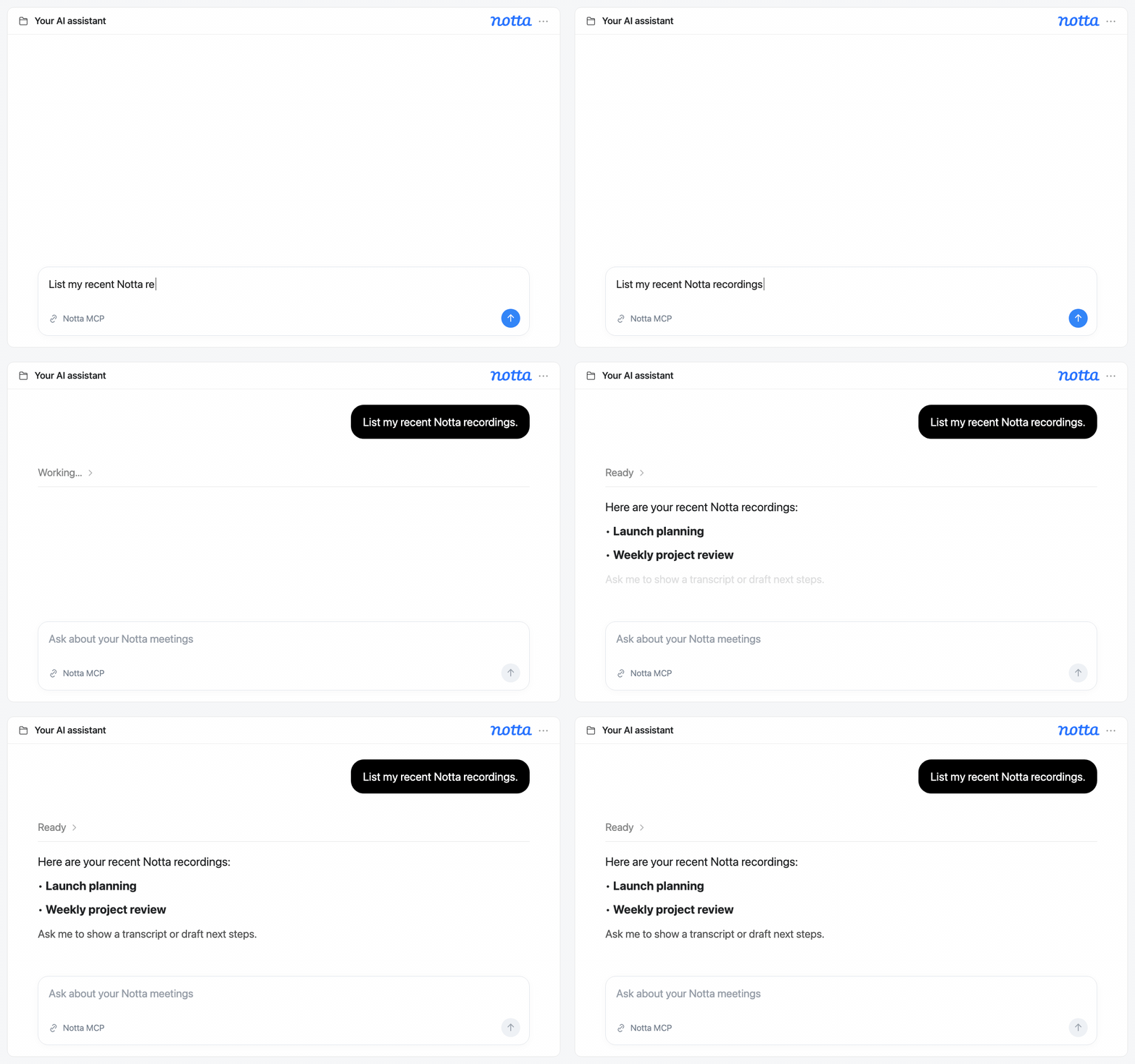
Ask your assistant to find a recording and show its transcript, or search using a CLI command. Use the transcript for your next task or download a copy.
1. Choose how you want to connect
Choose MCP to work through a compatible AI assistant, or CLI to use typed commands. Follow the setup guide to install your chosen tool.
2. Connect your Notta account
Follow the prompts to sign in through your browser and allow the connection to Notta. Make sure you’re using the account that holds your recordings.
3. Make your first request
Ask your assistant to find a recording and show its transcript, or search using a CLI command. Use the transcript for your next task or download a copy.
Built for the Work You Do After Every Conversation

How Notta MCP Helps Consultants
Use client transcripts with your AI assistant to draft reports and recommendations based on what was discussed. Check the details against the conversation, then refine your draft before sharing it with your client.

How Notta MCP Helps Agencies
Ask your assistant to turn client discussions into draft briefs for your IT, marketing, or SEO team. Include the requirements, next steps, and questions to follow up on, so your team knows what to do next.

How Notta MCP Helps Project Managers
Ask your assistant to draft a project update from your meeting transcript, covering decisions, who’s doing what, and open questions. Keep the transcript as a reference to check the details before sharing the update with your team.

How Notta MCP Helps in Education
Turn lecture or interview recordings into transcripts, then ask your assistant to help create study guides or research notes. Go back to the transcript to review an explanation, check a quote, or support your findings.


FAQs
What is Notta MCP?
MCP stands for Model Context Protocol, a standard for connecting AI assistants to tools and content. Notta MCP lets a compatible assistant retrieve your transcripts, existing summaries, and recording media. You can also submit files for transcription and download transcripts.
How is Notta CLI different from MCP?
With MCP, you ask your AI assistant to work with your Notta recordings in everyday language. With CLI, you type specific commands in a terminal—a text-based app for running commands. CLI also works with scripts, which let you repeat a set of commands without typing each one again.
Does Notta MCP work with every AI assistant?
Not every assistant supports MCP. Your assistant needs to support local MCP servers and let you add the Notta connection. Check your assistant’s connection options before following the setup guide.
Can I download the original audio or video?
You can download the audio or video saved with your Notta recording through MCP or CLI. What you receive depends on the media available for that recording. Transcript downloads are separate and support PDF, Word, text, Excel, and SRT subtitle formats.
Can I transcribe a new audio or video file?
Yes. Ask your connected assistant to upload a local file to Notta, or submit it through the CLI. You can choose the transcription language, check progress, and retrieve the completed transcript. For MCP, the file must be in a folder you allowed during setup.
Can I use Notta CLI for repeatable workflows?
Yes. You can put Notta CLI commands into your own scripts to repeat tasks such as retrieving transcripts or downloading exports. To run a workflow on a schedule, use a scheduling tool you control. The CLI provides the commands, not a built-in scheduler.
Do I need a Notta account?
Yes. You’ll sign in to Notta and authorize the connection before using MCP or CLI. Use the account that has access to the recordings you want to work with. Follow Set up Notta MCP & CLI to get started.
Give your AI agent meeting context
Find the conversation you need and use it to prepare your next brief, follow-up, or project update. Get started with Notta MCP or CLI.
