
Notta vs Plaud: Which Fits Your Meetings and Recordings?

For a week of video calls, client visits, and bilingual meetings, I'd choose Notta. You get more ways to record, live bilingual transcription and translation, and tools to create reports, presentations, and other files.
Notta Desktop's Privacy Mode also lets you keep recordings and transcripts on your computer on eligible paid plans.
I'd consider Plaud if you want a recorder clipped to your clothing or Note Pro's automatic switching between calls and in-person recording. Let me walk you through the differences that would shape my choice.
Notta vs. Plaud: Feature Comparison
Notta lets you record with your phone, computer, Apple Watch, or Memo recorder. Plaud offers Desktop and several dedicated recorders.
First, let's clear up the model names. Notta Memo, Plaud Note, and Note Pro are slim recorders you can attach to your phone or place on a table. Plaud NotePin and NotePin S are small recorders you can clip to your clothing.
| Feature | Notta | Plaud |
|---|---|---|
| Recording with your own devices | ✅ Browser microphone, iOS/Android app, Apple Watch, and Notta Desktop | ✅ Plaud Desktop; individual access requires a Plaud recorder, while Team needs at least two seats |
| Online meetings without a bot | ✅ Desktop records computer and microphone audio | ✅ Desktop records computer and microphone audio |
| Meeting bot that joins scheduled calls | ✅ Bot joins Zoom, Google Meet, Teams, and Webex; Google/Outlook Calendar auto-join can cover meetings you miss | ❌ No joining bot; Desktop records calls running on your computer |
| Browser audio | ✅ Chrome extension records audio playing in a tab | ✅ Web's recording button opens Plaud Desktop |
| Screen and visual capture | ✅ Screen/webcam recording in Web; screen and audio in Desktop; Bot meeting video on Business/Enterprise | ✅ Screenshots, typed notes, and highlights during Desktop audio recording |
| Existing recordings and media links | ✅ Audio/video uploads; YouTube, Google Drive, and Dropbox media-link imports | ✅ Audio/video imports through App and Web |
| Phone-call recording | ✅ Memo attaches to your phone; manual call/in-person switch | ✅ Note uses a manual switch; Note Pro switches automatically; ❌ NotePin models do not record phone calls |
| Recording away from your computer | ✅ Mobile app, Apple Watch, and Memo | ✅ Note, Note Pro, NotePin, and NotePin S |
| Live transcription | ✅ Web/mobile microphone recording, meeting bot, Chrome tab audio, and standard Desktop | ❌ No live transcription; device and Desktop recordings are transcribed afterward |
| Transcription languages | 58 languages | 112+ languages |
| Live bilingual transcription | ✅ Two spoken languages at once; choose from 23 languages | ❌ Not supported; one transcription language per recording |
| Translation | ✅ Live translation and translation of completed transcripts | ❌ No dedicated transcript translation or live translation |
| Local transcription | ✅ Desktop Privacy Mode on eligible Pro, Business, and Enterprise plans | ❌ No local transcription; cloud transcription |
| Included recorder allowance | 600 minutes/month for eligible Memo owners | Starter: 300 minutes/month with device activation |
| Pro transcription allowance | 1,800 minutes/month; eligible Memo owners receive 600 added minutes | 1,200 minutes/month |
| AI documents and presentations | ✅ Editable reports, presentations, and Word/Excel files through Notta Brain; separate AI credits | ✅ Ask Plaud Work creates documents and presentations through Plaud Agent; separate credits; preview ends December 31, 2026 |
My starting point would be your usual day. A clip-on recorder makes sense for interviews while you're moving around. For client calls at your desk, I'd care more about live bilingual text, translation, and turning the notes into work you can share.
How will you record your conversations?
With Notta, you can use your phone, laptop, Apple Watch, or Memo recorder. With Plaud, you'll use Desktop or a physical recorder.
Notta: start with what you already own
For an interview away from your desk, you can open Notta on iOS or Android and record with your phone. On a laptop, you can record through your browser's microphone or use Notta Desktop.
If you already wear an Apple Watch, you can start a recording on your wrist and sync it to Notta on your iPhone. That's a handy option before buying another device.
For video calls, I'd use Notta Desktop when you don't want a bot joining the meeting. It records your microphone and the audio playing on your computer.
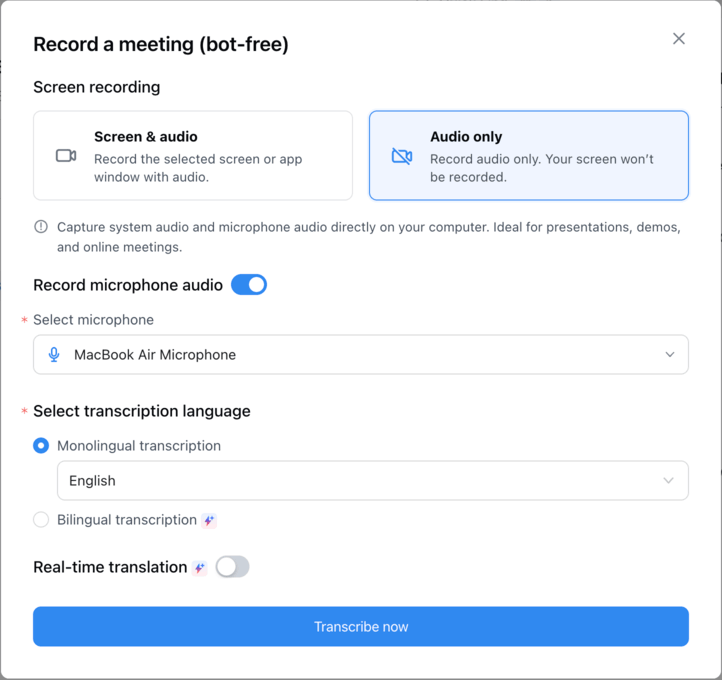
If you need to keep a presentation or demo, Desktop records your screen and audio. Notta Web also records your screen and webcam. For a webinar playing in Chrome, the extension records and transcribes the tab's audio. I'd use Desktop for a two-way call because it also captures your microphone.
For team meetings, I'd give Notta Bot a closer look. It joins Zoom, Google Meet, Microsoft Teams, or Webex as a participant and records the conversation. Business and Enterprise also support meeting video recording.
When everyone joins through their own account, the bot uses those participant accounts to label speakers. That can make it easier to follow who said what in an internal meeting.
Connect Google Calendar or Outlook Calendar and enable auto-join for the meetings you want recorded. The bot can join even when you can't attend, so you can catch up afterward. The host may need to admit it, and recording permissions still apply.
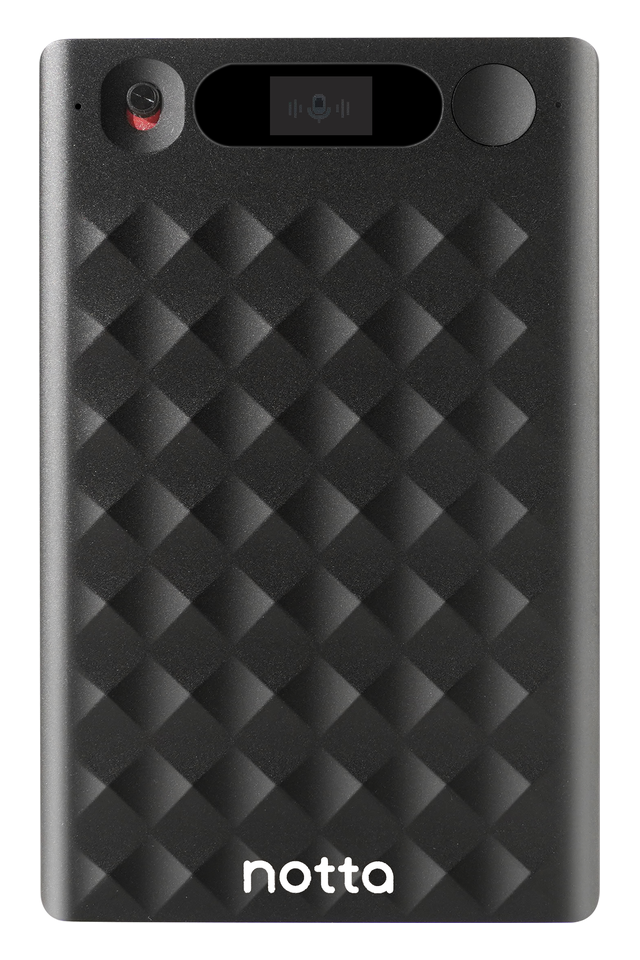
If you want a physical recorder for phone calls and in-person meetings, I'd choose Notta Memo. It attaches to your phone for calls, and you can place it on a table for face-to-face conversations.
If you already have a recording, you can upload audio/video files or import media from YouTube, Google Drive, and Dropbox links.
If you're working alone and want to start without extra hardware, I'd choose Notta.
Plaud: a separate recorder, plus Desktop
Plaud's devices record in-person conversations, and Note/Note Pro also record phone calls. Desktop brings your online meetings into the same library by recording your microphone and computer audio.
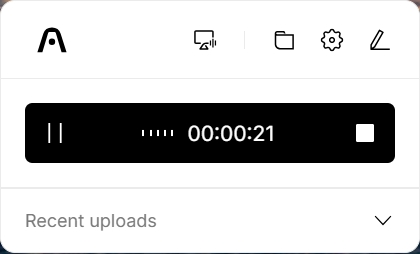
For individual Desktop use, you need a Plaud recorder linked to your account. The included Starter membership is enough, so you don't have to buy Pro just to use Desktop.
Plaud Team lets you use Desktop without a recorder, but you need at least two seats.
Plaud doesn't offer a meeting bot. Desktop can start recording automatically when you join a supported call, with the app running. It captures the meeting on your computer. If you need a tool to join a scheduled meeting while you're elsewhere, I'd choose Notta Bot.
Plaud also supports speaker labels, and its Calendar connection suggests attendee names when you label a transcript.
One detail I'd keep straight: the Plaud phone app controls the connected recorder. The recording happens on that device, rather than through your phone's microphone. The recording button in Plaud Web opens Desktop.
You can also import existing audio and video through Plaud App or Web. If you already keep your recordings in Plaud, that gives you a way to bring older files into the same place.
Whichever tool you use, follow recording-consent rules and your organization's policies.
Notta Memo vs Plaud recorders
If you want a physical recorder, I'd start with the calls and conversations you need to capture.
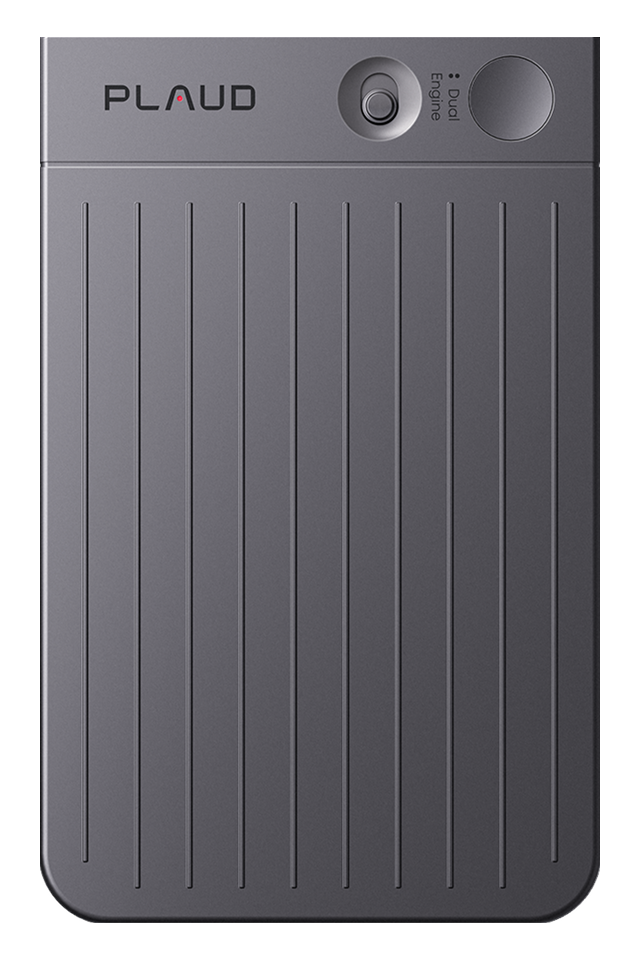
Here's what each one costs in USD:
| Recorder | How you use it | Device price | Included monthly transcription |
|---|---|---|---|
| Notta Memo | Attach to your phone for calls, or use for in-person conversations | $149 | 600 minutes for an eligible account |
| Plaud Note | Attach to your phone for calls, or use for in-person conversations | $159 | 300 minutes through Starter |
| Plaud Note Pro | Calls and in-person conversations, with automatic mode switching | $189 | 300 minutes through Starter |
| Plaud NotePin | Clip to clothing for in-person recording | $159 | 300 minutes through Starter |
| Plaud NotePin S | Clip to clothing; physical button also marks important moments | $179 | 300 minutes through Starter |
With Notta Memo, you switch between phone-call and in-person recording yourself. I'd choose it when you want a physical recorder that brings both kinds of conversation into Notta.
If you're buying Memo, check the included minutes before adding a subscription. The Notta Hardware Plan gives eligible Free-workspace owners 600 monthly transcription minutes after linking Memo. Eligible Pro owners get 600 added minutes, with other Pro limits unchanged.
That benefit goes to the workspace owner who links the device. You need to keep Memo linked; joining someone else's workspace doesn't automatically qualify you.
You can see the phone attachment and device details on the Notta Memo page.
Plaud Note uses a manual switch, while Note Pro switches recording modes automatically. I'd consider Note Pro if you often move between calls and face-to-face conversations.
NotePin and NotePin S clip to your clothing for in-person recording. They don't record phone calls. If calls make up much of your week, I'd choose a phone-attached recorder instead.
The highlight button is another difference I'd notice. On Note, Note Pro, and NotePin S, a quick press marks an important moment while you keep talking. The original NotePin doesn't have that control. I'd value it when a client mentions a decision I want to find quickly later.
Plaud also has One, which combines earbuds with a recording case. Its Explorer Edition is a preorder product.
Can you follow a bilingual meeting live?
You can follow a bilingual call live with Notta. That's one of the main reasons I'd choose it for international client calls.
Say your client call moves between English and Spanish. You can select both languages in Notta before recording, with 23 languages to choose from. You can then follow the live transcript and translation as the conversation moves between them.
I'd find that useful when you want to check a detail during the call, instead of waiting for the recording to be processed afterward.
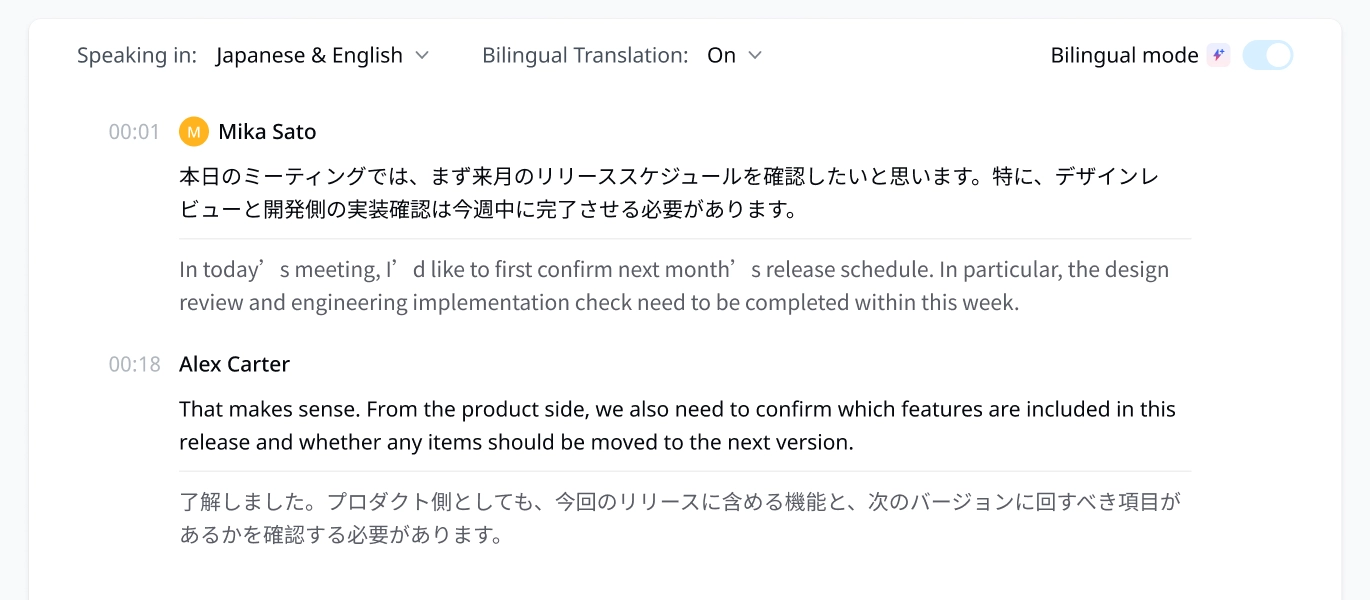
A Japanese/English example shows the original words and their translations together.
Sometimes everyone speaks Spanish, but you need to read the conversation in English. Notta's live translation lets you follow along during the meeting. You can also translate a completed transcript afterward.
Live translation and bilingual mode have their own monthly use limits. Completed-transcript translation is available on Pro, Business, and Enterprise.
For bilingual meetings, I'd choose Notta because you can work with both languages during the conversation and use the notes afterward.
Plaud transcribes one language per recording and doesn't support bilingual transcription. Its device and Desktop recordings are transcribed afterward.
Plaud doesn't offer dedicated transcript translation. Changing its transcription language isn't a reliable way to translate a recording.
How do Notta Brain and Ask Plaud compare?
Both can help you understand recordings and create files. I'd look at how each fits the work you need to finish after a meeting.
Notta Brain: turn meeting context into artifacts
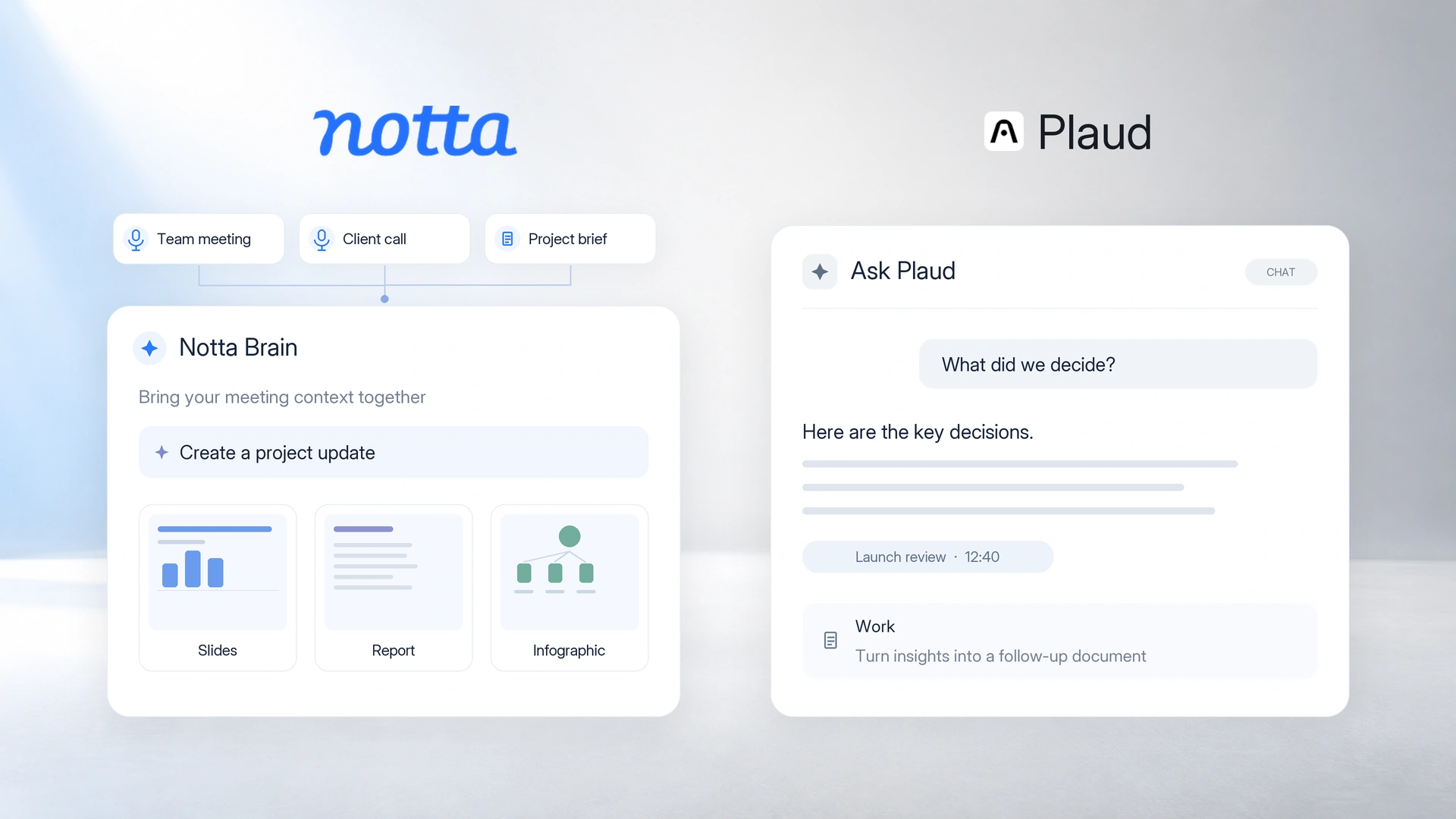
Notta Brain is built into Notta. You can use it to understand past discussions, bring related files together, and create artifacts: reports, presentations, infographics, Word documents, spreadsheets, and more.
Say you owe a client an update after three calls. I'd ask Brain what changed, which decisions are settled, and what still needs an answer. You can use @ to focus on those meetings, then add the project brief so the update includes the wider context.
That means you can build the update from several conversations and files without piecing it together from separate transcripts. I'd find that especially useful for a project that's changed direction over several weeks.
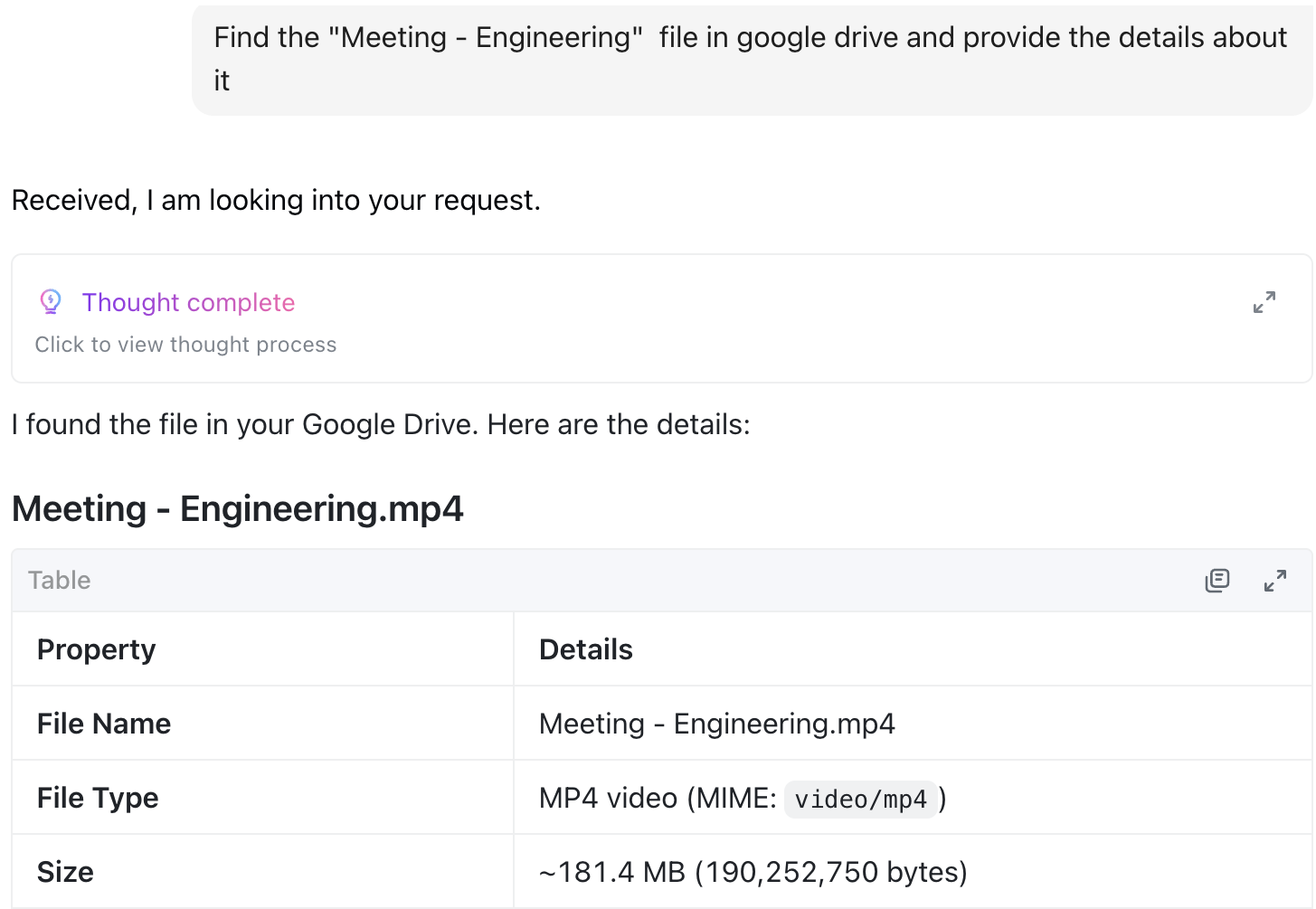
Brain can also find files in your connected Google Drive. In this example, it locates a meeting recording and shows its details. You can bring the file into your request, then save finished work to the Drive folder you use for that project.
Create a visual recap or a presentation
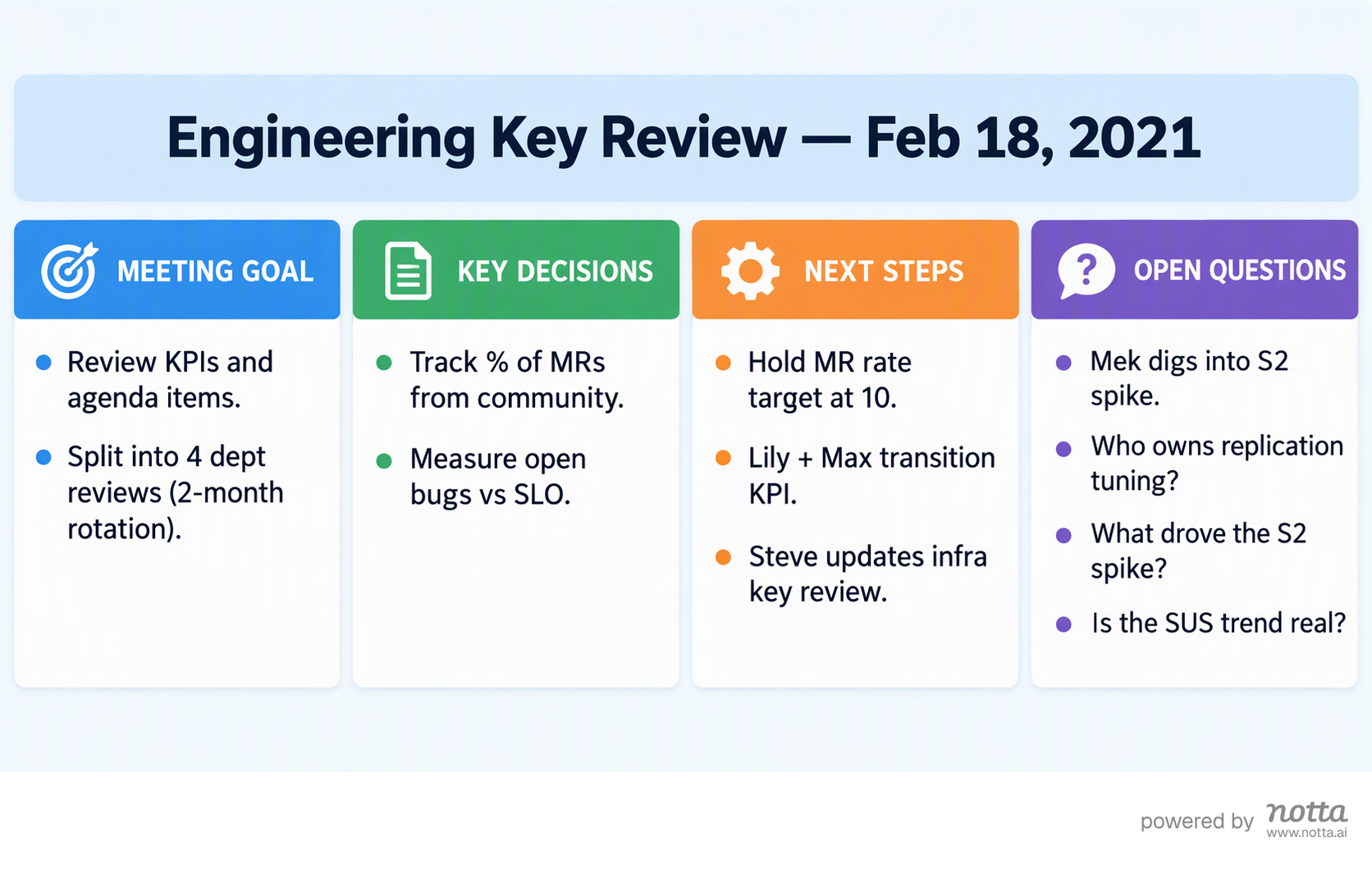
Once you have the findings, you can ask Brain to turn them into an artifact that suits your audience. I'd choose an infographic for a quick team update. The engineering-review example below brings the meeting goal, key decisions, next steps, and open questions onto one page.
For a presentation, you can turn the same meeting context into a slide deck. The examples below show its title slide and the generated presentation file in Brain.
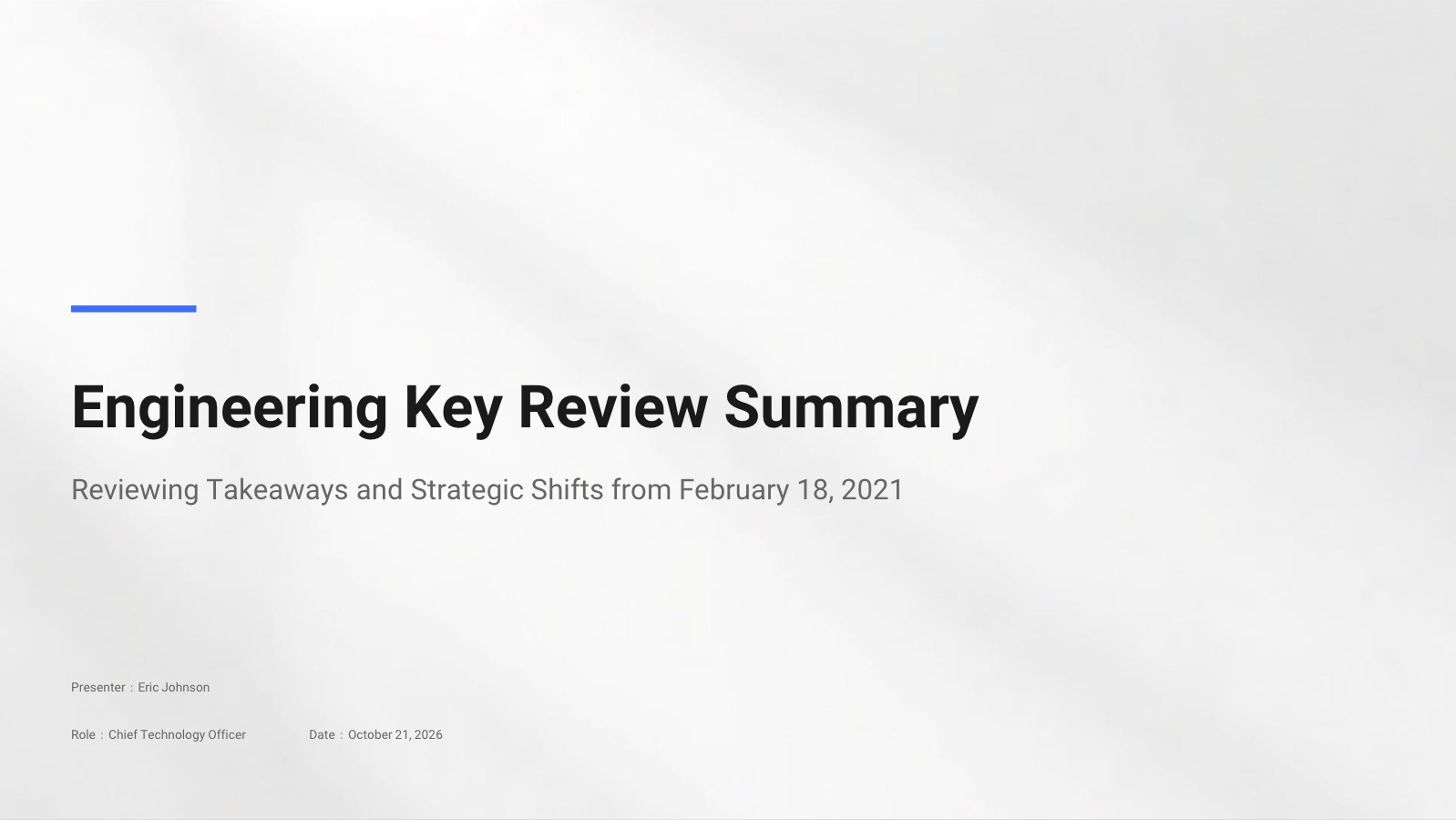
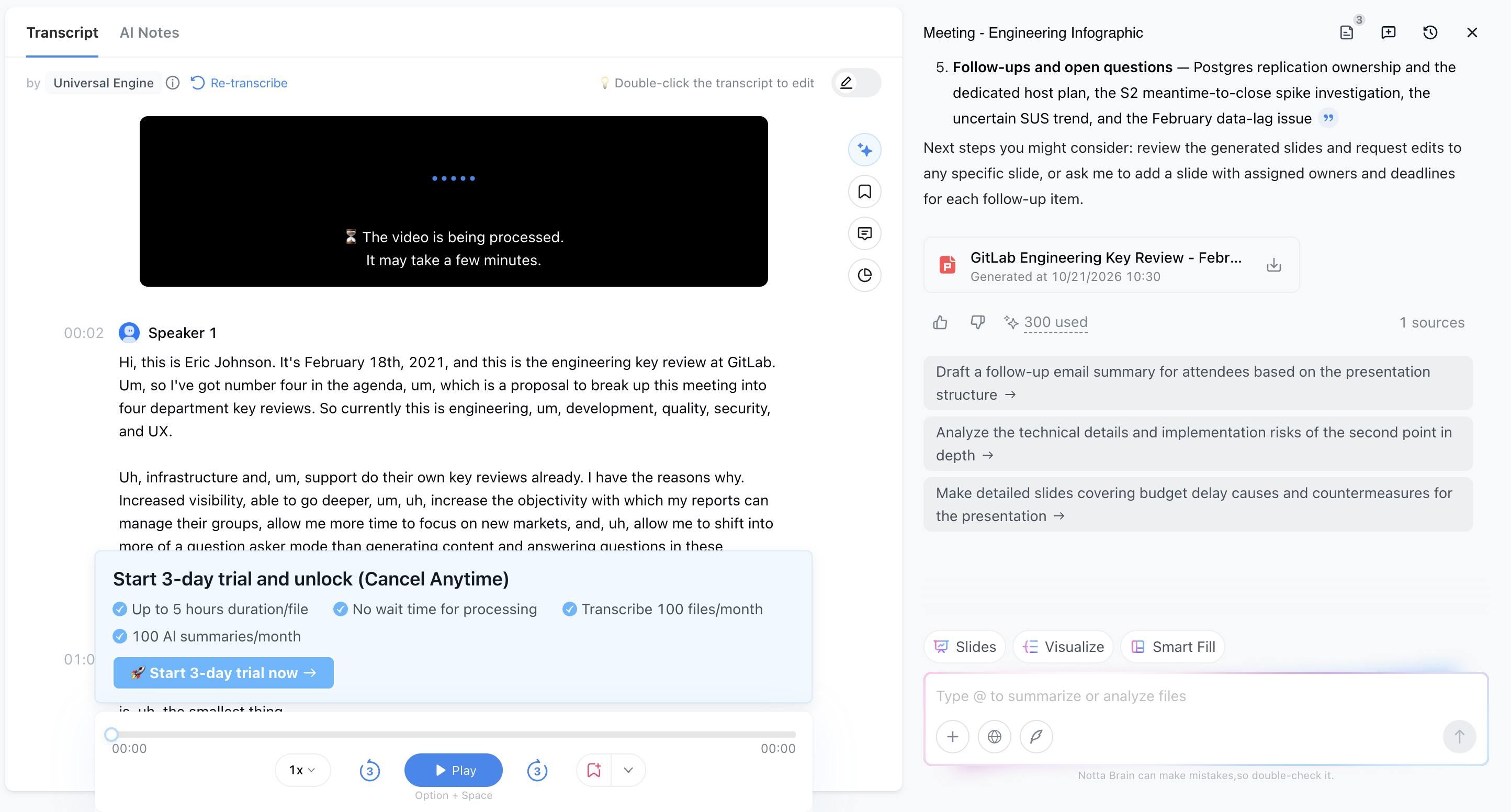
You can ask Brain to make a slide more concise or add detail, then export the deck as PowerPoint or PDF. I'd use PowerPoint for further edits before presenting. You can also turn a Brain answer into a Word document when you need a written report.
Ask Plaud: Chat for answers, Work for tasks
Ask Plaud's free Chat mode answers questions from your recordings and saved knowledge, and can check a connected Google Calendar. For files and recurring tasks, start a conversation in Work.
Work uses Plaud Agent to create documents, presentations, and other outputs, so file creation is available in both products. I'd consider it if your recordings already live in Plaud.
Work uses separate Plaud Credits. The Agent preview runs through December 31, 2026, with access rolling out by account. I'd check your access and credits before relying on it for a deadline.
Which apps can you connect?
Notta has the edge if you want meeting notes to go straight into your CRM, project tools, or cloud storage. I'd choose it for those direct connections, so you can send work where it belongs without building a separate automation first.
Notta: send notes out or work with connected apps
Notta's software integrations go beyond shared tools such as Slack, Notion, and Google Docs. You can connect directly to Salesforce, HubSpot, Pipedrive, Zoho CRM, and more on Business and Enterprise. I'd value that when a sales call needs to become an update in the customer's record.
You can also send notes directly to OneNote and ClickUp on all plans. For archiving recordings and transcripts, Pro, Business, and Enterprise support Google Drive, Dropbox, OneDrive, Box, SharePoint, and more.
Brain's connected apps do a different job. You can ask it to find a Google Drive file, check Google Calendar, or prepare a Gmail draft. You review and send the email from Gmail yourself. Calendar changes need your confirmation.
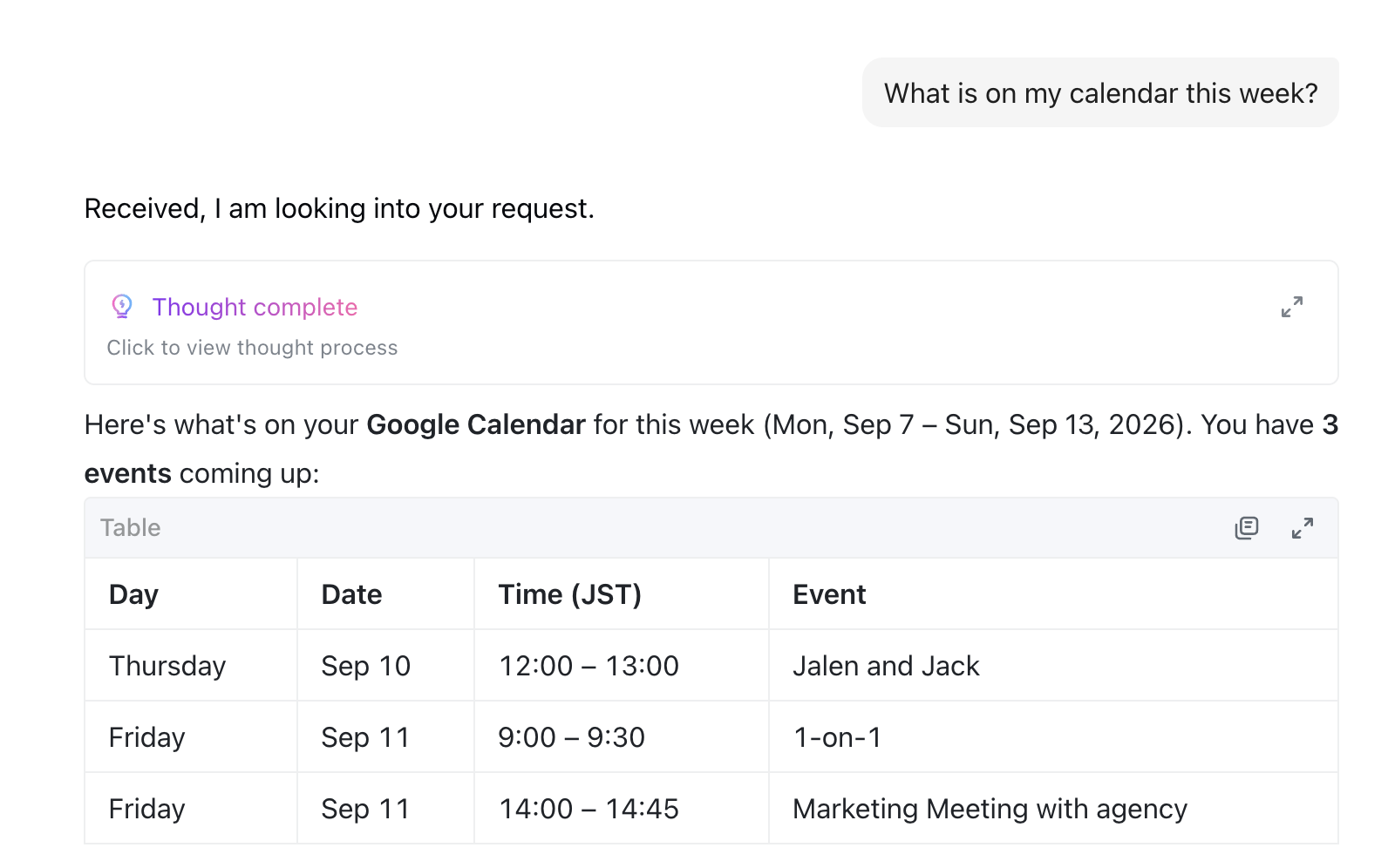
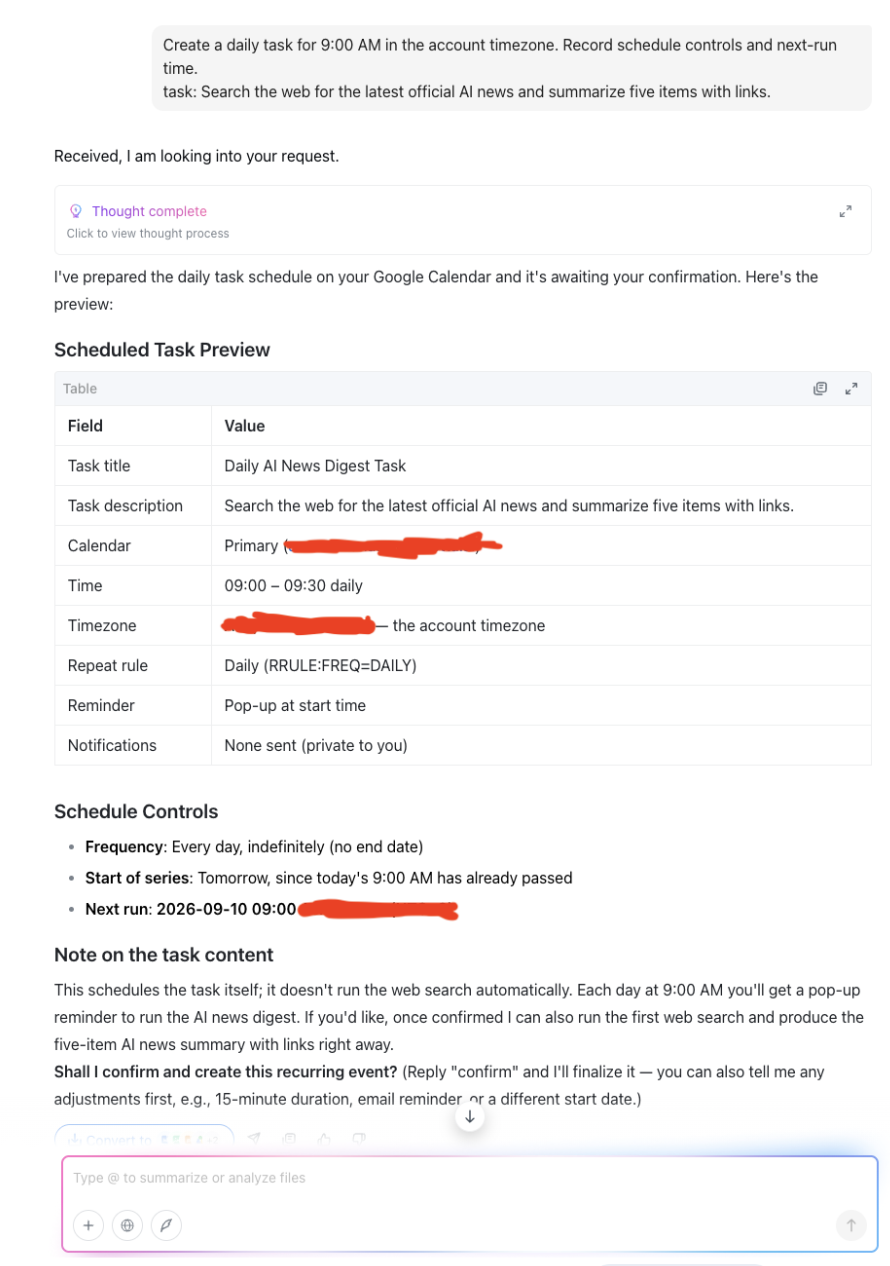
In the Calendar example below, Brain finds three upcoming events and brings their details into its answer. In the daily-task example, it prepares a repeating 9:00 a.m. Calendar reminder for an AI news digest.
That preview still needs confirmation, and the reminder doesn't run the news search. To have Brain do the work automatically, use Scheduled Tasks. You can schedule a prompt daily, weekly, or monthly. That's the route I'd use for a regular news digest.
If your recordings arrive in another app, Notta's Zapier integration can import audio or video for transcription. It can also send Notta results out. That saves a manual upload when recordings are already part of a recurring workflow.
Plaud: connected apps and Work Routines
Plaud Work connects to apps such as Slack, Gmail, Google Docs, Google Calendar, Outlook, Notion, and Linear. It can send results, create files, and manage Calendar events.
For the CRM, OneNote, ClickUp, and storage-export connections below, Plaud doesn't have the same direct routes. You can use separate Zapier workflows for other destinations, and its Salesforce connector is planned. I'd choose Notta if you want these connections built in.
For recurring work, use Work's Routines. Each run spends separate Plaud Credits based on the task. Routines pause when you run out, even on Unlimited transcription. If you use the older AutoFlow automations, you'll need to recreate them as Routines.
| Integration workflow | Notta | Plaud |
|---|---|---|
| Direct CRM sync | ✅ Salesforce, HubSpot, Pipedrive, Zoho CRM, and more; Business/Enterprise | ❌ No direct CRM connector; Salesforce planned; separate Zapier workflows available |
| Send notes directly to OneNote and ClickUp | ✅ Both supported on all plans | ❌ No direct OneNote or ClickUp connector; separate Zapier workflow needed |
| Export recordings and transcripts to cloud storage | ✅ Google Drive, Dropbox, OneDrive, Box, SharePoint, and more; Pro/Business/Enterprise | ❌ No direct file-export connector for these storage services |
| Import audio/video through Zapier for transcription | ✅ Incoming recording imports and outgoing Notta results | ❌ No incoming transcription action; completed results go out to other apps |
Calendar lookup examples
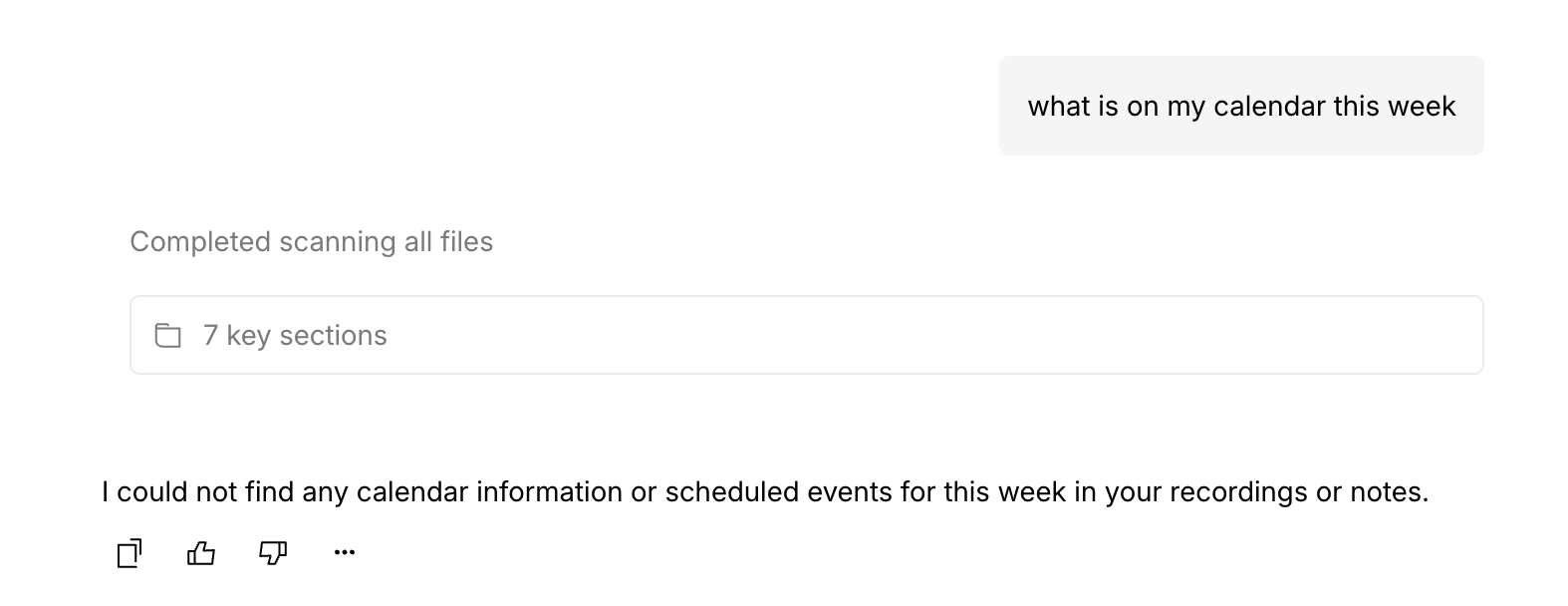
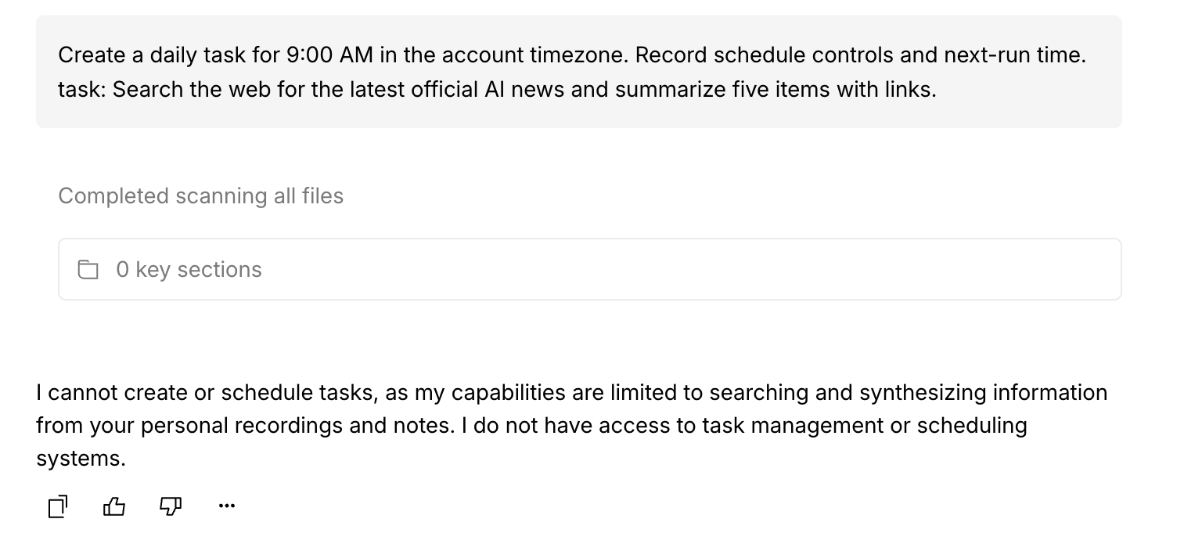
Notta's example shows a connected Google Calendar lookup. The Plaud screenshot shows its earlier library chat searching recordings and notes. Current Ask Plaud Chat supports connected Calendar lookup, so that older response isn't a current product limitation.
A daily reminder request
Here, Brain prepares a Calendar reminder and waits for confirmation. Plaud's library chat declines the request. For automatic recurring work, use Notta Scheduled Tasks or Ask Plaud Work's Routines, rather than either of these responses.
What will you actually pay?
I'd separate three costs: the recorder, the transcription time, and any AI or translation extras. That makes it easier to see what you'll actually spend.
Core transcription plans
These are USD prices. The annual column is what you pay upfront for the whole year.
You can check current plans on the Notta pricing page and Plaud plans page.
| Plan | Monthly billing | Annual billing | Monthly transcription |
|---|---|---|---|
| Notta Free | $0 | $0 | 120 minutes; three-minute transcript limit per recording |
| Notta Pro | $13.49 | $97.99 | 1,800 minutes |
| Notta Business | $27.99 per seat | $199.99 per seat | Unlimited |
| Plaud Starter | Included after device activation | Included after device activation | 300 minutes |
| Plaud Pro | $17.99 | $99.99 | 1,200 minutes |
| Plaud Unlimited | $29.99 | $239.99 | Up to 24 hours per day |
I'd use Notta Free to try the app, then choose Pro for full meetings beyond the three-minute transcript limit.
Paid Notta plans support five-hour audio recordings. Browser screen recording has a separate limit: two hours on paid plans, or 30 minutes on Free with three transcript minutes viewable.
Memo's Hardware Plan is different from ordinary Notta Free. Eligible owners get 600 monthly minutes and up to five hours per recording.
Notta Brain has its own AI credits: 1,000 monthly on Free, or 8,000 on Brain Pro. Brain Pro costs $12.90 monthly or $93.59 annually. Buying Notta Pro or Business alone doesn't increase that allowance.
Plaud Agent uses separate Plaud Credits. Core transcription and default summaries don't spend those credits. I'd keep that distinction in mind when looking at the Unlimited plan: unlimited transcription doesn't include unlimited Agent work.
For device-free Plaud Team, the annual introductory price is $20 per user per month for the first year, then $25. With the two-seat minimum, that's $480 upfront for the first year. The offer runs through November 30, 2026. Monthly billing is $28 per user during the offer, then $35.
Does the recording stay on your device?
Saving audio offline and turning it into text offline are different things. I'd decide which one your conversation needs before choosing a mode.
I'd choose Notta Desktop Privacy Mode if the transcript needs to stay on your computer. It records and transcribes locally on eligible Pro, Business, and Enterprise plans.
Notta Memo saves audio on the device, then uses the cloud for transcription. Standard Notta Desktop recording also uploads audio for transcription.
With Notta Desktop Privacy Mode, you install a speech model and choose where to store your recordings and transcripts. The languages and computer requirements depend on the model.
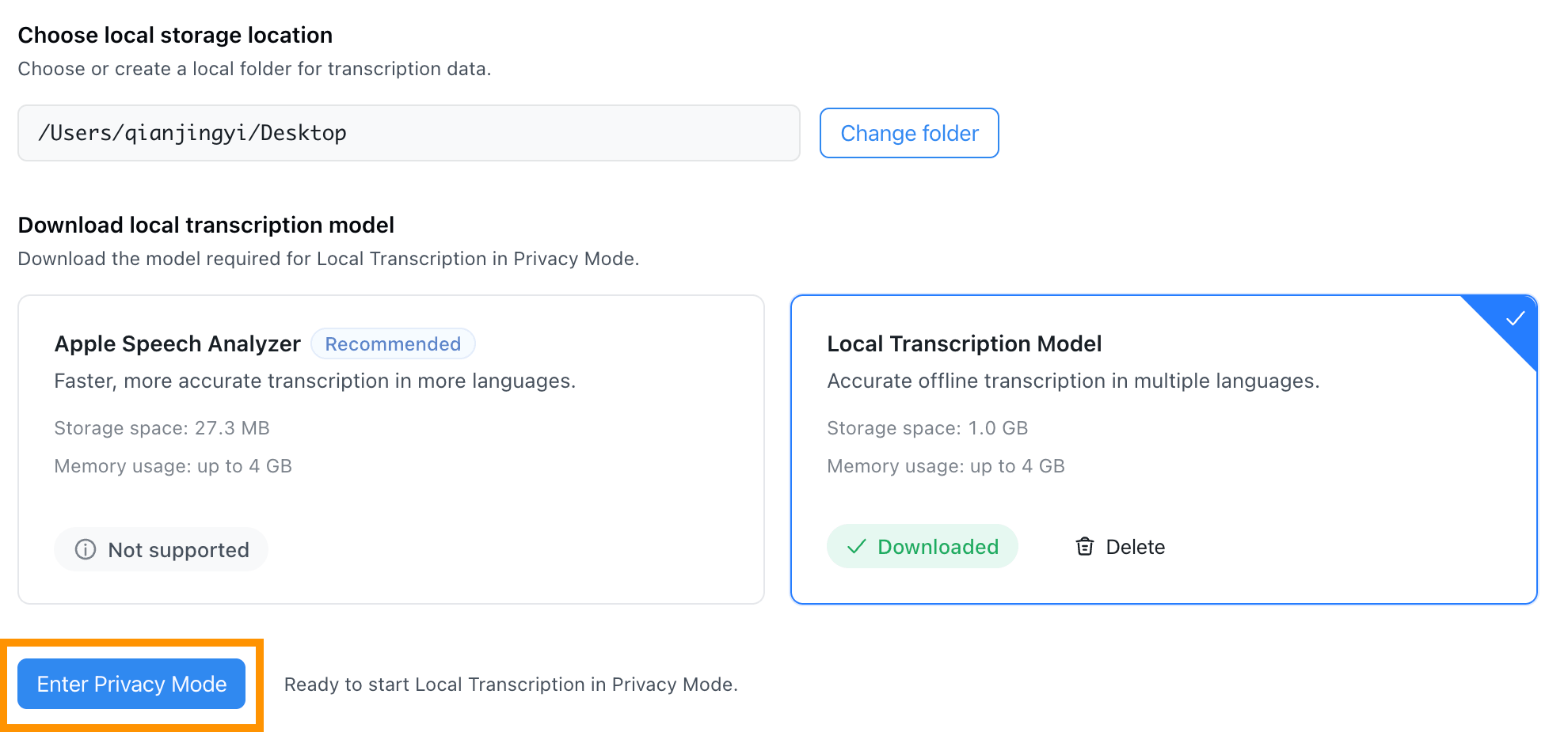
You'll need internet for setup and roughly monthly license checks. Between those checks, you can record and transcribe offline.
Privacy Mode recordings don't automatically sync to Notta's cloud, and cloud tools such as Brain are separate. I'd decide whether you need local transcription or cloud collaboration for that particular conversation before you start recording.
Plaud recorders save audio offline, then use the cloud for transcription. I'd keep that in mind if you need a transcript without internet access.
What users say about Notta and Plaud
Notta user reviews
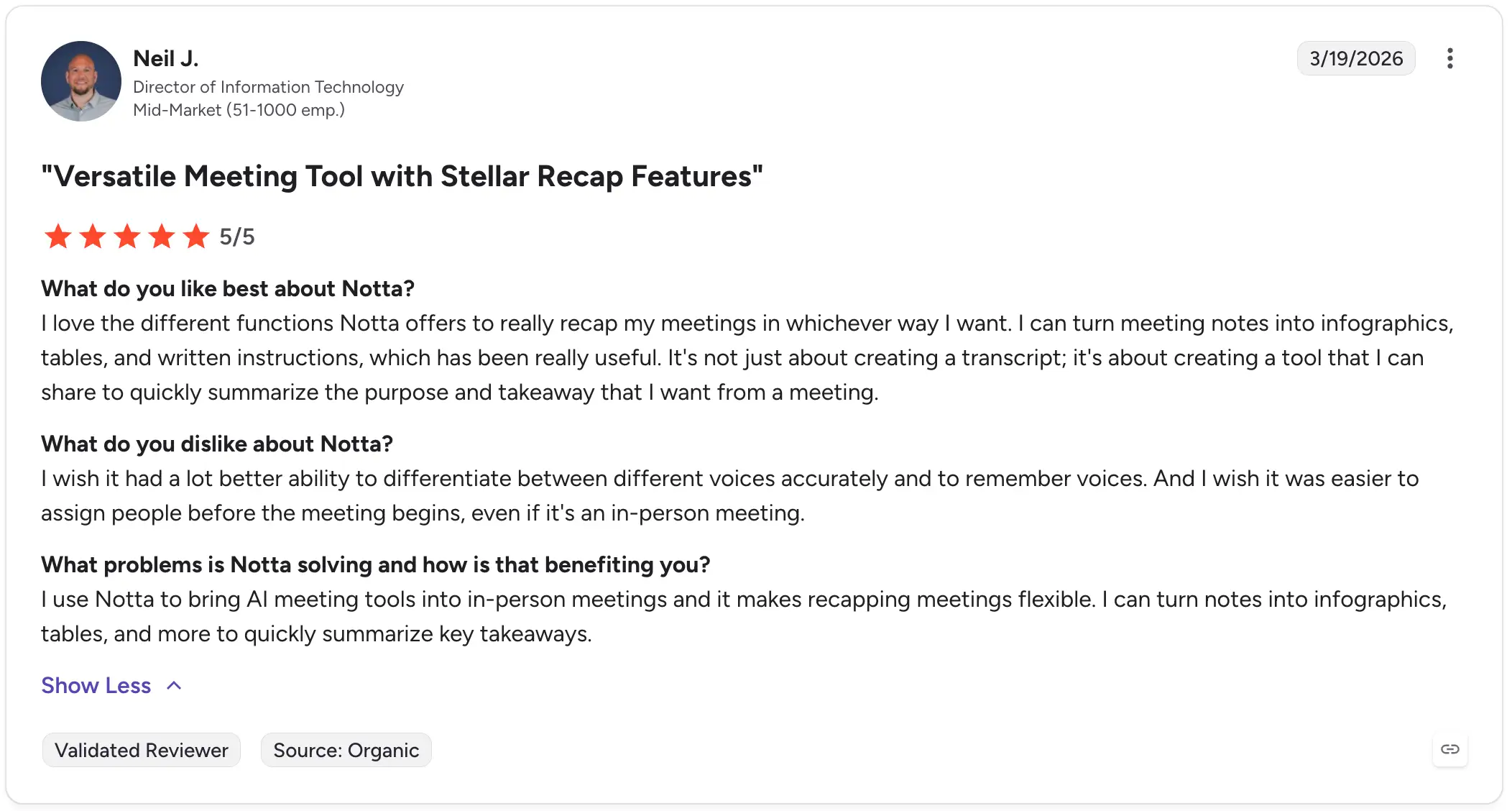
Flexible meeting recaps: Neil J. liked turning meeting notes into infographics, tables and instructions. He also wanted more reliable speaker identification and easier ways to assign speakers.
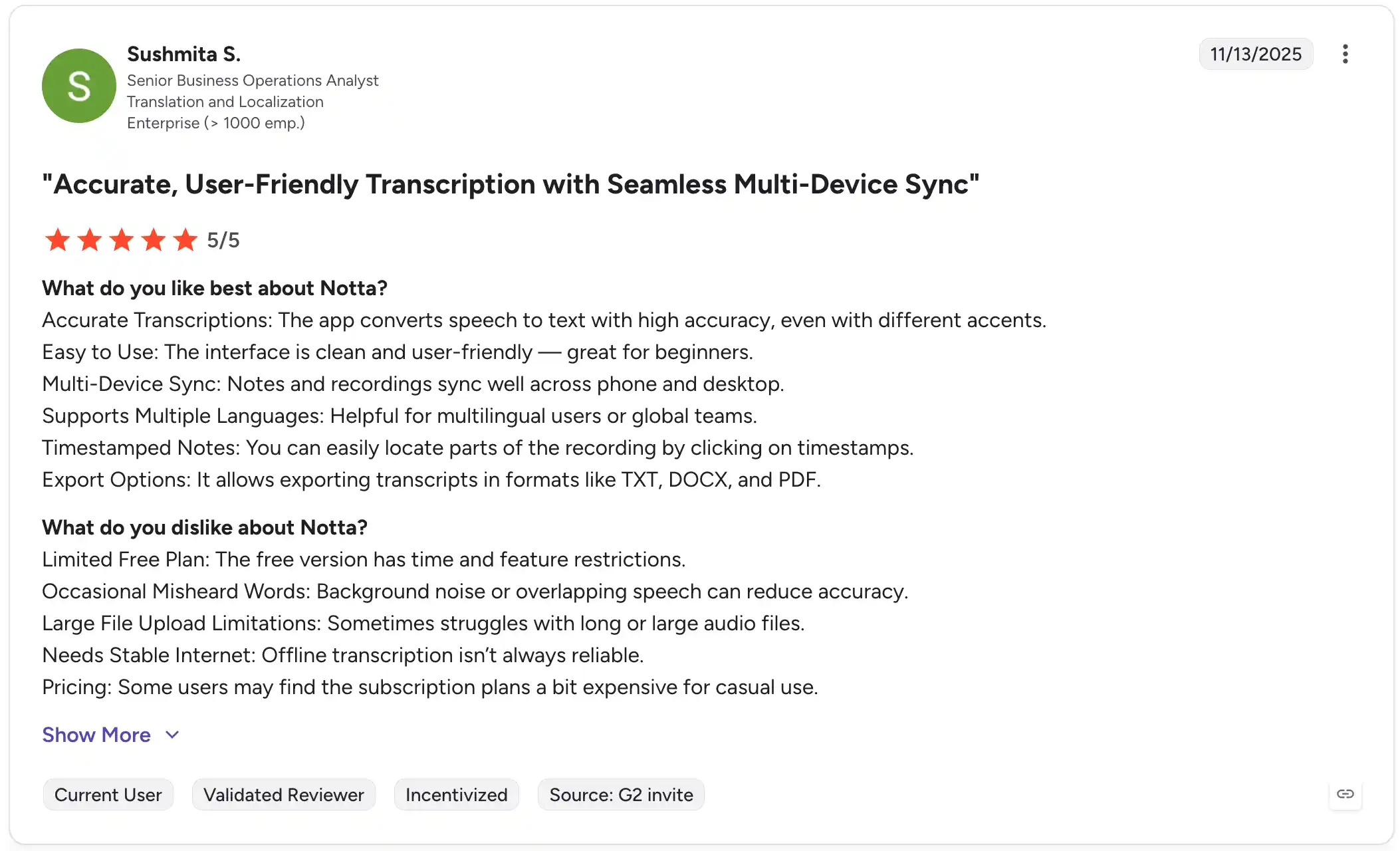
Easy to use across devices: Sushmita S. liked the transcription, simple interface and syncing between phone and desktop. She also pointed to Free plan limits and errors when people talked over each other.
Plaud user reviews
What users liked
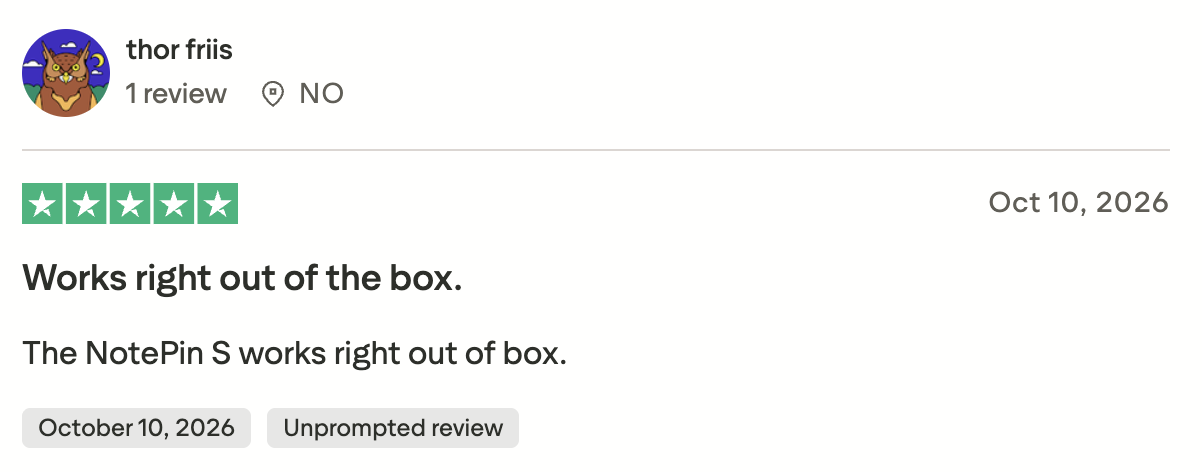
Easy setup: thor friis gave NotePin S five stars on Trustpilot and said it worked straight out of the box.
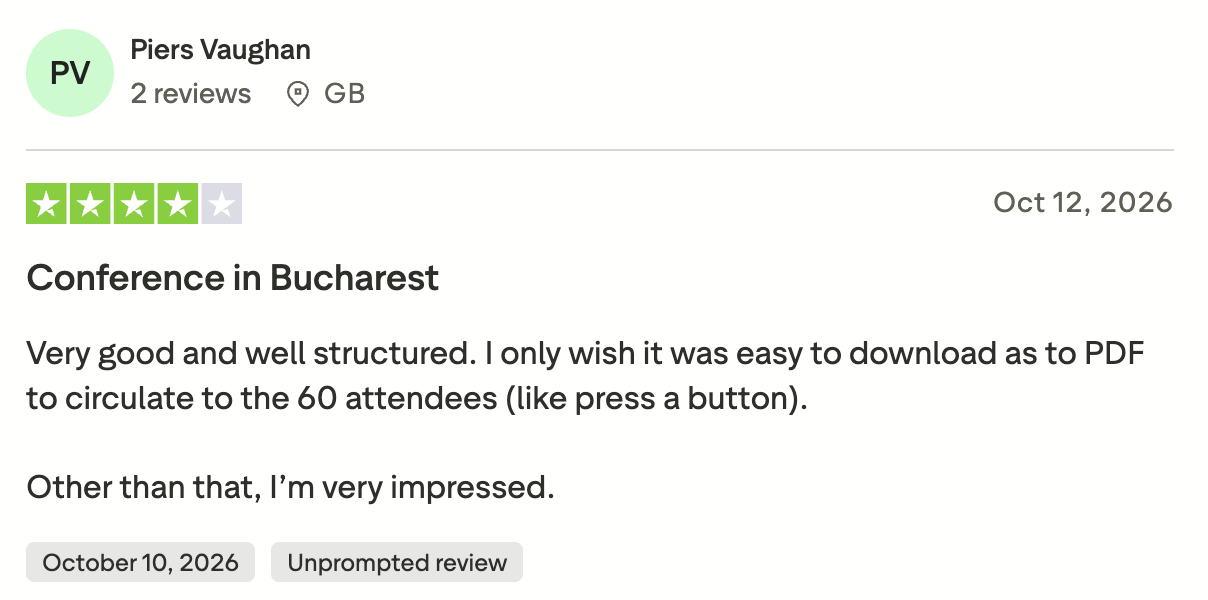
Organized conference notes: Piers Vaughan gave Plaud four stars. He liked the structure of his conference notes, but wanted an easier way to download and share a PDF.
What frustrated users
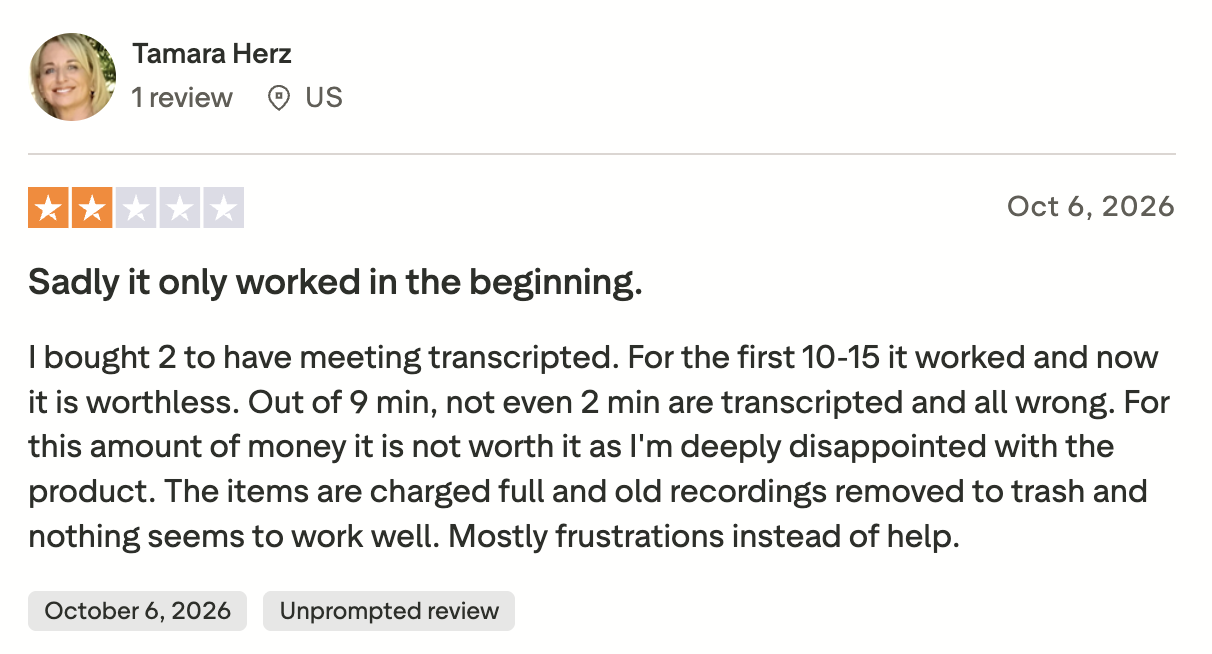
Incomplete transcription: Tamara Herz gave Plaud two stars on Trustpilot. She said the devices worked initially, then produced incomplete and inaccurate transcripts. Plaud offered to escalate the issue to support.
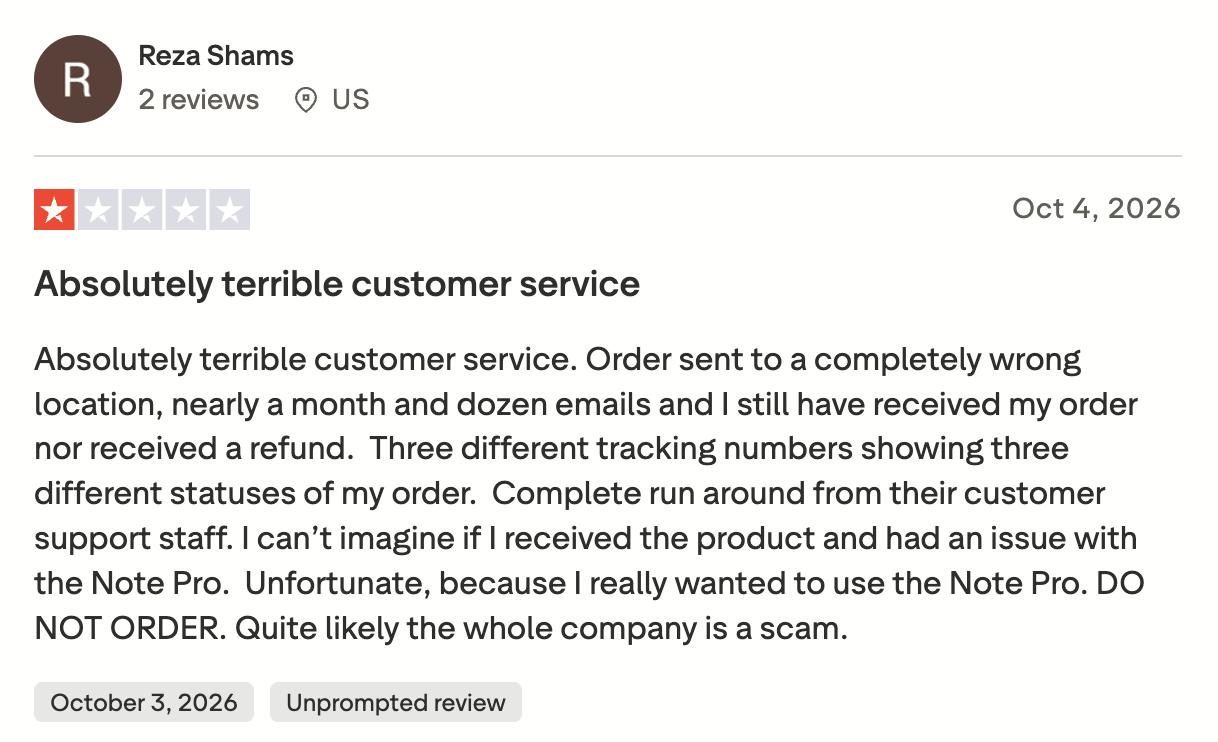
Delivery and support: Reza Shams gave Plaud one star after problems with his Note Pro order and getting help. He hadn't received the recorder, so his feedback concerns delivery and support. Plaud asked for his ticket ID to prioritize the case.
I'd use these experiences to shape what you try: record a conversation like your usual meetings, check the notes, and see how sharing works for you.
Which would I choose?
I'd start with Notta if your week moves between video calls, client visits, and interviews. Use your computer, phone, or Apple Watch, bring a bot when it fits, or record calls and in-person meetings with Memo.
If you can't attend a scheduled call, Notta Bot can join for you, subject to admission and recording permissions. That's a useful difference from recording through your own computer.
The bigger draw for me is what you can do during and after the meeting. Notta gives you live bilingual transcription and translation, then Brain helps turn the conversation into reports, presentations, and other files. For conversations that need local recording and transcription, I'd use Notta Desktop's Privacy Mode on an eligible plan.
I'd consider Plaud when a recorder clipped to your clothing makes your day easier, or Note Pro's automatic call-mode switching fits your routine. If you already own a Plaud recorder and like your library there, that's also a reason to stay with it.
Frequently asked questions
Can I use Plaud without buying a recorder?
Yes, through Plaud Team, which requires at least two seats. You can record through Desktop and import audio/video through App or Web without hardware. Individual Plaud Desktop access requires a recorder linked to your account, so Team is a different option with its own cost.
Can I use Notta Memo or Plaud without a paid subscription?
Yes. Eligible Memo owners get 600 monthly transcription minutes through the Notta Hardware Plan. Activated Plaud device accounts include Starter's 300 minutes. You still pay for the recorder itself. If the included minutes cover your use, you don't need to add a transcription subscription.
Can either transcribe without an internet connection?
Notta Desktop Privacy Mode transcribes locally on eligible Pro, Business, and Enterprise plans after setup, between periodic online license checks. Plaud recorders save audio offline, but transcription and AI processing need cloud access. Offline recording alone doesn't give you an offline transcript.
Which Plaud recorder is closest to Notta Memo?
Plaud Note is the closest comparison: a slim recorder you attach to your phone for calls or use for in-person conversations. Note Pro adds automatic recording-mode switching. NotePin and NotePin S clip to clothing for in-person use and don't record phone calls.
If Notta sounds closer to how you work, start with a free Notta account. I'd try it with one of your usual conversations before deciding on a paid plan or recorder.
