
Notta vs Read AI: Which AI Notetaker Fits Your Whole Day?
I'd choose Notta if your week includes client visits, phone calls and bilingual meetings, followed by reports or presentations you still need to make. Read AI is worth a closer look if you want meeting coaching, answers across connected apps and help updating customer records.
Notta Memo brings phone calls and face-to-face conversations into Notta. Notta Brain helps you turn those conversations and working files into reports, presentations and updates. Let's look at where each tool fits.
Notta vs. Read AI: Feature Comparison
Notta brings together varied recording options, live bilingual text and editable files. Read combines meeting records with connected search, follow-up actions and coaching.
| What you need | Notta | Read AI |
|---|---|---|
| Record online meetings without a bot | ✅ Mac and Windows desktop recording | ✅ Mac and Windows desktop recording; native Google Meet recording |
| Record in person | ✅ iPhone/Android, Apple Watch and Memo dedicated recorder | ✅ iPhone/Android and desktop apps |
| Record phone calls | ✅ Memo attaches to your phone to capture calls | ❌ Mobile app cannot record phone calls; desktop can capture computer-based calls |
| Transcribe existing recordings | ✅ Audio/video uploads and supported media links | ✅ Audio/video uploads using included or purchased upload credits |
| Identify speakers | ✅ Participant names with the meeting bot; speaker labels for uploads and screen recordings when enabled | ✅ Names in online meetings; editable Speaker 1/2 labels for uploads. ❌ No speaker labels in direct desktop/mobile recordings |
| Transcribe two spoken languages live | ✅ Select two languages and transcribe both in real time | ⚠️ Detects a primary language; mixed-language meetings aren't fully supported |
| Translate meeting content | ✅ Live translated text and translation of completed transcripts | ✅ Choose a report output language or ask for answers in another language |
| Use meeting and file context together | ✅ Meetings, uploaded documents, spreadsheets, images and connected sources | ✅ Meetings, connected documents, email/chat and image attachments |
| Create follow-up work | ✅ Editable reports, Word/Excel files, PowerPoint presentations, infographics and websites through Notta Brain | ✅ Meeting reports, structured answers, email drafts and connected-app actions |
| Work with Google tools and Slack | ✅ Gmail drafts, Calendar actions, Drive files and Slack questions/sharing | ✅ Connected search, Calendar creation, reviewed email sending and Slack questions/sharing; some connectors need a paid plan |
| Understand how conversations went | ✅ Speaking-time and conversation insights | ✅ Coaching, engagement and sentiment reports; availability depends on recording method |
| Transcribe locally without cloud processing | ✅ Separate Desktop Privacy Mode after downloading a local model | Standard recordings are processed in Read's cloud |
I'd start with the two rows that matter most to your week. A useful presentation and a useful coaching report solve different problems.
How will you record your conversations?
Both products cover online and in-person meetings. Notta adds a dedicated phone recorder and Apple Watch capture to the mix.
Notta: phone calls, client visits and online meetings
Notta Memo is a small physical recorder you can attach to your phone for calls or place on a table for face-to-face meetings. I'd use it when recording is part of your day, but keeping your phone's recording app open isn't practical.
Connected to the Notta mobile app, Memo supports live transcription and translation. Disconnected, it records audio that you can sync later.
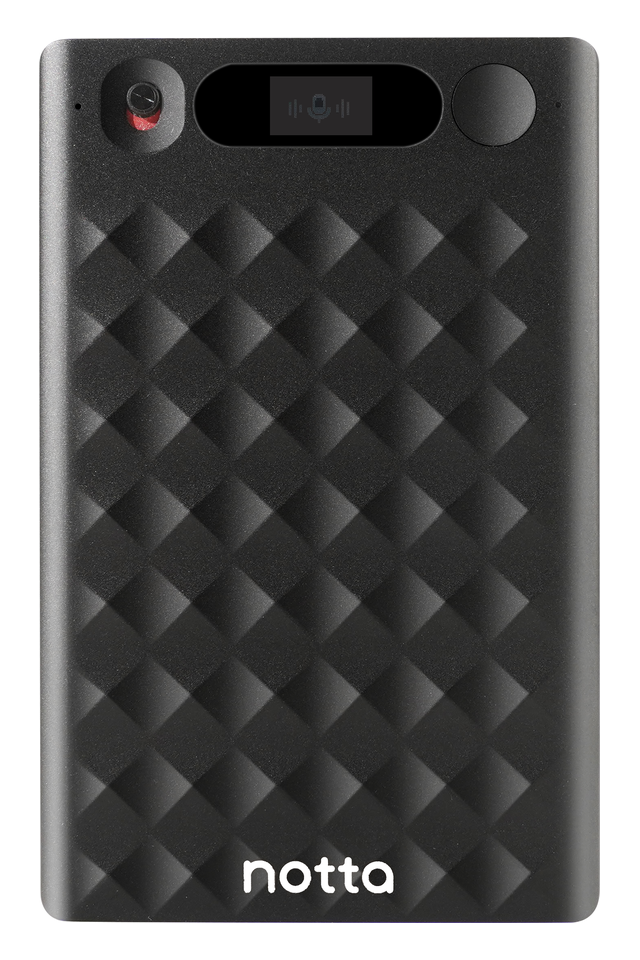
You can also record through Notta's iPhone or Android app, Apple Watch, your browser's microphone or the Chrome extension. Web and desktop screen recording help when you need to keep a presentation or demo.
For online calls, Notta Desktop (Beta) records on Mac and Windows without adding a participant. Notta Bot can join Zoom, Google Meet, Teams or Webex. Calendar connections help you manage scheduled recording.
If names matter in an internal meeting, the bot can label speakers using their participant accounts. For existing audio or video, upload the recording and enable speaker identification.
Read AI: several ways to capture a call
Read AI also has a meeting assistant, Mac and Windows recording, and iPhone/Android apps for in-person conversations. You can upload a recording you already have, too.
Its native Google Meet integration records without a participant bot or browser extension. Someone in the meeting approves recording before it starts.
Direct desktop recording is a separate option. It captures computer and microphone audio, but doesn't identify individual speakers or include video and detailed participant coaching. Mobile recordings also lack speaker attribution.
For phone calls, I'd choose Memo over Read's mobile app, which can't capture call audio. Read's desktop app can record calls made through software on your computer.
Whichever option you choose, let people know you're recording and follow your organization's rules.
What can Notta Brain and Ask Read do with your context?
Both can use more than one meeting to answer a question. I'd look at which task each can help you finish.
Notta Brain: bring the meeting and working files together
Notta Brain is built into Notta to help you use your meetings and other material together. You can add a client brief, budget spreadsheet or image alongside the conversation.
Say your client agreed to a smaller launch in the meeting, but the spreadsheet still includes the original budget. You can ask Notta Brain to compare them and draft a project brief with the changed scope, costs and open questions.
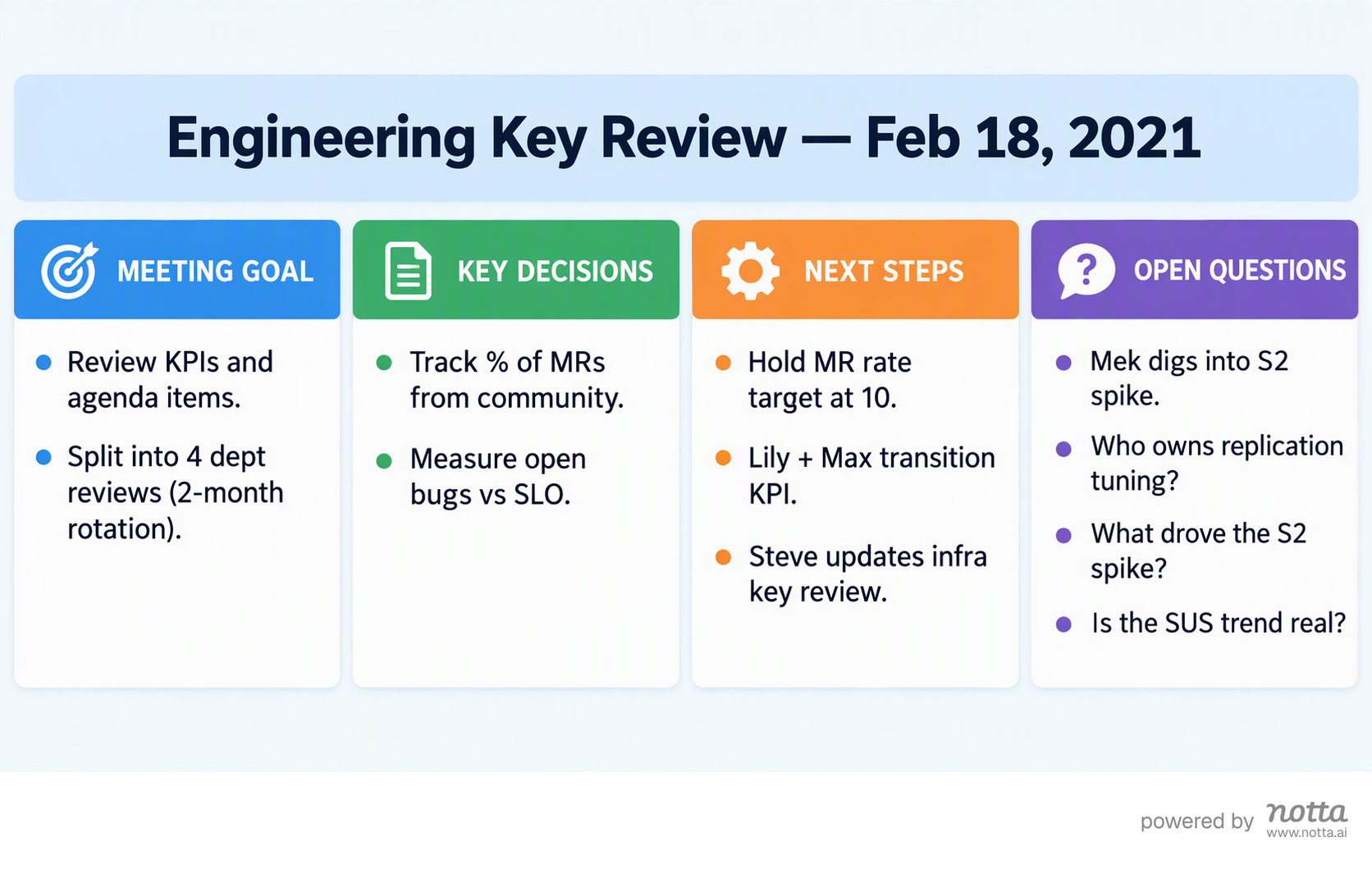
Then you can turn that brief into a Word file or PowerPoint presentation and save it to Google Drive. Here's a presentation created from an engineering review.
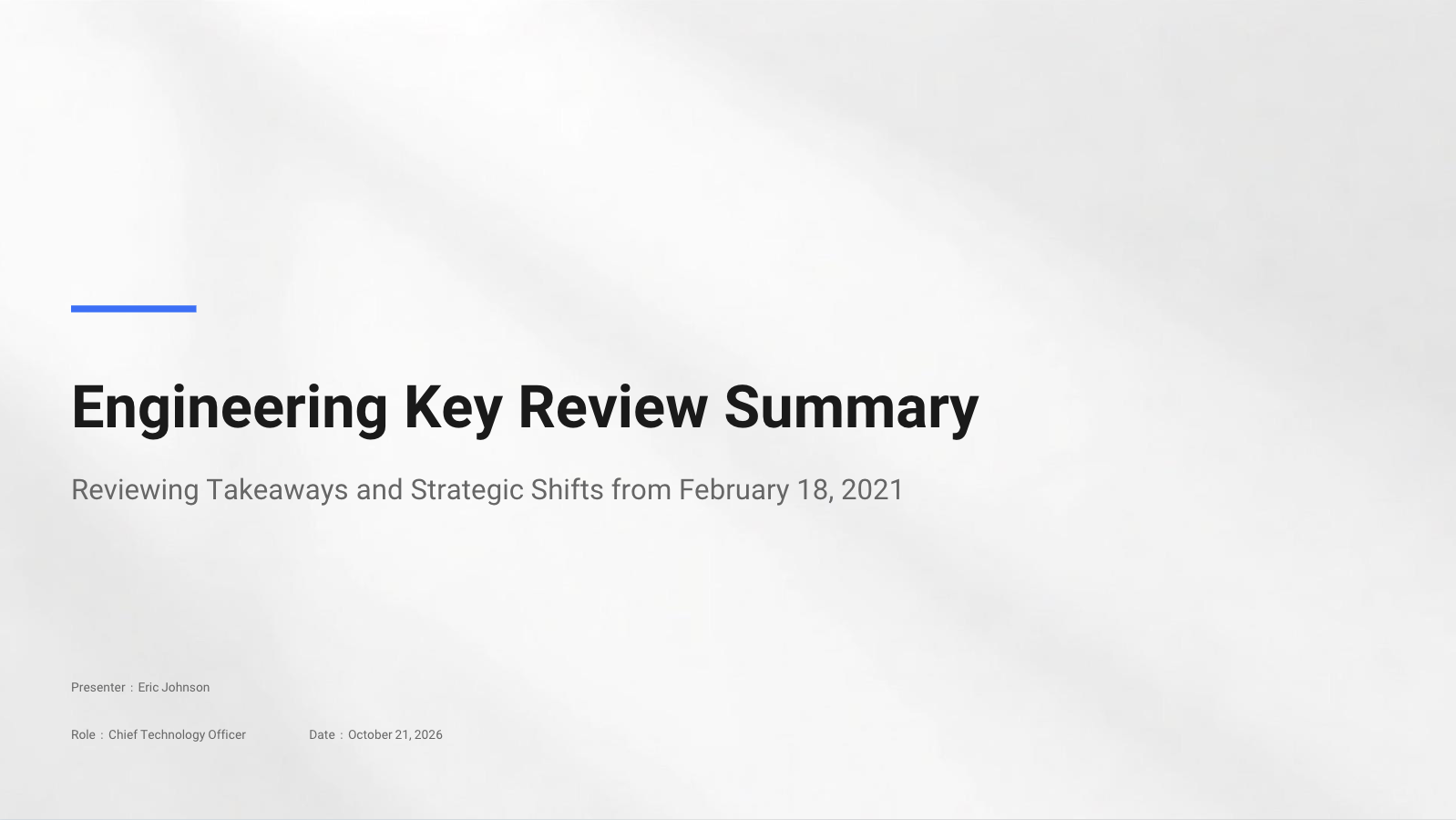
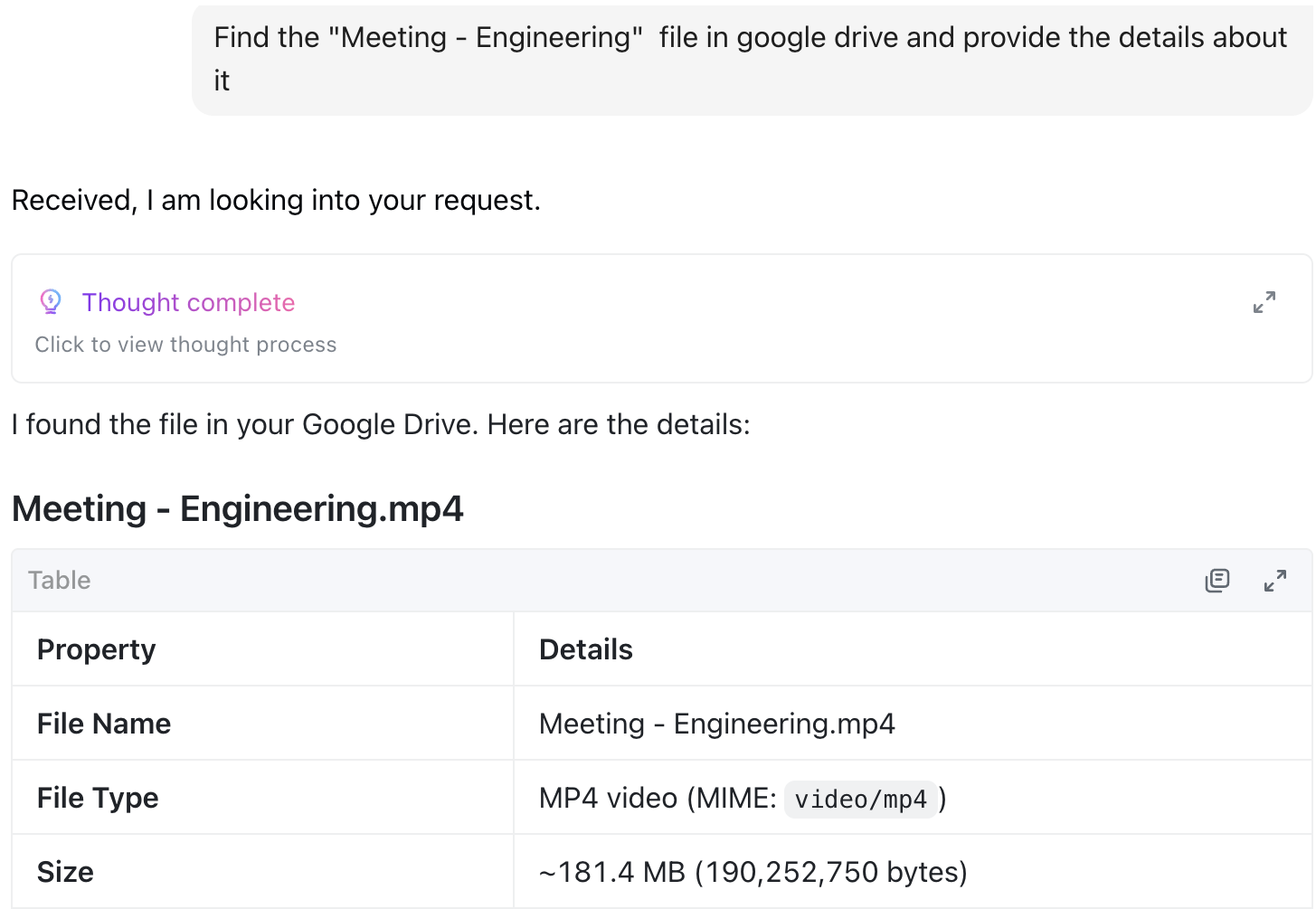
Notta Brain can also find relevant Drive files, search Gmail and check your calendar. In this example, it finds an engineering meeting recording in Google Drive.
For the handoff, you can ask Notta Brain to send an update to a connected Slack channel. You can also ask questions through the Notta assistant inside Slack.
Notta Brain saves email drafts to Gmail for you to review and send there. Calendar changes need your confirmation. That's useful when you want help preparing the work while keeping control of what goes out.
Ask Read: find the answer across your connected tools
Ask Read searches meetings alongside connected email, chat, calendars and documents. It also accepts images, so a screenshot can be part of your question.
Imagine a customer mentioned a deadline in a call, then changed it by email. You can ask Read what changed and check the source citations behind its answer.
You can then have it draft an email, review it and ask Read to send it. It can create a calendar event or update a HubSpot/Salesforce deal, with CRM actions available on paid plans.
Read also answers questions inside Slack. Meeting, email, calendar and chat search are available on Free; searching connected cloud storage, documentation and CRM tools needs a paid plan.
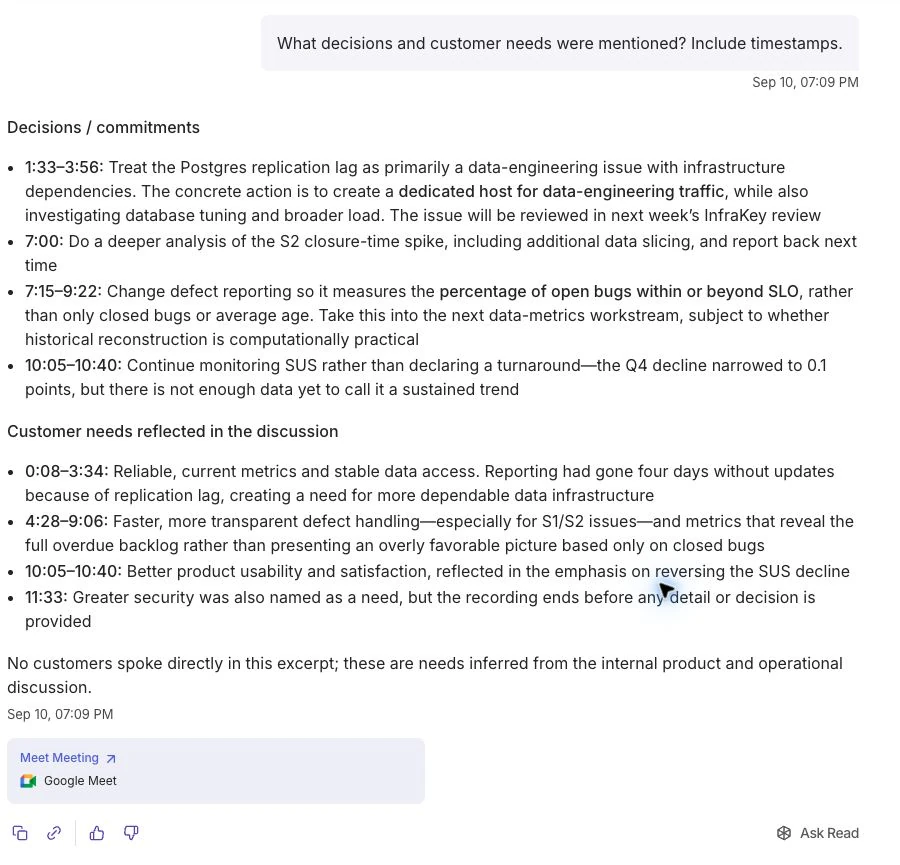
I'd lean toward Notta when the missing piece is a file you need to deliver. Read deserves consideration when the next step is finding context and acting on it.
Can you follow two languages while people talk?
Notta can transcribe two selected spoken languages live and show translated text during the conversation. Read's report-language options serve a different purpose.
With Notta, choose the two languages your group will use, such as English and Japanese. As people speak, both languages appear in the transcript. Turn on translation when you also want the translated text.
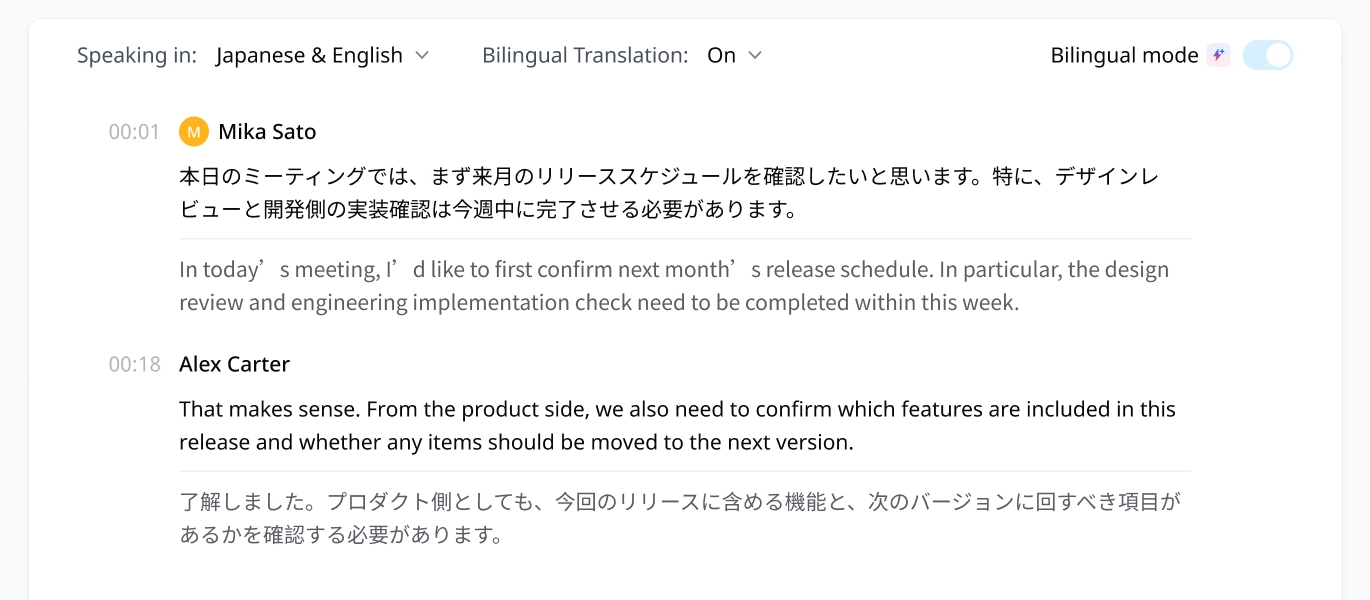
I'd choose this for a client workshop where you need to follow a question now, rather than translate the notes later. You can use bilingual transcription in live recordings and bot meetings, including with Memo connected to the Notta app.
Read detects the main language spoken and uses it for the transcript and notes. Mixed-language meetings aren't fully supported. You can choose a report output language or ask Read to answer in another language.
Those options help you read the results. If your main need is following two spoken languages in real time, I'd pick Notta.
What do you need after the meeting?
Notta is especially useful when you need something to share. Read adds a reason to look back at how the conversation went.
Notta: a report, presentation or visual explanation
With Notta Brain, you can shape the same meeting into something useful for different people. You're starting with the discussion, then choosing how to explain it.
For example, a project review could become a presentation for leadership and a one-page infographic for the delivery team. The source is the same; the audience needs a different explanation.
Notta also offers conversation insights, including speaking time, speaking speed and monologues. You can revisit the original recording and edit transcript text or speaker names before reusing it.
Read AI: follow-up plus meeting coaching
Read creates summaries, action items and answers you can use for updates or emails. Its connected actions can move those next steps into your calendar or CRM.
Read's coaching adds another angle: speaking patterns, engagement and sentiment estimates. I'd consider it when improving recurring customer calls or team discussions is part of the job.
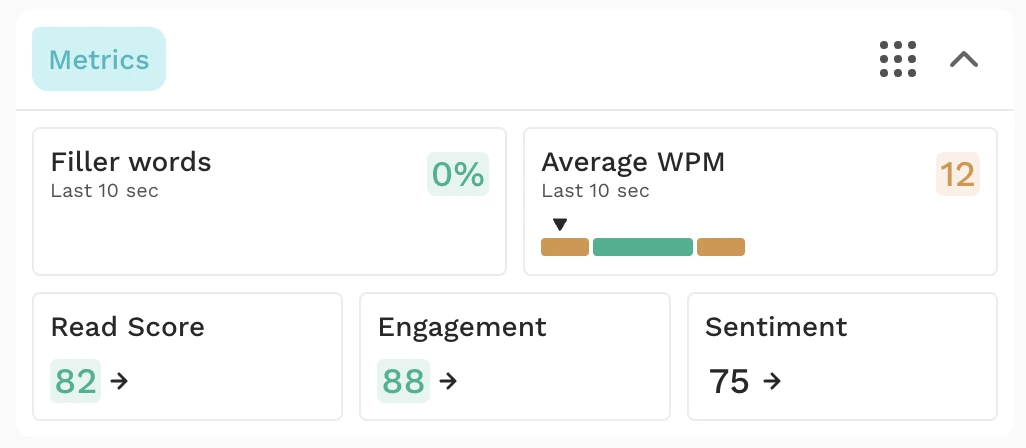
Treat those scores as prompts for reflection, not a verdict on what someone felt. Quietly listening doesn't automatically mean someone has lost interest.
This coaching applies to eligible online-meeting reports. Uploaded recordings don't include it, and direct desktop recordings omit coaching and detailed participant metrics.
What will you pay, and what can you keep?
Compare the plan that includes the recording and follow-up work you need. The cheapest paid tier won't always include recording playback.
| Plan detail | Notta | Read AI |
|---|---|---|
| Free recording allowance | 120 transcription minutes/month, with up to 3 minutes transcribed per recording | 5 meetings/month, up to 1 hour each |
| Pro, billed annually | $8.17/user/month, $97.99/user/year | $15/user/month, $180/user/year |
| Pro recording allowance | 1,800 transcription minutes/month; up to 5 hours per recording | Unlimited online meeting reports; up to 4 hours per meeting |
| Pro file uploads | 100 uploads/month, within the transcription allowance | 100 upload minutes/month; additional credits sold separately |
| Recording playback | Available for standard recordings; Free transcript access has a 3-minute limit | Enterprise or Enterprise+ required |
| Next paid tier | Business: $16.67/user/month, $199.99/user/year; unlimited transcription | Enterprise: $22.50/user/month, $270/user/year; adds playback and 200 upload minutes/month |
Prices are in USD and use annual billing. You can check the current Notta plans and Read AI plans before choosing.
For frequent client calls, I'd compare Notta Pro with the Read plan that includes replay if you need to check the audio afterward.
Memo costs $149 for the recorder.
Notta Brain uses AI credits for questions and file creation. The included allowance is 1,000 credits per month; Notta Brain Pro adds a larger allowance. Your transcription minutes and Notta Brain credits cover different work.
Read's unlimited paid online-meeting reports don't mean unlimited file uploads. You can buy upload credits on any plan, including Free, which has no included monthly upload minutes.
When the recording needs to stay on your computer
Notta Desktop's separate Privacy Mode is available on every plan. Download a local model, then record and transcribe offline, keeping recordings and transcripts in the folder you choose. Language availability depends on the model.
Privacy Mode doesn't run Notta Brain's cloud features or sync those records to your Notta workspace. Standard Notta desktop recording and Read's device recording use cloud processing.
User reviews
The most useful reviews describe what someone was trying to do. Here are experiences that help put the feature list into context.
Notta user reviews
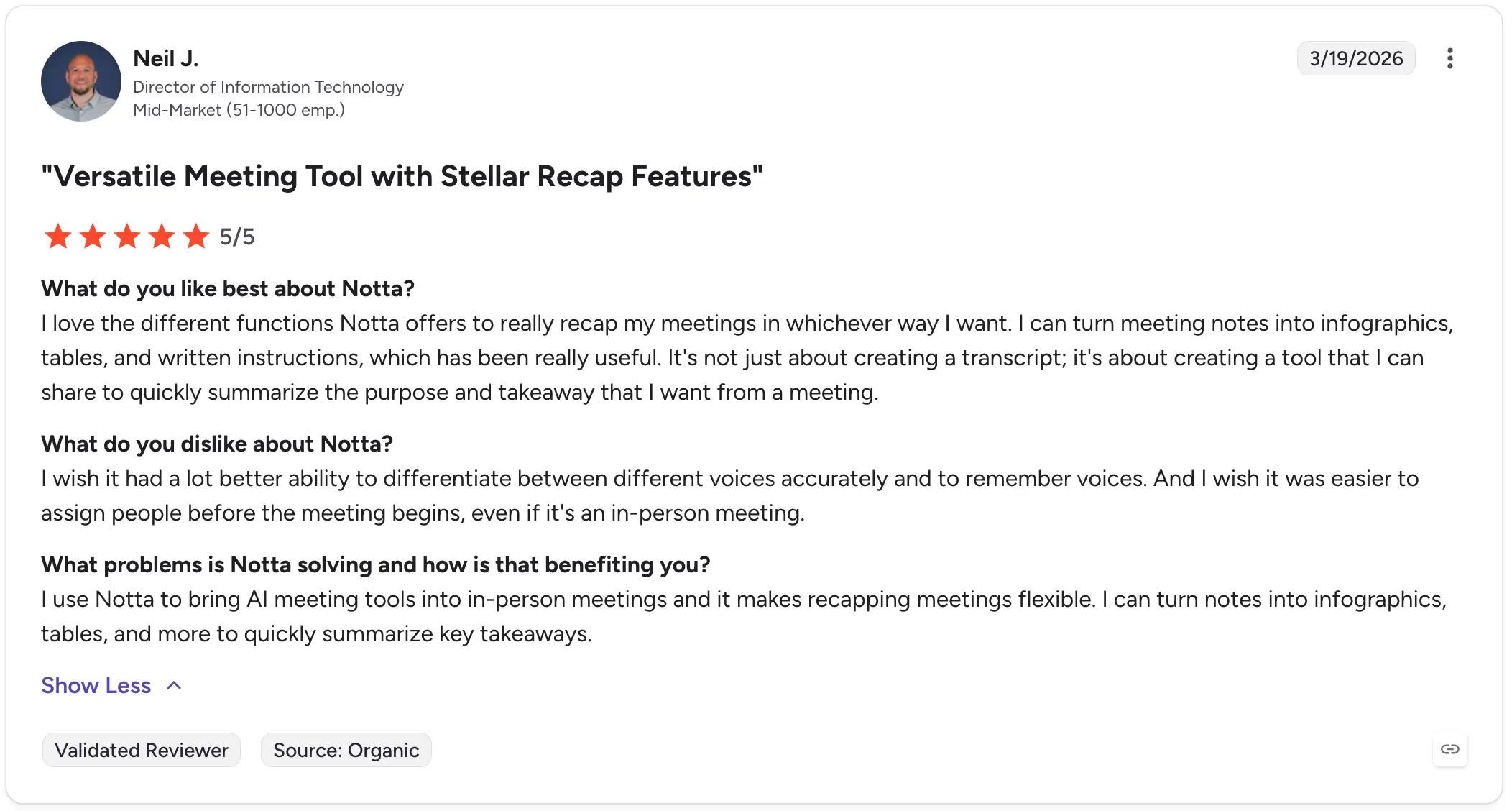
Neil J. liked turning meeting notes into infographics, tables and written instructions. He also wanted more reliable speaker identification and easier speaker assignment.
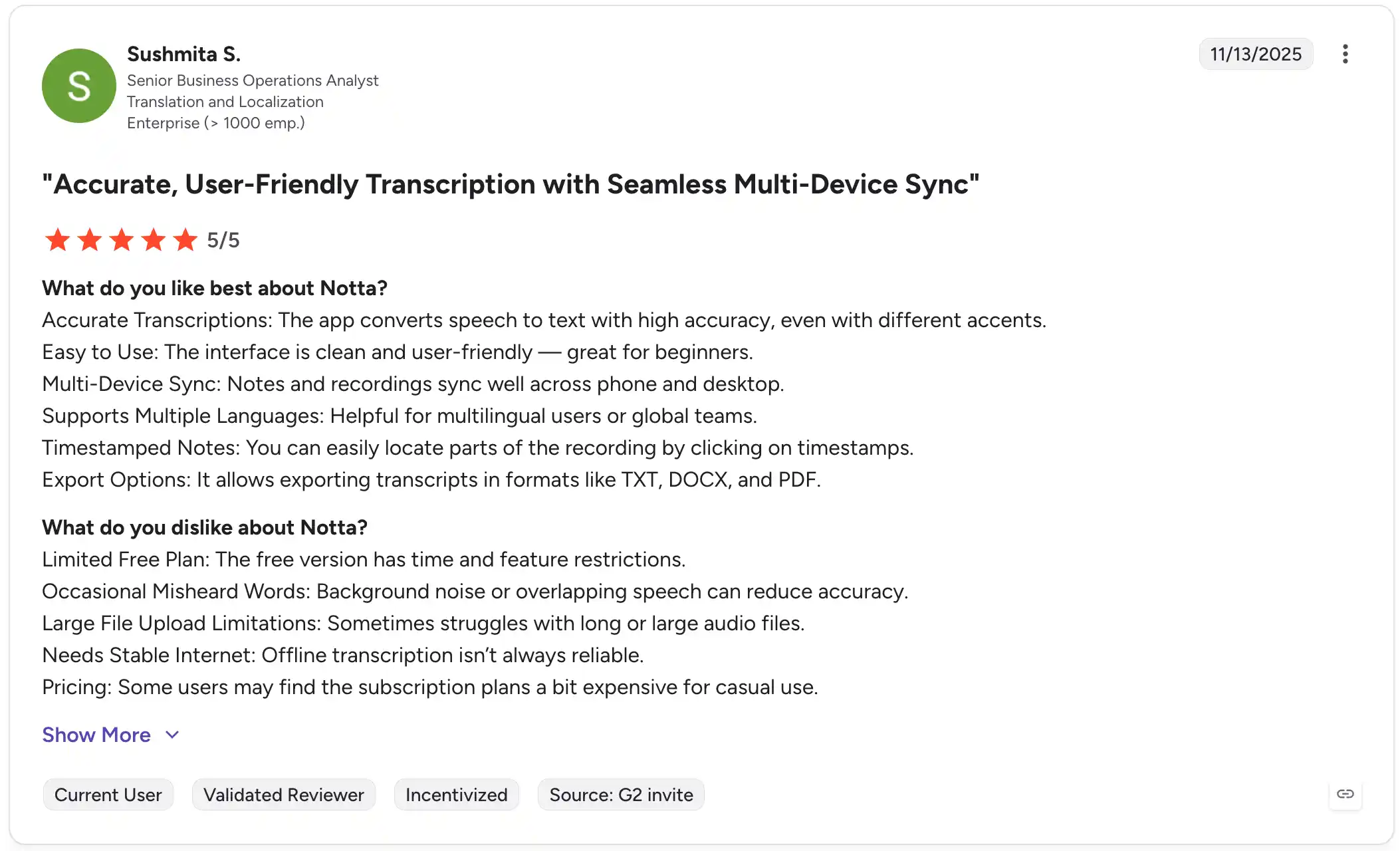
Sushmita S. valued the simple interface, transcription and syncing between phone and desktop. Her concerns included Free-plan limits and errors when people spoke over each other.
Read AI user reviews
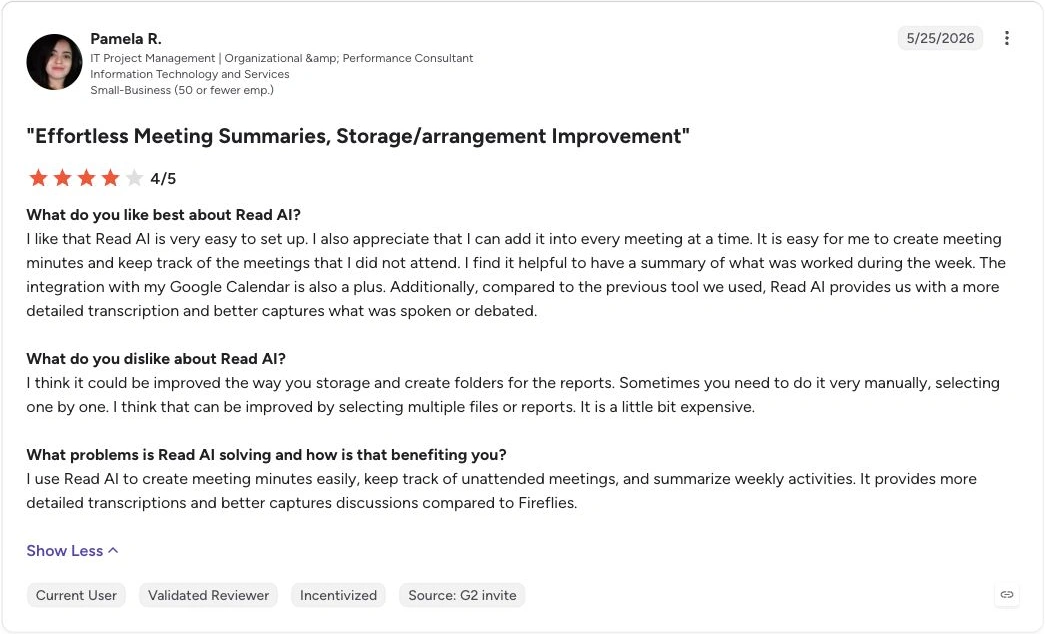
Pamela R. appreciated easy meeting minutes, calendar integration and summaries of meetings she couldn't attend. She wanted easier report organization and felt the price was high.
Matthew W. liked replay, recaps and finding information within recordings. He also found that engagement and sentiment scores could miss the context of humor or quiet participation.
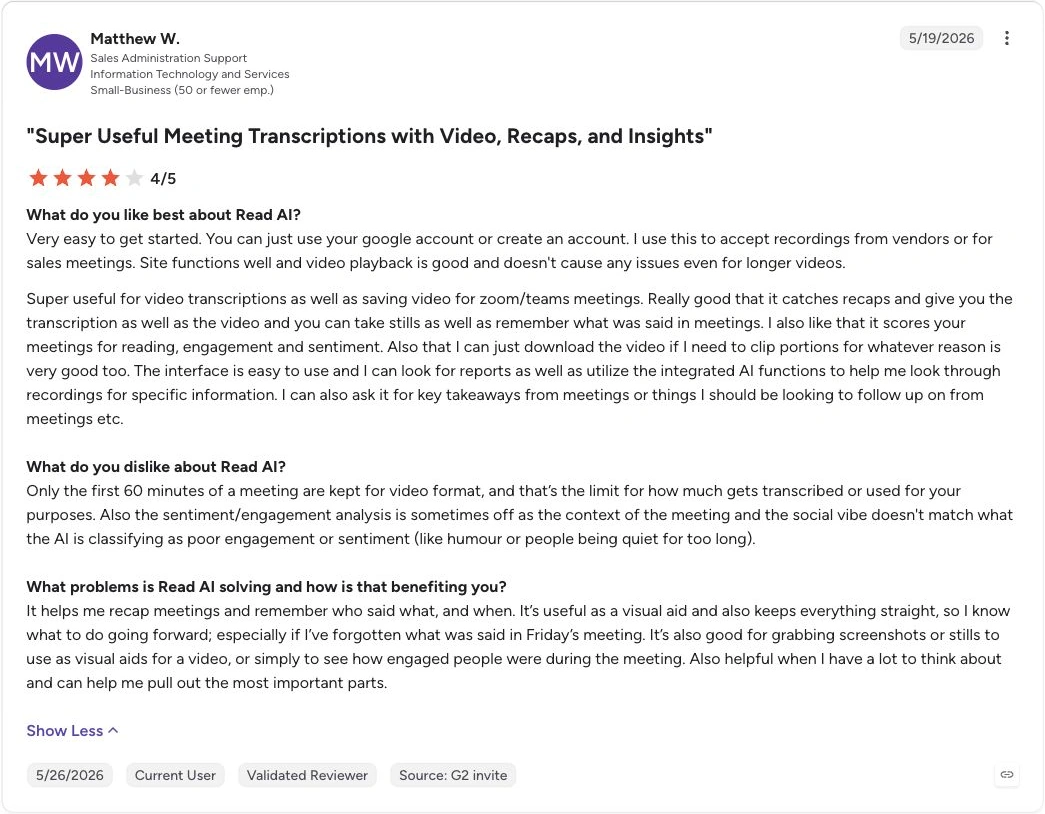
I'd take those as individual experiences, then try the recording method and plan you're considering. A review of a recorded online call won't tell you everything about an in-person app recording.
Which would I choose?
I'd choose Notta for a varied week of calls, client visits and bilingual discussions, especially when the notes need to become something you can deliver.
- For a bilingual client project: Notta lets you follow two spoken languages live, then combine the meeting with project files in Notta Brain.
- For phone calls and face-to-face interviews: I'd use Notta Memo to keep the recording close to the conversation, then use Notta for the follow-up.
- For coaching and customer-record updates: Read AI is a useful fit when you want meeting insights alongside connected search and CRM actions.
- For local recording and transcription: Notta Desktop's Privacy Mode gives you a separate workflow that keeps those recordings and transcripts on your computer.
Still considering more tools? The Read AI alternatives guide compares the wider shortlist.
Frequently asked questions
Can both Notta and Read AI record without a bot?
Yes. Both offer Mac and Windows recording without an extra meeting participant. Read also offers native Google Meet recording with in-meeting approval. For in-person conversations, both have mobile apps; Notta also offers Apple Watch capture and the Memo recorder.
Which tool supports live bilingual transcription?
Notta transcribes two selected spoken languages in real time, with live translated text available too. Read detects a primary language and does not fully support mixed-language meetings. Its report output language and translated answers help with the results rather than providing the same live bilingual workflow.
Can both tools work with Google apps and Slack?
Yes. Notta Brain can work with Gmail drafts, Calendar, Drive and Slack. Ask Read searches connected Google and Slack information, answers inside Slack and supports follow-up actions. The exact action and plan matter: Notta saves drafts for sending in Gmail, while Read can send an email after your review.
Which Read AI plan includes recording playback?
Read AI includes stored audio/video playback with Enterprise and Enterprise+. Free and Pro still provide meeting transcripts and reports. If replay is part of your normal review process, compare the playback plan's price rather than the Pro starting price alone.
Pick one conversation from your normal week and try the whole task, from recording to the follow-up you need to send.
